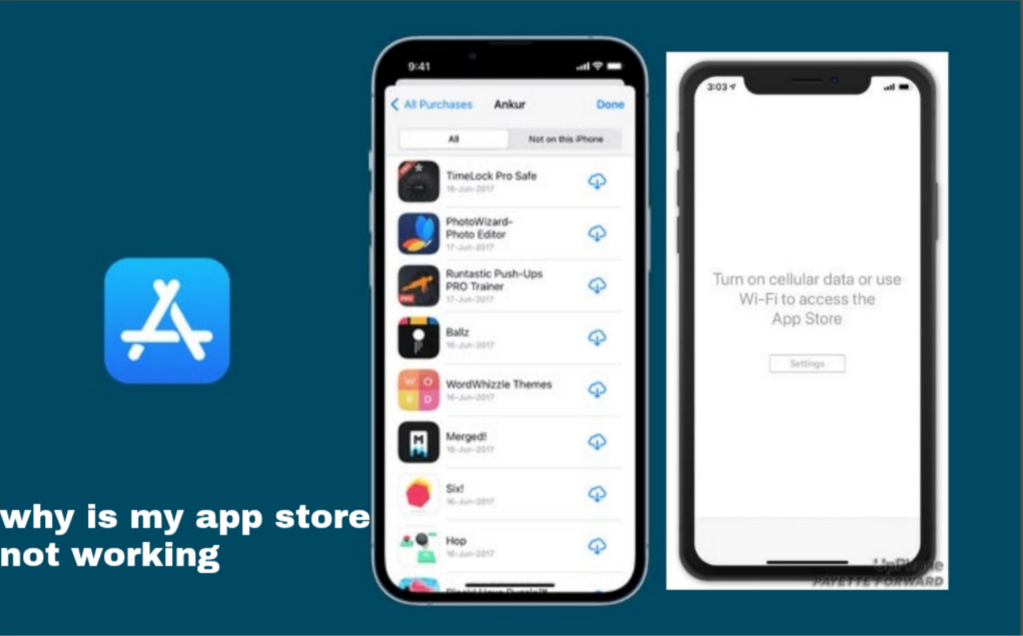
It can be very frustrating when the App Store suddenly stops working on your iPhone or iPad, especially when you are trying to download or update important apps. Sometimes it may refuse to open, keep loading endlessly, show blank pages, or fail to download apps completely. This issue is quite common on Apple devices and it is usually caused by internet problems, Apple ID errors, software glitches, or device settings conflicts. In this guide, you will learn the real reasons why the App Store is not working in 2026 and the practical solutions you can use to fix it quickly and restore normal access.
Also read: why does twitter drain your battery and how to fix it quickly
Common Causes Why Your App Store Is Not Working
There are several reasons why the App Store may stop working on your iPhone or iPad, and in most cases, it is not a serious hardware issue. Below are the most common causes explained in detail:
1. Poor or Unstable Internet Connection
One of the biggest reasons the App Store fails to work properly is a weak internet connection. If your Wi-Fi or mobile data is slow, unstable, or keeps disconnecting, the App Store may not load pages or download apps. Apple services require a stable connection to function smoothly, so even small network interruptions can affect performance.
2. Apple Server Downtime or Maintenance
Sometimes the issue is not from your phone at all. Apple servers may experience temporary downtime or maintenance, which can affect the App Store globally. During this period, users may notice apps not downloading, pages not loading, or login errors. This usually fixes itself after some time.
3. Incorrect Date and Time Settings
Your device’s date and time must be correct for the App Store to connect properly. If the settings are wrong, your iPhone may fail to verify Apple’s servers, which can block access to the App Store or prevent downloads from starting.
4. Apple ID Login Issues
Problems with your Apple ID can also stop the App Store from working. If your account is not properly signed in, has verification issues, or requires an update in payment or security details, the App Store may refuse to load or download apps.
5. Outdated iOS Version
Running an older version of iOS can create compatibility problems with the App Store. Apple regularly updates its system, and outdated software may not support newer App Store features, leading to crashes or loading issues.
6. Low Storage Space
If your iPhone or iPad storage is full or almost full, the App Store may not be able to download or update apps properly. Lack of space can also cause the system to slow down, freeze, or fail during installation processes.
7. Background App or System Glitches
Sometimes temporary system glitches or background processes can interfere with the App Store. This can cause the app to freeze, crash, or fail to open properly, especially after long device usage without restarting.
Also read: How do I stop WhatsApp from draining my battery in the background?
How to Fix App Store Not Working Issue
Below are practical and effective solutions you can try to fix the App Store and restore normal performance on your device:
1. Check Your Internet Connection
Start by switching between Wi-Fi and mobile data to confirm if the issue is network-related. You can also turn airplane mode on and off to refresh your connection. A stable internet connection is the first requirement for the App Store to work properly.
2. Restart Your Device
A simple restart can fix temporary system glitches that may be affecting the App Store. Restarting helps refresh background processes and clear minor software errors.
3. Sign Out and Sign Back Into Apple ID
Go to your Apple ID settings, sign out, then sign back in. This helps reset account authentication and can fix issues related to login or verification problems affecting the App Store.
4. Update iOS Software
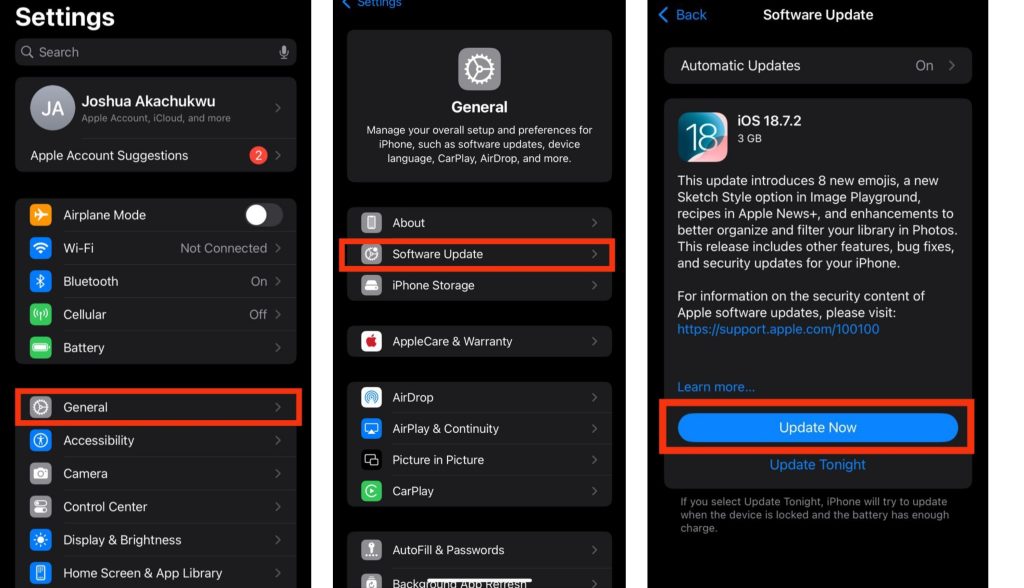
Go to Settings > General > Software Update and install any available update. Keeping your device updated ensures the App Store runs smoothly without compatibility issues.
5. Set Date and Time Automatically
Enable automatic date and time in your settings. This helps your device properly sync with Apple servers and prevents connection errors that may block App Store access.
6. Clear Storage Space
Delete unused apps, videos, or files to free up space on your device. This helps improve performance and allows the App Store to download and install apps without interruption.
7. Disable VPN or Security Apps
If you are using a VPN or security tool, turn it off temporarily. Some VPNs can block Apple services and prevent the App Store from connecting properly.
Also read: how do i stop tiktok from draining my battery in the background
Conclusion
If your App Store is not working, the problem is usually caused by simple issues like weak internet connection, Apple ID errors, outdated software, or incorrect settings. In most cases, you do not need technical repair to fix it. By following the steps above, you can quickly restore App Store access and continue downloading or updating your apps normally. If the problem continues after trying all solutions, it may be necessary to reset your device settings or contact Apple Support for further help.
Frequently Asked Questions (FAQ)
1. Why is my App Store not opening on my iPhone?
This usually happens due to poor internet connection, Apple server issues, or temporary software glitches affecting the device.
2. Why is my App Store stuck on loading?
It may be caused by slow internet, incorrect date settings, or background system errors preventing it from connecting properly.
3. Can low storage stop the App Store from working?
Yes, if your device storage is full, the App Store may fail to download or update apps correctly.
4. Why is the App Store asking for Apple ID verification repeatedly?
This often happens when there is a login issue, outdated account settings, or security verification required by Apple.
5. Will updating my iPhone fix App Store problems?
Yes, updating iOS often fixes bugs and improves system compatibility, which can resolve App Store errors.