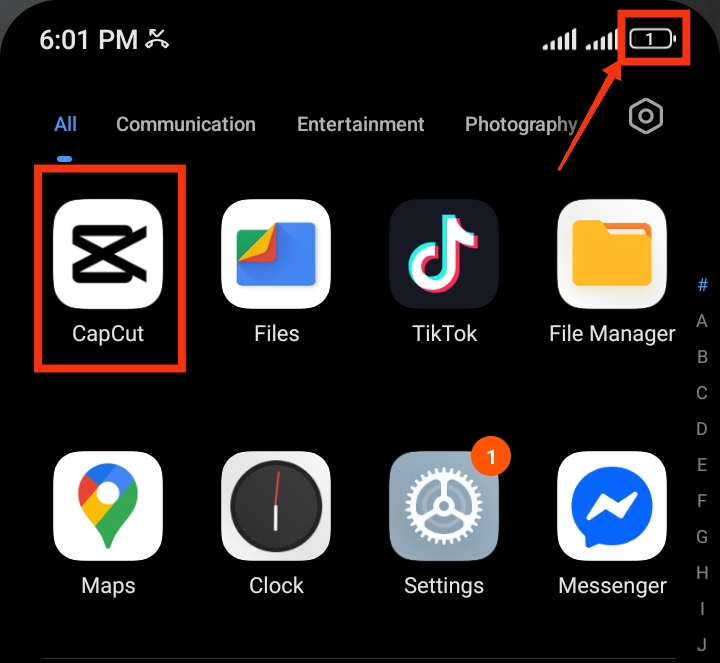
is one of the most popular mobile video editing apps used for creating short videos, TikTok clips, YouTube Shorts, and other social media content. While the app offers powerful editing tools and smooth performance, many users notice that their phone battery drains very quickly during editing sessions. This usually happens because video editing requires heavy processing power, screen usage, and background activity. Fortunately, there are several simple ways to reduce battery drain while still editing videos smoothly. In this guide, you’ll learn why CapCut consumes so much battery and the best methods to make your battery last longer while editing videos.
Also read: How do I stop WhatsApp from draining my battery in the background?
Why Does CapCut Drain Battery So Fast
Here are some of the main reasons CapCut drains battery quickly while editing:
1. Heavy Video Processing: One of the biggest reasons CapCut uses a lot of battery is because video editing requires strong CPU and GPU performance. Features like transitions, filters, animations, effects, and video rendering force your phone to work harder, which increases battery consumption.
2. High Screen Brightness: Editing videos usually requires long screen time, and many users increase brightness to view videos clearly. A bright display consumes a large amount of battery power, especially during long editing sessions.
3. Background Apps Running: When multiple apps continue running in the background while using CapCut, your phone has to share memory and processing resources. This can make the battery drain faster and may also cause overheating.
4. High Export Resolution: Exporting videos in 1080p, 2K, or 4K quality requires more power than lower resolutions. The higher the video quality and frame rate, the more battery your device uses during rendering.
5. Phone Overheating: Video editing naturally increases phone temperature. When your device becomes hot, the battery works harder and drains faster. Overheating can also reduce overall battery performance over time.
6. Outdated App or Software: Using an old version of CapCut or outdated phone software may cause performance issues and unnecessary battery usage. Updates often include optimization improvements that help reduce power consumption.
Also read: how do i stop tiktok from draining my battery in the background
How to Save Battery While Using CapCut
Below are practical ways to improve your battery performance while editing videos on CapCut:
1. Reduce Screen Brightness
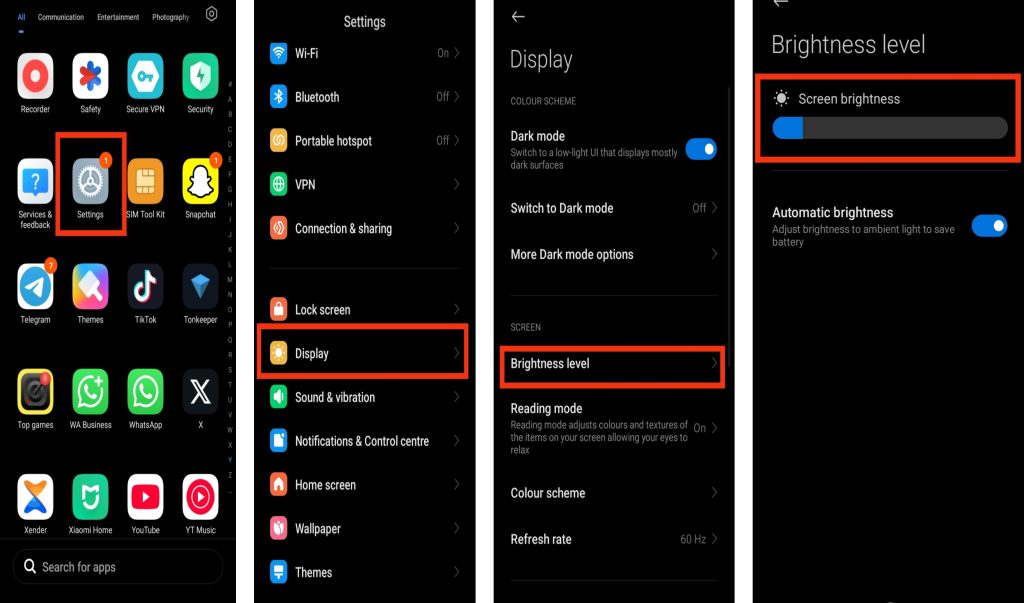
Your phone display is one of the biggest battery consumers while editing videos. Lowering brightness can significantly reduce power usage and help your battery last longer. Here are the steps to reduce screen brightness:
- Open your phone Settings.
- Go to Display or Brightness.
- Lower the brightness level.
- You can also enable Adaptive Brightness if available.
- Avoid using maximum brightness while editing indoors.
2. Close Background Apps
Apps running in the background continue consuming battery and RAM even while you are editing videos. Closing unnecessary apps allows your phone to focus more resources on CapCut. Here are the steps to close background apps:
- Open Recent Apps on your phone.
- Swipe away apps you are not using.
- Stop heavy downloads or updates.
- Disable apps running unnecessarily in the background.
- Then reopen CapCut and continue editing.
3. Enable Battery Saver Mode
Battery Saver Mode helps reduce unnecessary power usage by limiting background activity and reducing system performance slightly. This can help your phone last longer during editing sessions. Here are the steps to enable Battery Saver Mode:
- Open Settings on your phone.
- Tap Battery.
- Select Battery Saver or Power Saving Mode.
- Turn it on before editing videos.
- Avoid using Ultra Power Saving Mode if it slows CapCut too much.
4. Lower Video Preview Quality
High-quality preview playback inside CapCut can consume more battery and processing power. Lowering the preview quality helps reduce battery drain without affecting the final exported video quality. Here are the steps to lower preview quality:
- Open CapCut on your phone.
- Start editing your project.
- Find Preview or Playback settings if available.
- Reduce the preview quality.
- Continue editing with lower playback settings.
5. Turn Off Add Default Ending
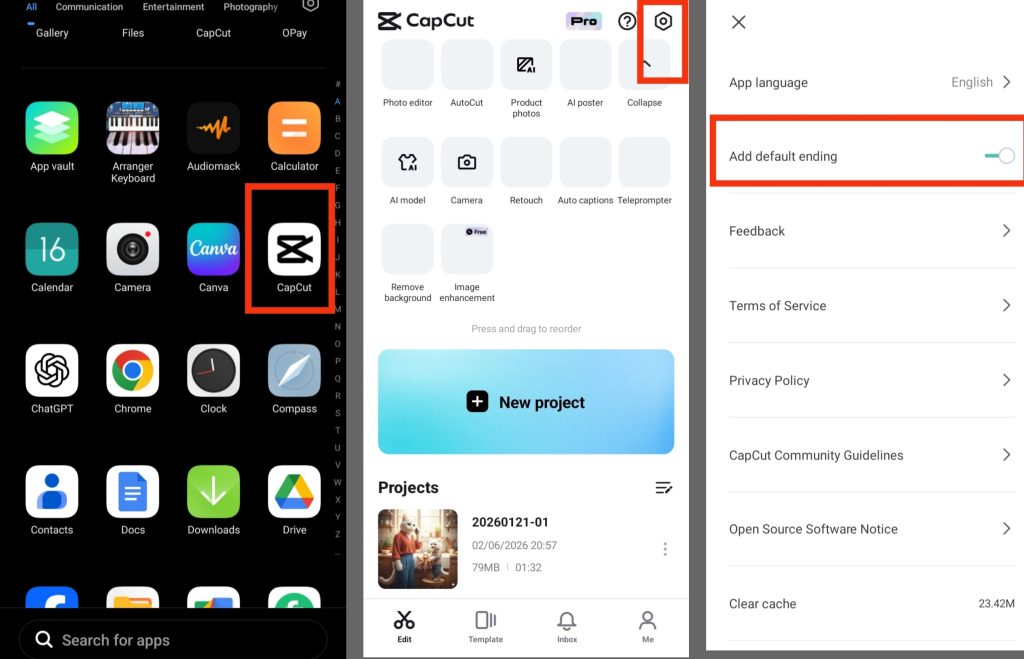
CapCut automatically adds a default ending clip to exported videos in some versions of the app. While this may seem small, extra processing during export can slightly increase battery usage and rendering time. Disabling the default ending can help make exports faster and reduce unnecessary processing. Here are the steps to turn off Add Default Ending:
- Open CapCut on your phone.
- Tap the Settings icon at the top corner.
- Look for Add Default Ending.
- Turn off the toggle beside it.
- Exit the settings and continue editing normally.
6. Avoid Editing While Charging
Many users edit videos while charging their phones, but this can increase heat and reduce battery health over time. Charging and heavy editing together put extra pressure on the battery. Here are the steps to avoid overheating while editing:
- Fully charge your phone before editing.
- Disconnect the charger during long editing sessions.
- Edit in a cool environment.
- Remove thick phone cases temporarily if the phone becomes hot.

7. Clear CapCut Cache Regularly
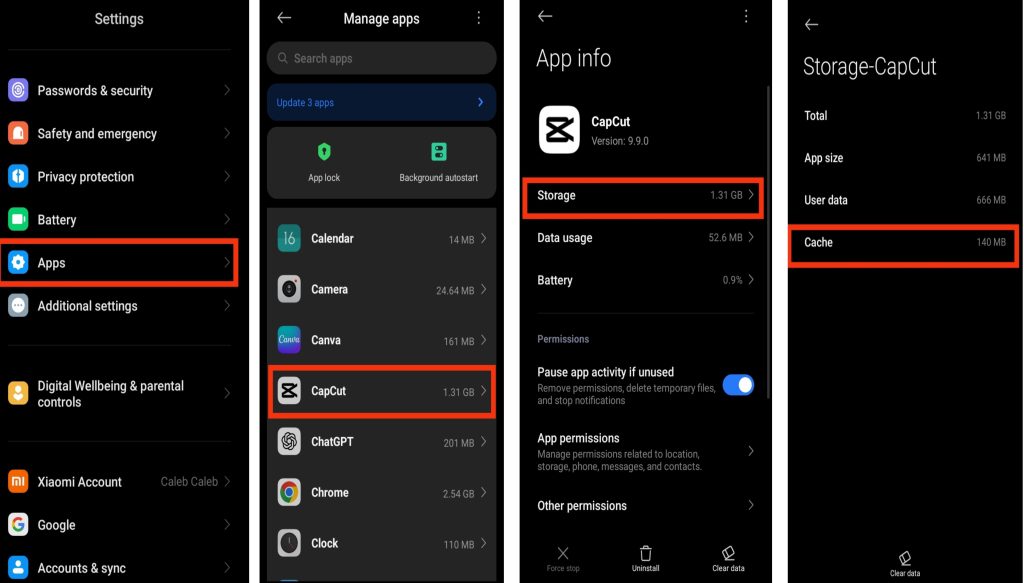
CapCut stores temporary files and editing data while you use the app. Over time, these cache files can become large and force your phone to work harder, which may increase battery usage and reduce performance. Clearing the cache regularly can help the app run more smoothly and reduce unnecessary battery drain. Here are the steps to clear CapCut cache:
- Open Settings on your phone.
- Tap Apps or Manage Apps.
- Find and select CapCut from the app list.
- Tap Storage.
- Select Cache or Clear Cache.
- Confirm the action to remove temporary files.
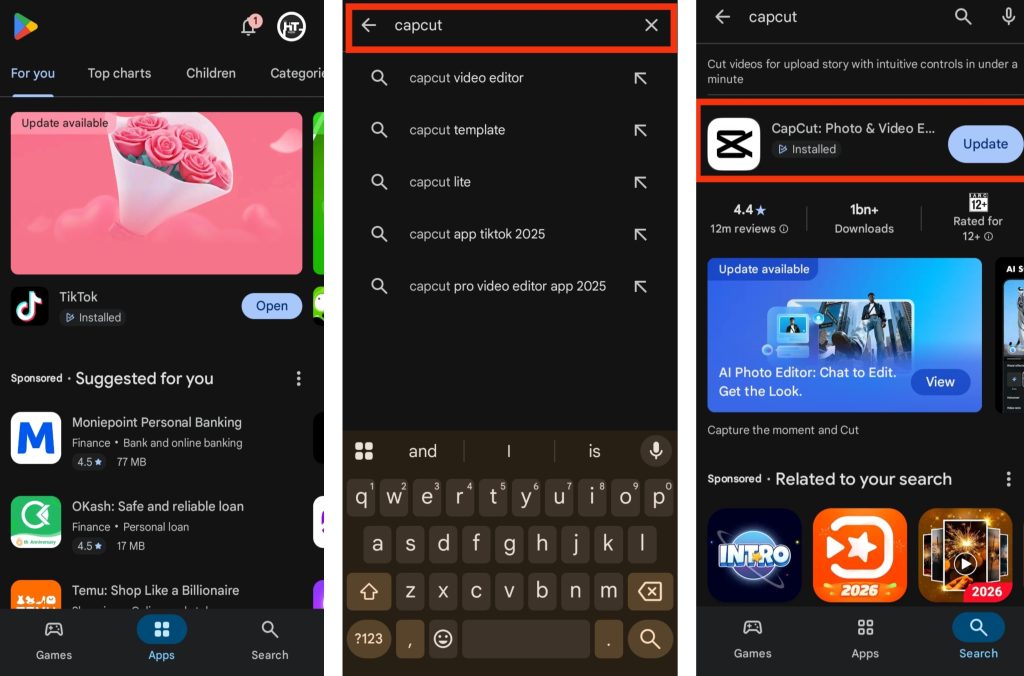
8. Keep CapCut Updated
Using the latest version of CapCut helps improve app performance and battery optimization. Developers regularly release updates that fix bugs and reduce unnecessary battery usage. Here are the steps to update CapCut:
- Open Google Play Store or Apple App Store.
- Search for CapCut.
- Select the app from the results.
- Tap Update if a new version is available.
- Wait for the installation to complete.
Also read: why does twitter drain your battery and how to fix it quickly
Extra Tips to Save Battery While Editing on CapCut
There are still a few simple habits you can follow to reduce battery usage even more. Here are some extra tips to save battery while editing videos on CapCut:
- Turn off Bluetooth, GPS, and mobile hotspot if you are not using them during editing sessions.
- Avoid exporting videos repeatedly because video rendering consumes a large amount of battery power.
- Clear CapCut cache regularly to improve app performance and reduce unnecessary background processing.
- Try editing shorter clips separately instead of handling very large projects all at once.
- Restart your phone occasionally to refresh system performance and stop hidden background processes.
Also read: why is my app store not working
Conclusion
CapCut battery drain is mostly caused by heavy video processing, screen brightness, background apps, and high export settings, but it can be reduced with a few simple adjustments. Lowering brightness, enabling battery saver mode, closing unused apps, and keeping your phone cool can greatly improve battery life while editing. The key is to combine multiple battery-saving methods together for better results. These changes will not affect your editing experience too much, but they can help your phone last longer and perform more efficiently during video editing sessions.
Frequently Asked Questions (FAQs)
1. Does CapCut drain battery even when I’m not editing videos?
Yes, CapCut may still use some battery in the background, especially if the app remains open recently or continues processing temporary files and drafts. Closing the app completely after editing can help reduce unnecessary battery usage.
2. Why does my phone overheat while using CapCut?
Phone overheating usually happens because video editing requires strong CPU and GPU performance. Features like effects, filters, and high-resolution exports force your device to work harder, which increases heat and battery consumption.
3. Will lowering export quality help save battery life?
Yes, exporting videos at lower resolutions like 720p instead of 1080p or 4K can reduce battery usage because your phone does not need to process as much data during rendering.
4. Is Battery Saver Mode safe to use while editing on CapCut?
Yes, Battery Saver Mode is generally safe to use while editing videos. It helps reduce background activity and unnecessary power usage, although very aggressive power-saving settings may slightly reduce editing performance.
5. Can outdated phone software increase CapCut battery drain?
Yes, outdated phone software may contain performance issues or bugs that affect battery efficiency. Keeping both your phone system and CapCut updated can help improve battery optimization and overall editing performance.