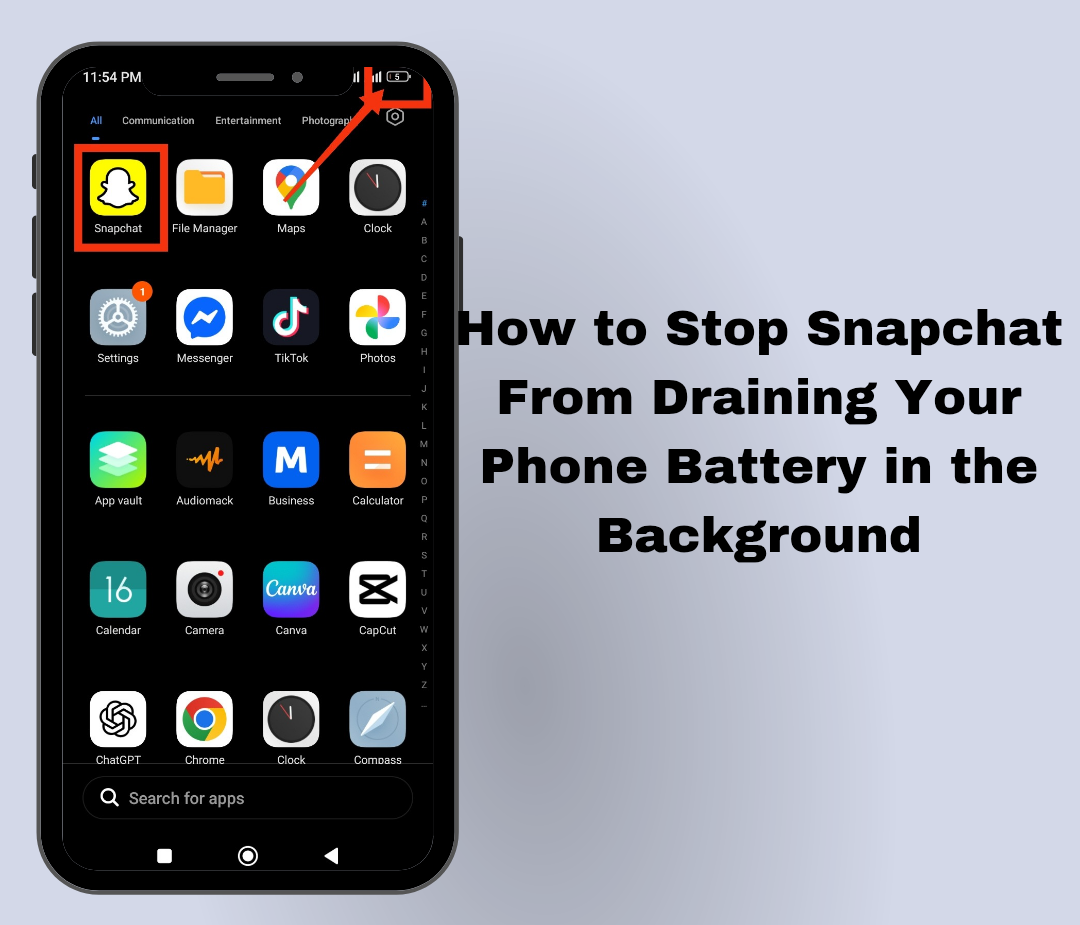
Snapchat is one of the most used social media apps for snapping photos, videos, and chatting with friends. Since the app depends heavily on your camera, internet connection, notifications, and location services, it can sometimes use more battery than expected. Many users notice that their phone battery drops quickly even when Snapchat is not actively open. Thankfully, there are several simple ways to reduce Snapchat’s background battery usage and improve your phone’s overall battery life. In this guide, you’ll learn why Snapchat drains battery and the best ways to stop it from happening.
Also read: How do I stop WhatsApp from draining my battery in the background?
Why Does Snapchat Drain Battery So Fast
Below are some of the common reasons Snapchat consumes too much battery power:
1. Continuous Background Activity: Snapchat keeps running in the background to refresh messages, notifications, streaks, and snaps. Even when the app is closed, it may continue syncing data silently, which slowly consumes battery power throughout the day.
2. Camera Usage: Snapchat relies heavily on your phone’s camera for taking photos, recording videos, and applying filters. Since the camera is one of the most power-consuming features on a smartphone, extended Snapchat usage can quickly reduce battery life.
3. Snap Map and Location Tracking: Snapchat’s Snap Map feature constantly tracks your location to update your position for friends. GPS services use a lot of power, especially when location tracking is active all day.
4. Push Notifications: Every notification from Snapchat wakes your phone screen, activates sounds or vibrations, and refreshes the app in the background. Receiving many snaps and messages daily can gradually drain your battery faster.
5. Auto-Playing Stories and Videos: Snapchat automatically loads stories, videos, and media content while you scroll through the app. This continuous loading uses internet, processing power, and battery at the same time.
6. Outdated Snapchat App: Older versions of Snapchat may contain bugs or poor battery optimization. Running an outdated version can increase background activity and battery consumption unnecessarily.
Also read: why does twitter drain your battery and how to fix it quickly
How to Save Battery While Using Snapchat
Below are effective ways to reduce Snapchat battery drain without completely stopping you from using the app normally:
1. Turn On Snapchat Data Saver Mode
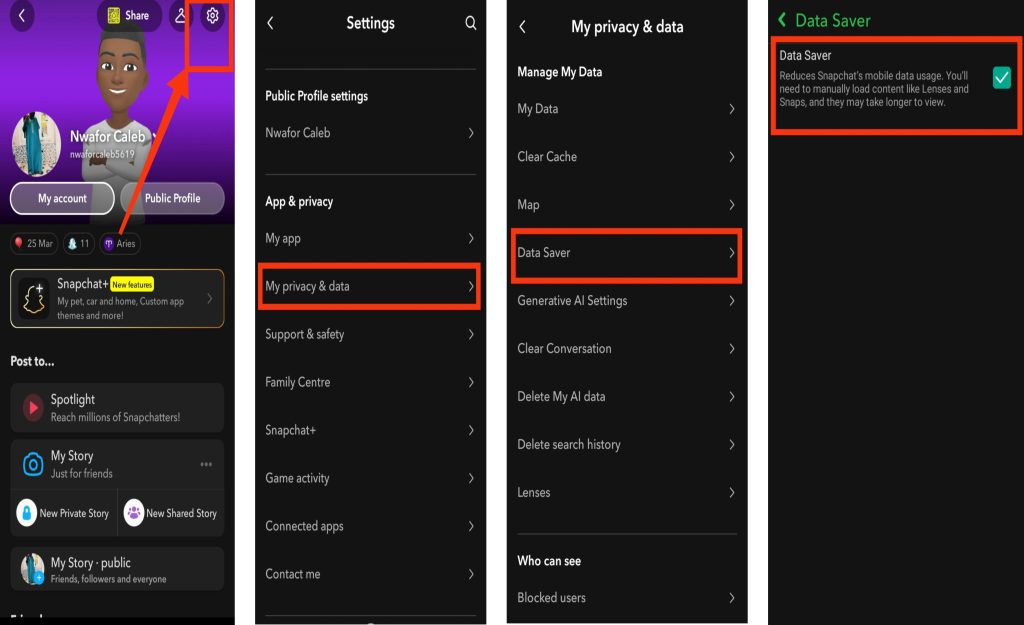
Snapchat includes a built-in feature called Data Saver or Travel Mode that helps reduce background activity. It prevents stories and snaps from loading automatically until you tap them manually. Here are the steps to enable Data Saver Mode:
- Open Snapchat on your phone.
- Tap your profile icon.
- Tap the Settings icon.
- Scroll down and select my privacy and data.
- Tap Data Saver and Turn on Data Saver Mode.
2. Disable Background App Activity
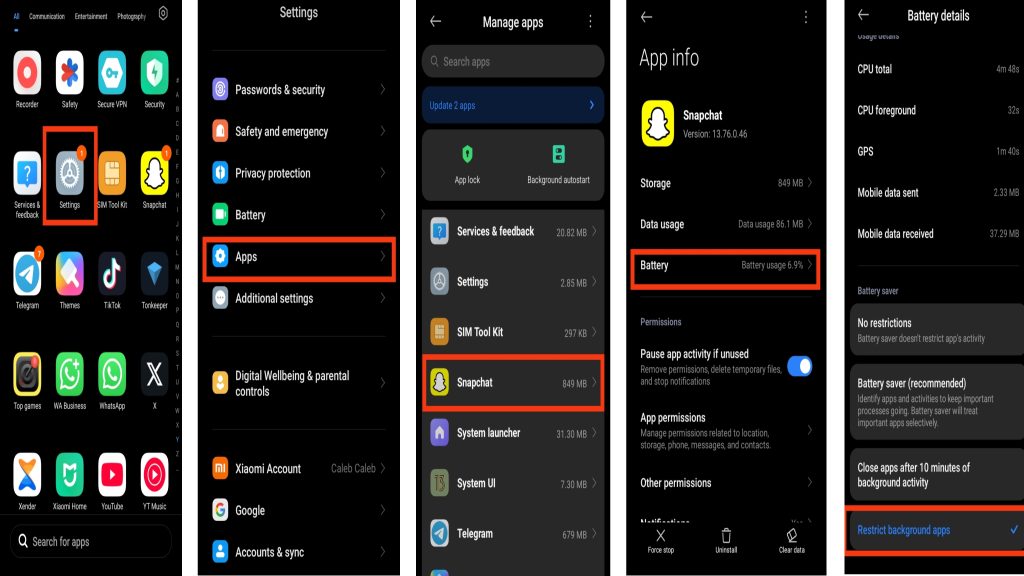
One of the best ways to reduce battery drain is by stopping Snapchat from constantly running in the background. This limits unnecessary syncing when the app is not in use. Here are the steps to disable background activity:
- Open Settings on your phone.
- Tap Apps or Applications.
- Select Snapchat from the app list.
- Tap Battery.
- Choose Restricted or disable background activity.
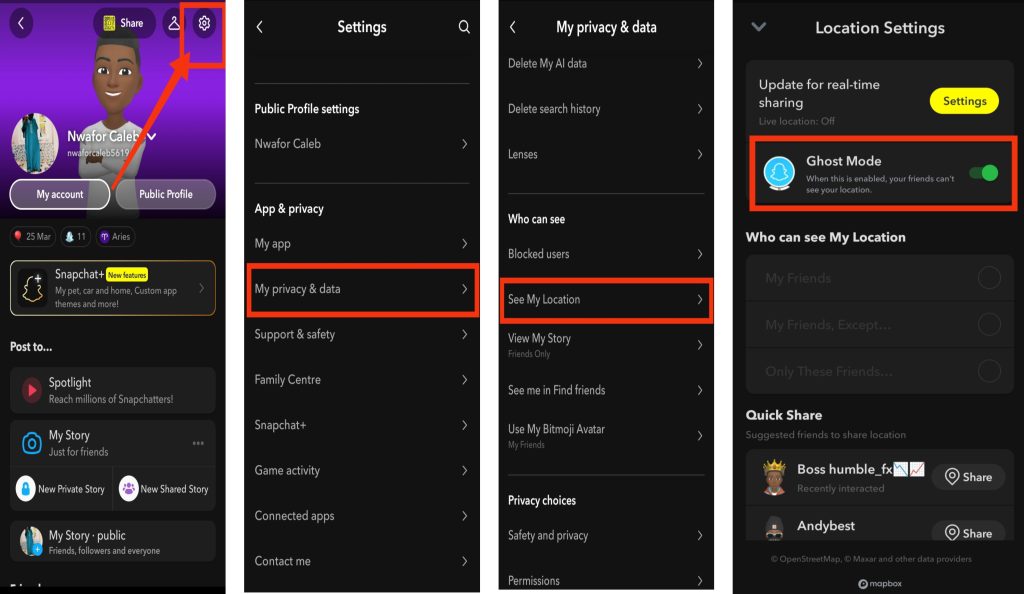
3. Turn Off Snap Map Location Access
Snap Map can consume a lot of battery because it continuously uses GPS tracking. Limiting location access can significantly improve battery performance. Here are the steps to turn off Snap Map location tracking:
- Open Snapchat.
- Tap your profile icon.
- Tap the Settings icon.
- select my privacy and data.
- Scroll down and Select See My Location.
- Enable Ghost Mode.
You can also change location permission to “Only While Using the App” from your phone settings.
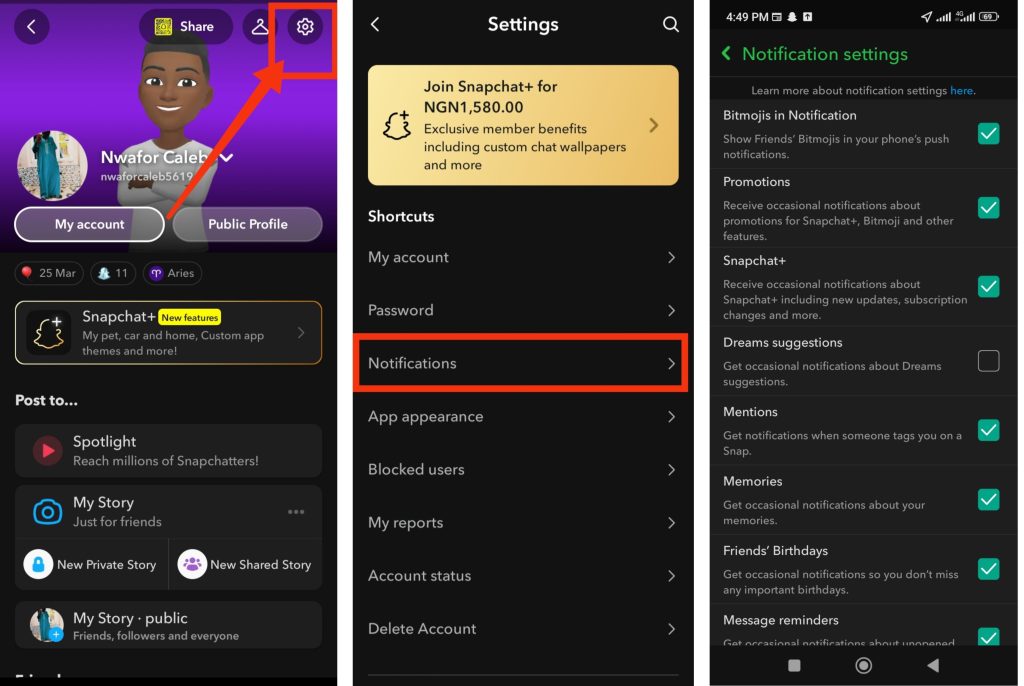
4. Reduce Snapchat Notifications
Frequent notifications can make your battery drain faster because your phone screen lights up repeatedly throughout the day. Here are the steps to manage Snapchat notifications:
- Open Snapchat on your phone.
- Go to Settings.
- Tap Notifications.
- Turn off alerts you do not need.
- Disable unnecessary group or friend suggestions.
5. Use Dark Mode
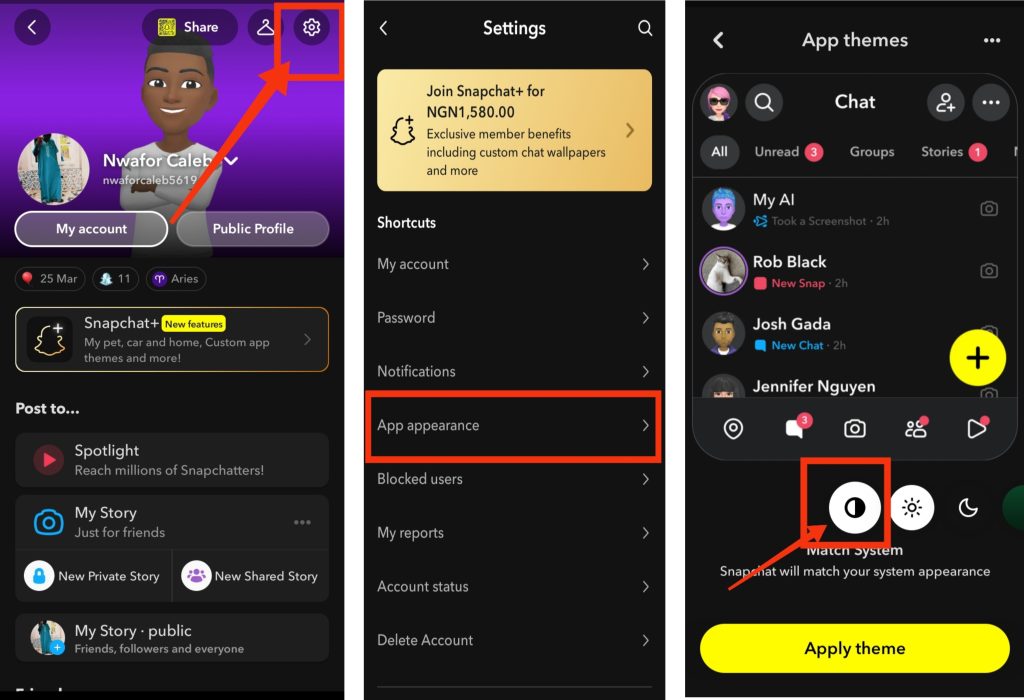
Dark Mode helps reduce screen power usage, especially on phones with OLED or AMOLED displays. It can also make Snapchat more comfortable to use at night. Here are the steps to enable Dark Mode on Snapchat:
- Open Snapchat.
- Tap your profile icon.
- Open Settings.
- Tap App Appearance.
- Select Always Dark.
6. Clear Snapchat Cache Regularly
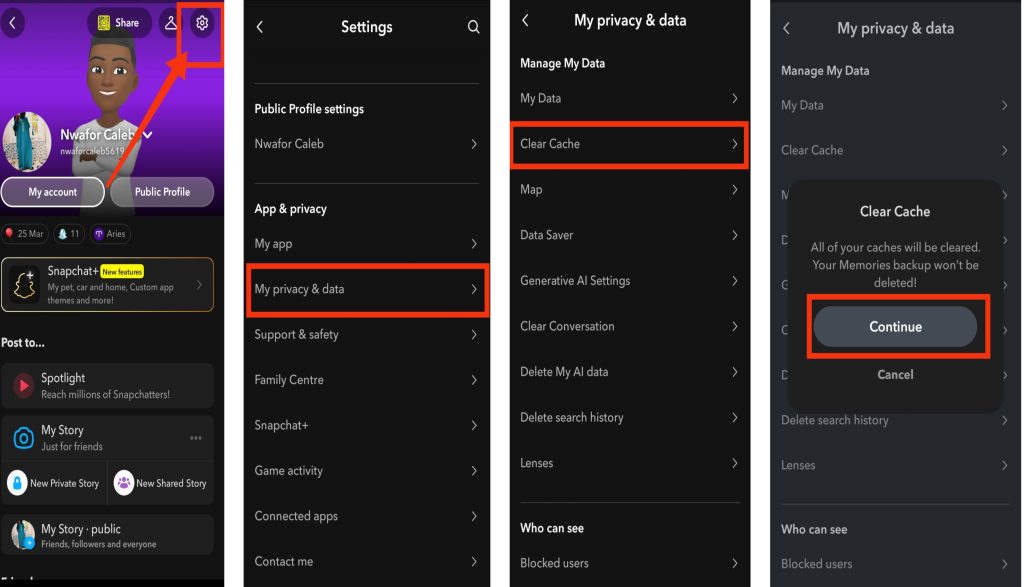
Snapchat stores temporary files and cached data over time. Too much cache can sometimes affect performance and increase battery usage. Here are the steps to clear Snapchat cache:
- Open Snapchat.
- Tap your profile icon.
- Open Settings.
- Scroll down and tap my privacy and data.
- Tap Clear Cache and select continue.
7. Keep Snapchat Updated
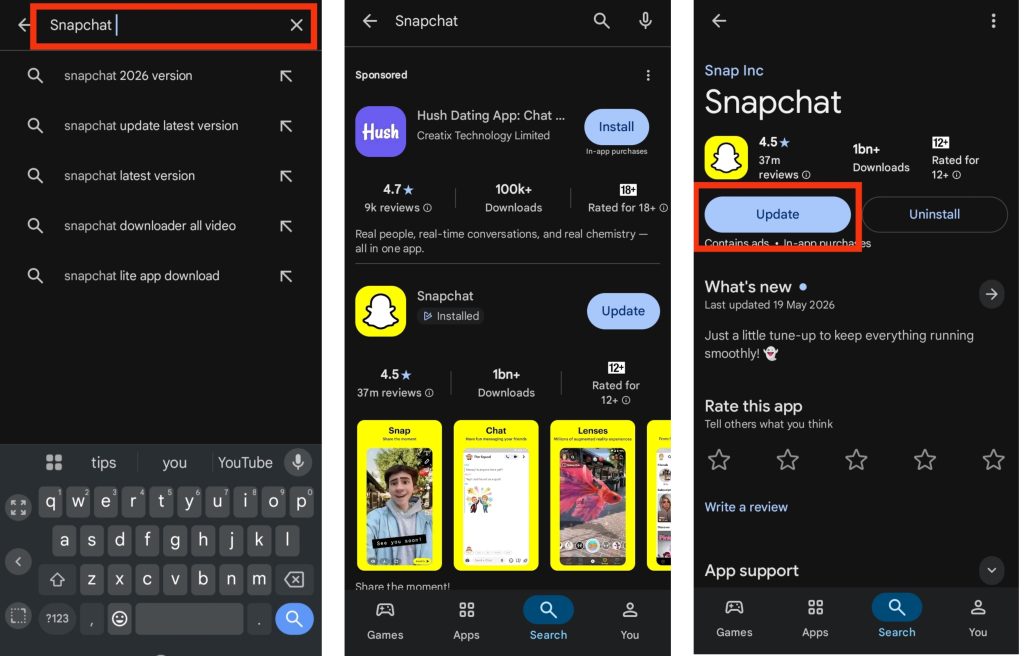
App updates often contain bug fixes, performance improvements, and battery optimizations. Keeping Snapchat updated can help reduce unnecessary battery drain. Here are the steps to update Snapchat:
- Open Google Play Store or Apple App Store.
- Search for Snapchat.
- Select Snapchat from the results.
- Tap Update if a newer version is available.
Also read: why is my app store not working
Extra Tips to Reduce Snapchat Battery Drain
Even after changing Snapchat settings, these additional tips can help improve battery life further:
- Reduce your phone’s screen brightness while using Snapchat for long periods.
- Avoid using Snapchat filters continuously because some filters use extra processing power.
- Close Snapchat completely when you finish using it instead of leaving it open in the background.
- Enable Battery Saver or Low Power Mode on your phone to reduce background activity automatically.
- Restart your phone occasionally to refresh system processes and improve performance.
Also read: how to stop capcut from draining battery while editing
Conclusion
Snapchat can drain battery quickly because it relies heavily on background syncing, camera usage, notifications, and location services. However, small changes like enabling Data Saver Mode, turning off Snap Map, reducing notifications, and limiting background activity can greatly improve your phone’s battery life. Keeping the app updated and using Dark Mode can also help reduce power consumption. By applying these settings together, you can continue enjoying Snapchat while making your battery last much longer throughout the day.
Frequently Asked Questions (FAQs)
1. Does Snapchat drain battery even when I’m not using it?
Yes, Snapchat can still use battery in the background because it refreshes notifications, messages, Snap Map updates, and other app activities even when the app is closed.
2. Will turning off Snap Map improve battery life?
Yes, disabling Snap Map or enabling Ghost Mode can help save battery because your phone will stop using GPS location tracking continuously in the background.
3. Why do Snapchat filters use more battery power?
Snapchat filters require camera processing, facial recognition, and visual effects rendering, which increase CPU and GPU usage on your phone. This can lead to faster battery drain.
4. Does Dark Mode really help save battery on Snapchat?
Yes, Dark Mode can help save battery on phones with OLED or AMOLED displays because darker pixels use less power compared to bright white backgrounds.
5. Can an outdated Snapchat version cause battery drain?
Yes, outdated versions of Snapchat may contain bugs or inefficient background processes that increase battery usage. Updating the app regularly helps improve performance and battery optimization.