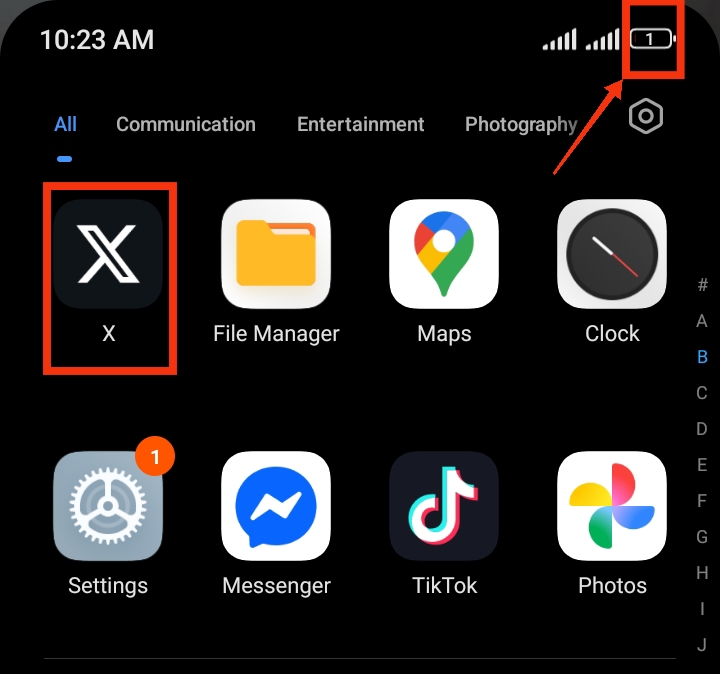
Twitter (now commonly called X) is one of the most active social media platforms in the world, allowing users to post updates, watch videos, follow trends, and interact in real time. Because the app constantly refreshes content and runs background processes, it can sometimes drain your phone battery faster than expected. If you notice your battery dropping quickly while using Twitter, the app may be a major reason. Fortunately, there are simple ways to reduce its battery usage and improve your phone performance. In this guide, you’ll learn why Twitter drains battery and how to fix it quickly for better battery life.
Also read: How do I stop WhatsApp from draining my battery in the background?
Why Does Twitter Consume So Much Battery
Here are some of the main reasons Twitter consumes so much battery:
1. Background Activity: One of the biggest reasons Twitter drains battery is because it continues running in the background even when you are not using it. The app constantly refreshes tweets, messages, trends, and notifications. This nonstop syncing uses processing power and reduces battery life gradually throughout the day.
2. Auto-Playing Videos and GIFs: Twitter automatically plays videos and GIFs while you scroll through your feed. This feature increases screen usage, internet activity, and processor load, all of which contribute to faster battery drain, especially when using mobile data.
3. Frequent Notifications: Every like, retweet, mention, or message triggers a notification that wakes your screen or activates vibration and sound. If you receive many notifications daily, your battery will drain faster due to constant interruptions.
4. High Screen Usage and Bright Display: Twitter is a scrolling-heavy app, meaning users spend a lot of time with the screen active. A bright screen consumes more power, especially on AMOLED and OLED displays, leading to higher battery usage.
5. Location and Data Tracking: Twitter may use location services and background data to show relevant trends and ads. GPS and constant internet activity both increase battery consumption significantly.
6. Outdated App Version: Using an old version of Twitter can also cause battery issues. Older versions may contain bugs or inefficient processes that increase battery usage. Updates usually fix these problems and improve performance.
Also read: how do i stop tiktok from draining my battery in the background
How to Save Battery When Using Twitter
Below are practical ways to reduce battery drain while still using Twitter normally:
1. Turn Off Background Activity
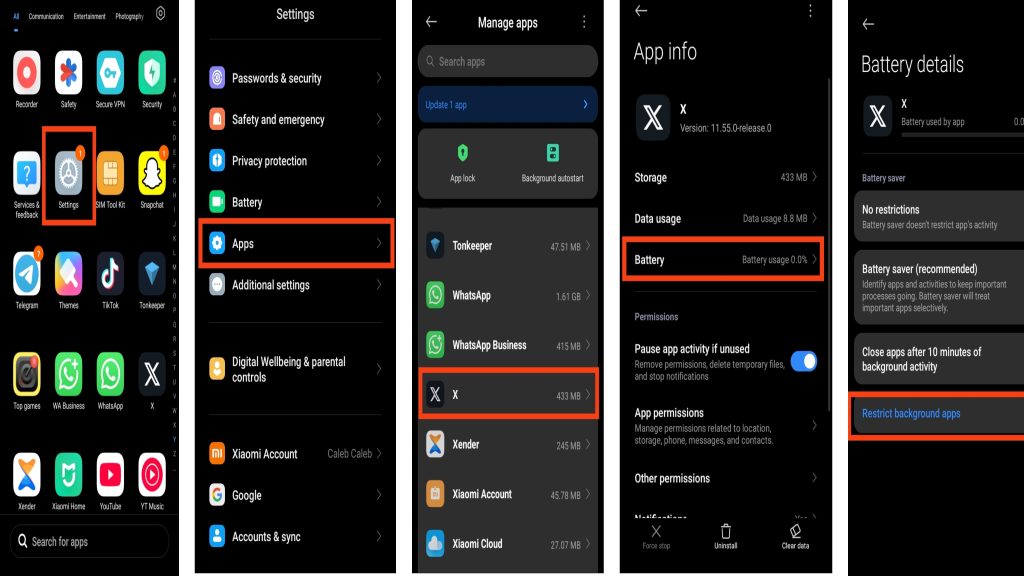
One of the main reasons Twitter drains battery quickly is because the app keeps running in the background even when you are not actively using it. It continuously refreshes tweets, notifications, and messages, which keeps your phone processor active and slowly reduces battery life throughout the day. Restricting background activity can help your battery last longer without affecting normal app usage too much. Here are the steps to turn off background activity:
- Go to your phone Settings
- Tap Apps or App Management
- Select Twitter (X)
- Tap Battery
- Restrict background activity
2. Disable Auto-Play Videos
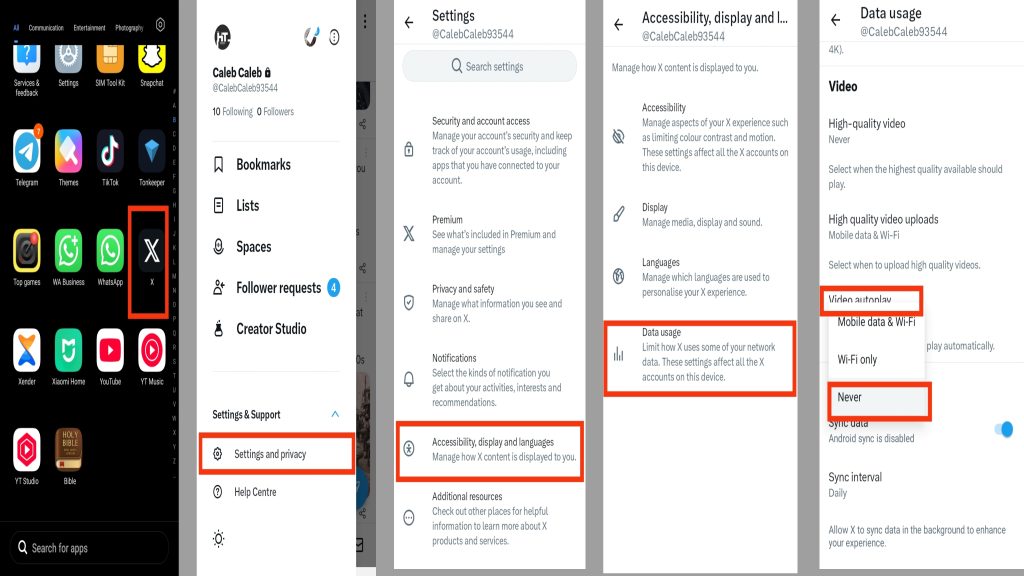
Twitter automatically plays videos and GIFs while scrolling through the timeline. Although this feature makes the app more interactive, it also increases battery and data usage because videos require more screen power and internet activity. Disabling auto-play can help reduce unnecessary battery drain and improve overall performance. Here are the steps to disable auto-play videos:
- Open Twitter (X)
- Go to Settings and Privacy
- Tap Accessibility, display, and languages
- Select Data usage
- Tap Video autoplay
- Choose Never or Wi-Fi only
3. Reduce Notifications
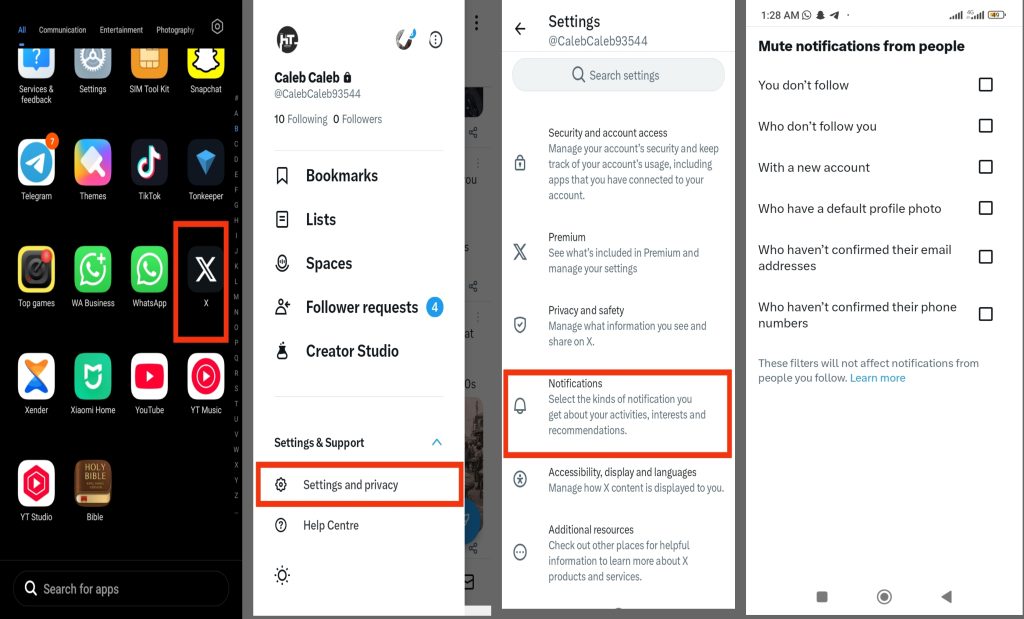
Frequent notifications from likes, reposts, messages, and trending topics can constantly wake up your phone screen. This repeated activity uses extra battery power throughout the day, especially if you follow many active accounts. Reducing unnecessary notifications helps your phone stay idle longer and improves battery performance. Here are the steps to reduce notifications:
- Open Twitter (X)
- Go to Settings and Privacy
- Tap Notifications
- Turn off unwanted alerts
- Mute less important accounts
4. Enable Dark Mode
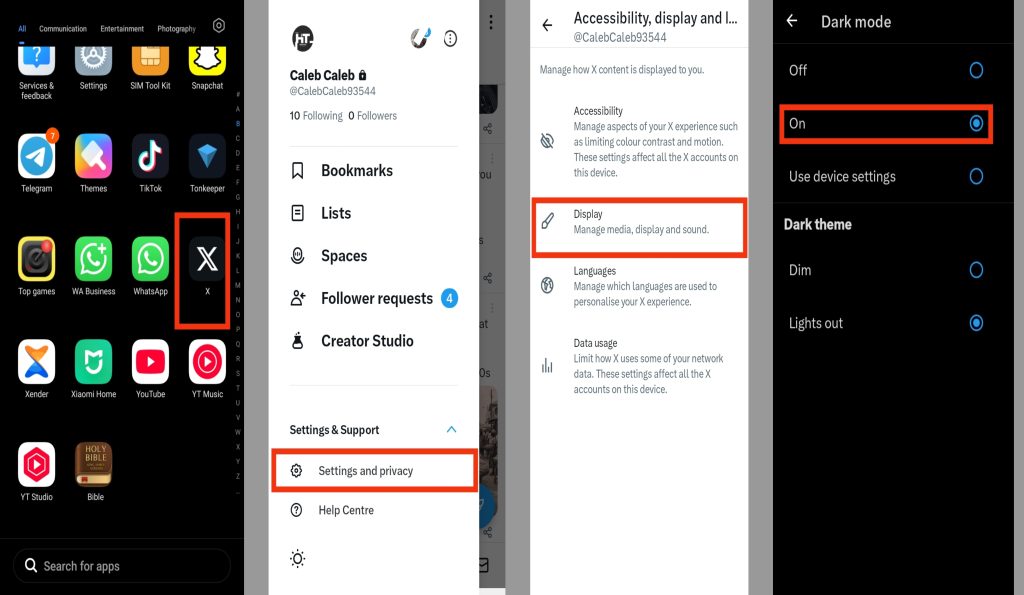
Dark Mode can help reduce battery usage, especially on phones with OLED or AMOLED displays. Darker colors require less screen power compared to bright white backgrounds, which can slightly improve battery life during long periods of Twitter usage. It can also make the app more comfortable to use at night. Here are the steps to enable Dark Mode:
- Open Twitter (X)
- Go to Settings and Privacy
- Tap Display and sound
- Select Dark mode
5. Turn Off Location Access
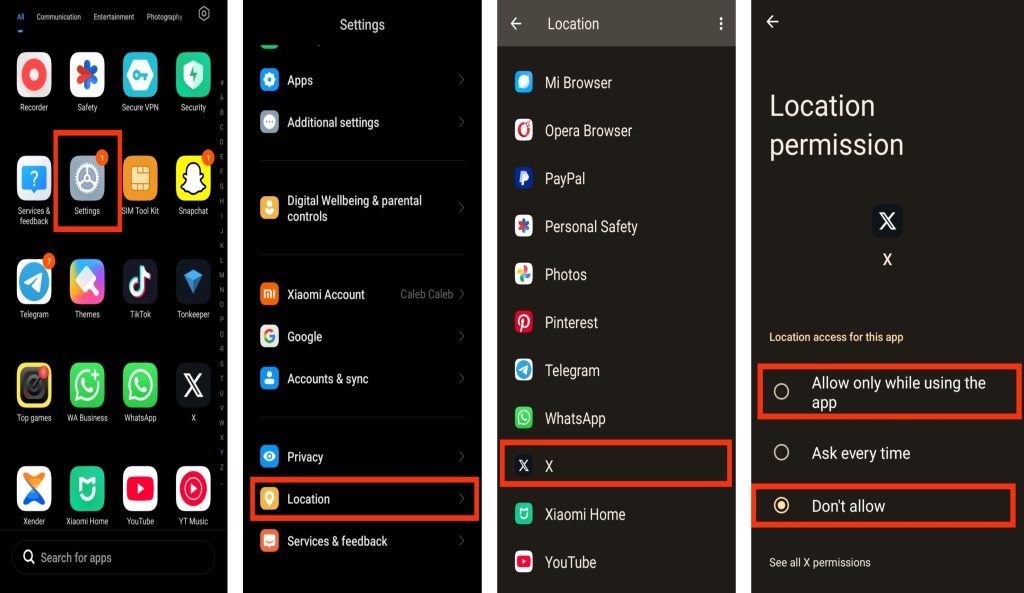
Twitter sometimes uses your location to show nearby trends, recommended content, and ads. Since location services rely on GPS tracking, they can consume a noticeable amount of battery power in the background. Limiting location access helps reduce unnecessary battery usage while still allowing you to use the app normally. Here are the steps to turn off location access:
- Go to phone Settings
- Tap Location
- Find Twitter (X)
- Set permission to “Never” or “While using the app”
6. Update Twitter Regularly
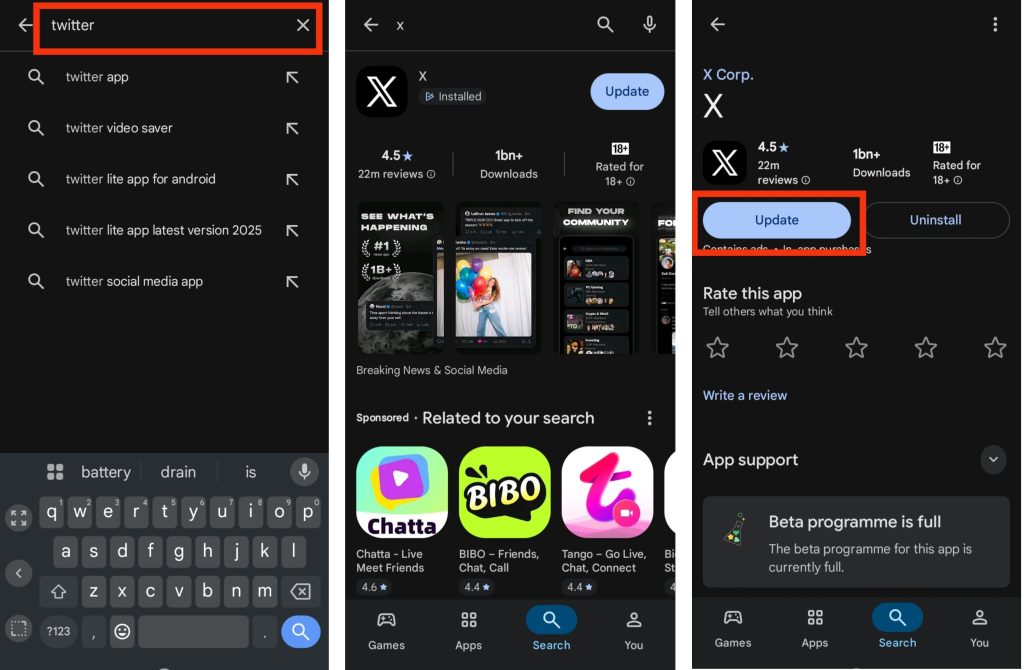
Using an outdated version of Twitter may cause higher battery usage because older versions can contain bugs or performance problems. App updates often include fixes that improve battery efficiency, reduce background activity, and make the app run more smoothly. Here are the steps to update Twitter:
- Open Google Play Store or Apple App Store
- Search for Twitter (X)
- Tap Update if a new version is available
Extra Tips to Save Battery on Twitter
Here are additional habits that can help reduce battery usage even more:
- Avoid leaving Twitter open in the background for long periods when not in use.
- Reduce time spent watching videos or scrolling endlessly through the feed.
- Turn on your phone’s battery saver mode when using social media heavily.
- Log out of Twitter on extra devices to reduce background syncing.
- Restart your phone occasionally to refresh system performance and close hidden apps.
Conclusion
Twitter battery drain is mainly caused by background activity, video autoplay, notifications, and screen usage. However, with a few simple adjustments like disabling auto-play, reducing notifications, and using dark mode, you can significantly improve your phone’s battery life. The key is to combine these settings for the best results. These changes do not affect your normal use of Twitter but help your device run more efficiently throughout the day.
Frequently Asked Questions (FAQs)
1. Does Twitter drain battery even when I’m not using it?
Yes, Twitter can still use battery in the background because it refreshes notifications, trends, and messages even when you are not actively using the app.
2. Does turning off notifications reduce Twitter battery usage?
Yes, turning off notifications helps reduce battery drain because your phone will not constantly wake up for alerts, vibrations, or screen lighting.
3. Why does Twitter use more battery when watching videos?
Videos require more processing power, internet data, and screen usage, which increases battery consumption compared to normal text scrolling.
4. Is it safe to restrict Twitter background activity?
Yes, it is safe, but you may receive notifications slightly later. It helps save battery by preventing the app from running constantly in the background.
5. Does phone brightness affect Twitter battery usage?
Yes, higher screen brightness increases battery usage. Lowering brightness or using dark mode can help reduce overall battery drain while using Twitter.