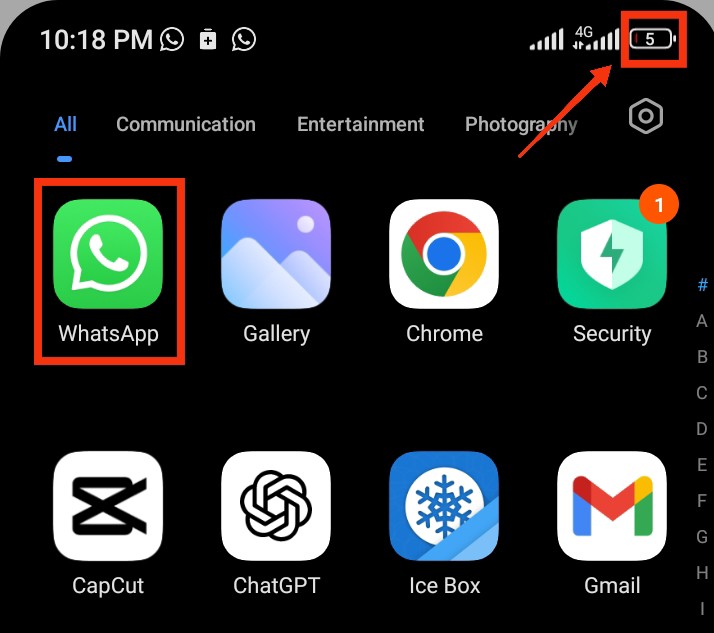
WhatsApp is one of the most widely used messaging apps in the world, allowing billions of people to chat, make voice and video calls, and share media daily. Since the app constantly runs in the background, it can sometimes use more battery power than expected. If your phone battery drains quickly, WhatsApp may be one of the reasons. Fortunately, there are simple ways to reduce its battery usage and improve your phone’s battery life. In this guide, you’ll discover why WhatsApp drains battery and the best ways to make your battery last longer throughout the day.
Why Does WhatsApp Consume So Much Battery
Below are the most common reasons WhatsApp may consume more battery than expected:
1. Constant Background Activity
WhatsApp keeps running in the background so you can receive new messages, voice calls, and video calls instantly. It regularly checks for updates and synchronizes your chats, even when you are not actively using the app. While this makes communication seamless, it also means your phone’s processor and internet connection remain active, which can gradually reduce battery life throughout the day.
2. Frequent Notifications
Every message notification can wake your phone’s screen, activate vibration or sound, and use processing power. If you’re part of several active group chats, your device may receive dozens or even hundreds of notifications each day. This constant activity can have a noticeable impact on battery life.
3. Automatic Media Downloads
When WhatsApp automatically downloads photos, videos, voice notes, and documents, it uses your internet connection, processor, and storage in the background. If you receive large files or belong to busy groups, these downloads happen frequently and can significantly increase battery consumption.
4. Voice and Video Calls
WhatsApp voice and video calls require your phone to use multiple hardware components at the same time, including the screen, microphone, speaker, camera, processor, and internet connection. Long or frequent calls naturally consume more battery than sending text messages.
5. Live Location Sharing
The Live Location feature relies on your phone’s GPS to continuously update your location in real time. GPS is one of the most power-hungry features on any smartphone. If you leave Live Location enabled for long periods, your battery may drain much faster than usual.
6. Weak Mobile Network or Wi-Fi Signal
If your phone has a poor internet connection, WhatsApp has to work harder to send messages, receive notifications, and stay connected to its servers. This extra effort increases power consumption because your device repeatedly searches for a stronger signal.
7. Outdated WhatsApp or Phone Software
Older versions of WhatsApp or your phone’s operating system may contain bugs that cause excessive battery usage. Developers regularly release updates to improve performance, fix battery-related issues, and optimize background processes. Keeping both WhatsApp and your device updated can help reduce unnecessary battery drain.
8. Too Many Active Group Chats
Being a member of many active WhatsApp groups can increase battery usage because the app constantly receives messages, downloads media, and sends notifications. Even if you don’t open the chats, this background activity can continue throughout the day.
9. Battery Optimization Is Disabled
Many Android phones include battery optimization features that limit how apps run in the background. If WhatsApp is excluded from battery optimization, it may continue running more aggressively, leading to higher battery consumption.
10. Corrupted Cache or Temporary Files
Over time, WhatsApp stores temporary files, known as cache, to improve performance. However, if these files become corrupted or excessively large, they may cause the app to behave inefficiently and consume more battery than normal. Clearing the app cache on Android can sometimes improve performance without deleting your chats.
How to Save Battery When Using WhatsAp
Below are practical ways to improve your battery performance while still using WhatsApp normally:
1. Manage Notifications
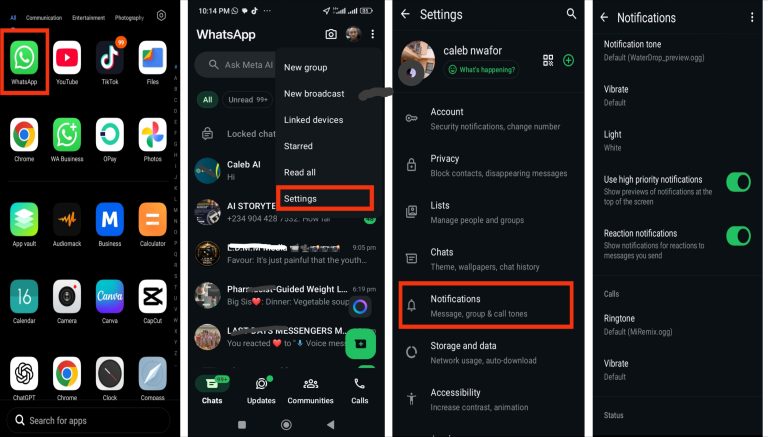
Notifications are one of the biggest reasons WhatsApp uses more battery than expected. Every message alert wakes your phone, turns on the screen, and may trigger sound or vibration. If you receive many messages daily, especially from group chats, this constant activity can gradually reduce your battery life. Here are the steps to manage WhatsApp notifications:
- Open WhatsApp on your phone.
- Go to Settings (Android menu or iPhone bottom tab).
- Tap Notifications.
- Turn off or customize message and group notifications.
- Mute groups that are not important.
2. Disable Automatic Media Downloads
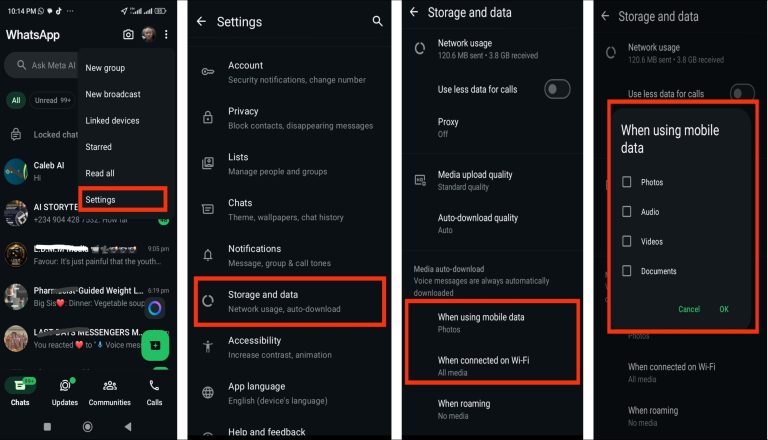
WhatsApp automatically downloads photos, videos, voice notes, and documents in the background. While this is convenient, it can also increase battery usage because your phone is constantly processing and saving files without your direct action. Here are the steps to disable automatic media downloads:
- Open WhatsApp on your phone.
- Go to Settings.
- Tap Storage and Data.
- Under Media Auto-Download, choose your preference.
- Uncheck photos, videos, audio, and documents for mobile data and Wi-Fi.
- Finally, press OK to save the changes.
3. Enable Dark Mode
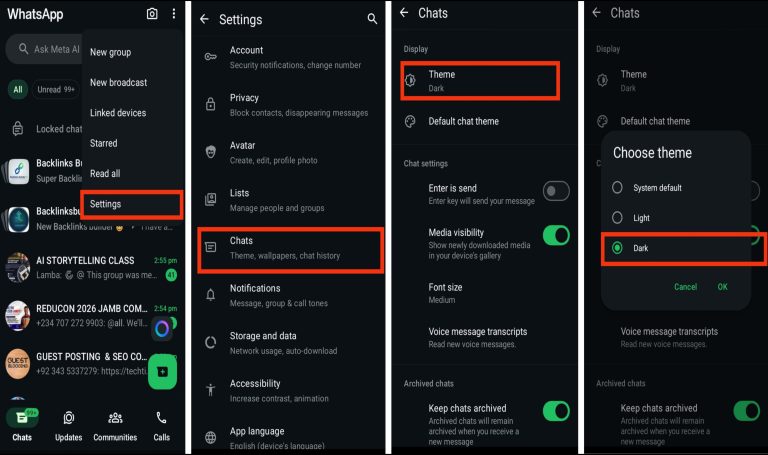
Dark Mode reduces how much power your screen uses, especially on OLED and AMOLED displays. Since darker pixels require less energy, using Dark Mode can help your battery last longer throughout the day. It also reduces eye strain in low light environments. Here are the steps to enable Dark Mode:
- Open WhatsApp on your phone.
- Go to Settings.
- Tap Chats.
- Tap Theme.
- Select Dark and apply changes.
4. Turn Off Background App Refresh
WhatsApp often runs in the background to check for new messages and updates. While this helps you receive messages instantly, it also keeps your phone active even when you are not using the app, which can drain your battery over time. Here are the steps to turn off background app refresh:
- Open Settings on your iPhone.
- Tap General.
- Select Background App Refresh.
- Find WhatsApp from the list.
- Turn it off.
5. Reduce Wallpaper Brightness
Bright chat wallpapers make your screen use more power each time you open WhatsApp. Even though it may seem small, screen brightness has a direct impact on battery life, especially if you use the app frequently throughout the day. Here are the steps to reduce wallpaper brightness:
- Open WhatsApp on your phone.
- Go to Settings.
- Tap Chats.
- Select Wallpaper.
- Adjust the brightness slider to a lower level.
6. Keep WhatsApp Updated
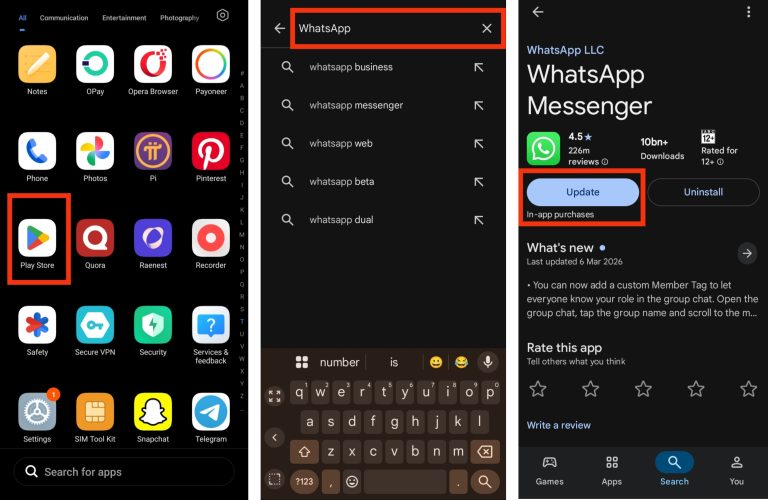
Using an outdated version of can lead to battery issues because older versions may contain bugs or less efficient background processes. Updating the app ensures you get the latest improvements that help optimize performance and reduce battery usage. Here are the steps to update WhatsApp:
- Open Google Play Store or Apple App Store.
- Search for WhatsApp.
- Select WhatsApp Messenger.
- Tap Update if a new version is available.
Extra Tips to Save Battery on WhatsAp
there are still a few simple habits you can follow to reduce battery usage even more. Here are some extra tips to save battery on WhatsApp:
1. Avoid keeping WhatsApp Web connected for long periods when you are not actively using it, because it keeps your phone constantly syncing in the background.
2. Limit the number of active group chats you stay in, especially groups that send frequent messages, media, or voice notes throughout the day.
3. Turn off live location sharing as soon as you are done using it, since GPS tracking continues to use battery power while it is active.
4. Try to reduce sending and receiving large videos or files frequently, as media processing and downloads can increase battery usage over time.
5. Restart your phone once in a while to refresh system processes and stop unnecessary background apps from running silently.
When Battery Drain Is Not Caused by WhatsApp
WhatsApp is not always responsible for fast battery drain. In many cases, the problem comes from your phone or other apps rather than WhatsApp itself. If your battery continues to drain quickly after optimizing WhatsApp, consider these possible causes:
1. An aging battery: Older batteries naturally lose their ability to hold a charge, causing them to drain faster than when the phone was new.
2. High screen brightness: Keeping your display at maximum brightness uses a significant amount of power, especially during extended use.
3. Poor network coverage: A weak mobile or Wi-Fi signal forces your phone to work harder to stay connected, increasing battery consumption.
4. Other apps running in the background: Apps such as social media, navigation, streaming, or gaming apps may continue using your phone’s resources even when you’re not actively using them.
Conclusion
WhatsApp can use a significant amount of battery, but in most cases, the problem can be reduced with a few simple adjustments. Managing notifications, limiting background activity, disabling automatic media downloads, and keeping the app updated are effective ways to improve battery life. It’s also worth checking your phone’s battery health and other background apps, as they can contribute to excessive battery drain. By following the tips in this guide, you can continue using WhatsApp while helping your phone’s battery last longer throughout the day.
Frequently Asked Questions (FAQs)
1. Does WhatsApp drain battery even when I’m not actively using it?
Yes, can still use battery in the background because it continues syncing messages, calls, and notifications. This background activity helps you receive updates instantly, but it can slowly reduce battery life over time even when you are not opening the app.
2. Will turning off WhatsApp notifications affect message delivery?
No, turning off notifications does not stop messages from coming in. You will still receive all messages normally in , but your phone will not light up, vibrate, or make sounds every time a message arrives, which helps reduce battery usage.
3. Why does WhatsApp use more battery on group chats than private chats?
Group chats usually generate more frequent messages, media files, and notifications compared to private chats. This constant activity forces WhatsApp to refresh more often, which increases background usage and can lead to faster battery drain on your device.
4. Is it safe to limit WhatsApp background data usage for better battery life?
Yes, it is generally safe, but it should be done carefully. Limiting background data for can help reduce battery consumption, but it may slightly delay message delivery when the app is not open. It is best to optimize instead of completely blocking background activity.
5. Do phone settings outside WhatsApp also affect battery drain?
Yes, your overall phone settings play a big role in battery usage. Factors like screen brightness, weak network signal, and battery saver mode can all affect how much power WhatsApp uses. Even if WhatsApp is optimized, poor phone settings can still cause faster battery drain.