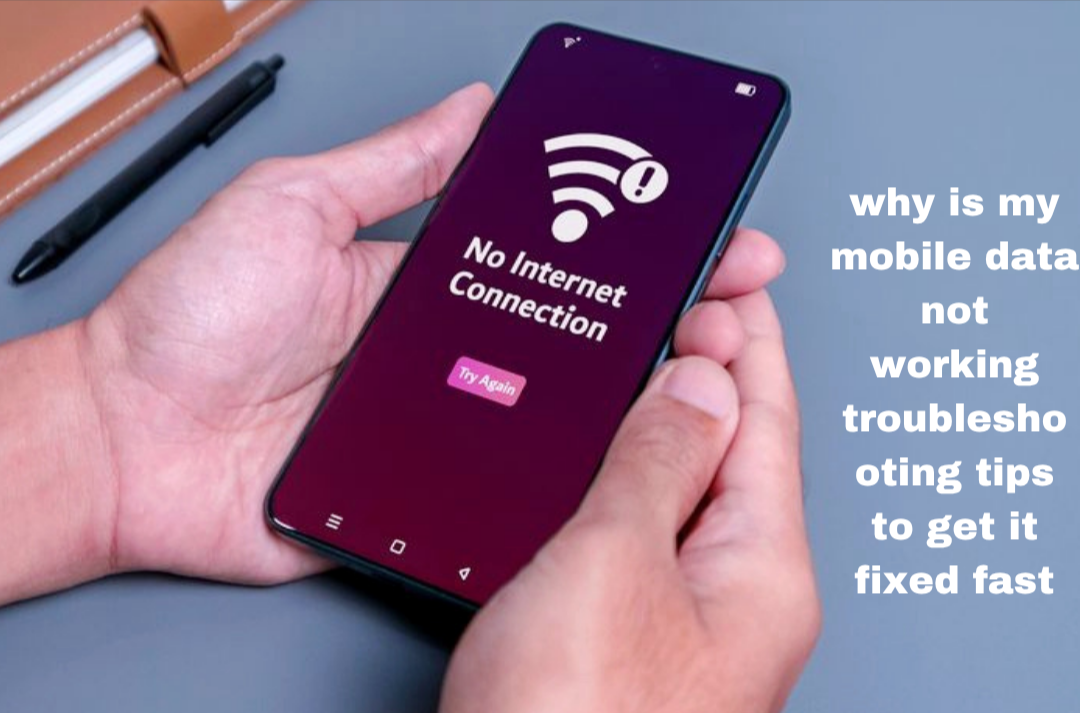
It can be very frustrating when your mobile data suddenly stops working, especially when you need internet access for browsing, social media, online payments, or communication. In some cases, your phone may still show signal bars but refuse to load websites or apps. This issue is very common on both Android and iPhone devices and it is usually caused by network problems, SIM issues, wrong settings, expired data plans, or temporary system glitches. In this guide, you will learn the real reasons why mobile data is not working in 2026 and the practical solutions you can use to fix it quickly and restore your internet connection.
Also read: Why Does My Wifi Keep Disconnecting
Common Causes Why Your Mobile Data Is Not Working
There are many different reasons why mobile data may suddenly stop working, and most of them are not serious hardware faults. In many cases, the issue comes from settings, network conditions, or temporary service disruptions. Below are the most common causes explained in detail:
1. Weak or Unstable Network Signal
One of the biggest reasons mobile data stops working is poor or unstable network coverage. If you are in an area with weak signal strength, your phone may struggle to connect properly to the internet. This often happens in remote areas, inside thick-walled buildings, elevators, or crowded environments where many people are using the same network at the same time. Even if your phone shows signal bars, the actual data connection may still be weak or unstable.
2. Expired or Exhausted Data Plan
Another very common reason is that your data bundle has finished without you noticing. Once your data is exhausted or your subscription expires, your mobile data will stop working completely or become extremely slow. Many users assume it is a phone problem when in reality the data plan has simply run out.
3. Airplane Mode or Disabled Mobile Data
Sometimes mobile data stops working because it has been accidentally turned off or airplane mode is enabled. When airplane mode is active, all network services including calls, SMS, and mobile data are disconnected. Even a small mistake like tapping the wrong icon can temporarily cut off your internet access.
4. Incorrect APN Settings
APN (Access Point Name) settings are very important because they tell your phone how to connect to the internet through your network provider. If these settings are incorrect, missing, or accidentally changed, your mobile data may not work at all or may connect without loading anything online.
5. SIM Card Problems
Your SIM card plays a major role in mobile data connection. If it is dirty, damaged, or not properly inserted, it can cause unstable or no internet connection. Even slight misalignment inside the SIM tray can stop your phone from accessing mobile data properly.
6. Network Provider Downtime or Maintenance
Sometimes the issue is completely outside your control. Mobile network providers may experience temporary downtime, upgrades, or maintenance in your area. During this period, users may experience slow internet, no connection, or complete service interruption.
7. Software Glitches or System Errors
Temporary software glitches can also affect mobile data performance. This can happen after a system update, long hours of phone usage, or background apps interfering with network services. These glitches often disappear after restarting the device.
How to Fix Mobile Data Not Working Issue
If your mobile data is not working, there are several practical solutions you can try to restore your internet connection. These steps are simple but very effective, and they solve most mobile data issues without needing technical help:
1. Turn Mobile Data Off and On
Start by switching mobile data off for a few seconds and then turning it back on. This simple action refreshes your connection to the network and often fixes minor connectivity issues immediately.
2. Restart Your Phone
Restarting your phone is one of the most effective solutions. It clears temporary system errors, refreshes background processes, and forces your phone to reconnect to the mobile network from scratch. In many cases, this alone is enough to restore your internet connection.
3. Switch Network Mode (4G/3G/2G)
Sometimes your phone may struggle to maintain a stable connection on a specific network type. Go to your mobile network settings and switch between 4G, 3G, or 2G. If 4G is unstable in your area, switching to 3G or automatic mode can help your phone connect more reliably and restore mobile data.
4. Check Your Data Balance
Always confirm that your data subscription is still active. If your data has finished, you will not be able to browse the internet even if your signal is strong. Renewing your data plan can instantly solve the issue in many cases.
5. Toggle Airplane Mode
Turn airplane mode on for about 10–15 seconds, then turn it off again. This forces your phone to disconnect from all networks and reconnect fresh, which can fix hidden connection errors.
6. Reinsert Your SIM Card
Power off your phone, remove the SIM card carefully, clean it gently, and reinsert it properly. This helps fix issues caused by poor SIM contact or slight movement inside the SIM tray.
7. Reset Network Settings
Resetting network settings restores all network-related configurations such as Wi-Fi, mobile data, and Bluetooth back to default. This is useful when incorrect settings are blocking your internet connection.
8. Check APN Settings
Make sure your APN settings are correct for your network provider. If you are not sure, reset them to default or request the correct configuration from your mobile network operator. Wrong APN settings can completely prevent mobile data from working.
9. Update Your Phone Software
Keeping your phone updated ensures better compatibility with network services. Updates often fix bugs and improve system performance, including mobile data stability.
10. Contact Your Network Provider
If all else fails, the problem may be from your network provider. There could be a temporary outage, SIM issue, or account restriction affecting your service. Contact customer support so they can check your line and help restore your connection.
Also read: how to fix sim not provisioned error on airtel mtn or other networks 2026 guide
Conclusion
Mobile data not working is a common issue, but in most cases, it is caused by simple problems such as weak signal, expired data, incorrect settings, SIM issues, or temporary system glitches. The good thing is that you can usually fix it yourself within a few minutes using the steps above. If the problem continues after trying everything, contacting your network provider is the best final solution.
Frequently Asked Questions (FAQ)
1. Why does my mobile data work on some apps but not others?
This can happen when a specific app has restricted data permissions, outdated software, or temporary server issues. Check the app’s settings to ensure it is allowed to use mobile data and update the app if necessary.
2. Can a phone case affect my mobile data signal?
In rare cases, thick metal phone cases or accessories can interfere with network reception. If you notice weaker signals after using a new case, try removing it temporarily to see if your connection improves.
3. Why does my mobile data stop working when I travel to another location?
Different areas have different levels of network coverage. If you travel to a location with weaker coverage or limited support for your network provider, your mobile data may become slow or stop working until you move to an area with better signal strength.
4. Does having too many background apps affect mobile data performance?
Yes, multiple apps running in the background can consume bandwidth and system resources, making your internet connection feel slower. Closing unnecessary apps can help improve overall network performance and browsing speed.
5. How often should I reset my network settings?
Network settings should only be reset when you are experiencing persistent connection issues that basic troubleshooting cannot fix. Frequent resets are usually unnecessary, but they can be helpful when dealing with recurring mobile data problems.