If you’ve ever inserted a new SIM card or switched phones and suddenly seen the message “SIM not provisioned” or “SIM not provisioned MM#2,” you’re not alone. This error usually means your SIM card has not been properly activated or recognized by the network, preventing you from making calls, sending texts, or using mobile data. The good news is that the issue is often temporary and easy to fix. In this 2026 guide, we’ll explain the common causes of the SIM not provisioned error and show you simple ways to fix it on Airtel, MTN, Glo, 9mobile, and other networks.
Also read: Why Does My Wifi Keep Disconnecting
Why Is Your SIM Card Not Provisioned
This can happen for several reasons, especially when using a new SIM card or switching devices. Below are some of the most common causes of the problem:
1. Your SIM card is not yet activated: If you recently purchased a new SIM card, your network provider may still be processing the activation. During this period, the SIM may not work for calls, texts, or mobile data.
2. The SIM is not registered on the network: Sometimes the mobile carrier has not fully linked the SIM card to its system, which prevents the network from recognizing it properly.
3. The SIM card is not inserted correctly: A loose or poorly placed SIM card can interrupt the connection between the SIM and your phone, causing the error message to appear.
4. Your phone may not support the SIM network: In some cases, older or carrier-locked phones may not be fully compatible with certain network bands or SIM features.
5. Issues during eSIM setup: If you recently switched from a physical SIM card to an eSIM, the activation process may not have completed successfully, leading to network connection problems.
Also read: How to Change Airtel Wifi Password
How to Fix SIM Not Provisioned Error on Airtel, MTN, Glo, or Other Networks
Below are some simple and effective ways to fix the SIM not provisioned error on Airtel, MTN, Glo, 9mobile, and other mobile networks:
1. Try Restarting Your Phone
Sometimes, SIM not provisioned errors happen because of minor system glitches or temporary network bugs running in the background. Restarting your phone helps refresh the entire system and reconnect it to the mobile network properly.
To do this, swipe down your screen to open the quick settings menu, tap Restart, wait for your phone to power off and turn back on automatically, then check if your SIM starts working again.
2. Toggle Airplane Mode On and Off
Airplane Mode is mainly designed to disconnect your phone from all wireless connections such as mobile data, Wi-Fi, and Bluetooth. However, it can also help fix network-related issues by refreshing your connection to the mobile network.
To use this method, swipe down your screen to access quick settings, tap Airplane Mode to turn it on, wait for about 5–10 seconds, then tap it again to turn it off. Your phone will automatically reconnect to the network.
3. Remove and Reinsert Your SIM Card
A poorly placed SIM card or a slight movement inside the SIM tray can stop your phone from detecting the network properly. This can trigger the SIM not provisioned error.
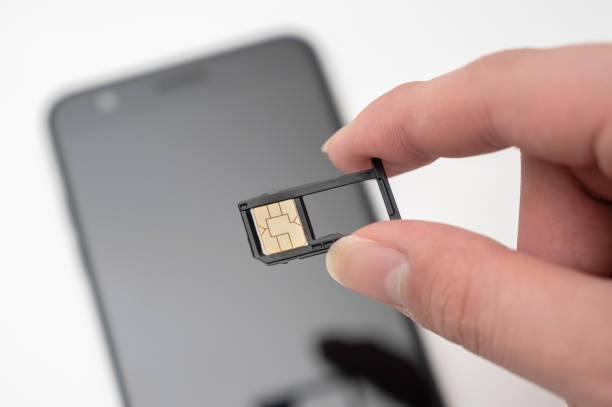
To fix this, turn off your phone completely, use a SIM ejector pin to remove the SIM tray, take out the SIM card, wait a few seconds, then carefully place it back in the correct position. After that, reinsert the tray and restart your phone.
4. Activate Your SIM Card
New SIM cards usually require activation before they can work on any mobile network. If the activation is not completed, your phone may fail to connect to the network.
To resolve this, insert the SIM into your phone and wait for activation prompts or messages. Follow any instructions displayed on the screen, or contact your mobile network provider if the SIM does not activate automatically.
5. Test the SIM on Another Phone
Sometimes the issue may not be from the SIM card itself but from your phone. Testing it on another device helps you confirm where the problem is coming from.
To do this, insert your SIM card into another working phone and check if it connects to the network. If it works, your phone may be the issue. If it doesn’t, the SIM card may be faulty or inactive.
6. Clear Temporary System Cache
Your phone stores temporary system files called cache to help apps and services run faster. However, when these files become corrupted, they can interfere with SIM detection.
To fix this, power off your phone, enter recovery mode using your device’s button combination (usually Power + Volume buttons), select Wipe Cache Partition, confirm the action, and then restart your phone.
7. Check Your IMEI Numberr
Your IMEI number is a unique identity code that allows your phone to connect to mobile networks. If it is missing or invalid, your SIM may not work properly.
To check it, dial *#06# on your phone to display the IMEI number instantly, or go to Settings > About Phone > Status. If no IMEI appears, your device may have a deeper network issue.
8. Make Sure Your SIM Is Enabled
On dual SIM phones, one SIM slot can sometimes be disabled accidentally, which prevents it from connecting to the network.
To fix this, go to Settings, open SIM & Network, select the SIM slot that is not working, and make sure the toggle is turned ON. Wait a few seconds for the signal to return.
9. Reset Network Settings
Network settings control how your phone connects to mobile networks, Wi-Fi, and Bluetooth. If these settings become misconfigured, it can affect SIM detection.
To reset them, go to Settings, tap System, select Reset Options, choose Reset Wi-Fi, Mobile & Bluetooth, confirm the action, and wait for your phone to restart network settings.
10. Contact Your Network Provider
If none of the above methods work, the issue may be from your SIM card or network account. In this case, your mobile provider is the best option for a final fix.
To resolve it, contact customer care, explain the SIM not provisioned error, provide your SIM details, and request activation, reconfiguration, or SIM replacement if necessary.
Network Provider Contact Information
If the SIM not provisioned error continues, contacting your network provider is often the fastest solution. They can check your SIM status, fix activation issues, or arrange a replacement.
Nigeria
- MTN: 180 (MTN line) or +234-803-101-8000 | www.mtn.ng
- Airtel: 111 (Airtel line) or +234-802-150-0111 | www.airtel.com.ng
- Glo: 121 (Glo line) or +234-805-002-0121 | www.gloworld.com/ng
- 9mobile: 200 (9mobile line) or +234-809-000-0200 | www.9mobile.com.ng
United States
- Verizon: 1-800-837-4966
- AT&T: 1-800-331-0500
- T-Mobile: 1-877-746-0909
- Boost Mobile: 1-833-502-6678
- Cricket Wireless: 1-800-274-2538
Contacting your carrier helps resolve SIM activation, registration, or network-related issues quickly.
How to Know If Your SIM Card Is Damaged or No Longer Active
If your SIM still doesn’t work after all fixes, the problem may be the SIM itself. It could be damaged or inactive. Here are simple signs to help you confirm:
Signs That Your SIM Card May Be Damaged
Here are common Signs That Your SIM Card May Be Damaged:
1. SIM Not Detected: Your phone keeps showing “No SIM card” or “Insert SIM” even though the card is in place.
2. Physical Damage: If you take out the SIM and notice any scratches, cracks, or burnt marks on the chip, that’s a strong sign it may be damaged.
3. Inconsistent Signal: The network signal goes on and off frequently, even in areas with strong coverage.
4. Phone Acting Strange: Sometimes, a faulty SIM can cause random phone reboots, system crashes, or unresponsive apps.
5. SIM Fails in All Devices: You try the SIM in another phone and it still doesn’t work—this clearly shows that the issue is not with your phone, but the SIM itself.
Signs That Your SIM Card May Be Inactive
Here are common Signs That Your SIM Card May Be Inactive:
1. No Signal or Bars: Your phone shows zero signal strength at all times, even after restarting or trying manual network selection.
2. Can’t Make or Receive Calls or Texts: No outgoing or incoming services work, including SMS or mobile data.
3. Network Name Disappears: Normally, your screen shows the name of your network provider (e.g., MTN, Airtel), but if it’s blank or says “No Service,” the SIM may no longer be registered.
4. Long Inactivity: If the SIM card hasn’t been used for calls, texts, or data in 3 to 6 months, many networks will automatically deactivate it.
5. Confirmed by Customer Support: If you contact your network provider and they can’t find your number in their system, it’s likely that the SIM has been permanently deactivated.
What You Can Do If Your SIM Card Is Damaged or Inactive
If your SIM card is damaged or inactive, the best step is to act quickly. Here are simple solutions you can try:
1. Visit your network office: Go to MTN, Airtel, Glo, or 9mobile (or your carrier). They will check your SIM status and confirm the problem.
2. Request SIM replacement: If your number is still active, ask for a SIM swap. You’ll get a new SIM with the same number and balance.
3. Try reactivation: If it’s not fully deactivated, customer care may be able to restore it after verification.
4. Get a new SIM: If the SIM is too damaged or permanently inactive, you may need to register a new one.
Also read: Why Is My Mobile Data So Slow? Causes and How to Fix It
Conclusion
The “SIM not provisioned” error can be frustrating, but in most cases it is easy to fix. It usually comes from activation issues, network glitches, or SIM card problems. By following simple steps like restarting your phone, checking SIM placement, resetting network settings, or contacting your network provider, you can quickly restore normal service. If the SIM is damaged or inactive, a replacement may be the final solution. With the right steps, your SIM can start working again without stress.
Frequently Asked Questions (FAQ)
1. Can a SIM not provisioned error happen on an already active SIM card?
Yes, this error can sometimes appear even on an active SIM card. It may happen due to temporary network issues, system updates from your mobile provider, or a delay in syncing your SIM details with the network. In most cases, it is not a permanent problem.
2. Why does the error show after inserting my SIM into a new phone?
When you move your SIM card to a different phone, the network may need to re-register the SIM on the new device. During this process, a temporary “SIM not provisioned” message can appear until the network fully recognizes the SIM again.
3. Can network coverage problems trigger SIM provisioning errors?
Yes, poor or unstable network coverage can sometimes affect how your SIM connects to the network. If the signal is too weak, your SIM may fail to register properly, which can lead to provisioning-related errors in some cases.
4. What is the difference between “No Service” and “SIM not provisioned”?
“No Service” usually means your phone cannot find a network signal in your area, while “SIM not provisioned” means your SIM card is not fully activated or not properly recognized by the network system. They are related but not the same issue.
5. Can a SIM not provisioned error go away on its own?
Yes, in some situations the error can fix itself automatically after a short time. This usually happens when the network completes activation, updates your SIM details, or resolves a temporary system glitch.