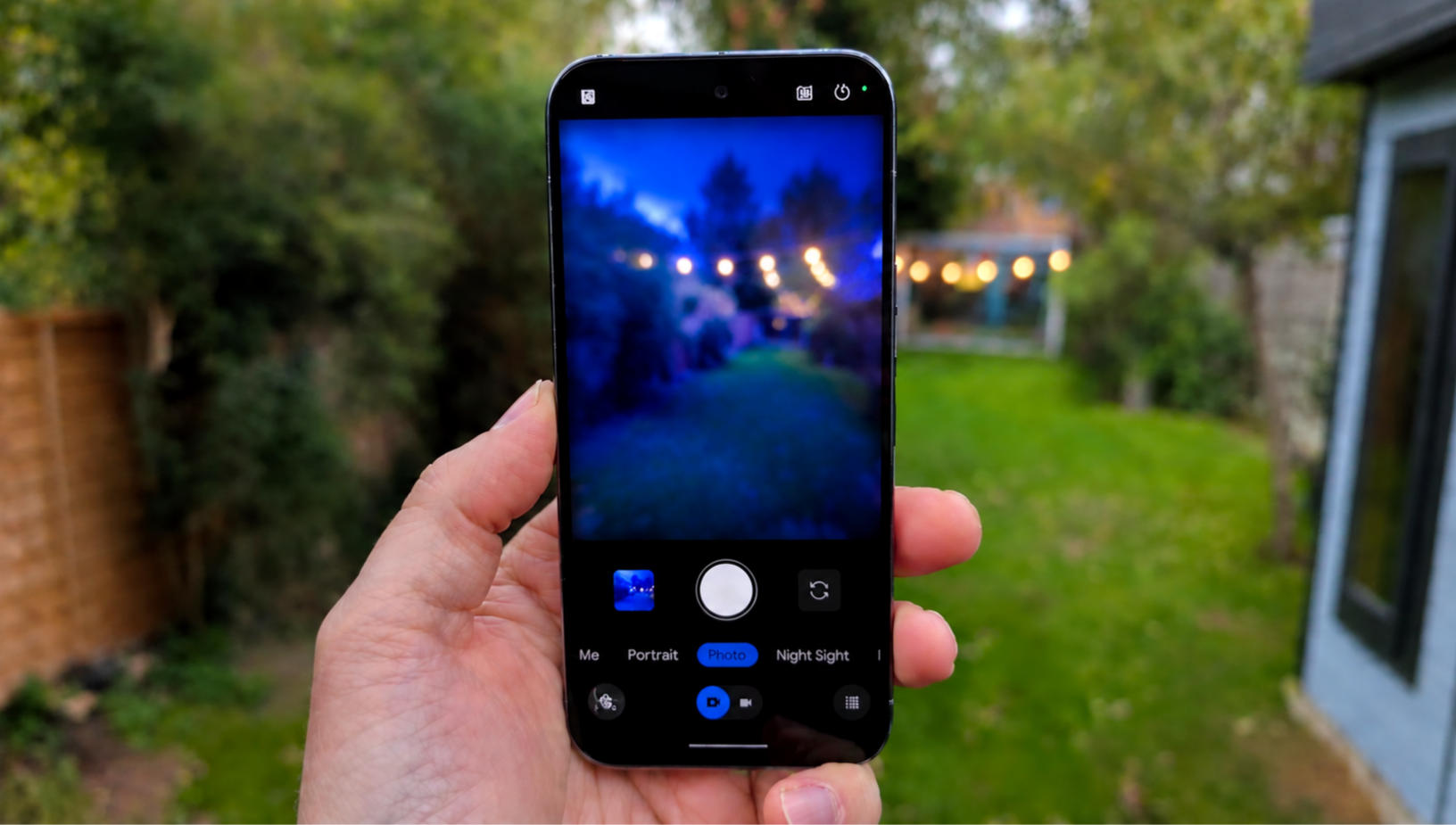
A blurry phone camera can ruin any moment, whether you’re taking photos of food, pets, or important documents. It usually isn’t a serious fault and can come from something simple like a dirty lens, changed settings, or a software bug after an update. Many users notice this issue after updating their phone, seeing foggy or out-of-focus images even when the camera was working fine before. The good news is that in most cases it can be fixed easily without repair. This guide explains the main reasons your camera becomes blurry after an update and the quick ways to fix it on iPhone and Android devices.
What Is a Blurry Camera?
A blurry camera is a camera that produces photos or videos that look unclear, soft, or out of focus. Instead of sharp details, the image may appear smudged or slightly faded, making it hard to see objects clearly. This doesn’t always mean the camera is damaged — it usually describes a situation where the camera is not focusing properly or something is affecting image quality during use, especially when trying to capture clear and detailed pictures.
Why Your Phone Camera Looks Blurry After an Update
Here are the most common reasons your camera becomes blurry after a software update:
1. Camera App Glitches After Update
After updating your phone, the camera app may not run perfectly at first. This can lead to blurry photos, slow focus, lag, foggy previews, or reduced sharpness. It is often just a temporary software glitch.
2. Dirty Camera Lens
Sometimes the issue is not from the update at all. Dust, fingerprints, or oil on the lens can easily make pictures look unclear or out of focus, even if everything else is working fine.
3. Autofocus Problems
Updates can sometimes affect how the autofocus system works. Your camera may struggle to lock onto subjects, especially if the app or AI settings were changed or bugged during the update.
4. Camera Settings Reset
Some updates reset camera settings without warning. Options like HDR, resolution, stabilization, or AI enhancements may change, leading to lower image quality or blurry photos.
5. Third-Party Apps Interference
Apps like Snapchat, Instagram, TikTok, or beauty filters can interfere with the camera after an update. This can affect focus, image processing, zoom, and overall clarity.
6. Low Storage Space
If your phone storage is almost full, the camera may not process images properly. This can cause blurry or low-quality photos, especially after a system update.
7. Update Bugs
Sometimes the update itself has bugs. This is common in beta updates or newly released Android and iOS versions, and it can temporarily affect camera performance until a fix is released.
Also read: How to Make Your Android Phone Battery Last Longer Without a Power Bank
How to Fix a Blurry Camera on Your Phone
Below are How to Fix a Blurry Camera on Your Phone:
1. Restart Your Phone
A simple restart can fix temporary camera glitches. To do this: press and hold the power button, tap restart, then wait for the phone to turn back on. After restarting, open the camera and test again. This often clears small software bugs affecting focus or image quality.
2. Clean the Camera Lens
Dust, fingerprints, or oil on the lens can make photos look blurry. Use a soft microfiber cloth to gently clean the lens. Avoid rough materials like tissue or clothing because they can scratch the glass. If needed, apply a small amount of lens-safe cleaner to the cloth (not directly on the lens) and wipe gently. A clean lens can instantly improve clarity.
3. Check Focus Settings
If your camera is still blurry, autofocus may not be working properly. Tap on the subject in the camera screen to refocus and ensure autofocus or tracking focus is enabled. Poor lighting, movement, or system glitches can also affect focus performance. Restarting the phone can help reset temporary focus errors and improve sharpness.
4. Remove Moisture or Fog
Moisture or fog inside or on the lens can cause blurry images, especially after temperature changes. Let your phone stay in a dry place and allow it to adjust naturally. You can also place it in a sealed container with silica gel packets to absorb moisture. Avoid using heat or dryers because they can damage internal components.
5. Reset Camera Settings
Wrong or changed settings can also cause blur. Resetting returns everything to default and fixes hidden configuration issues.
On Android: go to Settings > Apps > Camera > Storage > Clear Data or Clear Cache, then reopen the camera. This resets the camera settings completely.
On iPhone: go to Settings > Camera and also check Settings > General > Transfer or Reset iPhone > Reset > Reset All Settings. This restores camera-related settings without deleting your photos.
After resetting, test the camera again to check improvement.
6. Update Your Software
Outdated software can cause camera bugs, slow focus, or blurry images. Updates often include fixes that improve camera performance.
On Android: go to Settings > System > Software Update, then tap Check for Updates and download if available. You can also open Play Store and update the Camera app if needed.
On iPhone: go to Settings > General > Software Update, then tap Download and Install if an update is available. After updating, restart your phone and test the camera again.
7. Improve Lighting Conditions
Low light makes it harder for your camera to focus properly, which can cause blur. Try taking photos in brighter areas or turn on flash when needed. You can also use Night Mode or external lighting like a ring light. Good lighting improves both focus and image clarity.
8. Check for Hardware Issues
If your phone was dropped or exposed to pressure, the camera may be affected. Signs include constant blur, strange light effects, or autofocus failure. Also remove your phone case and test again because some cases can block or interfere with the lens area. If the problem continues, it may be a hardware issue.
9. Test Other Camera Apps
Sometimes the problem comes from a specific app. Open your default camera app and take a picture, then try other apps like Instagram or third-party camera apps. If only one app shows blur, reinstalling it may fix the issue. If all apps are affected, the problem is likely from the system or hardware.
10. Factory Reset (Last Option)
If nothing else works, a factory reset may fix deeper software problems affecting the camera.
On Android: go to Settings > System > Reset > Erase All Data (Factory Reset).
On iPhone: go to Settings > General > Transfer or Reset iPhone > Erase All Content and Settings.
Before doing this, back up your files because everything will be deleted. After resetting, test the camera before reinstalling apps.
11. Visit a Technician
If the camera is still blurry after all steps, the issue is likely hardware-related. Visit a certified repair center or contact your phone manufacturer for inspection or camera replacement. Avoid opening the phone yourself, as it may cause more damage or void your warranty.
What Happens During a Software Update?
Phone updates do more than add new features or improve battery life. They can also change how your camera works. Some of the things that may affect camera performance include:
1. New Camera App Version: Updates sometimes change or replace the default camera app. This can affect photo quality, camera settings, focus speed, or how the app processes images. You may also notice layout or feature changes after updating.
2. Firmware Adjustments: Camera firmware helps the hardware communicate properly with the software. When firmware changes are included in an update, they can affect autofocus speed, image stabilization, sharpness, and overall camera performance.
3. System-Level Changes: Android or iPhone updates can modify background processes, permissions, and system optimization settings. These changes may affect how smoothly the camera app runs or how quickly it captures photos.
Why Your Camera Might Get Worse
Below are some common reasons your camera quality may drop after a software update:
1. Software and Hardware Compatibility Issues: New updates are not always fully optimized for older phones. This can lead to slower autofocus, unexpected image processing changes, motion blur, or reduced camera performance after updating.
2. Camera Settings Reset Automatically: Major updates can reset important settings like HDR, focus mode, resolution, or image enhancement without notice. As a result, your photos may suddenly look less sharp or different from before.
3. App Compatibility Problems: Some apps may not work properly immediately after a system update. Until developers release newer versions, you may notice glitches, lag, or camera-related issues in certain apps.
4. Bugs Inside the Update: Some updates are released with hidden bugs that can affect camera quality, focus, or overall performance. These problems are usually temporary and are often fixed later through another software update.
How to Fix Camera Problems After an Update
If your camera started acting strangely after a software update, try these troubleshooting steps:
1. Clear Camera App Cache or Data: Go to Settings > Apps > Camera > Storage, then tap Clear Cache and Clear Data. This refreshes the camera app and can fix temporary glitches or performance problems.
2. Check Camera Permissions: After some updates, camera permissions may change automatically. Go to Settings > Apps > Camera > Permissions and make sure access to the camera, storage, and microphone is fully allowed.
3. Update the Camera App: Open Google Play Store or App Store and check for updates for the Camera app. A separate app update may contain bug fixes or performance improvements.
4. Rollback Camera Updates (Android): Some Android phones allow you to uninstall camera app updates. Go to Settings > Apps > Camera and check for an option like Uninstall Updates. This can restore the app to a more stable version if the new update caused problems.
5. Wait for Another Update: If many users are facing the same issue, the manufacturer may release another software patch to fix it. Keep checking for updates through your phone settings or official support channels.
Should You Skip Updates Because of This?
That depends on how important your camera performance is to you.
- For Major System Updates: If you use your phone camera for content creation, photography, or professional work, it may be better to wait a few days or weeks before installing a major Android or iPhone update. This gives manufacturers time to fix early bugs reported by users.
- For Security Updates: Smaller updates mainly focus on security improvements and minor fixes. These updates are usually safe to install immediately and are less likely to affect camera performance.
Before installing any update, it’s always a good idea to back up your phone. This helps protect your photos, files, settings, and other important data in case something goes wrong during the update process.
Conclusion
A blurry phone camera after an update is usually caused by software glitches, changed settings, autofocus problems, or temporary update bugs. In most cases, the issue can be fixed easily by cleaning the lens, resetting the camera settings, updating the software, or checking for app conflicts. If the problem still continues after trying all the fixes, it may be a hardware issue that requires professional repair. Keeping your phone updated carefully and maintaining enough storage space can also help prevent future camera problems.
Frequently Asked Questions (FAQs)
1. Can a phone update permanently damage camera quality?
In most cases, no. Software updates usually cause temporary issues like focus problems, lag, or blurry images rather than permanent camera damage. These problems are often fixed through settings adjustments, app updates, or later software patches.
2. Why does my camera look blurry only in some apps?
Some third-party apps use different image processing methods compared to your phone’s default camera app. If the blur only appears in apps like Instagram or Snapchat, the issue may be related to app optimization rather than the camera hardware itself.
3. Does overheating affect phone camera performance?
Yes. When a phone becomes too hot, the camera may slow down, lose focus accuracy, or reduce image processing quality temporarily. Allowing the phone to cool down can help restore normal camera performance.
4. Can a phone case make the camera blurry?
Yes. Thick or poorly designed phone cases can partially block the camera lens or interfere with autofocus and flash performance, leading to blurry or unclear photos.
5. Why do blurry photos happen more at night?
Phone cameras need enough light to focus properly. In dark environments, the camera sensor struggles to capture details clearly, which can lead to blur, grain, or soft-looking images, especially without Night Mode enabled.