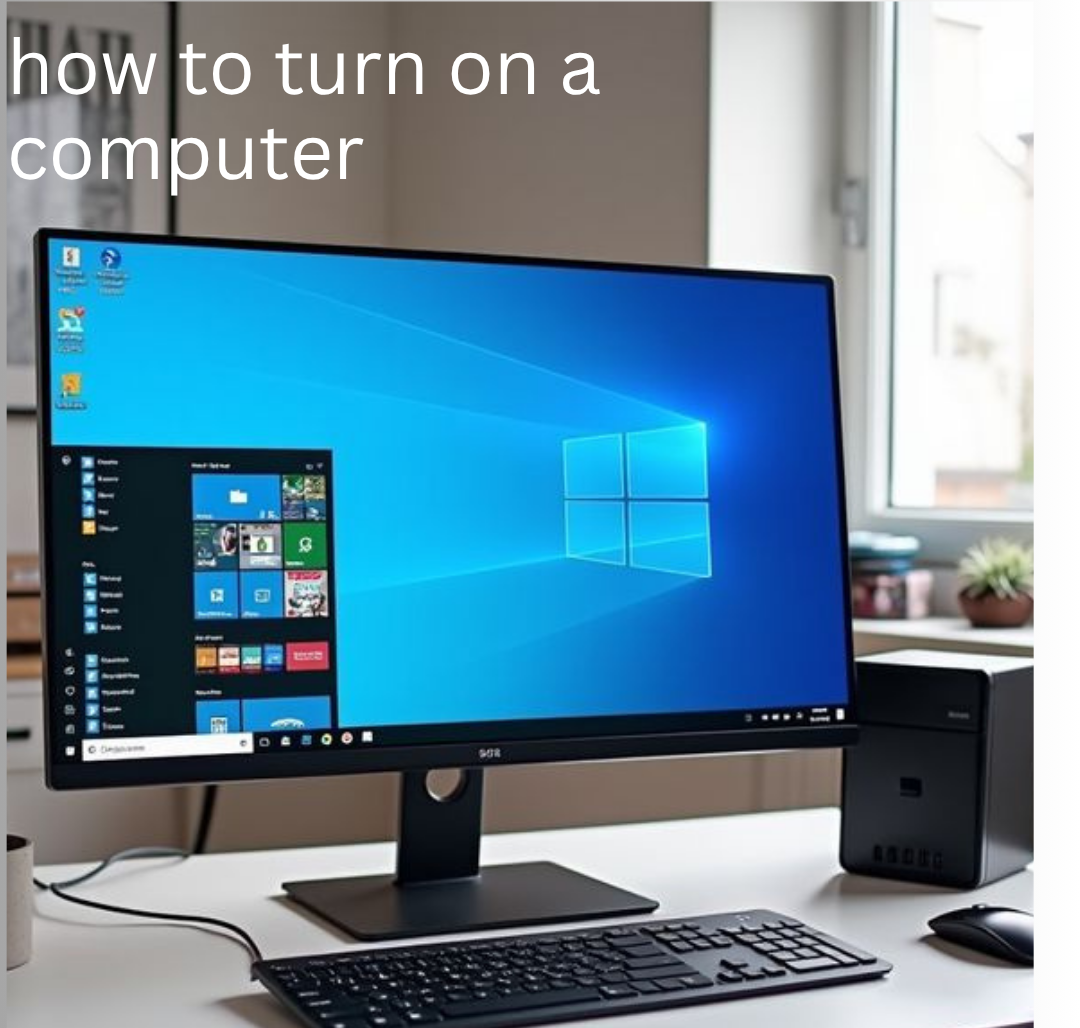
Turning on a computer is the first step to using the internet, working, studying, or enjoying entertainment online. Although the process is simple, following the correct steps helps the computer start properly and prevents common problems. In this guide, you’ll learn how to turn on both desktop and laptop computers easily, including what to check before starting and what to expect during the boot process.

How to Turn On a Computer Easily
Below are simple step-by-step instructions to help you turn on your computer correctly and get it ready for use without any confusion:
Step 1. Check the Power Connection
Before turning on your computer, confirm that it is connected to a working power source. For desktop computers, make sure the power cable is firmly plugged into both the computer and the wall socket. If you are using a laptop, connect the charger if the battery level is low or completely drained.
Step 2. Make Sure All Cables Are Connected Properly
Check that important accessories such as the keyboard, mouse, monitor, and other connected devices are securely plugged into the correct ports. Desktop users should also confirm that the monitor cable is properly attached so the display can work correctly when the computer starts.
Step 3. Find the Power Button
For desktop computers: The power button is usually located on the front or top part of the computer case.
For laptops: The power button is commonly found above the keyboard, near the screen hinge, or sometimes on the side of the device.
Step 4. Press the Power Button
Press the power button once gently and wait for the computer to begin starting up. You may notice indicator lights turning on, hear the cooling fan spinning, or see the screen light up. These are signs that the system is powering on successfully.
Step 5. Wait for the Startup Process
After pressing the power button, the computer will begin the boot process. During this stage, you may see the computer manufacturer’s logo, a loading animation, or the operating system starting up. This process may take a few seconds depending on the speed of your device.
Step 6. Log In to Your Account
Once the operating system has fully loaded, the login screen may appear. Enter your password, PIN, or other login details if required to access your computer.
Step 7. Start Using Your Computer
After logging in successfully, your computer is ready to use. You can now browse the internet, work on documents, watch videos, play games, or perform any other tasks you need.
Also read: Laptop Shuts Down When Unplugged
Why Won’t My Computer Turn On?
Here are the top 5 reasons why your computer won’t turn on, with brief explanations:
1. Power Supply Issues: One of the most common reasons a computer won’t turn on is a problem with the power supply. This could be a loose power cable, a faulty wall socket, or a damaged power supply unit (PSU) in desktop computers. If electricity is not reaching the system properly, the computer will not respond at all when you press the power button.
2. Dead or Faulty Battery (Laptop): A completely drained or faulty battery can prevent laptops from powering up. If the charger isn’t working or there’s an issue with the charging port, it won’t charge, and the laptop won’t turn on.
3. Loose or Damaged Internal Hardware: Sometimes internal components such as RAM, storage drives, or the motherboard may become loose or develop faults. When this happens, the computer may fail to complete its startup process. Even if power is supplied, the system cannot boot properly without working internal parts.
4. Overheating or Power Surge Problems: Excess heat or sudden power surges can trigger protective mechanisms inside the computer. This is especially common in desktop systems. When this happens, the computer may refuse to turn on in order to prevent further damage to sensitive components.
5. Faulty External Devices or Accessories: Connected devices like USB drives, printers, or other peripherals can sometimes interfere with the startup process. A damaged external device may block the boot sequence, causing the computer to hang or fail to power on completely.
Conclusion
Turning on a computer is a simple process when the right steps are followed, from checking the power connection to logging into the system. Understanding these basic steps helps you avoid common startup problems and ensures your device works smoothly every time. However, if your computer fails to turn on, the issue is usually linked to power supply, battery, hardware, overheating, or connected devices. By carefully checking these areas, you can often identify and fix the problem quickly without stress.
Frequently Asked Questions (FAQs)
1. What should I do if my computer shows lights but still does not start properly?
If your computer powers on but does not fully start, it could mean the system is stuck during the boot process. This may be caused by internal hardware issues, corrupted startup files, or a failing storage drive. In such a situation, try restarting the device and removing any connected external devices before turning it on again.
2. How long should a computer normally take to start up?
A healthy computer usually takes a few seconds to a couple of minutes to fully boot, depending on its speed and system type. If your computer takes unusually long to start, it may indicate low storage space, too many startup programs, or underlying system issues that need attention.
3. What does it mean if my computer turns on but there is no display?
When the computer is running but nothing appears on the screen, the issue is often related to the monitor, display cable, or graphics hardware. It is important to check if the monitor is switched on, properly connected, and receiving power before assuming a deeper system fault.
4. Can a damaged power button stop my computer from turning on?
Yes, a faulty or damaged power button can prevent the computer from starting completely. If the button does not respond when pressed, the system will not receive the signal to power on. In such cases, professional repair or testing the motherboard power switch connection may be required.
5. What should I do if my computer suddenly shuts down and refuses to turn back on?
If your computer shuts down unexpectedly and does not turn on again, it may be due to overheating, power failure, or internal hardware protection. Allow the system to cool down, check the power source, and ensure all cables are properly connected before trying again.