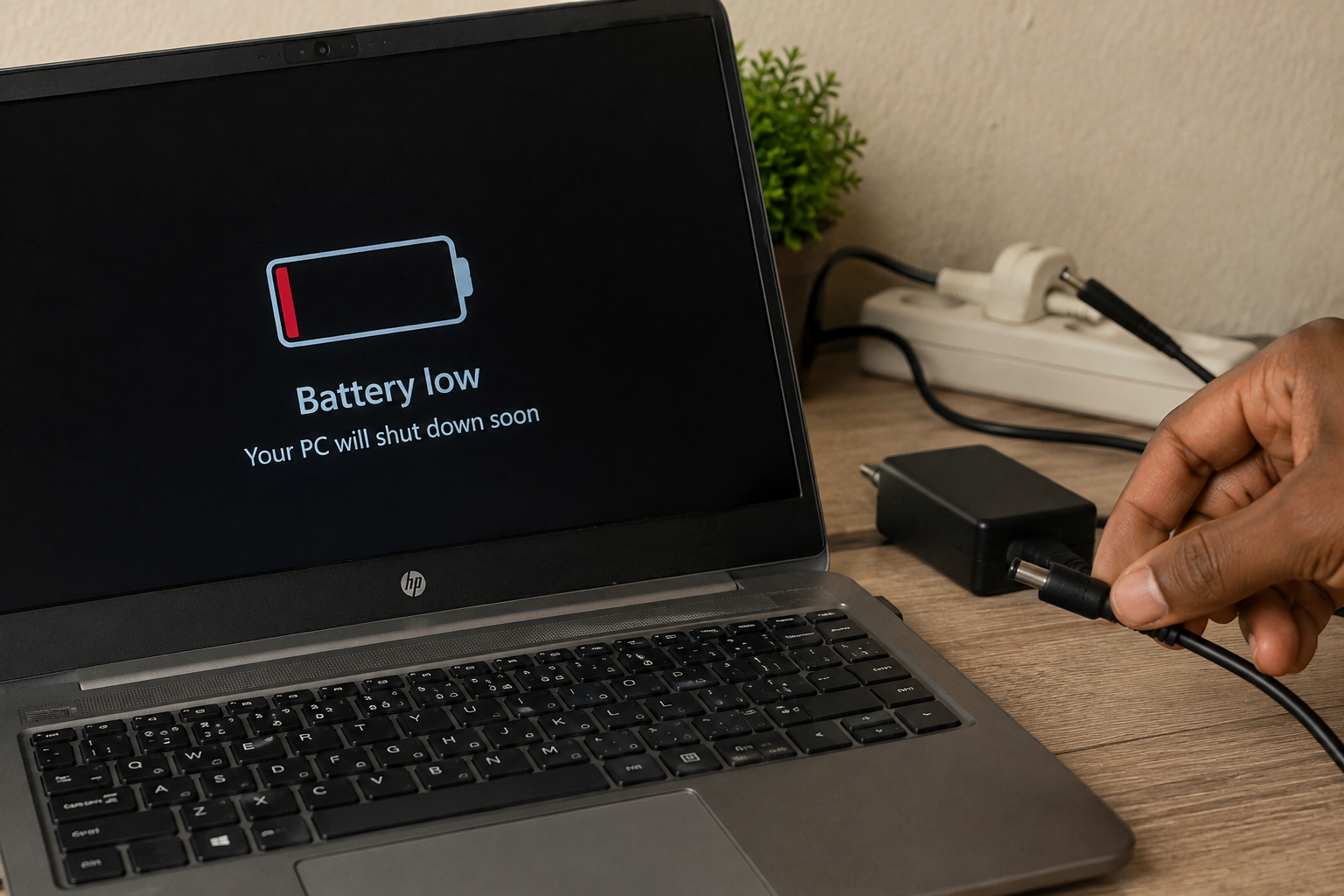
A laptop should continue running on battery power after you disconnect the charger. If your laptop shuts down when unplugged, it usually means something is preventing the battery from supplying power to the system. In many cases, the battery has reached the end of its lifespan, but outdated battery drivers, incorrect power settings, BIOS issues, charging problems, or hardware faults can also cause the problem. Fortunately, many of these issues can be fixed without replacing your laptop. In this guide, you’ll learn the most common reasons your laptop turns off when unplugged, practical solutions to fix it, and tips to keep your battery healthy for longer.
Also read: how to turn on a computer
Why Does My Laptop Shut Down When Unplugged?
Below are the most common reasons why your laptop shuts down when unplugged and what each one means:
1. The Battery Has Reached the End of Its Lifespan
The battery is the first thing you should check. Every laptop battery has a limited number of charge cycles, and over time it loses its ability to hold enough power. When the battery becomes heavily worn, your laptop may instantly power off as soon as the charger is removed because the battery can no longer provide electricity. If your laptop battery drains very quickly, refuses to charge fully, or only works while plugged in, replacing the battery is usually the permanent solution.
2. Corrupted or Outdated Battery Drivers
Windows uses battery drivers to communicate with the battery hardware. If these drivers become damaged after a Windows update or software issue, the operating system may fail to detect the battery correctly. As a result, your laptop may suddenly turn off when unplugged even if the battery still has charge remaining. Updating or reinstalling the battery driver often fixes this problem.
3. Incorrect Power Management Settings
Your laptop’s power settings control how the processor, display, and battery behave when running on battery power. Incorrect or corrupted settings can cause unexpected shutdowns after disconnecting the charger. Restoring the default power plan or adjusting advanced power settings may solve the issue without replacing any hardware.
4. The Battery Is Not Charging Properly
Sometimes the battery itself is healthy, but it never receives a full charge. A damaged charger, faulty charging cable, loose charging port, or defective charging circuit can prevent the battery from storing enough energy. If Windows displays “Plugged in, not charging” or the battery percentage never increases, your laptop may not actually be charging the battery.
5. Outdated BIOS or Firmware
The BIOS controls communication between your laptop’s hardware and operating system. An outdated BIOS may contain bugs that affect battery detection, charging, or power management. Laptop manufacturers regularly release BIOS updates to improve stability and fix battery-related issues.
6. Loose Battery Connection or Internal Hardware Problem
For laptops with removable batteries, loose battery contacts can interrupt the power supply. On laptops with built-in batteries, the internal battery cable may become loose after a repair or accidental drop. If the battery loses contact with the motherboard, your laptop will immediately shut down when external power is removed.
7. Battery Calibration Problems
Sometimes the battery percentage displayed by Windows is inaccurate. Your laptop may report 80% battery remaining when the battery is actually empty. This causes the laptop to switch off unexpectedly after unplugging the charger. Performing a battery calibration can improve battery readings and restore accurate charge reporting.
8. Faulty Motherboard or Charging Circuit
If every software solution fails and the battery is still healthy, the problem could be inside the motherboard. A damaged charging circuit, power controller, or other internal component may prevent the battery from powering the laptop correctly. This type of issue usually requires professional repair.
How to Fix a Laptop That Shuts Down When Unplugged
Below are the best ways to fix a laptop that turns off immediately after unplugging the charger:
1. Check Your Battery Health
A weak or worn-out battery is the most common reason laptops shut down when unplugged. Windows allows you to generate a battery report that shows your battery’s original capacity and current maximum capacity. Open Command Prompt as Administrator, type powercfg /batteryreport, press Enter, then open the generated report. If the full charge capacity is much lower than the design capacity, replacing the battery is recommended.
2. Reinstall the Battery Driver
A corrupted battery driver can prevent Windows from communicating properly with the battery. Open Device Manager, expand Batteries, right-click Microsoft ACPI-Compliant Control Method Battery, choose Uninstall device, restart your laptop, and allow Windows to automatically reinstall the correct driver during startup.
3. Restore Default Power Settings
Incorrect power settings may cause your laptop to shut down immediately after disconnecting the charger. Open Control Panel > Power Options, select your current power plan, click Change plan settings, then choose Restore default settings for this plan. This resets power management options to Microsoft’s recommended configuration.
4. Run the Windows Power Troubleshooter
Windows includes a built-in Power Troubleshooter that automatically detects and fixes common battery and power issues. Open Settings > System > Troubleshoot > Other troubleshooters, locate Power, and click Run. Allow Windows to scan your system and apply any recommended fixes.
5. Perform a Power Reset
Temporary electrical charges stored inside your laptop can sometimes interfere with battery detection. Shut down your laptop completely, disconnect the charger, remove the battery if it’s removable, then press and hold the power button for about 15 seconds. Reinstall the battery, reconnect the charger, and power the laptop back on to check if the issue has been resolved.
6. Update Your BIOS
An outdated BIOS can cause charging or battery recognition problems. Press Windows + R, type msinfo32, and check your current BIOS version. Visit your laptop manufacturer’s official support website, search for your exact laptop model, and install the latest BIOS update if one is available. Follow the manufacturer’s instructions carefully to avoid interrupting the update process.
7. Inspect the Charger and Battery Connection
A damaged charger, loose charging port, or poorly connected battery may prevent your laptop from charging correctly. Check that the charging cable is firmly connected, inspect the charging port for dust or damage, and if your laptop has a removable battery, remove it and reinstall it securely. A loose connection can easily cause sudden shutdowns when unplugging the charger.
8. Calibrate the Battery
If your laptop displays inaccurate battery percentages, calibrating the battery may help. Charge the battery to 100%, use the laptop until the battery is almost empty, then recharge it back to 100% without interruption. This helps Windows accurately estimate the remaining battery capacity.
9. Replace the Battery
If your battery health report shows severe wear or your laptop only works while plugged in despite trying the fixes above, replacing the battery is usually the best solution. Always purchase a genuine battery from your laptop manufacturer or a trusted replacement that matches your laptop model.
10. Contact a Professional Technician
If your laptop still shuts down after replacing the battery and updating the software, the motherboard or charging circuit may be faulty. A qualified repair technician can diagnose hardware problems that cannot be fixed through software settings.
How to Prevent Your Laptop Battery From Failing
Below are some simple tips to help keep your laptop battery healthy and lasting longer:
- Avoid exposing your laptop to excessive heat.
- Use the original charger whenever possible.
- Keep Windows, drivers, and BIOS updated.
- Avoid letting the battery remain completely empty for long periods.
- Clean the cooling vents regularly to prevent overheating.
- Use Battery Saver mode when you’re away from a power outlet.
- Store your laptop with around 40% to 60% battery if you won’t use it for several weeks.
- Disconnect unnecessary USB devices when running on battery power.
Also read: why is my laptop so slow
Conclusion
If your laptop shuts down when unplugged, the problem is usually caused by a worn-out battery, damaged battery driver, incorrect power settings, charging problems, or outdated BIOS firmware. In many cases, checking your battery health, reinstalling the battery driver, restoring default power settings, updating the BIOS, or replacing the battery will solve the issue. If none of these solutions work, the fault may be related to the motherboard or charging circuit, and professional repair may be necessary.
Frequently Asked Questions (FAQs)
1. Can I use my laptop without the battery installed?
Yes, many laptops can run directly from the charger without the battery installed, especially models with removable batteries. However, if the power cable is accidentally disconnected, the laptop will shut down immediately. Keeping a healthy battery installed also helps protect against sudden power outages.
2. Can overheating cause my laptop to shut down when unplugged?
Yes. If your laptop overheats while running on battery power, it may automatically shut down to protect its internal components. Dust buildup, blocked air vents, or a faulty cooling fan are common causes of overheating.
3. How long should a laptop battery normally last?
Most laptop batteries last between 2 and 5 years, depending on usage, charging habits, and battery quality. Over time, all rechargeable batteries lose capacity and eventually need replacement.
4. Is it safe to replace a laptop battery yourself?
Yes, if your laptop has a removable battery, replacing it is usually simple. For laptops with built-in batteries, it’s safer to follow the manufacturer’s instructions or have the battery replaced by a qualified technician to avoid damaging internal components.
5. Can a faulty charger damage my laptop battery?
Yes. Using a damaged, low-quality, or incompatible charger can prevent proper charging and may shorten your battery’s lifespan. Always use the original charger or a certified replacement designed for your laptop model.
6. How can I tell if my laptop battery needs replacing?
Common signs include very short battery life, unexpected shutdowns, failure to charge to 100%, overheating during charging, battery swelling, or Windows displaying a battery service or replacement warning.
7. Is it safe to keep my laptop plugged in all the time?
Modern laptops automatically stop charging when the battery reaches full capacity. However, avoiding excessive heat and enabling battery protection features can help extend the battery’s lifespan.