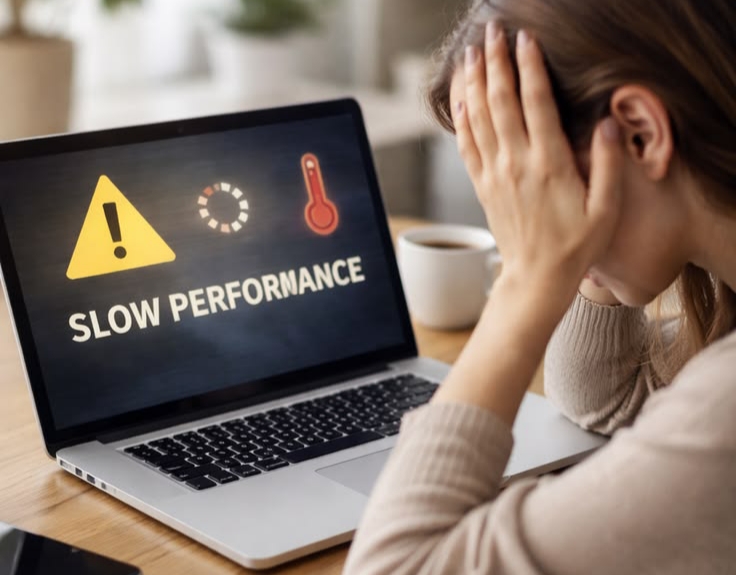
Has your laptop suddenly become slow, taking longer to start up, open programs, or load websites? If so, you’re not alone. A sluggish laptop is one of the most common computer problems, whether you use it for work, school, gaming, or everyday browsing.
The good news is that a slow laptop doesn’t always mean it’s time to replace it. In many cases, poor performance is caused by issues such as too many background applications, low storage space, outdated software, overheating, or insufficient memory. Once you identify the cause, you can often improve your laptop’s speed with a few simple changes.
In this guide, we’ll explain the most common reasons why laptops become slow, show you practical ways to improve performance, and share maintenance tips that can help keep your device running smoothly for years.
Also read: how to turn on a computer
Common Reasons Why Your Laptop Is So Slow
There are many possible reasons your laptop isn’t performing as quickly as it should. Some problems are software-related, while others are caused by aging hardware. Below are the most common causes:
1. Too Many Programs Running in the Background
Every time you install software, some applications may continue running even when you’re not actively using them. Cloud storage services, messaging apps, update tools, and other background processes consume your laptop’s memory and processor power.
When too many of these tasks run at the same time, your laptop has fewer resources available for the programs you’re actually using. As a result, opening applications, switching between windows, or browsing the web can feel noticeably slower.
Closing unnecessary background applications and disabling startup programs can often provide an immediate performance improvement.
2. Malware or Virus Infections
Malware is another major reason laptops become slow. Harmful software may secretly run in the background, using your system’s CPU, memory, storage, and internet connection.
Common warning signs include unexpected pop-up ads, browser redirects, unknown applications, unusually high CPU usage, and slow overall performance.
Running a full system scan with a trusted antivirus program can help detect and remove malicious software before it causes further problems.
3. Low Available Storage Space
Your operating system needs free storage space to create temporary files, install updates, and manage virtual memory efficiently. When your storage drive is almost full, your laptop may become slower than usual.
Large videos, duplicate files, old downloads, and unused applications often take up valuable storage without you realizing it.
Regularly deleting unnecessary files, uninstalling unused programs, and emptying the Recycle Bin can help restore performance.
4. System Clutter and Temporary Files
As you use your laptop, temporary files, cached data, browser cookies, and leftover installation files continue to build up. Over time, this digital clutter can affect overall performance.
Performing routine system cleanup helps remove unnecessary files and gives your operating system more room to work efficiently.
5. Outdated Hardware
If your laptop is several years old, its hardware may no longer meet the demands of modern software. New operating systems, web browsers, and applications require more processing power and memory than older devices were originally designed to handle.
Limited RAM, an older processor, or a traditional hard disk drive (HDD) can all contribute to slower performance. In many cases, upgrading to an SSD or adding more RAM can significantly improve your laptop’s speed.
6. Lack of Regular Maintenance
Many users rarely restart their laptops, install updates, or clean dust from the cooling vents. Over time, these small issues can add up and reduce overall performance.
Keeping your laptop updated, cleaning its cooling system, and performing regular maintenance can help prevent slowdowns and extend its lifespan.
How to Speed Up a Slow Laptop
If your laptop has become slow, don’t assume you need to replace it immediately. In many cases, a few simple changes can restore its performance and make everyday tasks much smoother. Below are some of the most effective ways to improve your laptop’s speed:
1. Reboot Your Computer Regularly
One of the easiest ways to improve your laptop’s performance is by restarting it regularly. A reboot clears temporary files, refreshes your system memory, and closes background processes that may have been running for a long time. If you usually leave your laptop on for days or weeks, restarting it can make a noticeable difference.
2. Free Up Storage Space
When your storage drive is almost full, your laptop has less room to create temporary files and run system processes efficiently. Delete files you no longer need, uninstall unused applications, empty the Recycle Bin, and move large files to cloud storage or an external drive. Keeping enough free space helps your laptop perform better.
3. Update Your Operating System and Drivers
Software updates often include bug fixes, security improvements, and performance enhancements. Outdated drivers can also cause slow hardware performance or compatibility issues. Regularly updating your operating system and device drivers helps your laptop run more smoothly and securely.
4. Disable Unnecessary Startup Programs
Many applications automatically launch when your laptop starts. While some are important, many are unnecessary and increase boot time. Review your startup programs and disable the ones you rarely use. This allows your laptop to start faster and frees up system resources.
5. Scan for Malware and Viruses
Viruses, spyware, and other malicious programs can quietly consume your laptop’s processing power and memory. Run a full system scan using a trusted antivirus program and remove any threats that are detected. Keeping your security software updated also helps prevent future infections.
6. Upgrade Your RAM
If your laptop slows down whenever you open several programs or browser tabs, adding more RAM may help. More memory allows your system to handle multiple tasks at the same time without freezing or lagging. Before upgrading, check your laptop’s specifications to ensure it supports additional RAM.
7. Replace an HDD with an SSD
If your laptop still uses a traditional hard disk drive (HDD), upgrading to a solid-state drive (SSD) can significantly improve performance. An SSD loads Windows faster, opens applications more quickly, and reduces waiting times when transferring files. It is one of the most effective hardware upgrades for older laptops.
8. Close Unused Applications and Browser Tabs
Running too many applications or keeping dozens of browser tabs open at once can consume large amounts of RAM and processor power. Close programs you’re not actively using and reduce the number of open tabs to help your laptop respond more quickly.
Tips to Prevent Your Laptop from Getting Slow
Maintaining your laptop regularly is the best way to prevent performance issues before they start. Follow these simple habits to keep your device running efficiently.
1. Restart Your Laptop Frequently
Restarting your laptop every few days helps clear temporary memory, closes unnecessary background processes, and refreshes your operating system. This simple habit can improve stability and overall speed.
2. Keep Enough Free Storage Space
Avoid filling your storage drive completely. Try to keep at least 20% of your storage free so your operating system has enough room to manage temporary files, updates, and virtual memory efficiently.
3. Install Software Updates Promptly
Always install updates for your operating system, web browser, and installed applications. These updates often contain performance improvements, bug fixes, and important security patches that help your laptop run smoothly.
4. Remove Programs You No Longer Use
Unused applications continue to occupy storage space and may even run background services. Review your installed programs regularly and uninstall software you no longer need.
5. Keep Startup Programs Under Control
Every few months, check which programs launch automatically when your laptop starts. Disable unnecessary startup applications to reduce boot time and improve overall performance.
6. Protect Your Laptop with Reliable Antivirus Software
Install a trusted antivirus program and enable real-time protection. Schedule regular scans to detect malware before it affects your laptop’s speed or compromises your personal data.
7. Clean Dust from Your Laptop
Dust can block cooling vents and reduce airflow, causing your laptop to overheat. Carefully clean the keyboard, air vents, and cooling areas every few months to help maintain proper temperatures and prevent thermal throttling.
8. Avoid Running Too Many Programs at Once
Although modern laptops support multitasking, opening too many heavy applications simultaneously can still reduce performance. Close programs you’re finished using to free up system resources and keep your laptop responsive.
Also read: Are Hp Laptops Good
When Should You Consider Buying a New Laptop?
Sometimes maintenance and upgrades are no longer enough to restore acceptable performance. If your laptop continues to struggle despite your efforts, replacing it may be the better long-term solution.
1. Your Laptop Is More Than Five Years Old
Technology changes quickly, and older laptops may not be powerful enough to handle today’s operating systems and applications. If your device is more than five years old, upgrading to a newer model could provide a much better experience.
2. Repair Costs Are Too High
If repairing or upgrading your laptop costs close to the price of a new one, purchasing a replacement is often the more cost-effective choice.
3. Your Hardware Cannot Handle Modern Software
If your laptop frequently freezes, crashes, or struggles to run the programs you need, its processor, memory, or storage may no longer meet modern requirements.
4. You Experience Frequent Hardware Failures
Constant problems such as battery failure, overheating, keyboard issues, display problems, or storage errors can indicate that your laptop is reaching the end of its lifespan.
5. Performance Is Still Poor After Upgrades
If you’ve already upgraded your storage, increased your RAM, removed unnecessary files, and scanned for malware but your laptop remains slow, replacing it may be the most practical solution.
Conclusion
A slow laptop can be frustrating, but the good news is that most performance problems have simple solutions. Issues such as limited storage space, too many startup programs, malware, outdated software, overheating, or aging hardware are among the most common causes of slow performance.
By following the tips in this guide, including restarting your laptop regularly, keeping your software updated, cleaning unnecessary files, scanning for malware, and upgrading hardware when necessary, you can improve your laptop’s speed and extend its lifespan. If your laptop still struggles after trying these solutions, investing in a newer device may be the best option.
Frequently Asked Questions (FAQs)
1. Why is my laptop so slow even after restarting it?
If your laptop remains slow after a restart, it may have limited RAM, low storage space, outdated drivers, malware, or aging hardware. Checking these areas can help identify the cause.
2. Can too many browser tabs slow down my laptop?
Yes. Every browser tab uses memory and processor resources. Keeping dozens of tabs open at once can reduce performance, especially on laptops with limited RAM.
3. Will adding more RAM make my laptop faster?
In many cases, yes. Increasing your laptop’s RAM improves multitasking and helps applications run more smoothly, especially if your current memory is insufficient.
4. Is an SSD better than an HDD?
Yes. SSDs are much faster than traditional HDDs, allowing your laptop to boot quicker, load programs faster, and respond more smoothly during everyday use.
5. How often should I clean my laptop?
It’s a good idea to clean your laptop every three to six months. Removing dust from the vents and cooling system helps prevent overheating and maintains good performance.
6. When should I replace my laptop instead of upgrading it?
If your laptop is several years old, requires frequent repairs, or still performs poorly after upgrading the RAM and storage, replacing it is usually the better long-term investment.