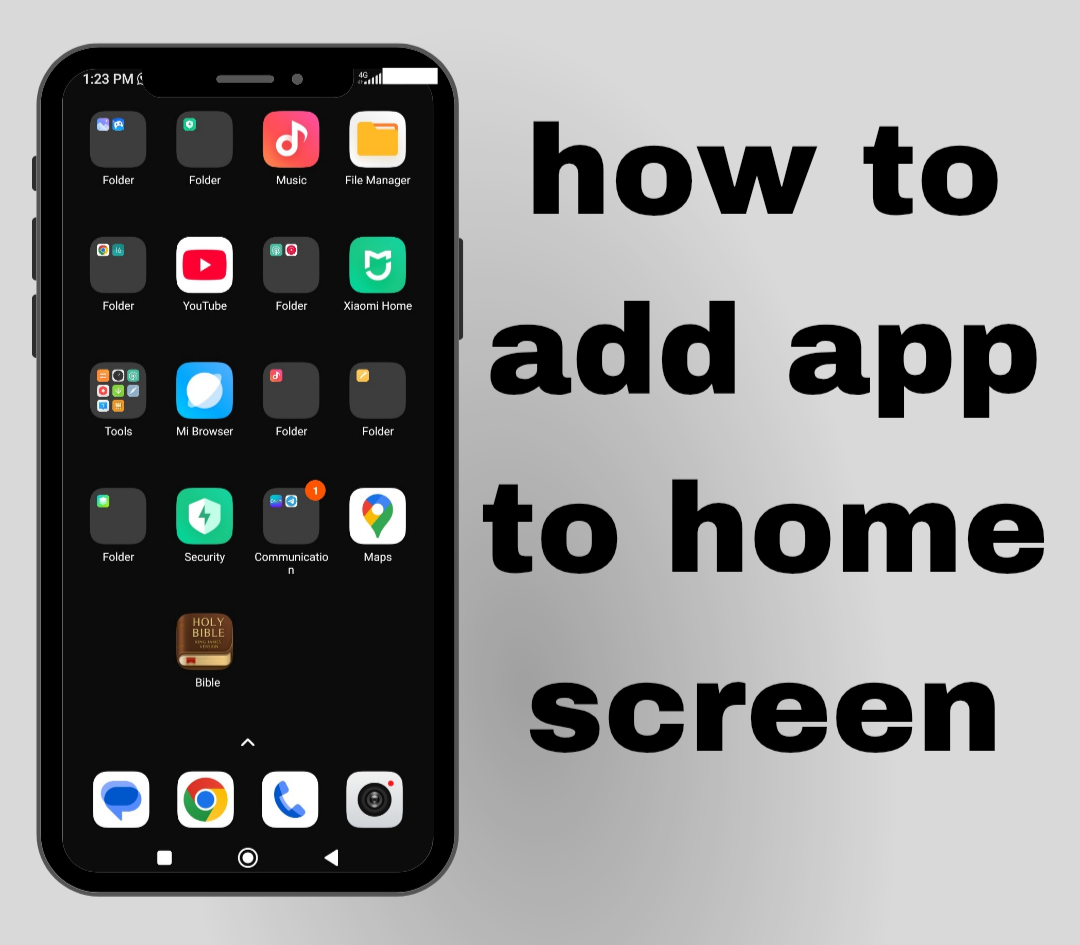
Have you ever installed an app but couldn’t find it on your home screen? Or maybe you accidentally removed the app shortcut and weren’t sure how to get it back. This is a common issue on both Android phones and iPhones, but it’s usually easy to fix. After testing these methods on different devices, I found that restoring an app to the home screen only takes a few simple steps in most cases. In this guide, you’ll learn why an app may not appear on your home screen, how to add it back on Android and iPhone, how to make newly installed apps appear automatically, what to do if the “Add to Home Screen” option is missing, and the best troubleshooting tips to help you fix the problem quickly.
Also read: How to Stop ChatGPT From Draining Battery in the Background
Why Can’t I Add an App to My Home Screen?
If you can’t add an app to your home screen, the issue is usually caused by your phone’s settings or a temporary software problem. Here are the most common reasons:
1. The app is hidden: Some phones allow apps to be hidden from the home screen or App Drawer. Check your launcher settings to see if the app has been hidden.
2. The app is disabled: If the app has been disabled in your phone’s settings, it won’t appear on the home screen until it’s enabled again.
3. Your home screen is full: If there isn’t enough space for another app icon, you’ll need to move or remove an existing shortcut before adding a new one.
4. Launcher problems: A temporary issue with your phone’s launcher may prevent app shortcuts from appearing. Restarting your device or updating the launcher often fixes the problem.
5. Restrictions or parental controls: Some parental control or device management settings can prevent apps from being added to the home screen. Review these settings if you think they may be affecting your device.
How to Add an App to the Home Screen on Android
Most Android phones use an App Drawer, which stores all installed apps. Follow these steps:
1. Unlock your Android phone.
2. Open the App Drawer by swiping up from the bottom of the screen or tapping the Apps icon, depending on your device.
3. Find the app you want to add.
4. Touch and hold the app icon.
5. Select Add to Home if the option appears, or simply drag the app to your preferred home screen.
6. Release the icon where you want it to stay.
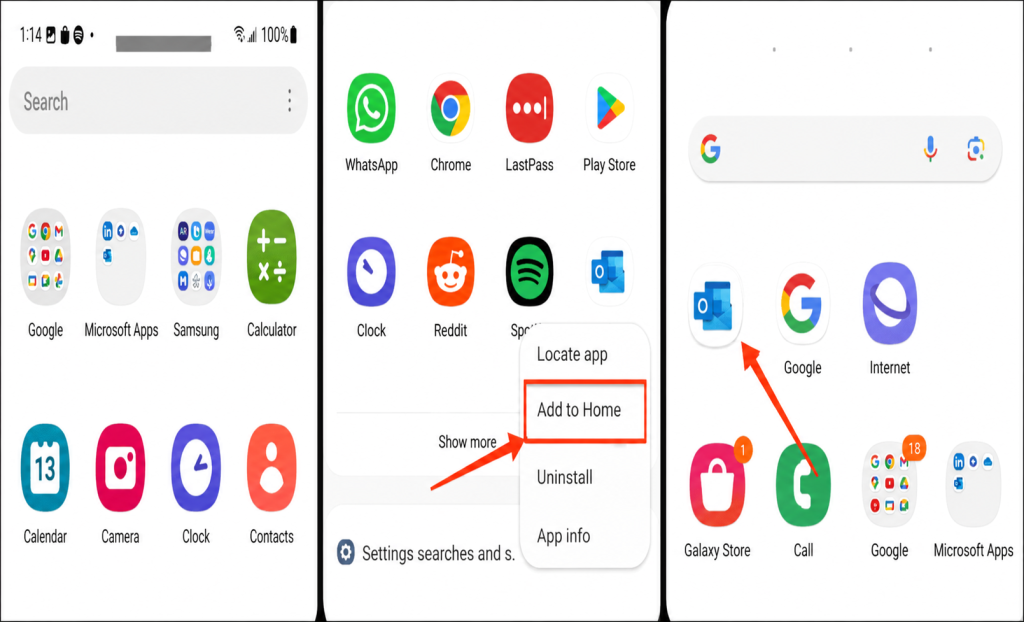
The app shortcut will now appear on your home screen.
How to Add an App to the Home Screen on iPhone
If you’re using an iPhone, apps can be added from the App Library. Here’s how:
1. Swipe left until you reach the App Library.
2. Locate the app you want to add.
3. Press and hold the app icon.
4. Tap Add to Home Screen if the option is available.
5. If you don’t see that option, keep holding the icon and drag it onto the home screen.
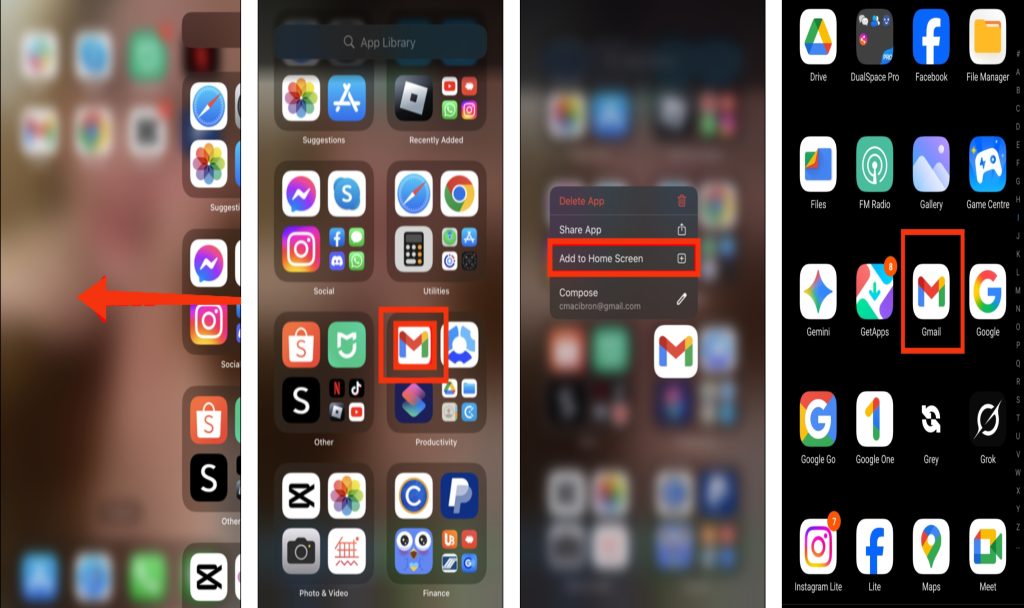
Once you release it, the app will remain on your home screen.
Also read: why is my app store not working
How to Make New Apps Automatically Appear on the Home Screen
If newly installed apps don’t appear on your home screen, you can change your settings.
On Android:
Some Android phones allow you to automatically add new app icons to the home screen. Open your home screen settings and enable the option to add newly installed apps.
On iPhone:
Go to Settings > Home Screen & App Library, then choose Add to Home Screen under Newly Downloaded Apps.
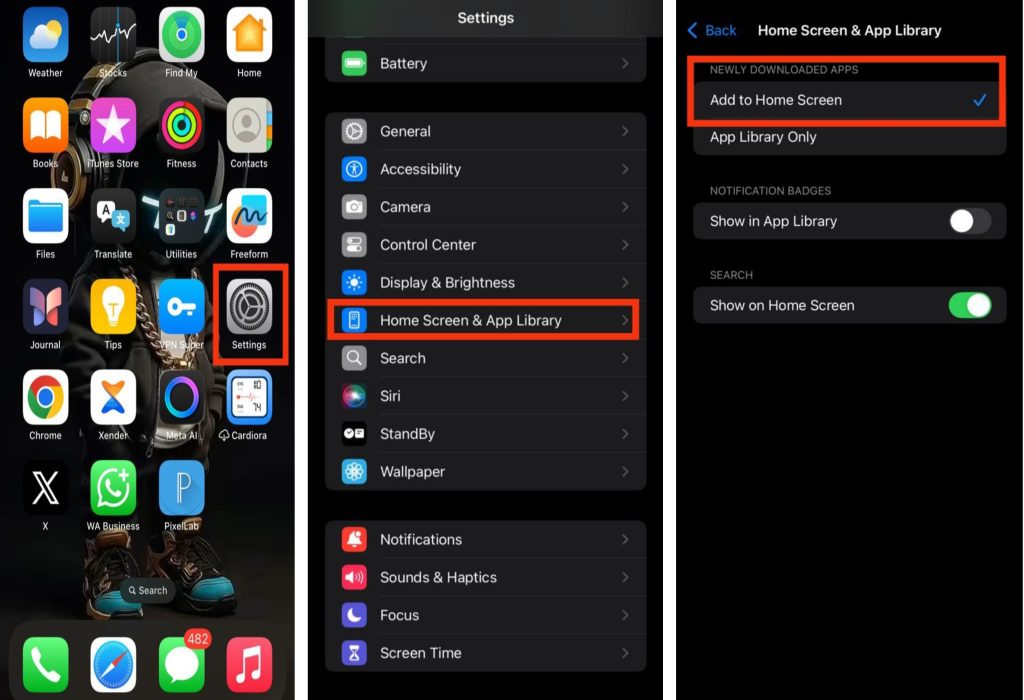
After changing this setting, future app downloads will automatically appear on your home screen.
What to Do If “Add to Home Screen” Is Missing
If you don’t see the “Add to Home Screen” option, try these simple fixes before assuming there’s a problem with the app:
1. Restart your phone: A quick restart can fix temporary software glitches that may prevent the option from appearing.
2. Update your launcher or operating system: An outdated launcher or phone software can cause home screen features to stop working properly. Install any available updates and try again.
3. Check if the app is already on your home screen: The app may already have a shortcut on another home screen page or inside a folder. Search your home screens before creating a new shortcut.
4. Reset the launcher if necessary: If the problem continues, resetting your home screen launcher can restore missing options and fix issues with app shortcuts. Keep in mind that this may rearrange your home screen layout on some devices.
Troubleshooting Tips
If you still can’t add an app to your home screen after following the steps above, don’t worry. A few simple checks can often resolve the issue:
- Restart your device: A quick restart can fix temporary software glitches that may prevent app shortcuts from appearing.
- Update your phone: Make sure your device is running the latest software version, as updates often include bug fixes and performance improvements.
- Check for app updates: An outdated app may not work properly. Updating it can resolve compatibility issues.
- Free up space on your home screen: If your home screen is full, remove or move a few icons to create room for the new app shortcut.
- Reset your home screen layout: If your icons or launcher settings have become corrupted, resetting the layout may restore normal functionality.
In most cases, one of these solutions will help you successfully add the app back to your home screen without needing advanced troubleshooting.
Also read: how do i stop tiktok from draining my battery in the background
Conclusion
Adding an app to your home screen is usually quick and doesn’t require any technical skills. Whether you’re using an Android phone or an iPhone, you can restore a missing app shortcut in just a few steps. If the app still doesn’t appear, checking your device settings, updating your phone, or trying the troubleshooting methods in this guide can often solve the problem. By understanding the common causes and applying the right solution, you can keep your favorite apps easy to access and your home screen organized.
Frequently Asked Questions (FAQs)
1. Can I add multiple apps to my home screen at the same time?
No. On most Android phones and iPhones, you need to add each app individually by dragging it from the App Drawer or App Library to the home screen. Although it takes a little time, it lets you arrange your apps exactly how you want.
2. Why does my app disappear after I restart my phone?
If an app disappears after a restart, it could be due to a software bug, a third-party launcher issue, or the app being disabled. Updating your phone and checking your launcher settings can often resolve the problem.
3. Will adding an app to the home screen use more storage?
No. Adding an app to your home screen only creates a shortcut to the installed app. It does not duplicate the app or increase your phone’s storage usage.
4. Can I move an app to a different home screen page?
Yes. Simply press and hold the app icon, then drag it to the edge of the screen until the next home screen page appears. Release the icon where you want it to stay.
5. Why can’t I drag an app to my home screen?
This may happen if your home screen is locked, your launcher isn’t responding correctly, or there isn’t enough space for another icon. Restarting your device or unlocking the home screen layout usually fixes the issue.
6. Can I remove an app from the home screen without uninstalling it?
Yes. Removing an app from the home screen only deletes its shortcut. The app remains installed on your phone and can still be opened from the App Drawer or App Library whenever you need it.