Snapchat is one of the most popular social media apps, but it is also one of the biggest battery users on both Android and iPhone. Unlike many messaging apps, Snapchat constantly uses your camera, GPS, mobile data or Wi-Fi, processor, and graphics chip to deliver features like Snaps, Stories, Spotlight, AR filters, and Snap Map. As a result, your battery may drain much faster than normal, especially if you use the app for long periods. The good news is that you can reduce Snapchat’s battery usage without giving up the features you enjoy. In this guide, you’ll learn why Snapchat drains your battery so quickly, the most common causes, and the best ways to improve your phone’s battery life.
Also read: How to Stop ChatGPT From Draining Battery in the Background
Why Does Snapchat Use So Much Battery?
Several Snapchat features work together to increase battery consumption. Below are the most common reasons your battery drains quickly while using the app:
1. Snap Map Constantly Uses Your Location
Snap Map is one of the biggest reasons Snapchat consumes so much battery. When location sharing is enabled, Snapchat frequently checks your location using GPS, nearby Wi-Fi networks, and mobile towers to keep your position updated. GPS is one of the most power-hungry features on any smartphone, so leaving Snap Map enabled throughout the day can noticeably reduce your battery life. The more often Snapchat updates your location, the more battery it consumes.
2. AR Lenses and Filters Require Heavy Processing
Snapchat’s AR filters and Lenses use advanced facial recognition and real-time graphics rendering. Every time you apply a filter, your phone’s camera, processor (CPU), graphics processor (GPU), and AI engine work together to recognize your face and apply effects instantly. This requires far more power than sending a normal message, which is why using filters for long periods can quickly drain your battery and make your phone feel warm.
3. Camera View Is Always Ready
Unlike most apps that open to a home page, Snapchat opens directly to the camera. As soon as you launch the app, your phone activates the camera sensor, display, and image processor so you can instantly take a photo or record a video. Even if you don’t take a Snap, keeping the camera active uses more battery than simply viewing text or images. Opening Snapchat many times throughout the day repeatedly activates the camera, increasing overall battery consumption.
4. Videos, Voice Calls, and Spotlight Use More Power
Watching Stories, browsing Spotlight videos, making voice calls, recording videos, and sending video messages require your screen, speakers, internet connection, processor, and camera to work at the same time. These activities consume much more power than sending ordinary text messages, so spending long periods watching videos or making calls can significantly shorten your battery life.
5. Background Activity and Story Preloading
Snapchat continues working even after you leave the app. It checks for new messages, refreshes Stories, downloads content, syncs Memories, and sends notifications in the background so everything loads quickly when you return. While this improves the user experience, it also increases battery usage throughout the day.
6. Mobile Data and Weak Network Signals
Using Snapchat on mobile data generally consumes more battery than using Wi-Fi. If you’re in an area with poor network coverage, your phone has to work harder to maintain a stable connection while loading photos, videos, and messages. This extra effort increases battery drain, especially when uploading Snaps or watching Spotlight videos.
7. Snapchat Games and Interactive Features
Although not everyone uses them, Snapchat games and interactive experiences require continuous internet access and additional processing power. Similar to other mobile games, they keep your processor and graphics hardware busy, which increases battery consumption the longer you play.
8. Frequent Notifications Keep Waking Your Phone
Snapchat sends notifications for new messages, Stories, friend requests, Snapstreak reminders, Spotlight recommendations, and other activities. Every notification wakes your phone, activates the screen or vibration, and briefly uses network resources. Receiving dozens of notifications throughout the day can gradually reduce your battery life.
Also read: How do I stop WhatsApp from draining my battery in the background?
How to Fix Snapchat Battery Drain
If Snapchat is draining your battery faster than expected, you don’t have to stop using the app completely. Making a few changes to your Snapchat settings and phone settings can significantly reduce battery usage while allowing you to continue enjoying the app. Below are some of the most effective solutions:
1. Avoid Watching Too Many Videos and Spotlight Clips
Watching Stories, Spotlight videos, and other video content keeps your display, processor, speakers, and internet connection active continuously. The longer you watch videos, the more battery Snapchat consumes. If you want your battery to last longer, reduce the amount of time you spend watching videos and switch to text conversations whenever possible.
2. Turn Off Snap Map or Limit Location Access
Location tracking is one of Snapchat’s biggest battery users because GPS continuously checks your location. If you don’t need Snap Map, disabling it can noticeably improve battery life.
Steps:
- Open Snapchat.
- Tap your Profile.
- Tap the Settings (⚙️) icon.
- Select See My Location.
- Enable Ghost Mode.
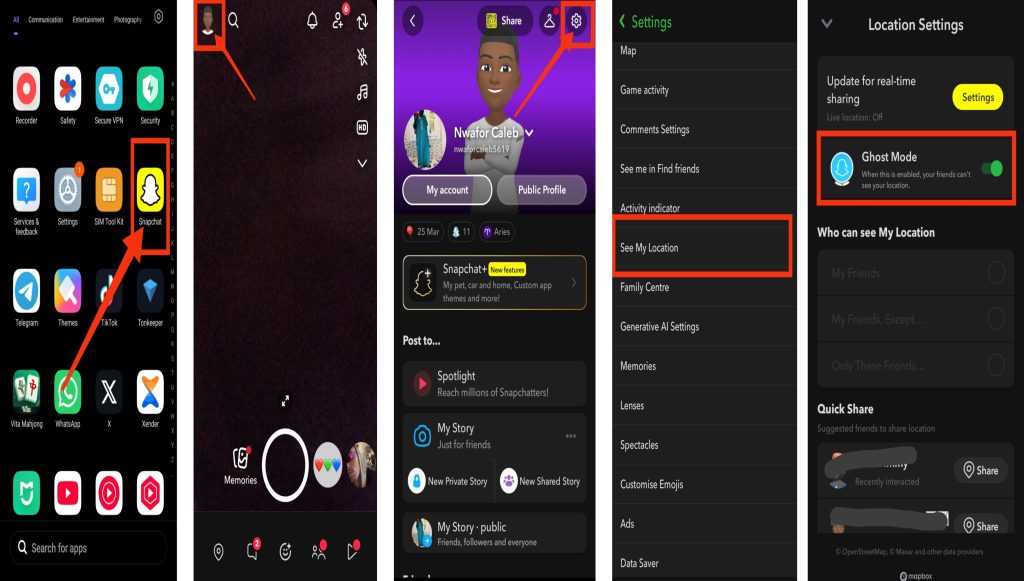
You can also limit location permission from your phone’s settings by selecting While Using the App instead of Always.
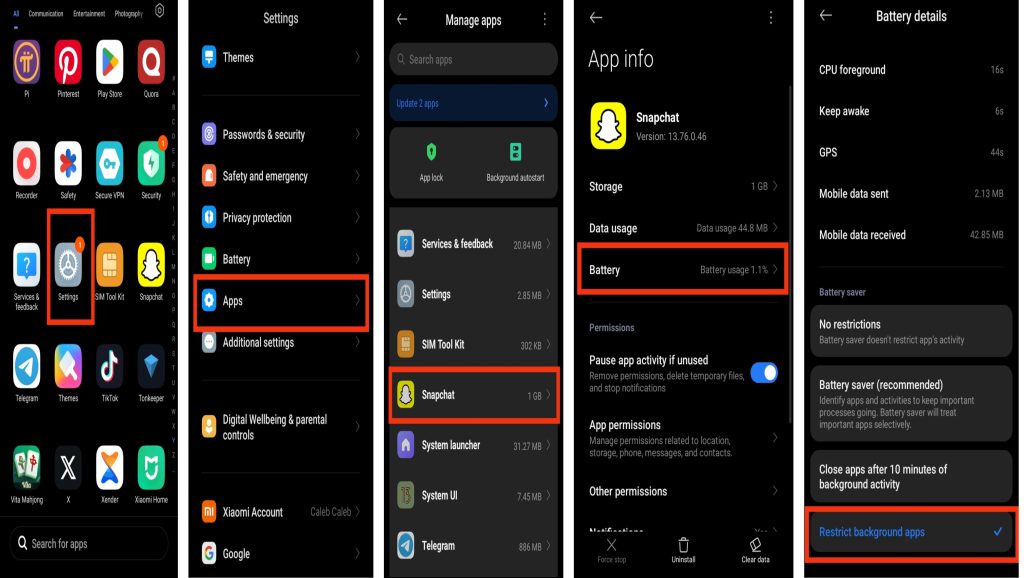
3. Stop Snapchat From Running in the Background
Snapchat can continue checking for messages, refreshing Stories, and syncing content even after you close the app. Restricting background activity helps reduce unnecessary battery usage.
Android Steps:
- Open Settings.
- Tap Apps.
- Select Snapchat.
- Tap Battery.
- Choose Restricted or Optimized.
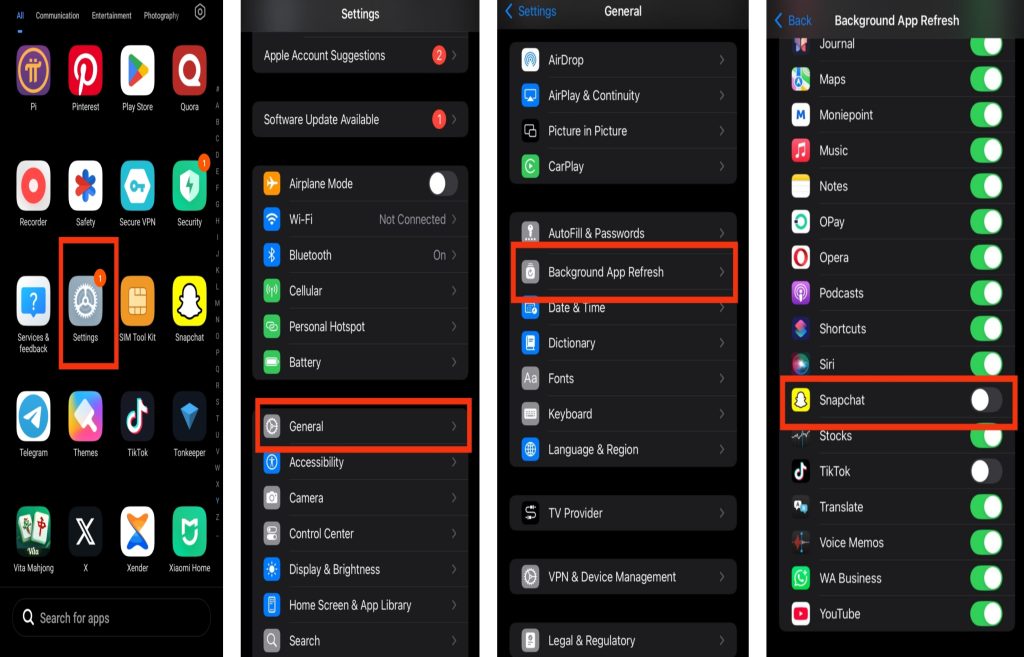
iPhone Steps:
- Open Settings.
- Tap General.
- Select Background App Refresh.
- Find Snapchat.
- Turn it Off.
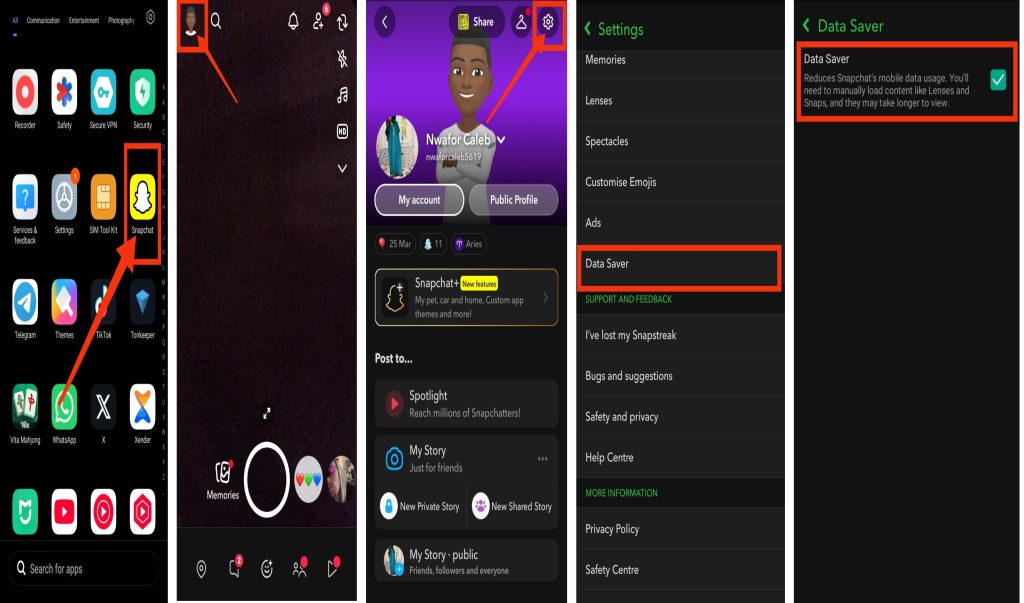
4. Turn On Snapchat Data Saver
Snapchat’s built-in Data Saver feature prevents Stories and Spotlight videos from downloading automatically. Besides reducing mobile data usage, it also helps conserve battery.
Steps:
- Open Snapchat.
- Tap your Profile.
- Tap Settings.
- Scroll down to Data Saver.
- Turn Data Saver On.
5. Enable Battery Saver or Low Power Mode
Battery Saver on Android and Low Power Mode on iPhone help reduce Snapchat’s battery usage by limiting background activity, reducing unnecessary system processes, and optimizing power consumption. When your battery starts running low, enabling these features can help extend battery life while still allowing you to use Snapchat normally.
6. Lower Your Screen Brightness
Your phone’s display is one of the biggest sources of battery consumption. Since Snapchat is a camera-based app, the screen stays active almost the entire time you’re using it. Reducing screen brightness or enabling Adaptive Brightness can noticeably improve battery life.
Steps:
- Swipe down from the top of your screen to open Quick Settings.
- Drag the Brightness slider downward.
- Turn on Adaptive Brightness if your phone supports it.
7. Avoid Snapchat Games and AR Lenses
Snapchat games and augmented reality filters require significant CPU and GPU power. Using these features for long periods increases battery drain and may cause your phone to heat up. Limiting their use can help your battery last much longer.
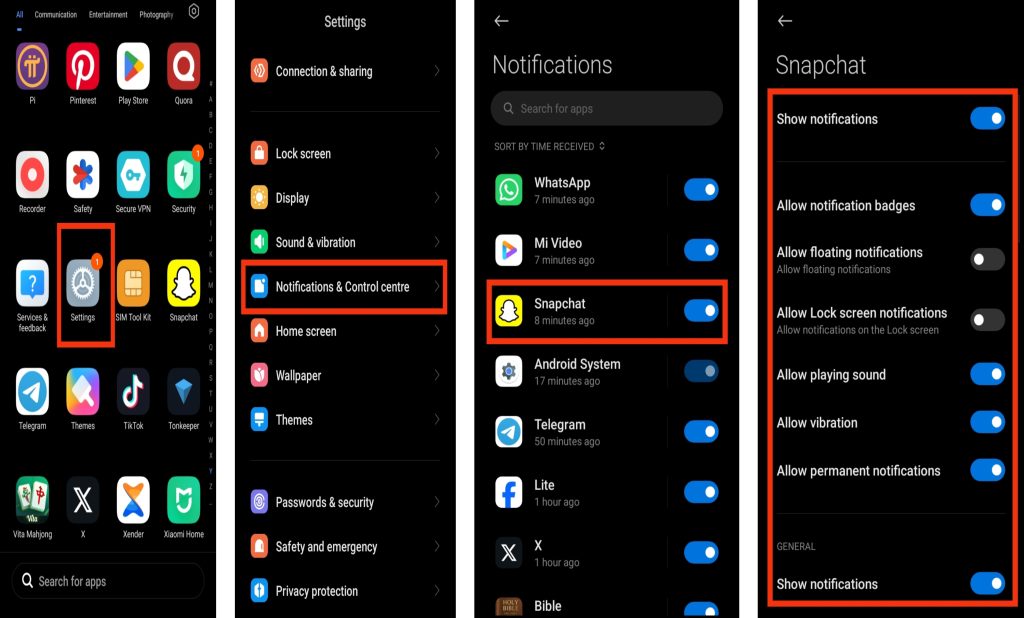
8. Reduce Unnecessary Notifications
Every notification wakes your screen, uses network resources, and consumes a small amount of battery. Limiting unnecessary alerts can make a noticeable difference.
Steps:
- Open Settings.
- Tap Notifications.
- Select Snapchat.
- Turn off notifications you don’t need, such as friend suggestions, Spotlight recommendations, or promotional alerts.
9. Use Wi-Fi Instead of Mobile Data
If you’re in an area with weak mobile signal, your phone works harder to maintain a connection while Snapchat loads photos and videos. Using a stable Wi-Fi connection reduces battery usage and often improves loading speed.
10. Use Text Messages Whenever Possible
Sending text messages requires much less power than recording videos, making voice calls, using video calls, or sharing photos. If your battery is running low, chatting with text instead of multimedia messages can help extend your remaining battery life.
Also read: why does twitter drain your battery and how to fix it quickly
Additional Tips to Reduce Snapchat Battery Usage
Even after changing Snapchat’s settings, a few simple habits can help your phone’s battery last even longer during daily use:
1. Keep Snapchat Updated
App updates often include bug fixes, performance improvements, and battery optimizations. Running an outdated version of Snapchat may cause unnecessary battery drain due to software bugs or inefficient background processes. Check the Google Play Store or Apple App Store regularly and install the latest version whenever an update is available.
2. Clear Snapchat Cache Regularly
Over time, Snapchat stores temporary files that can build up and affect the app’s performance. Clearing the cache removes unnecessary files, helps the app run more efficiently, and may reduce battery consumption. This won’t delete your account, chats, or Memories.
3. Close Other Apps While Using Snapchat
Running many apps at the same time forces your phone to share its processor, memory, and battery resources. Closing apps you aren’t using allows Snapchat to run more efficiently and reduces unnecessary battery usage in the background.
4. Use Wi-Fi Whenever Possible
Watching Stories, uploading Snaps, and browsing Spotlight over a stable Wi-Fi connection generally uses less battery than mobile data. If your mobile signal is weak, your phone works harder to maintain a connection, which increases battery drain.
5. Restart Your Phone Occasionally
Restarting your phone every few days clears temporary system processes, refreshes memory, and closes background services that may continue consuming battery. This simple habit can improve overall performance and help reduce battery drain across all apps, including Snapchat.
Also read: Why Is Google Play Store Not Downloading Apps? How to Fix It
When Should You Be Concerned About Snapchat Battery Drain?
Some battery usage is completely normal because Snapchat relies heavily on your camera, internet connection, and graphics processing. However, you should investigate further if you notice any of these signs:
- Snapchat remains at the top of your battery usage list every day, even with light use.
- Your phone becomes unusually hot while using Snapchat.
- Your battery drops rapidly within a short period of using the app.
- Snapchat continues using battery even when you haven’t opened it for several hours.
- Battery drain continues after updating the app and adjusting all recommended settings.
If these problems persist, reinstalling Snapchat or checking your phone’s battery health may help determine whether the issue is caused by the app or your device.
Also read: Apps that drain battery iPhone
Conclusion
Snapchat uses more battery than many other social media apps because it constantly relies on your camera, GPS, internet connection, processor, and graphics hardware to power features like Snap Map, Stories, Spotlight, video calls, and AR Lenses. Fortunately, you can significantly reduce battery drain by limiting location sharing, avoiding long video sessions, reducing screen brightness, using Data Saver, restricting background activity, keeping the app updated, and clearing its cache regularly. Combining these simple adjustments can help you enjoy Snapchat while extending your phone’s battery life throughout the day.
Frequently Asked Questions (FAQs)
1. Why does Snapchat drain my battery faster than other social media apps?
Snapchat uses more battery because it relies heavily on your phone’s camera, GPS, internet connection, processor, and graphics chip. Features like Snap Map, Stories, Spotlight, AR Lenses, and video calls require more system resources than apps that mainly display text and images.
2. Does Snap Map drain battery?
Yes. Snap Map can significantly increase battery usage because it regularly checks your location using GPS, Wi-Fi, and mobile networks. If you don’t need location sharing, enabling Ghost Mode or limiting location access to While Using the App can help extend your battery life.
3. Do Snapchat filters use more battery?
Yes. Snapchat’s AR filters and Lenses require real-time facial recognition and graphics processing, which places extra demand on your phone’s CPU and GPU. Using these filters for long periods can increase battery drain and may also cause your phone to become warm.
4. Does Snapchat use battery in the background?
Yes. Snapchat may continue syncing chats, checking notifications, downloading Stories, and refreshing content even when you’re not actively using the app. Restricting background activity can help reduce unnecessary battery consumption.
5. Does using Snapchat on mobile data drain more battery than Wi-Fi?
In many cases, yes. Mobile data, especially in areas with weak network coverage, requires your phone to work harder to maintain a stable connection. Using a reliable Wi-Fi network usually consumes less battery while browsing Stories, Spotlight, or sending Snaps.
6. Will Battery Saver or Low Power Mode reduce Snapchat battery drain?
Yes. Battery Saver on Android and Low Power Mode on iPhone reduce background activity, limit unnecessary processes, and optimize system performance, which can help Snapchat use less battery.
7. Can an outdated version of Snapchat cause battery drain?
Yes. Older versions of Snapchat may contain bugs or software issues that affect battery performance. Keeping the app updated ensures you receive the latest performance improvements and battery optimizations.
8. Why does my phone get hot while using Snapchat?
Snapchat can make your phone warm because it uses several hardware components at the same time, including the camera, display, processor, graphics chip, GPS, and internet connection. Extended use of video recording, AR filters, or Spotlight can increase your device’s temperature.
9. Should I uninstall Snapchat if it keeps draining my battery?
Not necessarily. Before uninstalling the app, try enabling Data Saver, turning off Snap Map, limiting background activity, reducing notifications, clearing the app cache, and updating Snapchat to the latest version. These changes often solve excessive battery drain.
10. How can I check if Snapchat is draining my battery?
Open your phone’s battery settings and review the battery usage by app. If Snapchat consistently appears near the top of the list with high foreground or background activity, it is likely contributing significantly to your battery drain.