
If your Android phone loses a noticeable amount of battery overnight, even when you’re not using it, there is usually an underlying reason. Background apps, weak network signals, location services, and certain phone settings can all continue using power while your device is idle. The good news is that most overnight battery drain problems can be fixed without replacing your phone or battery. In this guide, you’ll learn the most common causes of overnight battery drain, how to identify the problem, practical ways to reduce battery usage while you sleep, and simple tips to help your Android battery last longer.
Also read: Why Is My Phone So Hot
What Causes an Android Phone Battery to Drain Overnight?
If your phone loses more battery than expected while you’re asleep, one or more of the following reasons may be responsible.
1. Apps Running in the Background
Some apps continue working even after you close them. They may refresh content, sync data, receive notifications, or check for updates throughout the night. Apps such as social media, messaging, email, and cloud storage services are common examples that can increase battery usage while your phone is idle.
2. Weak Mobile Network Signal
When your phone is in an area with poor network coverage, it constantly searches for a stronger signal. This ongoing activity uses additional battery power, even if you are not touching your phone.
3. Always-On Display Is Enabled
Many Android phones include an Always-On Display feature that keeps part of the screen active to show the time, notifications, or battery percentage. Although it uses less power than a fully lit screen, it still consumes battery throughout the night.
4. Location Services Stay Active
Some apps have permission to access your location all the time. This can keep your phone’s GPS and other location services active, leading to unnecessary battery drain while you sleep.
5. Wi-Fi, Bluetooth, or 5G Running All Night
Wireless features such as Wi-Fi, Bluetooth, Nearby Device Scanning, and 5G may continue operating in the background. While these features are useful, they can increase battery usage if they remain active when you don’t need them.
6. Automatic Sync and Cloud Backups
Your phone may automatically back up photos, videos, contacts, and app data during the night. These background tasks can temporarily increase battery usage until they finish.
7. Battery Health Has Declined
If your phone is several years old, the battery may no longer hold a full charge like it did when it was new. An aging battery often loses power more quickly, even when the phone is not in use.
Also read: How to Make Your Android Phone Battery Last Longer Without a Power Bank
How to Stop Your Android Phone Battery from Draining Overnight
If your Android phone loses a lot of battery while you’re sleeping, you don’t always need a new battery. In many cases, changing a few settings and limiting unnecessary background activity can significantly improve battery life. Below are some of the most effective solutions:
1. Check Which App Is Using the Most Battery
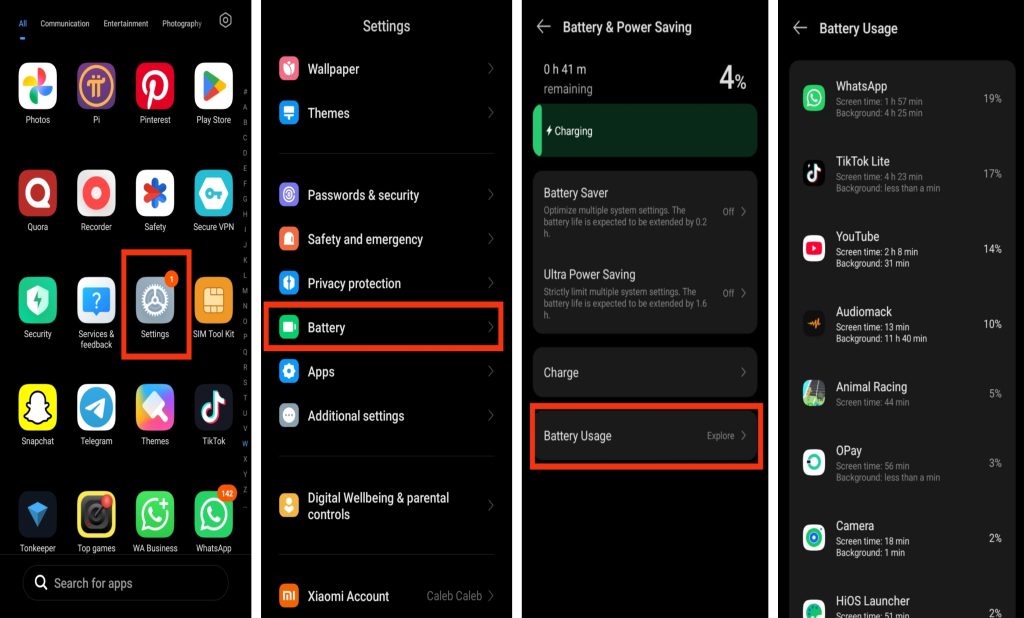
Before changing any settings, find out whether a specific app is responsible for the battery drain. Open Settings > Battery > Battery Usage (or Battery & Device Care on some phones) to view the apps that have used the most battery since the last full charge. If an app appears near the top of the list even though you didn’t use it before going to bed, it may be running excessively in the background and should be checked.
2. Restrict Background Activity for Unnecessary Apps
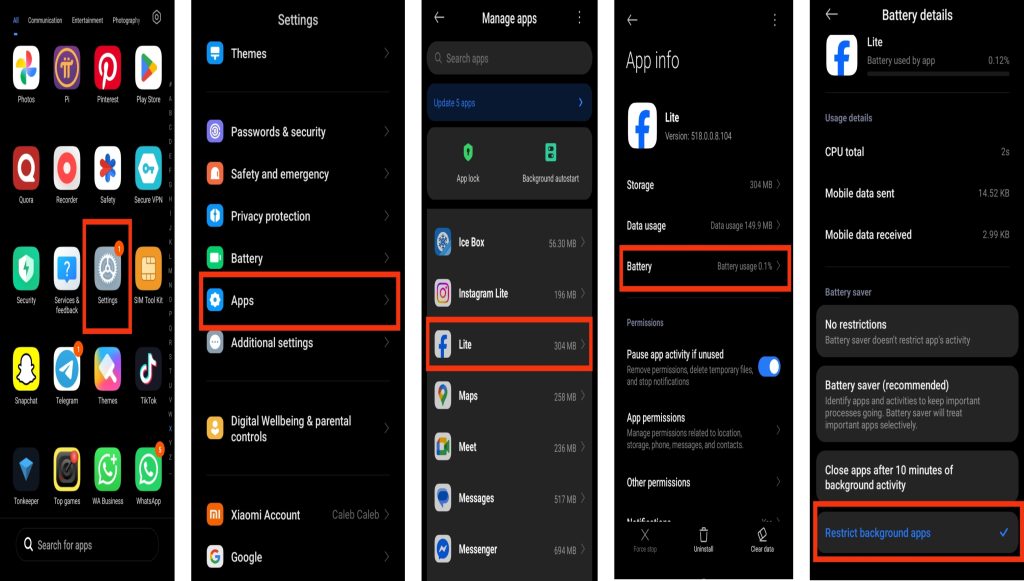
Apps that continue running after you close them can use battery throughout the night. Open Settings > Apps, select the app you want to manage, then tap Battery and choose Restricted or Optimized, depending on your phone. This helps prevent unnecessary background activity while still allowing the app to work normally when you open it.
3. Turn Off Always-On Display Before Sleeping
If your phone supports Always-On Display, consider disabling it at night. Go to Settings > Display or Lock Screen, then turn off Always-On Display. Some phones also let you schedule it to switch off automatically during your sleeping hours, helping to reduce battery usage.
4. Turn Off Nearby Device Scanning
Some Android phones continuously search for nearby devices even when you’re not using them. Open Settings > Connections or Connected Devices, then disable Nearby Device Scanning if your phone has this feature. Turning it off when you don’t need it can help save battery overnight.
5. Use Bedtime Mode or Airplane Mode
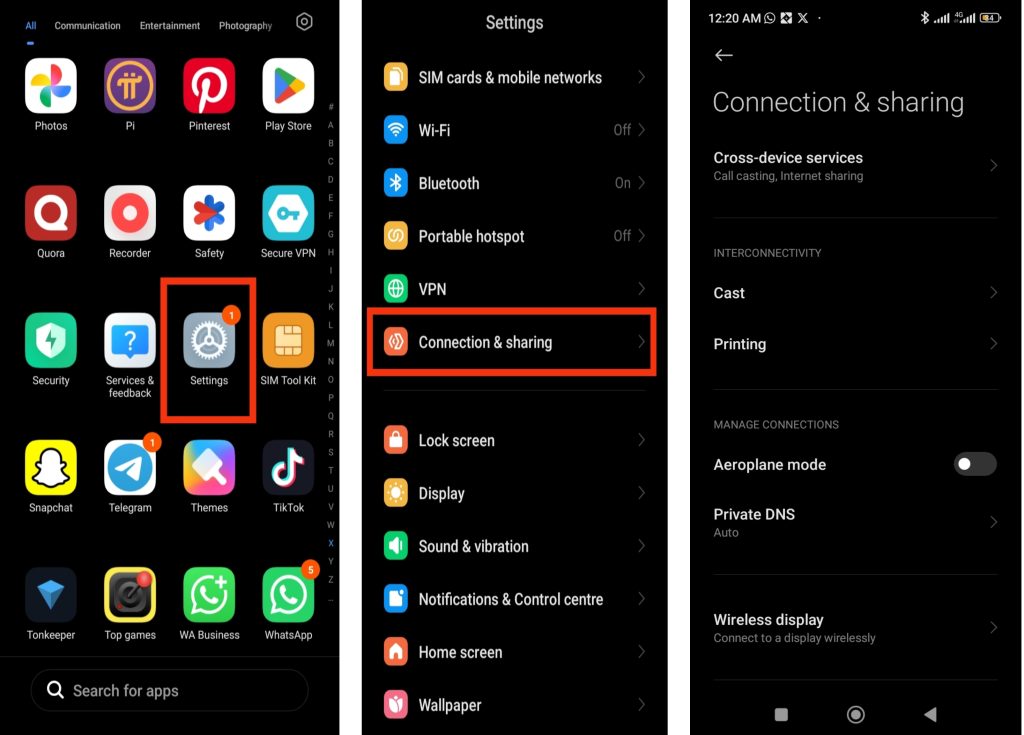
If your phone loses battery because of a weak mobile signal, enabling Airplane Mode before going to bed can stop it from constantly searching for a network. Your alarm will still work normally. If you still need calls or internet overnight, use Bedtime Mode instead. It reduces background activity and unnecessary notifications while helping your phone conserve battery.
6. Turn Off Location Services You Don’t Need
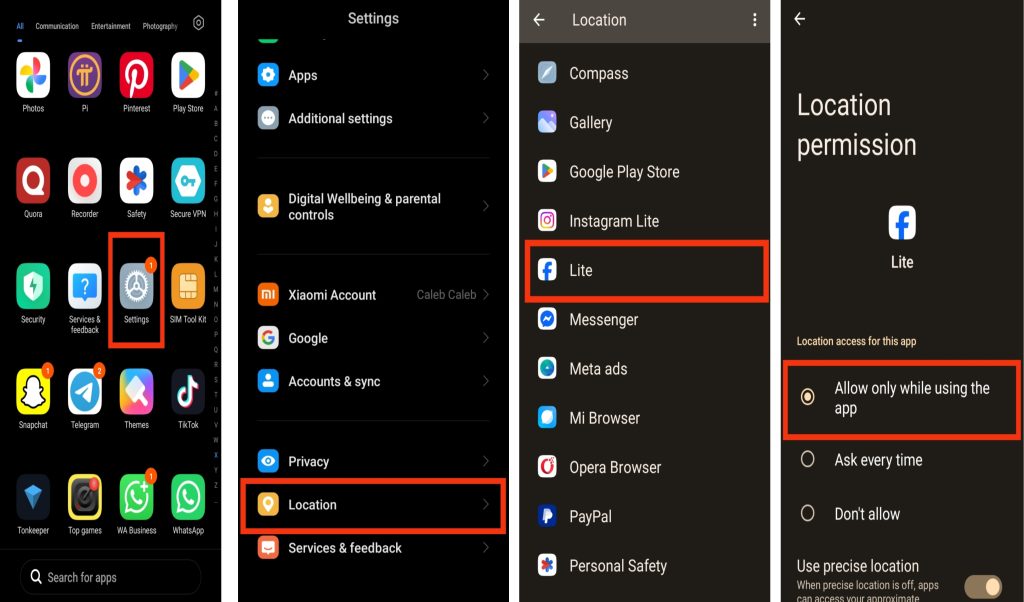
Apps that have permission to access your location all the time can continue using GPS while your phone is idle. Open Settings > Location and review which apps have location access. Change unnecessary apps to Allow only while using the app or disable location access completely if it isn’t needed.
7. Update Your Apps and Android Software
Software updates often include fixes for bugs that can cause excessive battery drain. Open the Google Play Store to update your apps, then check Settings > Software Update to install any available Android updates. Keeping your phone up to date can improve battery performance and overall stability.
8. Restart Your Phone Regularly
If your phone has been running continuously for several days, background processes may continue using battery unnecessarily. Restarting your phone from time to time closes temporary processes, refreshes the system, and may help reduce overnight battery drain.
9. Reduce Screen Brightness Before Bed
If you use your phone before sleeping, lowering the screen brightness or enabling Adaptive Brightness can reduce battery usage before you lock your device. Although the screen turns off afterward, using less power beforehand can slightly improve overall battery life.
10. Replace an Aging Battery If Necessary
If you’ve tried all the solutions above and your phone still loses a large amount of battery overnight, the battery itself may have worn out. Phone batteries naturally lose capacity over time. If your device is several years old, replacing the battery at an authorized repair center may restore normal battery performance.
Also read: why is my phone charging but the battery percentage is not increasing real fix 2026
Additional Tips to Make Your Android Battery Last Longer
Besides fixing the common causes of overnight battery drain, a few good habits can help your Android phone stay charged for longer every day:
1. Turn On Battery Saver When Needed
If your battery runs low before the end of the day, enable Battery Saver by going to Settings > Battery > Battery Saver. This feature reduces background activity, limits visual effects, and helps your battery last longer until you can recharge it.
2. Keep Your Phone Away from Extreme Temperatures
Very hot or very cold environments can affect battery performance and shorten its lifespan over time. Try to use and charge your phone in a cool, well-ventilated place whenever possible.
3. Remove Apps You No Longer Use
Unused apps can still run background services, receive updates, and consume storage space. Regularly uninstall apps you no longer need to reduce unnecessary battery usage and improve your phone’s overall performance.
4. Turn Off Features You Are Not Using
Features such as Bluetooth, GPS, NFC, mobile hotspot, and Wi-Fi should be turned off when they are not needed. Disabling unused features helps reduce power consumption throughout the day and overnight.
5. Keep Your Battery Charged Between 20% and 80%
Frequently allowing your battery to drain completely or remain at 100% for long periods may reduce its lifespan over time. Keeping the battery between about 20% and 80% whenever possible can help maintain its long-term health.
When Should You Be Concerned About Overnight Battery Drain?
Some battery loss overnight is completely normal. Most Android phones lose around 2% to 8% of their battery while idle, depending on the phone model, battery condition, and background activity. However, you should investigate the problem if:
- Your phone loses more than 10–15% of its battery every night without being used.
- The phone feels unusually warm while sitting idle.
- The battery drains quickly even after closing apps and changing battery settings.
- Your battery life suddenly becomes much worse after installing a new app or software update.
- Your phone shuts down unexpectedly even when the battery percentage appears high.
If these problems continue after trying the solutions in this guide, the battery or another hardware component may need professional inspection.
Conclusion
If your Android phone’s battery drains overnight, the cause is often related to background apps, network activity, location services, or other settings that continue using power while your phone is idle. By checking your battery usage, limiting unnecessary background activity, adjusting battery-saving settings, and keeping your software up to date, you can significantly reduce overnight battery drain and improve your phone’s battery life. If the problem continues despite trying these solutions, the battery may have reached the end of its lifespan and should be tested or replaced. Regularly monitoring your battery usage and maintaining good charging habits will help keep your Android phone running efficiently for longer.
Frequently Asked Questions (FAQ)
1. Is it normal for an Android phone to lose battery overnight?
Yes. Most Android phones lose a small amount of battery while idle because some system functions continue running in the background. Losing around 2% to 8% overnight is generally considered normal.
2. Does Airplane Mode stop battery drain completely?
No. Airplane Mode reduces battery usage by disabling mobile network connections and wireless radios, but your phone will still use a small amount of power for essential system processes.
3. Can a software update cause battery drain?
Yes. After a software update, your phone may temporarily use more battery while optimizing apps and rebuilding system files. If the problem continues for several days, check for app updates or review your battery usage.
4. Should I charge my phone overnight every day?
Most modern Android phones automatically manage charging to protect the battery. However, using the original charger and enabling features such as Adaptive Charging (if available) can help maintain battery health over time.
5. How often should I check my battery usage?
Checking your battery usage every few weeks, or whenever you notice unusual battery drain, can help you identify apps or settings that are consuming excessive power before they become a bigger problem.