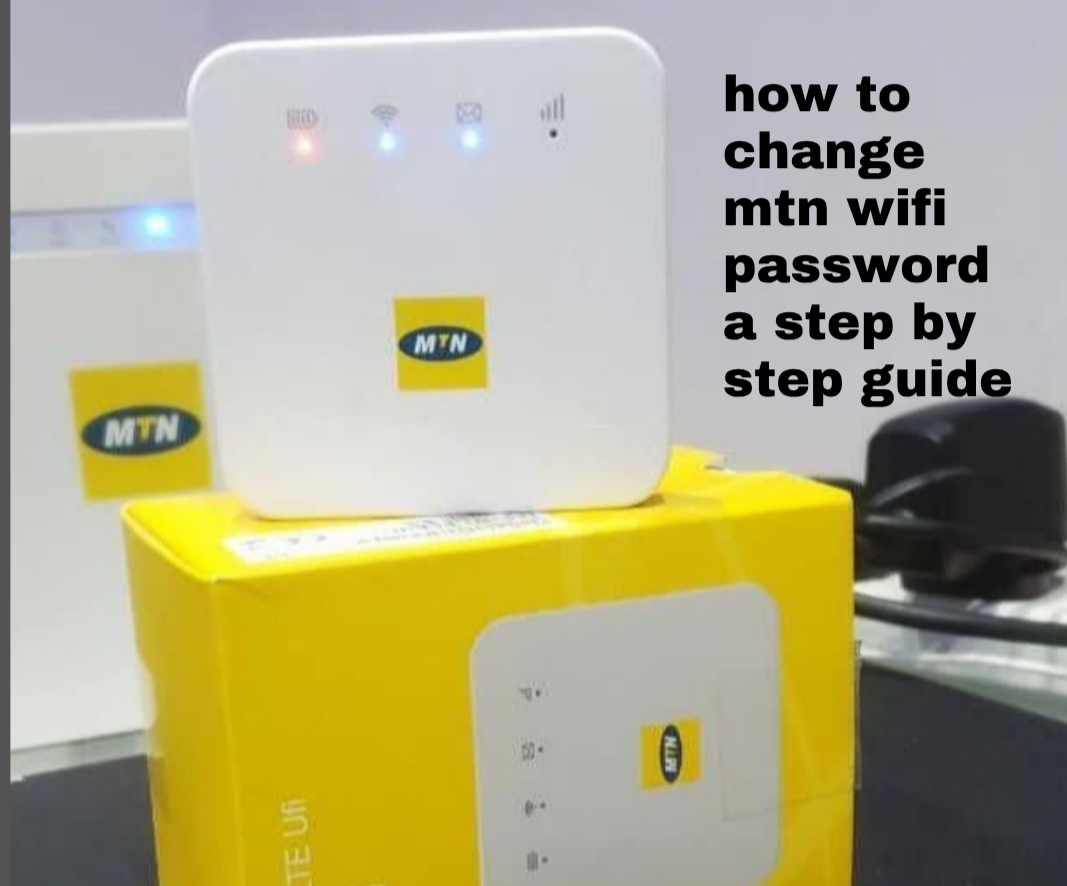
Changing your MTN WiFi password is one of the easiest ways to protect your internet connection from unauthorized access and keep your network secure. Whether you want to improve your WiFi security, stop unknown users from using your data, or simply update your password, the process only takes a few minutes. In this guide, you’ll learn why you should change your MTN WiFi password, how to change it step by step, what to do if you forget your router login password, how to keep your MTN WiFi secure, and how to fix common problems you may encounter during the process.
Also read: How to Change Airtel Wifi Password
Why You Should Change Your MTN WiFi Password
Changing your MTN WiFi password is very important for keeping your internet safe and stable. Here are the main reasons why you should do it:
1. Improve Network Security: Stop unknown people from accessing your WiFi without permission.
2. Reduce Slow Internet Speed: Fewer connected devices help your internet run faster and smoother.
3. Protect Your Personal Data: A secure network helps reduce the risk of your online activity being exposed.
4. Control Data Usage: It prevents strangers from using up your data without your knowledge.
5. Create a Stronger Password: Updating your password helps protect your network from easy hacking.
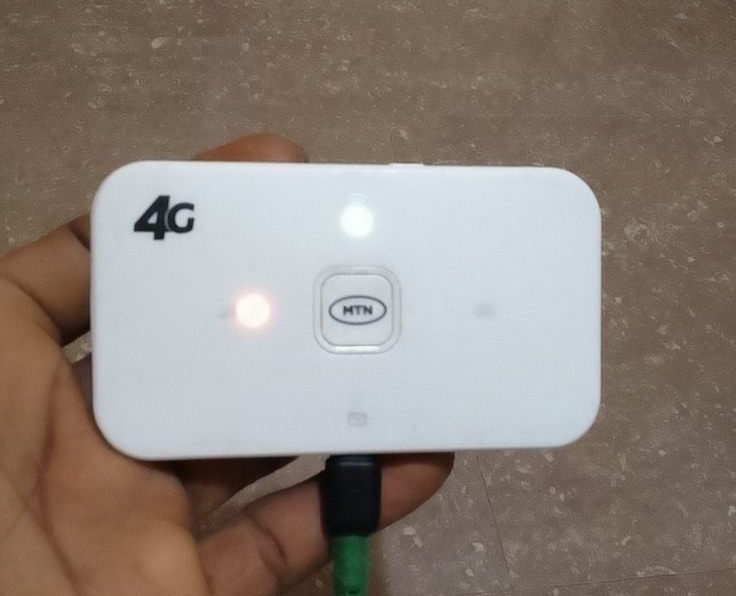
Steps To Change Your MTN Wi-Fi Password
Step 1: Connect to Your MTN Router
First, ensure that your device is connected to the MTN Wi-Fi network. You can either connect via Wi-Fi or use an Ethernet cable directly to the router.
Step 2: Open Your Web Browser and Access the Router’s Login Page
Open a web browser and type the router’s IP address in the address bar. The most common default IP address for MTN routers is `192.168.1.1` or `192.168.0.1`. Press “Enter.”
Step 3: Log In to the Router Admin Panel
You will be prompted to enter a username and password. If you haven’t changed these, the default login credentials are often: – Username: `admin` – Password: `admin` or `password`
Step 4: Navigate to Wireless Settings
Once logged in, locate the “Wireless” or “Wi-Fi Settings” section in the router’s admin interface. This is where you’ll find the option to change your Wi-Fi password.
Step 5: Change Your Wi-Fi Password
Under the Wi-Fi settings, locate the option for the Wi-Fi password or WPA key. Enter your new password, making sure it’s strong (at least 8 characters, mixing uppercase, lowercase, numbers, and symbols).
Tips for a Strong MTN Wi-Fi Password
- Avoid Using Personal Information: Don’t use easily guessed information like your name, birthdate, or address.
- Use a Combination of Characters: Mix uppercase and lowercase letters, numbers, and symbols to create a secure password.
- Change Regularly: To keep your network secure, change your Wi-Fi password every few months.
Step 6: Save the Changes
After updating your password, make sure to click “Save” or “Apply” to confirm your changes. The router will now update your settings and disconnect all devices. You’ll need to reconnect to the Wi-Fi network using the new passwo
step 7: Reconnect Your Device
Once the password has been updated, you’ll need to reconnect your devices using the new password.
What to Do If You Forgot Your MTN Router Login Password
If you cannot log in to your MTN router because you have forgotten the admin username or password, don’t worry. You can usually regain access by following these steps:
1. Check the router label: Many MTN routers have the default username, password, and login address printed on a sticker located on the back or bottom of the device.
2. Try the default login details: If you have never changed the router’s admin credentials, use the default username and password provided by the manufacturer.
3. Reset the router if necessary: If the default login details do not work and you cannot remember your custom password, press and hold the Reset button on the router for about 10–15 seconds. This restores the router to its factory settings.
4. Create a new admin password: After logging in again, change the default admin password to a strong, unique one to help protect your router from unauthorized access.
Also read: Why Does My Wifi Keep Disconnecting
Tips for Keeping Your MTN WiFi Secure
Here are some helpful tips to make your MTN WiFi network more secure and safer to use:
- Change your WiFi password from time to time
- Avoid sharing your password with too many people
- Use a strong password with letters and numbers
- Remove unknown devices connected to your network
- Change the default router admin login details
- Check connected users regularly for unusual activity
Following these simple tips can help protect your network, improve internet speed, and reduce unauthorized access.
Also read: how to fix sim not provisioned error on airtel mtn or other networks 2026 guide
Common Problems When Changing MTN WiFi Password
1. Unable to Open the Router Page: Make sure you entered the correct router IP address and confirm that your device is connected to the MTN WiFi network.
2. Wrong Username or Password: Check the default login details written on the router sticker. If it still doesn’t work, you may need to reset the router.
3. WiFi Not Connecting After Changing the Password: Remove or forget the old WiFi network from your device and reconnect using the new password.
4. Router Keeps Restarting: Wait for a few minutes to see if the router becomes stable. If the problem continues, restart the router manually.
Also read: Why Is My Mobile Data So Slow? Causes and How to Fix It
Conclusion
Changing your MTN WiFi password is a simple but effective way to keep your network secure and maintain better control over your internet connection. By using a strong password, updating it regularly, and following the steps in this guide, you can reduce unauthorized access, protect your personal data, and improve your WiFi experience. If you run into any issues, such as login problems or connection errors, the troubleshooting tips provided can help you restore access and keep your MTN WiFi running smoothly.
Frequently Asked Questions (FAQs)
1. Why does my MTN WiFi keep asking for the password after I already entered the correct one?
This usually happens when the old network settings saved on your phone or computer are conflicting with the new password. In some cases, the router may also take a few minutes to fully apply the updated settings. Removing the saved WiFi network and reconnecting again with the new password often fixes the problem quickly.
2. Is it safe to share my MTN WiFi password with visitors or neighbors temporarily?
Sharing your WiFi password with too many people can affect your internet speed, increase data usage, and reduce network security. If you need to give someone temporary access, it is better to change the password again later or create a separate guest connection if your router supports it.
3. How often should I change my MTN WiFi password to keep my network secure?
There is no fixed rule, but many users change their WiFi password every few months to improve security. If you notice unusual data usage, unknown connected devices, or slower internet speed than normal, updating your password immediately can help protect your network.
4. Can changing my MTN WiFi password disconnect all connected devices automatically?
Yes, once you save a new WiFi password, all phones, laptops, smart TVs, and other connected devices will be disconnected automatically. Each device must reconnect again using the updated password before internet access can continue.
5. What should I do if I cannot remember the new MTN WiFi password after changing it?
If you forget the new password, you can log back into the router settings to view or change it again. However, if you also forget the router admin details, you may need to reset the router to factory settings and set up a new password from the beginning.