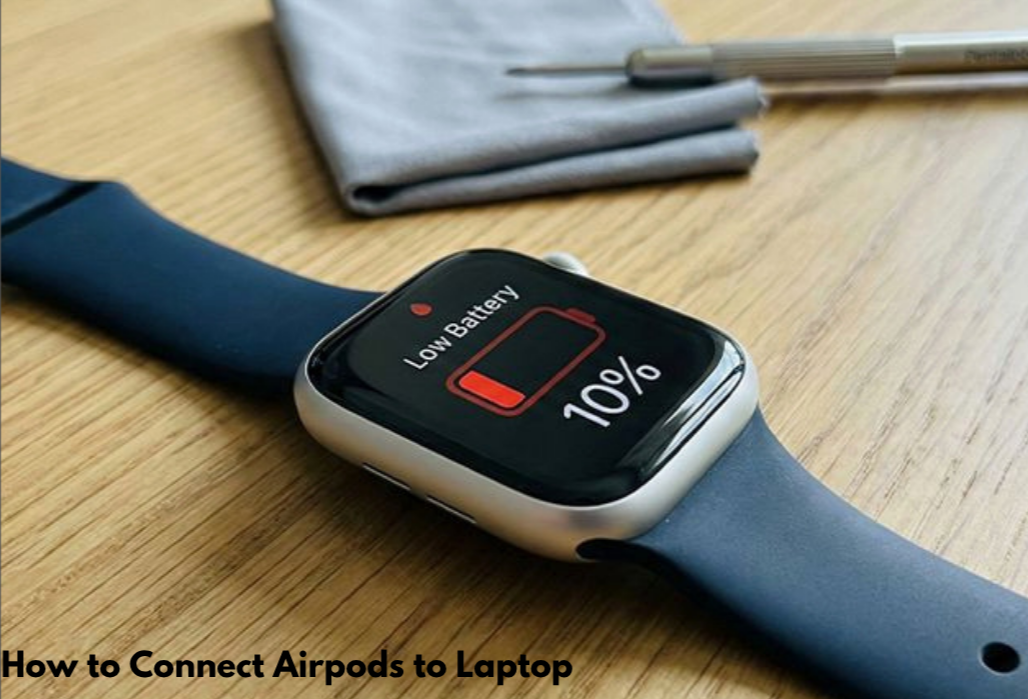
Apple Watches are known for their sleek design, impressive features, and seamless integration with iPhones. However, one common issue that many users face is fast battery drain. If you’re wondering, “Why is my Apple Watch battery draining so fast?”, you’re not alone. In this post, we’ll dive into the reasons behind fast Apple Watch battery drain and provide solutions to help you get the most out of your device.
How long does an apple watch battery last?
An Apple Watch battery. typically lasts around 18 hours with regular use on a full charge, which Apple refers to as “all-day battery life.” However, battery life can vary depending on usage, model, and settings. For instance, using power-hungry features like GPS or cellular can drain the battery faster, while lighter usage can stretch its life. Additionally, newer models like the Apple Watch Ultra may last up to 36 hours under regular usage.
Why is my Apple watch battery draining so fast? reason and how to fix it:
1. Background Apps and Notifications Are Draining Battery
One of the most common culprits behind rapid battery drain is background app running on your Apple Watch. These apps use resources and continuously check for notifications or updates, which can significantly reduce battery life.
How to Fix It:
- Close unused apps: Double-tap the side button to see recently used apps and swipe up to close them.
- Disable background app refresh: In the Watch app on your iPhone, go to General and turn off Background App Refresh.
2. Your Apple Watch’s Display Brightness May Be Too High
The display of your Apple Watch is one of the most power-hungry features. Having the brightness set too high can cause your battery to drain much faster than usual.
How to Fix It:
- Lower the brightness: On your Apple Watch, swipe up to open the Control Center and adjust the brightness slider.
- Enable Auto-Brightness: This automatically adjusts your display’s brightness based on your surroundings.
3. Constantly Using GPS and Heart Rate Monitor
If you’re using apps that rely on the GPS feature or constantly tracking your heart rate, your Apple Watch battery will be drained faster. Activities like fitness tracking or navigation, especially if they run in the background, consume a lot of energy.
How to Fix It:
- Turn off GPS when not needed: For instance, disable location services for apps that don’t need it in the Settings of your Apple Watch.
- Limit heart rate monitoring: In the Health app, you can adjust the settings for heart rate tracking.
4. WatchOS and Software Updates
Outdated software can contribute to inefficient battery use. use. Apple regularly releases updates for both the iPhone and Apple Watch that include bug fixes and optimizations for battery performance.
How to Fix It:
- Keep your Apple Watch updated: Check for the latest WatchOS updates in the Settings app on your watch or through the Watch app on your iPhone.
5. Always-On Display Mode Draining Battery
The “Always-On Display” feature, introduced in recent Apple Watch models, allows the watch face to remain visible even when your wrist is down. This feature can significantly impact battery. life if you’re using it constantly.
How to Fix It:
- Disable Always-On Display: In the Settings of your Apple Watch, go to Display & Brightness and toggle off Always On.
6. Bluetooth and Wi-Fi Connections
Having Bluetooth and Wi-Fi on continuously can also cause battery drain. Your Apple Watch uses these connections to sync data with your iPhone or other devices, and keeping them on when not in use can deplete your battery faster than expected.
How to Fix It:
- Turn off Bluetooth and Wi-Fi when not needed: Swipe up to open Control Center on your Apple Watch and toggle off both features when you’re not using them.
7. Low Power Mode Is Not Enabled
Apple Watches come with a Low Power Mode that helps extend battery life by turning off non-essential features.
How to Fix It:
- Activate Low Power Mode: You can manually turn on Low Power Mode by opening the Settings app on your watch and going to Battery > Low Power Mode.
8. Battery Health Deterioration
Over time, your Apple Watch battery will naturally degrade, especially if it’s an older model. This degradation can cause your battery to drain more quickly.
How to Fix It:
- Check battery health: Go to Settings > Battery > Battery Health to check if your battery needs replacing. If it’s significantly degraded, you may need to visit an Apple Store or service provider.
9. Excessive Complications on Your Watch Face
Complications on your watch face, such as weather updates, activity tracking, or calendar events, constantly update and can contribute to faster battery consumption.
How to Fix It:
- Simplify your watch face: Limit the number of complications or remove those that aren’t essential to save battery life.
10. Overactive Siri
Using Siri frequently can impact battery life, especially if the “Hey Siri” feature is constantly listening for commands.
How to Fix It:
- Disable “Hey Siri”: Go to Settings > Siri & Search and toggle off Listen for “Hey Siri” to reduce battery usage.
11. Wake Screen on Wrist Raise Feature
By default, your Apple Watch’s screen lights up every time you raise your wrist, which is convenient but also causes unnecessary battery drain, especially if you move your wrist frequently. Disabling this feature can help you save a lot of battery.
How to Fix
- Disable wake screen on wrist Raise : You can manually turn off wake screen on wrist Raise by Opening Settings on your Apple Watch. Tap on Display & Brightness. Toggle Wake Screen on Wrist Raise off.
12.Use a Darker Watch Face to Save Battery Life:
One of the simplest and most effective ways to extend your Apple Watch’s battery life is by using a darker watch face. When you choose a watch face with a darker background, the OLED display consumes less power. OLED screens work by illuminating individual pixels, meaning the fewer pixels that light up, the less power your watch uses.
When to Contact Apple Support If It’s a Hardware Issue or Your apple watch battery has been old and needs to be changed:
Sometimes, despite all efforts, your Apple Watch’s battery may still drain quickly. If none of the above tips help, it might be time to contact Apple Support or your apple watch battery needs to be replaced. There could be a hardware issue with your device, such as a damaged battery or malfunctioning component. Apple’s customer support team can diagnose the issue and, if necessary, recommend a replacement or repair.
Conclusion
If you’re asking, “Why is my Apple Watch battery draining so fast?”, there are several factors to consider. By adjusting your settings, limiting background activities, and ensuring you’re using the latest software updates, you can significantly improve your Apple Watch’s battery life. Keep an eye on your settings, and with these simple fixes, you’ll be able to enjoy your Apple Watch for longer without constant recharging.
Common Questions or FAQs
1. Why is my Apple Watch battery suddenly draining so quickly?
Sudden battery drain can be caused by new software updates, background apps, or changes in settings like brightness or notifications. Try restarting your watch, checking for software updates, and reviewing your battery usage under Settings > Battery.
2. Can certain apps cause my Apple Watch to lose battery faster?
Yes, apps running in the background or those that frequently refresh data (like weather or fitness apps) can use more power. Go to the Watch app on your iPhone, tap General > Background App Refresh, and disable it for apps you don’t use often.
3. Does the Always-On display affect Apple Watch battery life?
Yes, the Always-On display can significantly reduce battery life, especially on older models. If battery life is a concern, you can turn it off by going to Settings > Display & Brightness > Always On and toggling it off.
4. How do I improve my Apple Watch battery life?
You can extend battery life by:
- Turning off Always-On display
- Lowering screen brightness
- Disabling unnecessary notifications
- Using a simple watch face
- Updating to the latest watchOS
- Limiting background app activity
5. When should I consider replacing my Apple Watch battery?
If your watch drains extremely fast despite optimizing settings, check Settings > Battery > Battery Health. If the Maximum Capacity is significantly below 80%, it may be time to replace the battery or have it checked by Apple Support.