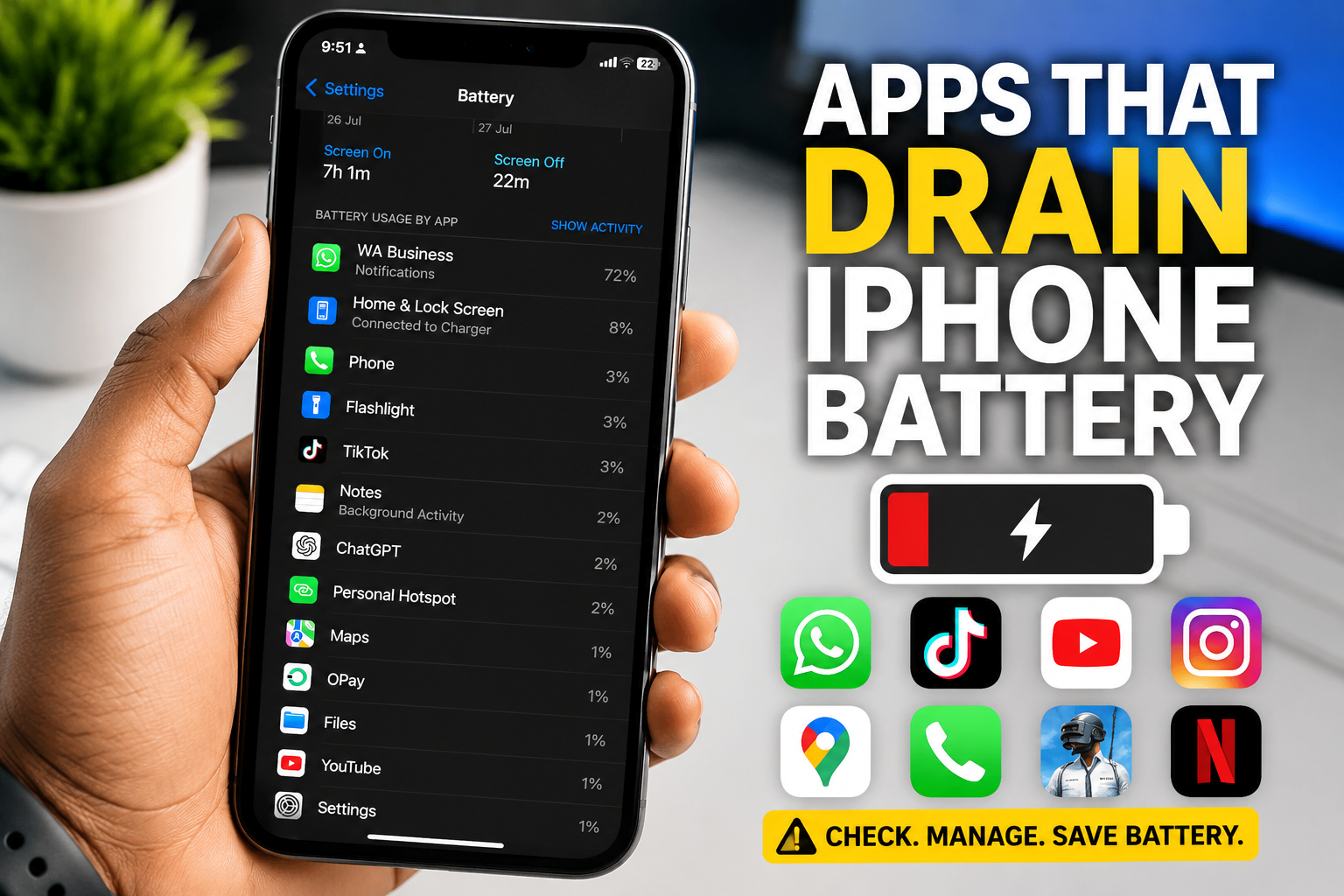
iPhone batteries are built to deliver reliable performance, but some apps naturally consume more power than others. Social media apps constantly refresh new content, navigation apps rely on GPS, streaming services keep your display active, and mobile games place heavy demands on your iPhone’s processor and graphics. As a result, your battery may drain much faster than expected.
The good news is that you don’t have to stop using your favourite apps. By identifying which apps use the most battery and adjusting a few settings, you can extend your iPhone’s battery life without affecting your daily use. In this guide, you’ll learn which apps commonly drain an iPhone battery, why they consume so much power, how to check battery usage, and the best ways to reduce unnecessary battery drain.
Also read: how to add app to home screen
How to Check Which Apps Are Draining Your iPhone Battery
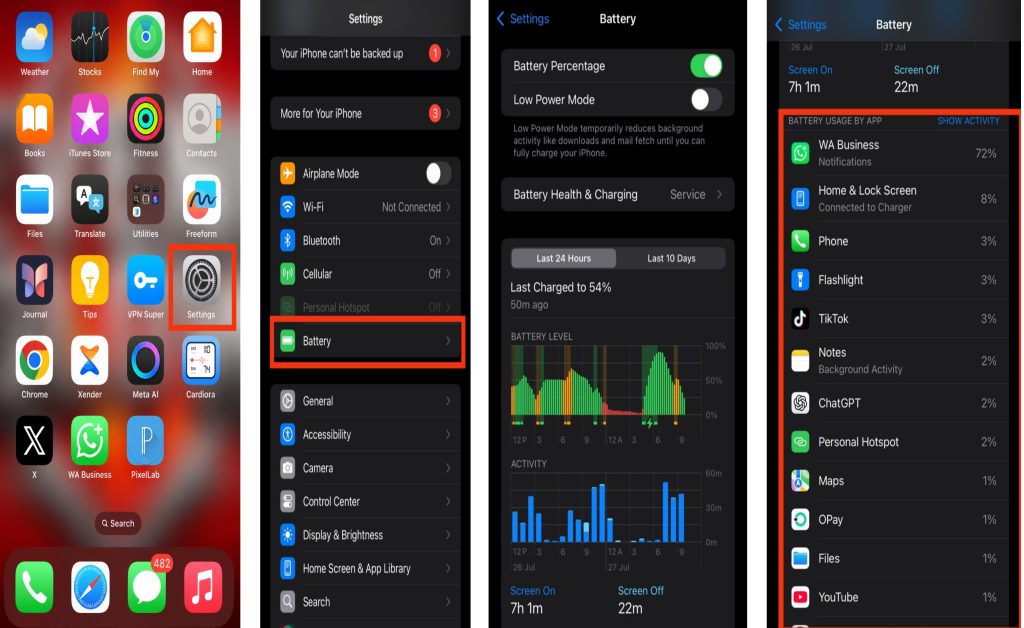
Before making any changes, check which apps are actually using the most battery. Your iPhone includes a built-in Battery Usage report that shows how much battery each app has consumed over the last 24 hours and the last 10 days. It also displays whether the battery was used while the app was open or running in the background.
To check battery usage:
- Open Settings.
- Tap Battery.
- Wait a few seconds for the report to load.
- Scroll down to see the list of apps.
- Tap Show Activity to compare On Screen and Background Activity.
If an app shows unusually high background activity or appears at the top of the list every day, it may be one of the main reasons your iPhone battery drains quickly.
Apps That Drain iPhone Battery
Below are some of the most common apps that use a large amount of battery power on an iPhone.
1. Social Media Apps
Apps such as Facebook, Instagram, TikTok, Snapchat, X (formerly Twitter), Pinterest, Reddit, Threads, and LinkedIn are among the biggest battery users. They constantly load new posts, autoplay videos, refresh feeds, sync messages, upload media, and send notifications throughout the day. Many also continue refreshing content in the background, increasing battery consumption even when you are not actively using them.
2. Navigation Apps
Navigation apps like Google Maps, Apple Maps, Waze, HERE WeGo, and MapQuest use GPS, mobile data, Bluetooth, and your display continuously while providing directions. Real-time traffic updates, voice navigation, and live location tracking make these apps some of the highest battery consumers, especially during long journeys.
3. Video Streaming and Calling Apps
Apps such as YouTube, Netflix, Disney+, Prime Video, FaceTime, Zoom, Google Meet, Microsoft Teams, and Twitch use significant battery because they keep your screen, speakers, processor, internet connection, and sometimes your camera running simultaneously. Streaming videos in HD or making long video calls can reduce battery life much faster than normal browsing.
4. Mobile Games
Games such as Call of Duty: Mobile, PUBG Mobile, Genshin Impact, Asphalt 9, Roblox, Minecraft, EA SPORTS FC Mobile, and Mobile Legends place heavy demands on your iPhone’s CPU and graphics processor. High frame rates, detailed graphics, online multiplayer features, and extended gaming sessions generate more heat and cause the battery to drain rapidly.
5. Music and Podcast Apps
Apps including Spotify, Apple Music, YouTube Music, Deezer, Audible, and Amazon Music generally consume less battery than video apps, but hours of music streaming, podcast playback, downloads, and Bluetooth audio can still noticeably reduce battery life over time.
6. Messaging Apps
Messaging apps like WhatsApp, Telegram, Messenger, Signal, Discord, and WeChat can quietly use more battery than many people realise. They continuously sync new messages, download photos and videos, back up chats, and send notifications. Features such as voice calls, video calls, and sharing your live location can increase battery usage even further, especially if you use these apps frequently throughout the day.
7. Cloud Storage Apps
Cloud storage services such as iCloud Drive, Google Drive, Dropbox, Microsoft OneDrive, and Box often run in the background to upload photos, videos, and documents automatically. If you’re syncing large files or backing up your iPhone over mobile data, these apps can consume both battery power and internet data without you noticing.
8. Shopping Apps
Shopping apps including Amazon, eBay, Temu, AliExpress, SHEIN, Walmart, and Etsy may also contribute to battery drain. They frequently refresh product listings, send promotional notifications, update orders, and preload images in the background. While they don’t usually consume as much power as navigation or streaming apps, frequent background activity can still affect battery life.
9. Weather Apps
Weather apps such as Apple Weather, AccuWeather, The Weather Channel, WeatherBug, and CARROT Weather regularly check your location and download updated forecasts. If location access is always enabled or the app refreshes too frequently, it can use more battery than necessary.
10. Email Apps
Email apps like Apple Mail, Gmail, Outlook, Yahoo Mail, and Proton Mail regularly check for new messages and sync attachments. If your accounts are set to push emails instantly instead of fetching them at intervals, background activity increases, which may reduce battery life over time.
Also read: How to show Battery Percentage on iphone (Step-by-Step Guide)
How to Reduce Battery Drain From Apps on iPhone
You don’t have to uninstall your favourite apps to improve battery life. The following tips can help reduce battery usage while allowing you to continue using your apps normally.
1. Turn Off Background App Refresh
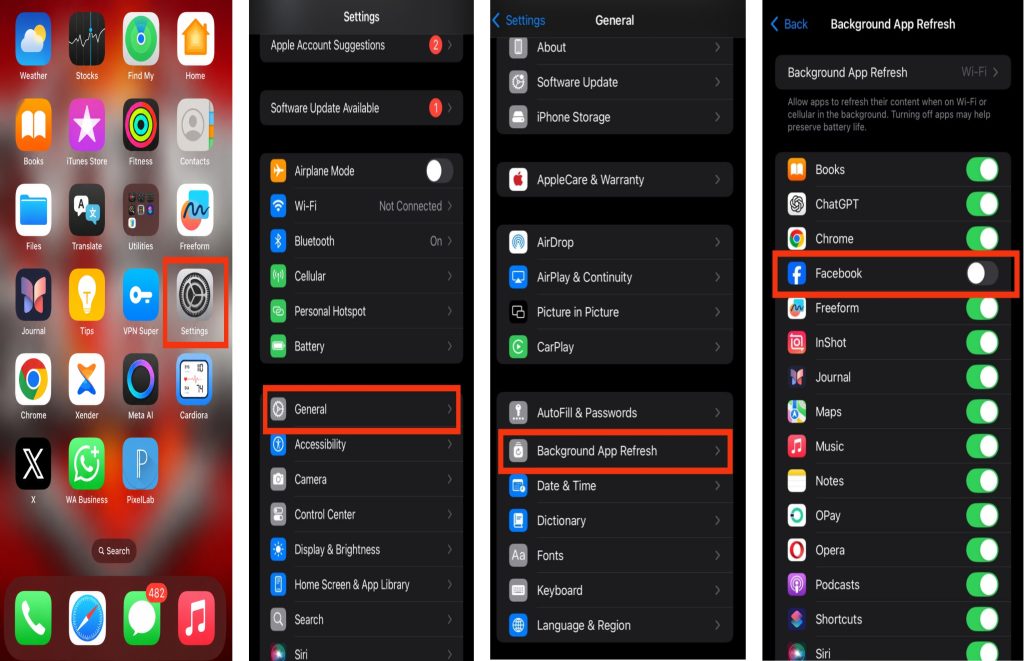
Background App Refresh allows apps to update content even when you’re not using them. Disabling this feature for apps that don’t need it can noticeably improve battery life.
Steps:
- Open Settings.
- Tap General.
- Select Background App Refresh.
- Turn it off for apps you don’t need updating in the background.
2. Change Location Access
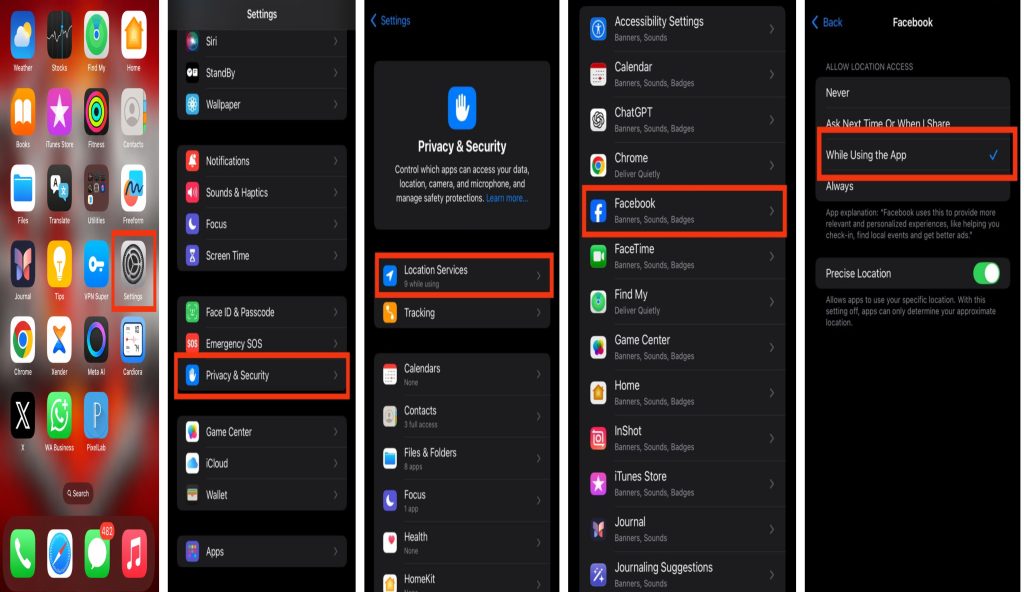
Many apps don’t need constant access to your location. Limiting location permissions helps reduce battery drain.
Steps:
- Open Settings.
- Tap Privacy & Security.
- Select Location Services.
- Choose an app.
- Set the permission to While Using the App instead of Always whenever possible.
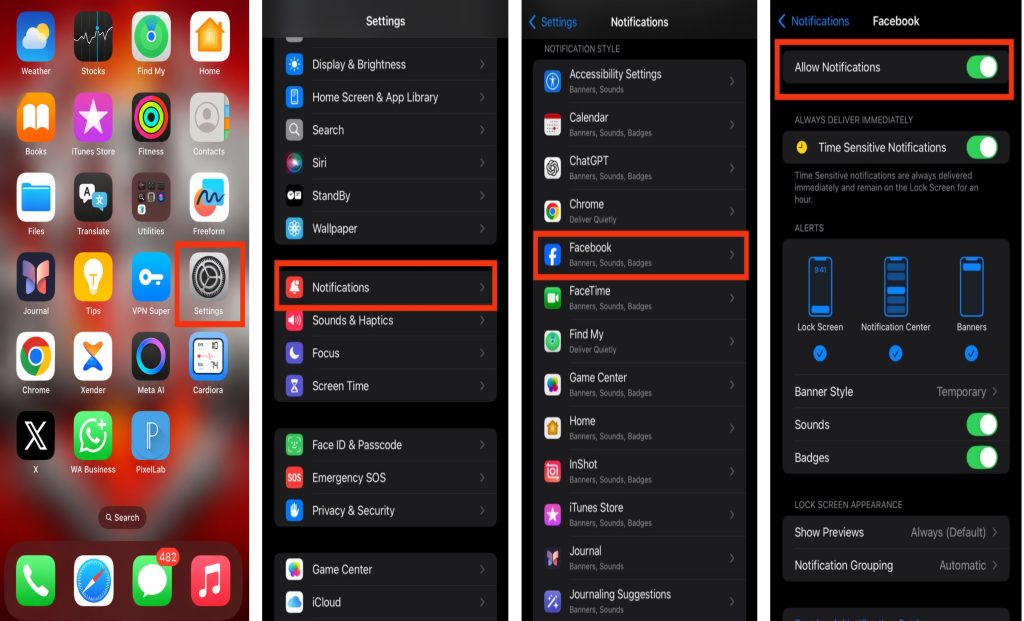
3. Reduce Unnecessary Notifications
Every notification wakes your screen, uses network resources, and consumes a small amount of battery. Limiting unnecessary alerts can make a noticeable difference.
Steps:
- Open Settings.
- Tap Notifications.
- Select apps that send frequent alerts.
- Disable notifications you don’t need.
4. Enable Low Power Mode
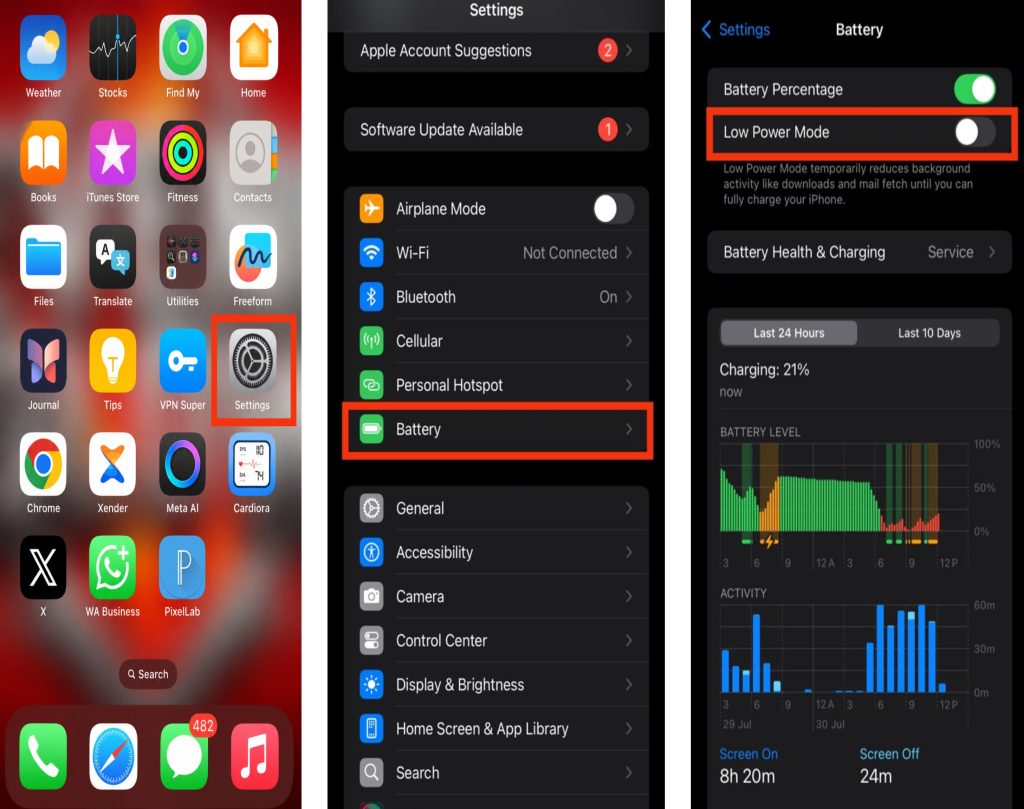
Low Power Mode temporarily reduces background activity, automatic downloads, and visual effects to help your battery last longer.
Steps:
- Open Settings.
- Tap Battery.
- Turn on Low Power Mode.
5. Keep Apps Updated
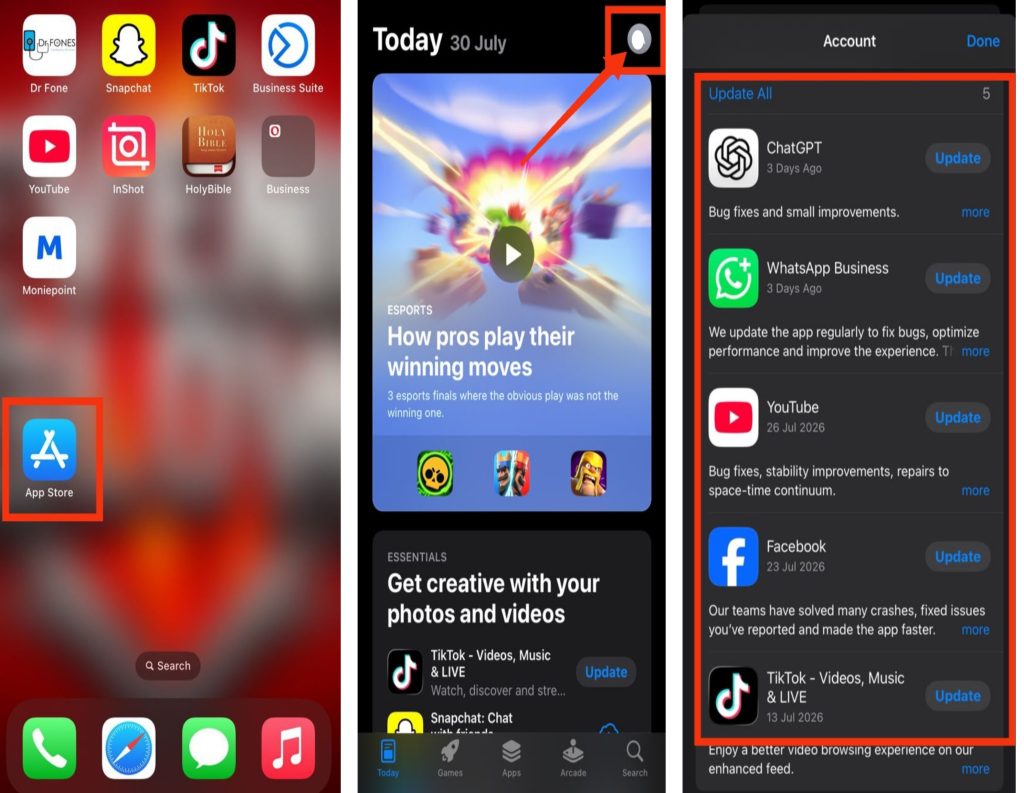
Developers regularly release updates that improve performance, fix bugs, and optimise battery usage. Using outdated versions may cause apps to consume more power than necessary.
Steps:
- Open the App Store.
- Tap your profile picture.
- Install any available app updates.
6. Reduce Screen Brightness
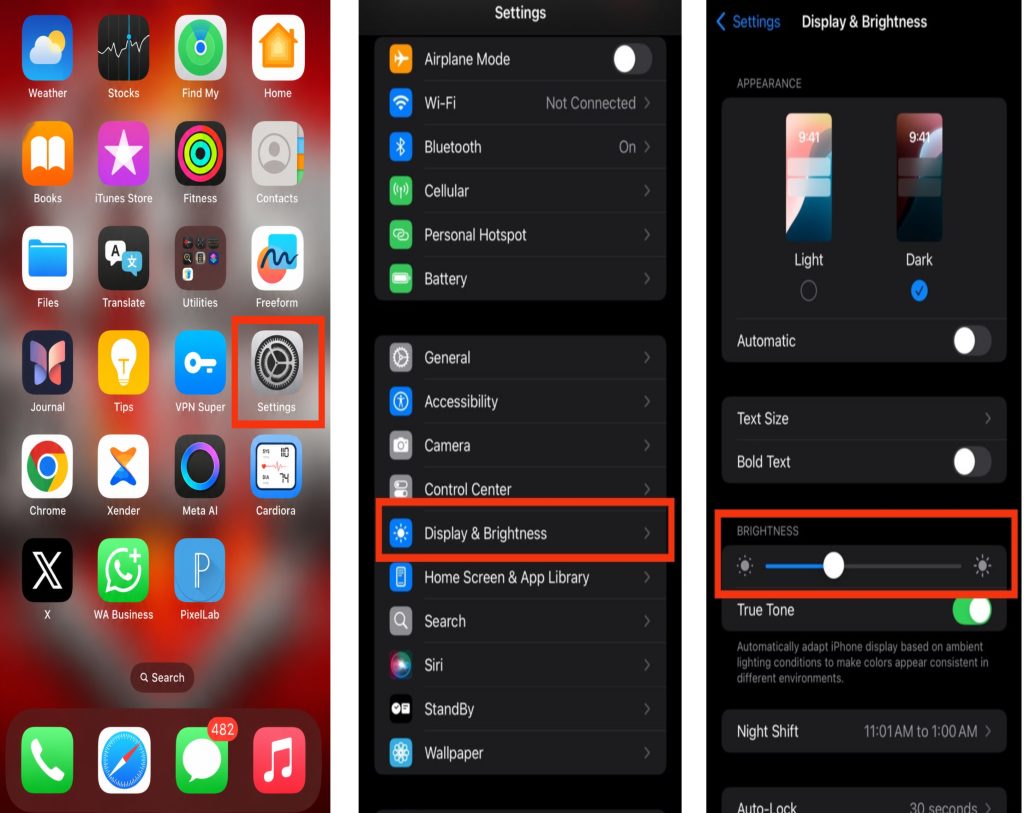
Your iPhone’s display is one of the biggest battery consumers. Keeping the brightness at maximum for long periods can significantly reduce battery life, especially while watching videos, playing games, or browsing social media.
Steps:
- Open Settings.
- Tap Display & Brightness.
- Lower the brightness level.
- You can also enable Auto-Brightness under Accessibility > Display & Text Size so your iPhone automatically adjusts brightness based on your surroundings.
7. Use Wi-Fi Instead of Mobile Data When Possible
Using mobile data, especially in areas with poor network coverage, forces your iPhone to work harder to maintain a stable connection. Whenever possible, connect to a reliable Wi-Fi network to reduce battery usage.
8. Limit Video Streaming Quality
Watching videos in the highest available resolution requires more processing power and internet activity, which increases battery consumption. Lowering the video quality can help your battery last longer, particularly during extended streaming sessions.
9. Restart Your iPhone Regularly
Restarting your iPhone every few days helps refresh the system, clear temporary processes, and stop unnecessary background activity that may affect battery life. It can also improve your iPhone’s overall performance and battery efficiency. To restart your iPhone, press and hold the Side button and either Volume button, drag the Power Off slider, wait about 30 seconds, then press and hold the Side button again until your iPhone turns back on.
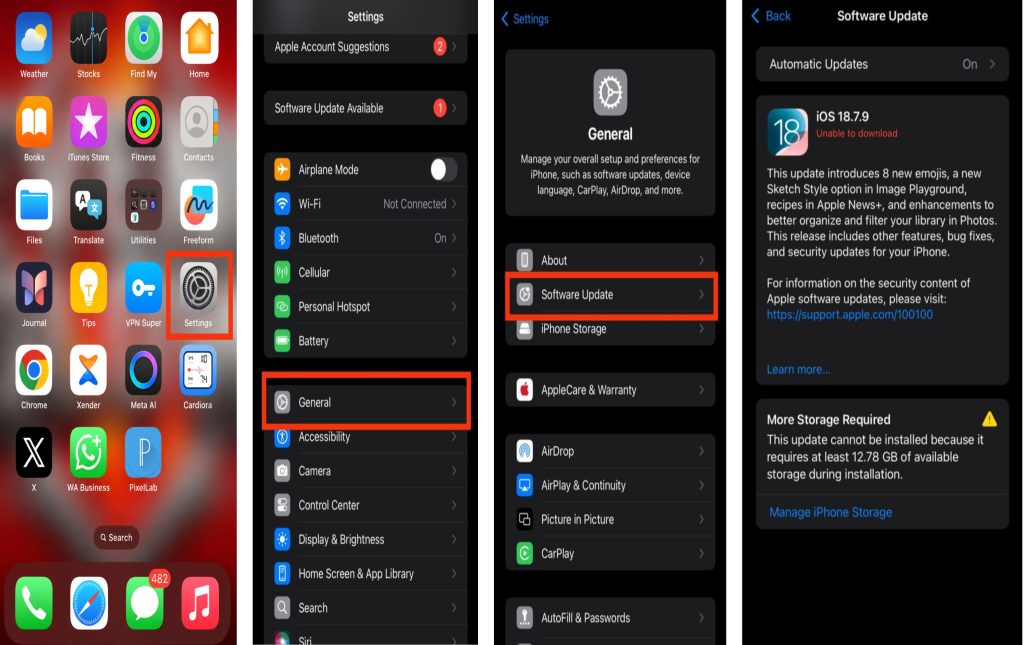
10. Update Your iPhone to the Latest iOS Version
Apple regularly releases iOS updates that improve battery management, fix software bugs, and optimise app performance. Installing the latest version of iOS can help resolve battery drain caused by software issues.
Steps:
- Open Settings.
- Tap General.
- Select Software Update.
- Download and install any available update.
Also read: how do i stop tiktok from draining my battery in the background
Signs an App Is Draining Your iPhone Battery
Sometimes it’s easy to tell when an app is using more battery than it should. Watch for these common signs:
- Your battery percentage drops quickly after opening a particular app.
- Your iPhone becomes unusually warm while using certain apps.
- An app shows high Background Activity in Battery settings.
- You need to charge your iPhone more often than usual.
- Battery drain continues even when you’re not actively using your phone.
- Your iPhone slows down or becomes less responsive while using demanding apps.
Extra Tips to Improve iPhone Battery Life
Along with managing battery-hungry apps, these simple habits can help extend your battery life:
- Enable Low Power Mode when your battery starts running low.
- Turn off Bluetooth, AirDrop, or Personal Hotspot when they’re not in use.
- Use Dark Mode on OLED iPhone models where available.
- Avoid exposing your iPhone to extreme heat or direct sunlight.
- Keep at least 15–20% of your storage free so iOS can run efficiently.
- Charge your iPhone with a certified charger and cable.
- Review Battery settings regularly to identify apps with unusually high battery usage.
- Remove apps you no longer use to reduce unnecessary background activity.
Conclusion
Apps such as social media platforms, navigation tools, streaming services, messaging apps, games, and cloud storage apps can significantly reduce your iPhone’s battery life because they rely on features like background activity, GPS, internet connectivity, and continuous screen usage. Fortunately, you don’t have to stop using these apps completely. By checking your battery usage, limiting Background App Refresh, adjusting Location Services, reducing unnecessary notifications, keeping your apps and iPhone updated, and following the battery-saving tips in this guide, you can improve battery life and enjoy longer use between charges.
Frequently Asked Questions (FAQs)
1. Which app usually drains the most battery on an iPhone?
There isn’t a single app that drains every iPhone’s battery the most because it depends on how you use your device. However, apps like TikTok, Instagram, Facebook, YouTube, Google Maps, Netflix, and graphic-intensive games are often among the biggest battery users due to video playback, GPS, and constant background activity.
2. How can I tell if an app is draining my iPhone battery?
Go to Settings > Battery and scroll down to view battery usage by app. If an app consistently appears at the top of the list or shows high Background Activity, it may be consuming more battery than expected.
3. Does deleting an app improve iPhone battery life?
Yes, if the app frequently runs in the background or uses services like GPS, notifications, or automatic syncing. However, in many cases, simply adjusting the app’s settings is enough to reduce battery drain without deleting it.
4. Why do some apps keep using battery even when I’m not using them?
Many apps continue running background tasks such as checking for new messages, syncing files, updating content, refreshing feeds, or tracking your location. Disabling unnecessary background permissions can help reduce battery usage.
5. Is it safe to leave Low Power Mode turned on all the time?
Yes. Low Power Mode is designed by Apple to reduce power consumption by limiting certain background activities and visual effects. While some features may update less frequently, it will not damage your iPhone.
6. Does poor mobile signal affect iPhone battery life?
Yes. When your iPhone is in an area with weak cellular coverage, it uses more power searching for a stronger network signal. This can cause your battery to drain faster, especially when using mobile data.
7. Can an old battery make apps seem like they’re draining power faster?
Yes. As your iPhone battery ages, its maximum capacity decreases, so it holds less charge than when it was new. This can make battery-intensive apps appear to drain power much faster even if their usage hasn’t changed.
8. Should I close apps after every use to save battery?
Not necessarily. iOS is designed to manage background apps efficiently. Force-closing every app can sometimes use more power because the app has to reload completely when reopened. It’s generally better to close only apps that have frozen, are misbehaving, or are consuming excessive background activity.