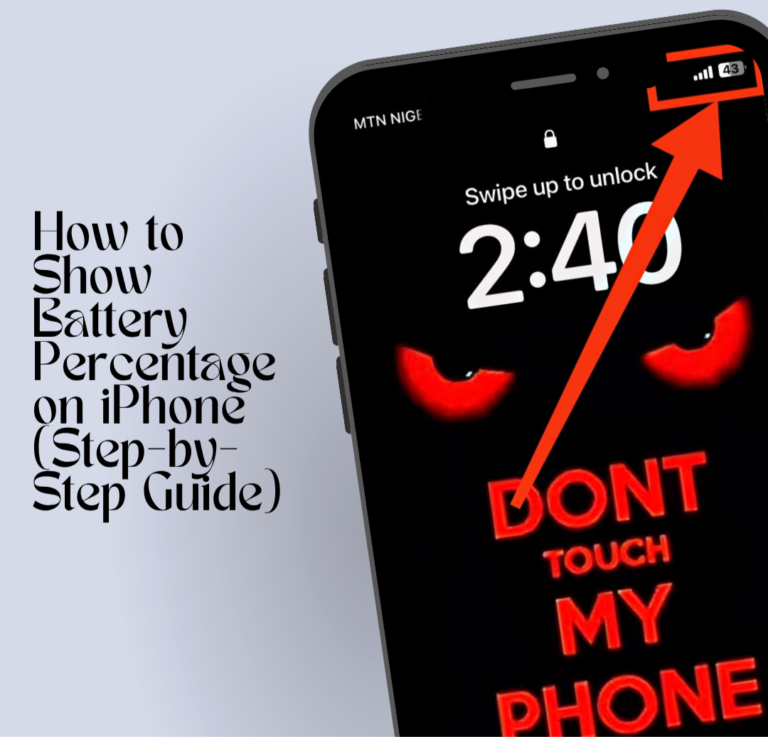
Knowing your iPhone battery percentage helps you understand exactly how much power your device has at any moment. Instead of guessing from the small battery icon, the percentage gives you a clear and accurate number so you can manage your phone better and avoid unexpected shutdowns during important use. It also helps you plan when to charge your phone, especially when you are outside or busy. This guide explains everything in a simple and easy way so you can quickly turn on battery percentage on your iPhone without stress or confusion.
Also read: why is my phone charging but the battery percentage is not increasing real fix 2026
Why Battery Percentage Is Important on iPhone
Below are the key reasons why showing battery percentage on your iPhone is useful and important for everyday use:
1. It shows the exact battery level instead of guessing from the icon, giving you a clear idea of how much power is left.
2. It helps you know the right time to charge your phone so you don’t run out of battery unexpectedly.
3. It prevents sudden shutdown during important moments like calls, exams, work, or travel.
4. It helps you manage battery-heavy apps by knowing when your battery is dropping faster than normal.
5. It improves overall awareness of your phone’s power usage, helping you use your device more smartly throughout the day.
Also read: what samsung phones have wireless charging
How to Show Battery Percentage on iPhone (Step-by-Step Guide)
Below are the simple steps you need to follow to turn on battery percentage on your iPhone:
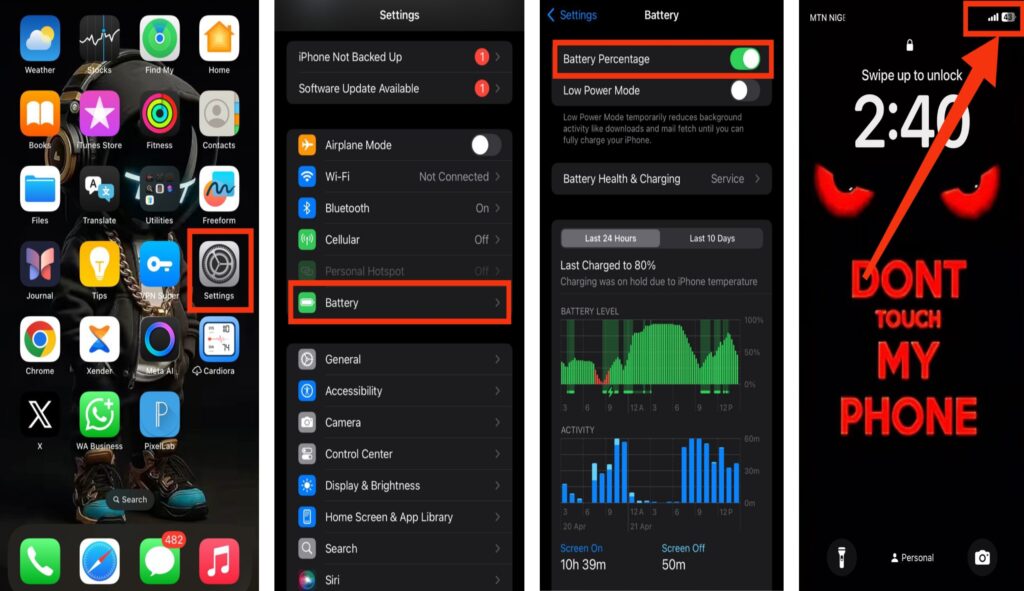
Step 1: Open Settings
Unlock your iPhone and tap on the Settings app from your home screen. This is where all iPhone system options are controlled.
Step 2: Go to Battery
Scroll down and tap on Battery. This section contains all power and battery-related settings.
Step 3: Turn On Battery Percentage
Inside the Battery menu, find Battery Percentage and switch it ON. This allows your iPhone to display the exact battery level.
Step 4: Check Your Screen
Once enabled, go back to your home screen. You will now see the battery percentage next to the battery icon at the top of your screen, showing your real-time power level clearly.
Also read: Why Is My Phone Charging Slowly Even With a Fast Charger?
Conclusion
Being able to see your iPhone battery percentage makes it much easier to stay in control of your device throughout the day. Instead of relying only on the battery icon, you now have a clear and exact view of your remaining power, helping you avoid sudden shutdowns and plan your charging time properly. By following the simple steps explained in this guide, you can quickly enable battery percentage and improve how you manage your phone’s battery usage in everyday life.
Frequently Asked Questions (FAQs)
1. Does enabling battery percentage affect iPhone performance?
No, turning on battery percentage does not affect your phone’s speed, performance, or battery health in any way.
2. What should I do if the Battery option is missing in Settings?
If you can’t find the Battery option, try restarting your phone or checking for a system update. In rare cases, resetting settings may help restore missing options.
3. Is battery percentage better than the battery icon?
Yes, because it gives you an exact number instead of a visual estimate, making it easier to manage your battery usage more accurately.
4. Will turning on battery percentage affect my iPhone battery life?
No, enabling battery percentage does not have any negative effect on your battery life. It is only a display feature that shows the exact battery level and does not consume extra power.
5. Can I still check battery percentage without turning it on in settings?
Yes, even if you don’t enable it permanently, you can still check your battery percentage quickly through the Control Center by swiping down from the top-right corner of your screen.
6. Does battery percentage look different on different iPhone models?
Yes, depending on your iPhone model, the battery percentage may appear inside the battery icon or next to it. This is based on Apple’s design for different screen types.
7. Is it better to always keep battery percentage turned on?
Keeping battery percentage turned on is helpful for most users because it provides clear and accurate information about battery levels, making it easier to manage your phone usage throughout the day.