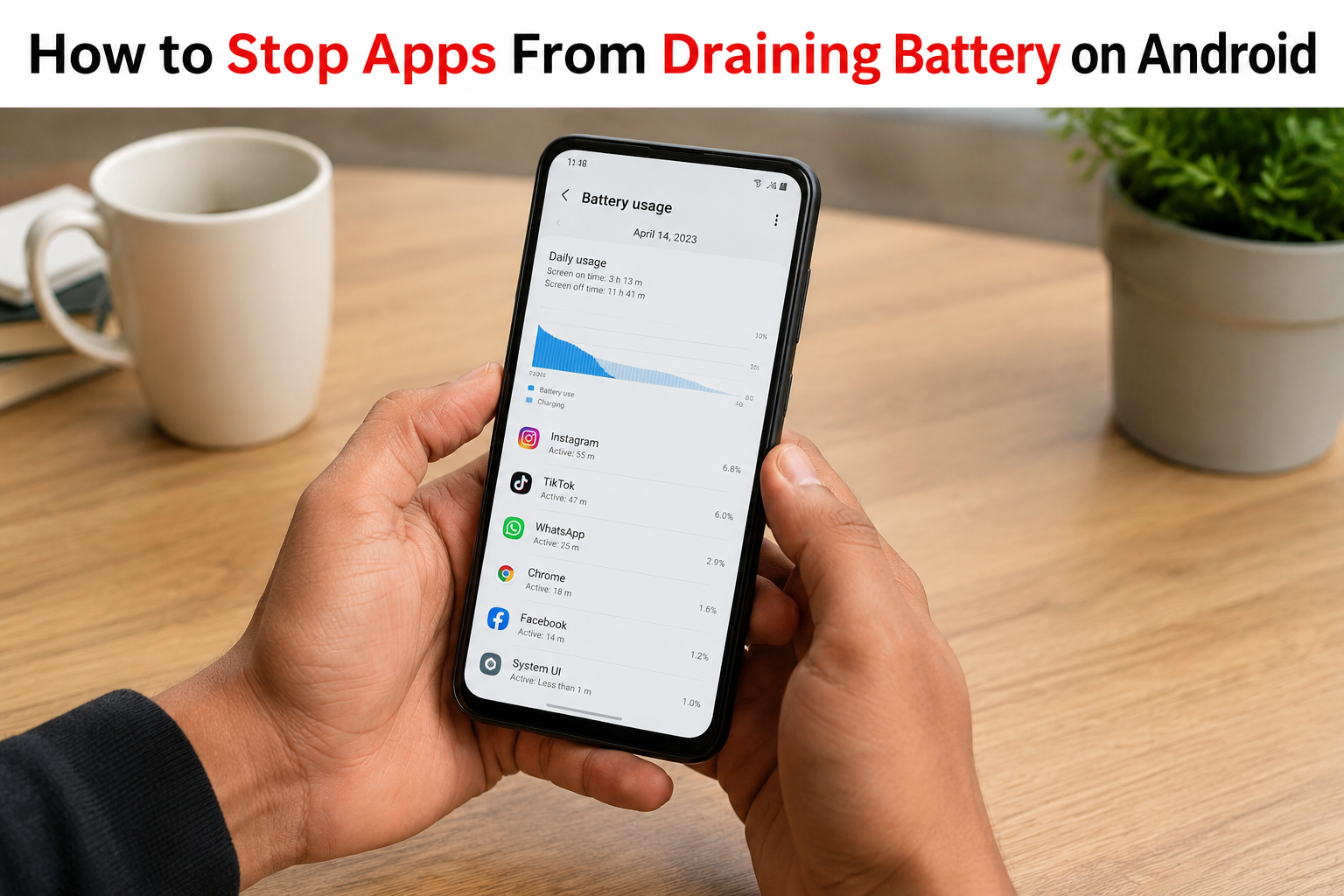
Android phones are built to run multiple apps at once, but not every app manages battery power efficiently. Some apps continue syncing data, checking for updates, tracking your location, or sending notifications even after you’ve stopped using them. Over time, this unnecessary background activity can reduce battery life and leave you searching for a charger sooner than expected. Fortunately, Android includes several tools that help you identify battery-hungry apps and reduce their power consumption. This guide explains why apps drain your battery and the most effective ways to stop them without affecting your normal phone use.
Why Do Apps Drain Battery on Android?
Not every app uses the same amount of power. Some only open when you launch them, while others continue working in the background throughout the day. Below are the most common reasons Android apps drain battery:
1. Background Activity
Many apps continue running after you close them. They refresh content, sync information, check for updates, and maintain background services so they can open quickly the next time you use them. Although this improves convenience, it also increases battery consumption, especially if several apps are doing it at the same time.
2. Location and GPS Access
Apps that rely on location services, such as Google Maps, Waze, Uber, Bolt, weather apps, fitness trackers, and food delivery apps, frequently access your phone’s GPS. Continuous location tracking requires additional power and can significantly reduce battery life, particularly if location permission is set to Allow all the time.
3. Notifications and Automatic Sync
Messaging, email, and social media apps regularly connect to the internet to check for new messages, comments, uploads, and notifications. Apps such as WhatsApp, Facebook, Instagram, TikTok, Snapchat, Telegram, Gmail, and Messenger may sync data throughout the day, causing gradual battery drain even when you are not actively using them.
4. High-Performance Features
Streaming videos, playing graphic-intensive games, making video calls, or editing photos places a heavy workload on your phone’s processor, graphics chip, speakers, and display. Apps like YouTube, Netflix, Disney+, Zoom, PUBG Mobile, Call of Duty: Mobile, and Genshin Impact naturally consume more battery because they require more system resources.
5. Poor Optimisation or Outdated Apps
Some apps are not well optimised for every Android device, while others may contain software bugs that increase battery usage. Running outdated versions can also cause apps to use more processing power than necessary. Installing app updates and keeping Android up to date often improves battery efficiency and overall performance.
Also read: Why Does My Android Phone Battery Drain Overnight? Causes and Fixes
How to Check Which App Is Draining Your Phone Battery on Android
Before changing any settings, it’s important to identify which apps are actually consuming the most battery. Android’s built-in Battery Usage page shows how much power each app has used since your last full charge, making it easier to find apps that may be running excessively in the background. Steps to check battery usage:
- Open Settings on your Android phone.
- Tap Battery.
- Select Battery Usage, Battery Activity, or Battery Usage by App (the name may vary depending on your phone).
- Review the list of apps sorted by battery consumption.
- Tap any app to view more details, including foreground and background usage if available.
If an app consistently appears near the top of the list or shows unusually high background activity, it may be responsible for excessive battery drain. Once you’ve identified the app, you can optimise its battery settings using the methods in the next section.
How to Stop Apps From Draining Battery on Android
Below are some of the most effective ways to stop apps from draining your Android battery. These methods help reduce unnecessary background activity, improve battery life, and keep your phone running smoothly without affecting important apps:
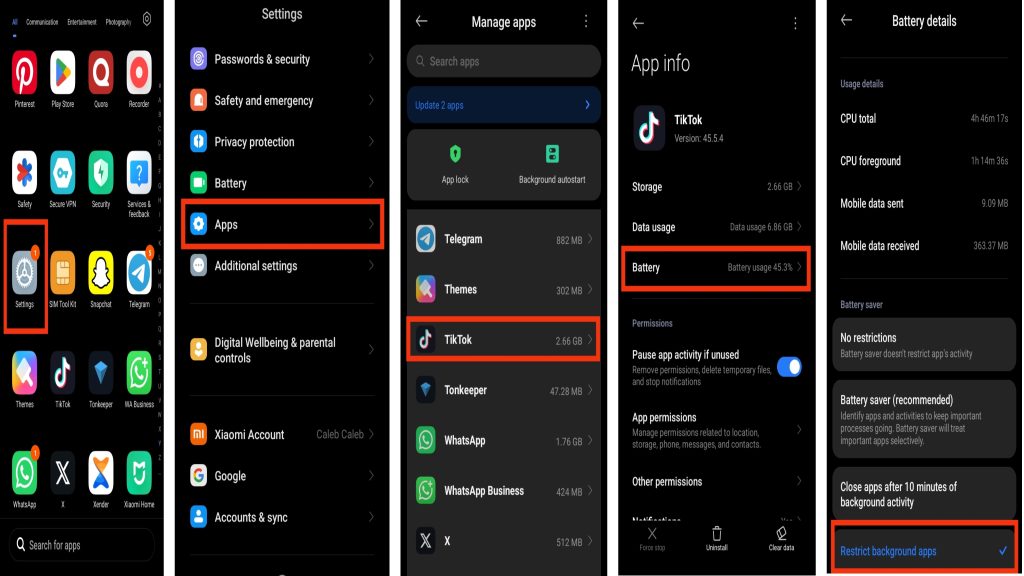
1. Restrict Background Battery Usage for Battery-Hungry Apps
Many apps continue running after you close them. They refresh content, sync data, check for updates, and send notifications in the background, all of which consume battery power. Restricting background activity for apps you rarely use can significantly improve battery life while allowing essential apps to continue working normally. How to do it:
- Open Settings on your Android phone.
- Tap Apps or Applications.
- Select the app using too much battery.
- Tap Battery or App Battery Usage.
- Choose Restricted, Optimized, or turn off Allow Background Activity (depending on your phone model).
2. Enable Adaptive Battery
Adaptive Battery is a built-in Android feature that learns how you use your phone over time. It automatically limits battery usage for apps you rarely open while giving priority to the apps you use most often. This helps reduce unnecessary background activity and extends battery life without requiring you to manually manage every app. How to enable it:
- Open Settings.
- Tap Battery.
- Select Adaptive Battery.
- Turn Adaptive Battery ON.
3. Find and Manage Apps Using the Most Battery
Before making changes, it’s important to identify which apps are consuming the most power. Android provides a detailed battery usage report showing each app’s battery consumption, making it easier to spot apps with unusually high foreground or background activity. How to check:
- Open Settings.
- Tap Battery.
- Select Battery Usage.
- Review the list of apps.
- Tap any app to see detailed battery usage information.
- Restrict or uninstall apps that consume excessive battery if you rarely use them.
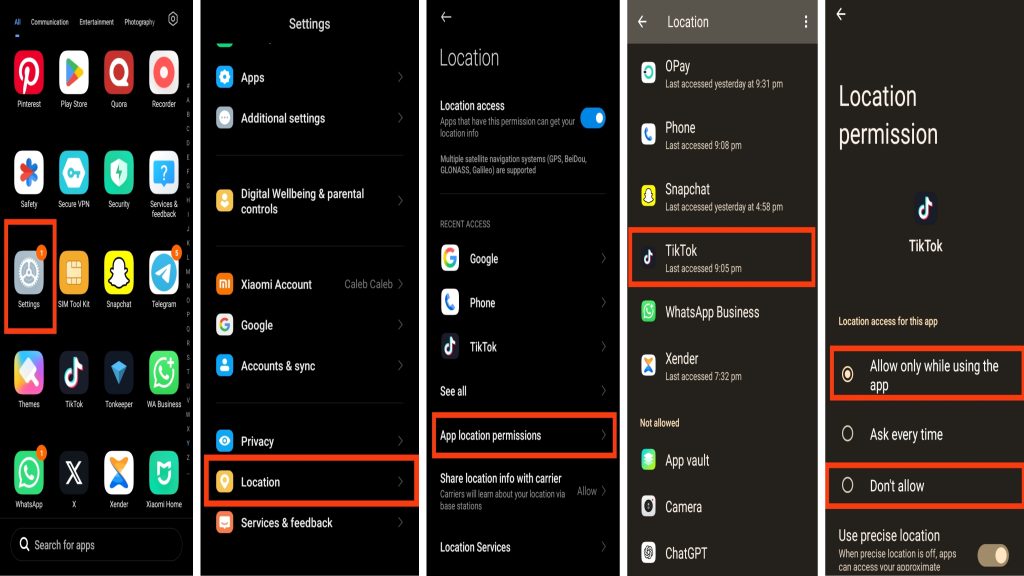
4. Reduce Location Access for Unnecessary Apps
GPS and location services are among the biggest causes of battery drain on Android devices. Some apps continue requesting your location even when you’re not actively using them. Limiting location access prevents unnecessary GPS activity and helps your battery last longer throughout the day. How to adjust location settings:
- Open Settings.
- Tap Location.
- Select App Permissions.
- Choose an app.
- Set location access to While Using the App or Don’t Allow if location isn’t required.
5. Keep Your Apps Updated
App developers regularly release updates that fix bugs, improve performance, and optimize battery usage. Running outdated versions may cause apps to consume more battery because of unresolved software issues or poor optimization. How to update apps:
- Open the Google Play Store.
- Tap your Profile icon.
- Select Manage Apps & Device.
- Tap Updates Available.
- Update individual apps or tap Update All.
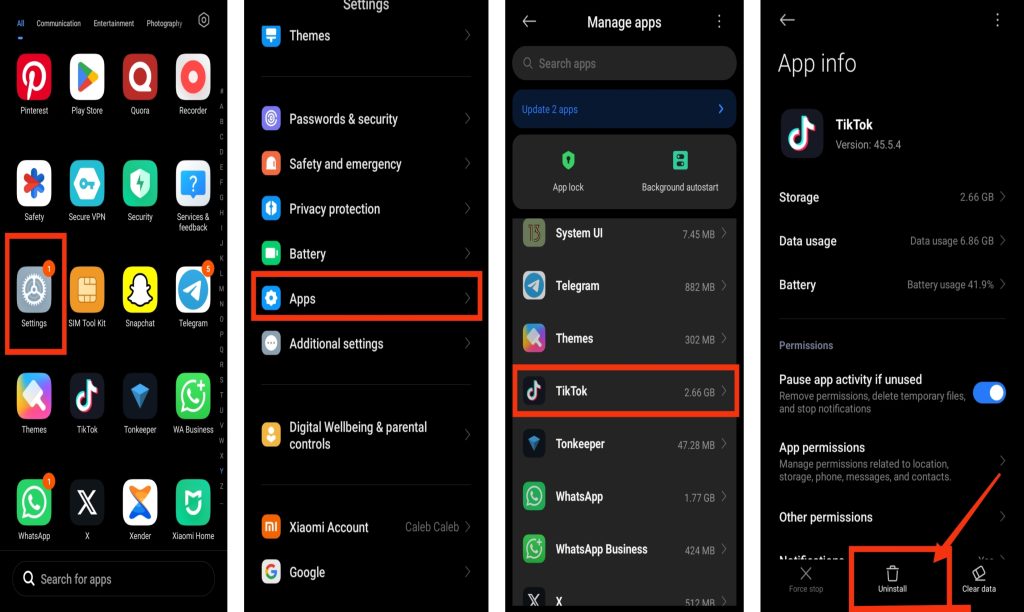
6. Remove or Disable Apps You No Longer Use
Unused apps can still consume battery through background syncing, notifications, and automatic updates. Removing apps you no longer need reduces background activity, frees up storage space, and improves overall battery performance. How to uninstall unused apps:
- Open Settings.
- Tap Apps.
- Select the app you no longer need.
- Tap Uninstall.
- If it’s a built-in system app that cannot be removed, tap Disable instead to stop it from running in the background.
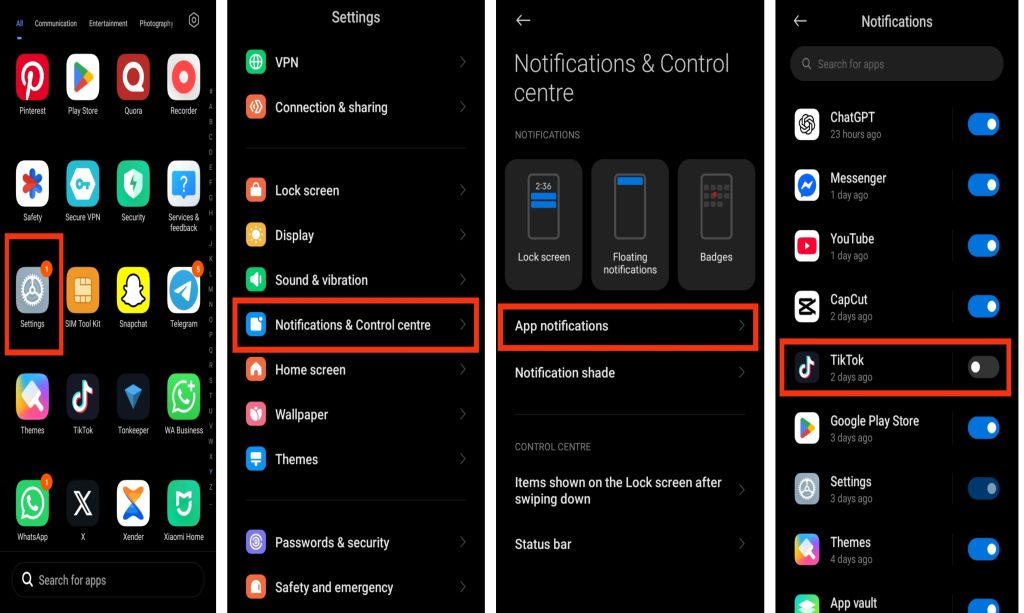
7. Turn Off Unnecessary Notifications
Every notification wakes your phone’s screen, uses system resources, and may trigger apps to refresh in the background. While important notifications from messaging or banking apps should remain enabled, turning off alerts from apps you rarely use can help reduce battery drain throughout the day.
Steps:
- Open Settings.
- Tap Notifications.
- Select the app you want to manage.
- Turn off notifications you don’t need.
- Leave notifications enabled only for important apps.
8. Clear App Cache Regularly
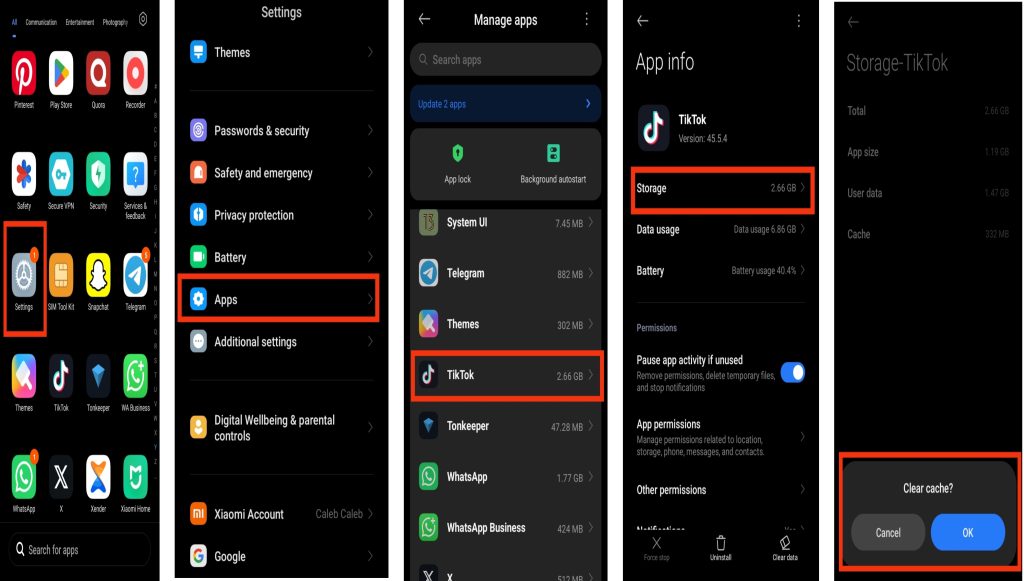
Apps store temporary files, known as cache, to help them load faster. Over time, these files can become outdated or corrupted, causing some apps to use more battery and system resources than necessary. Clearing the cache regularly can improve app performance without deleting your personal data.
Steps:
- Open Settings.
- Tap Apps.
- Select the app.
- Tap Storage.
- Choose Clear Cache.
Also read: Why Is Google Play Store Not Downloading Apps? How to Fix It
Additional Tips to Improve Android Battery Life
Besides managing battery-hungry apps, adopting a few good habits can help your Android phone last much longer on a single charge and improve overall performance:
1. Reduce Screen Brightness
Your display is one of the biggest battery consumers on any Android phone. Keeping the brightness higher than necessary causes the screen to use more power. Lowering the brightness or enabling Adaptive Brightness helps conserve battery throughout the day.
2. Turn On Battery Saver Mode
Battery Saver limits background activity, reduces visual effects, and lowers power consumption when your battery starts running low. It’s one of the easiest ways to extend battery life without changing many settings.
3. Restart Your Phone Regularly
Restarting your Android phone every few days closes unnecessary background processes, refreshes the operating system, and fixes temporary software issues that may cause excessive battery drain.
4. Keep Android Software Updated
System updates often include battery optimisation improvements, performance enhancements, and bug fixes. Installing the latest Android updates helps your device run more efficiently and may resolve battery-related problems.
5. Avoid Extreme Heat
High temperatures can damage your phone’s battery and reduce its lifespan. Avoid leaving your device in direct sunlight, inside a hot car, or near heat sources for long periods.
6. Use Wi-Fi When Available
When you’re in an area with a weak mobile signal, your phone uses more power trying to maintain a cellular connection. Connecting to a stable Wi-Fi network whenever possible can reduce battery usage and improve internet performance.
Also read: how to add app to home screen
Signs an App Is Draining Your Android Battery
Sometimes it isn’t obvious that a single app is responsible for poor battery life. If you notice any of the signs below, one or more apps may be using more power than they should:
- Your battery percentage drops much faster than usual.
- Your phone becomes warm even when you’re not using it.
- You need to charge your phone several times a day.
- Battery usage shows one app consuming an unusually high percentage.
- Your phone feels slower because apps are running continuously in the background.
- The battery drains overnight even when your phone is idle.
When Should You Uninstall an App?
Most battery-draining apps can be managed by changing their settings, but sometimes removing the app is the best solution. Consider uninstalling an app if:
- It continues draining your battery after trying the fixes above.
- The app crashes frequently or causes your phone to overheat.
- It hasn’t received updates from the developer for a long time.
- You rarely use the app but it continues running in the background.
- It consumes a large amount of battery every day without a clear reason.
Removing unnecessary apps not only improves battery life but also frees up storage space and helps your phone perform more smoothly.
Tips to Prevent Apps From Draining Your Android Battery
Following a few simple habits can help keep your battery healthy and reduce unnecessary power consumption.
- Keep Android and your apps updated to the latest version.
- Download apps only from trusted sources such as the Google Play Store.
- Review your battery usage every few days to identify battery-hungry apps.
- Avoid installing apps you rarely use.
- Turn off Wi-Fi, Bluetooth, and GPS when you don’t need them.
- Use Battery Saver when your battery level is low.
- Keep at least 15–20% of your phone’s storage free for better performance.
- Charge your phone with the original or a certified charger.
- Avoid exposing your phone to excessive heat.
- Restart your phone every few days to refresh the system.
Also read: how do i stop tiktok from draining my battery in the background
Conclusion
Apps running in the background are one of the most common reasons Android batteries drain quickly, but you don’t have to stop using your favourite apps to improve battery life. By identifying battery-hungry apps, restricting unnecessary background activity, limiting location access, reducing notifications, clearing app cache, and keeping your phone updated, you can make your battery last much longer. If a particular app continues causing excessive battery drain after trying these solutions, uninstalling it or contacting the app developer may be the best option. Small changes to your phone’s settings can make a noticeable difference in both battery life and overall performance.
Frequently Asked Questions (FAQs)
1. Why do some Android apps use more battery than others?
Some apps require more system resources because they continuously use features such as GPS, mobile data, Wi-Fi, notifications, background syncing, or high-performance graphics. Apps like social media platforms, navigation services, video streaming apps, and mobile games generally consume more battery than lightweight apps.
2. Is it safe to restrict background activity for apps?
Yes. Restricting background activity is safe for most non-essential apps and can significantly improve battery life. However, apps such as messaging, email, banking, or navigation apps may delay notifications or updates if their background activity is restricted.
3. Does clearing an app’s cache improve battery life?
Clearing an app’s cache can improve performance if temporary files have become corrupted or excessive. While it may not dramatically increase battery life on its own, it can help some apps run more efficiently and reduce unnecessary battery usage.
4. Should I force stop apps to save battery?
Force stopping an app can temporarily prevent it from running in the background, but it is not something you need to do regularly. Android automatically manages most apps efficiently. If an app continues consuming excessive battery, restricting its background activity or uninstalling it is usually a better long-term solution.
5. How often should I check which apps are draining my battery?
Checking your battery usage once every week or whenever you notice unusually fast battery drain is a good habit. This allows you to identify apps that suddenly begin using more power after an update or due to unexpected background activity.
6. Can an outdated Android version cause battery drain?
Yes. Older Android versions may contain software bugs or lack newer battery optimisation features. Keeping your phone updated ensures you receive performance improvements, security patches, and battery efficiency enhancements released by the manufacturer.
7. Will Battery Saver stop apps from running in the background?
Battery Saver reduces background activity for many apps, lowers system performance when appropriate, and limits certain features to extend battery life. However, essential apps and services may still continue running to ensure your phone functions properly.
8. Why does my Android battery still drain after trying these fixes?
If your battery continues draining quickly after optimising your apps, the problem may be caused by an ageing battery, poor network signal, faulty software, excessive screen brightness, or hardware issues. In such cases, checking your battery health or having the device inspected by a qualified technician may be necessary.