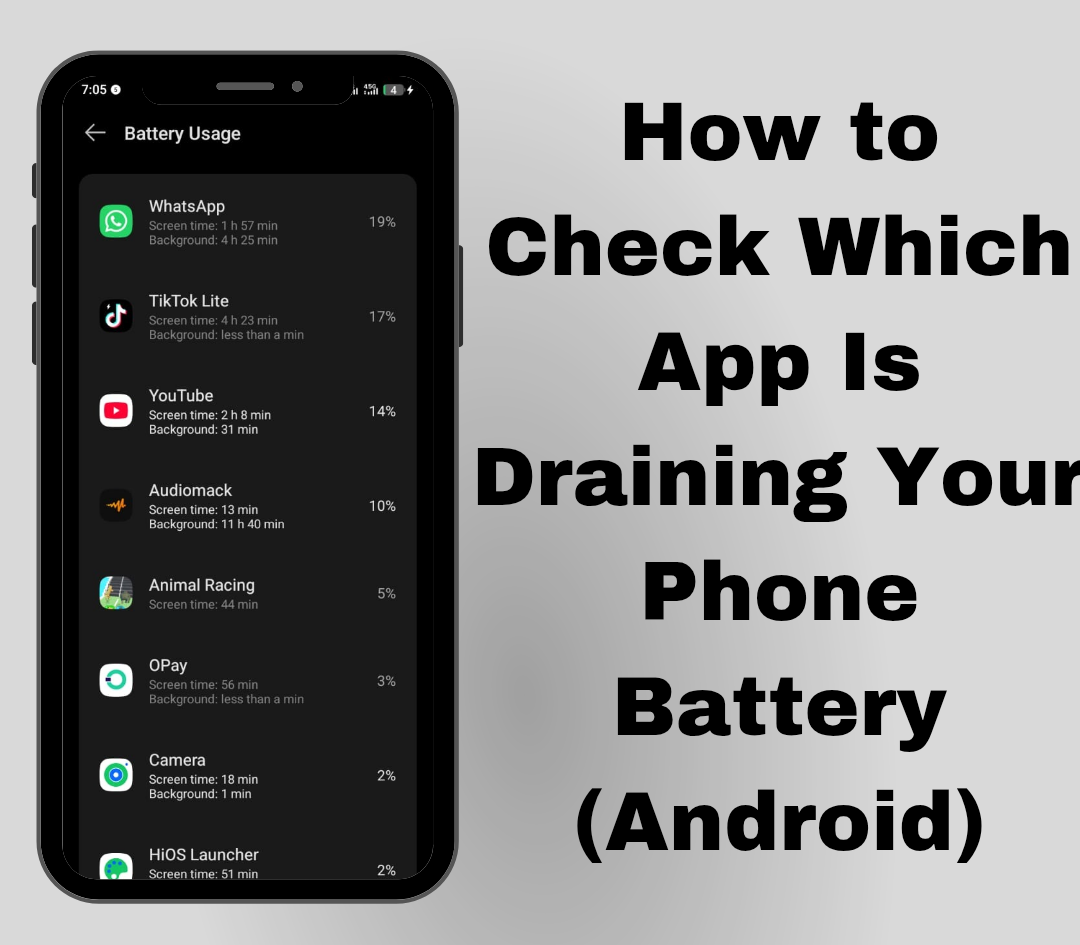
If your Android phone’s battery runs out quickly, one or more apps may be using more power than they should. Android includes a built-in battery usage feature that lets you see which apps consume the most battery, making it easier to identify the cause of the problem. In this guide, you’ll learn why checking battery usage is important, how to find the apps draining your battery, how to tell if an app is using excessive power, and the best ways to reduce battery drain and improve your phone’s battery life.
Also read: how to add app to home screen
Why You Should Check Which App Is Draining Your Battery
Checking which app is using the most battery can help you identify the cause of fast battery drain and keep your phone running efficiently. Here are some of the main benefits:
1. Extend Battery Life: Finding apps that use excessive power helps your battery last longer between charges.
2. Identify Problem Apps: It helps you spot apps that continue running in the background even when you’re not using them.
3. Improve Phone Performance: Reducing unnecessary battery usage can make your phone respond faster and run more smoothly.
4. Reduce Mobile Data Usage: Some apps use both battery and mobile data by constantly syncing or refreshing in the background.
5. Help Prevent Overheating: Identifying apps that overwork your phone’s processor can reduce heat and improve overall device performance.
Also read: how to stop facebook and instagram from draining your battery in the background
How to Check Which App Is Draining Your Phone Battery on Android
Follow the steps below to find out which apps are using the most battery on your Android phone. The exact menu may vary depending on your phone model and Android version.
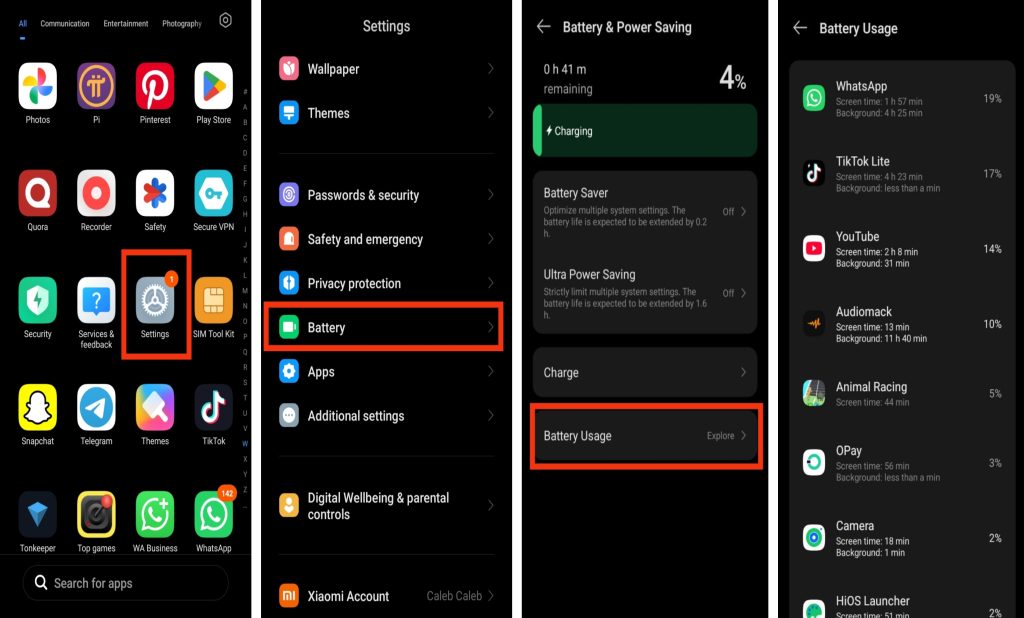
Step 1: Open the Settings App
Unlock your Android phone and open the Settings app.
Step 2: Go to Battery Settings
Scroll down and tap Battery. On some phones, you may need to open Battery & Device Care or a similar option.
Step 3: View Battery Usage
Tap Battery Usage or App Battery Usage to see your phone’s battery statistics.
Step 4: Check the List of Apps
Your phone will display a list of apps along with the percentage of battery each one has used since the last full charge.
Step 5: Find the App Using the Most Battery
Look through the list and identify any app with unusually high battery usage, especially if you haven’t used it very often.
Step 6: Check the App’s Battery Details
Tap the app to view more information. If it shows a high level of background activity, it may be one of the reasons your phone’s battery is draining faster than normal.
Battery Menu May Be Different on Some Android Phones
The battery settings can vary depending on your phone manufacturer. Here are some common locations:
- Samsung (One UI): Settings → Battery and Device Care → Battery
- Google Pixel and standard Android: Settings → Battery → Battery Usage
- Other Android phones: Open Settings, then search for Battery or Battery Usage (show directly).
Also read: how to stop capcut from draining battery while editing
How to Tell If an App Is Draining Too Much Battery
You can tell an app is using too much battery if it appears at the top of your phone’s battery usage list even though you haven’t used it very often. High battery usage during background activity is also a common sign.
1. High battery usage with little activity: An app using a large percentage of battery despite limited use may be draining power unnecessarily.
2. Increased battery usage after an update: If an app starts using more battery after an update, it could be caused by a bug or new background processes.
3. Your phone becomes warm: If your phone feels warm even when you’re not actively using it, a background app may be consuming extra power.
4. Battery drains faster than usual: A sudden drop in battery life after installing or updating an app may indicate excessive battery usage.
5. High background activity: Apps you rarely open should not continue using a large amount of battery in the background.
What to Do If an App Is Draining Too Much Battery
If you notice an app using more battery than it should, try these steps to reduce its power consumption:
1. Restrict Background Activity: Limit the app’s ability to run in the background through your phone’s battery settings.
2. Force Stop the App: If the app continues running when you’re not using it, force stop it and reopen it only when needed.
3. Update the App: Check the Google Play Store for updates, as newer versions often include bug fixes and battery improvements.
4. Clear the App Cache: Clearing cached data can fix temporary issues that may be causing excessive battery usage.
5. Uninstall the App if Necessary: If you no longer use the app or it continues draining your battery after trying the above steps, uninstall it to improve battery life and free up storage space.
Also read: How do I stop WhatsApp from draining my battery in the background?
Conclusion
Checking which app is draining your Android phone’s battery is one of the easiest ways to identify the cause of poor battery life and improve your device’s performance. By regularly reviewing your battery usage, identifying apps with unusually high power consumption, and taking simple steps such as limiting background activity, updating apps, or removing those you no longer need, you can help your battery last longer and keep your phone running smoothly. Making battery checks part of your routine can also help you spot problems early and avoid unnecessary battery drain in the future.
Frequently Asked Questions (FAQ)
1. How often should I check which app is using the most battery?
If your battery is performing normally, checking once every few weeks is usually enough. However, if you notice your battery draining faster than usual or your phone becoming warm, it’s a good idea to review your battery usage immediately.
2. Does checking battery usage itself drain my phone’s battery?
No. Viewing your phone’s battery usage statistics uses very little power and does not have a noticeable effect on battery life. It is safe to check whenever you want to monitor your apps.
3. Why does an app use more battery after I update it?
Some app updates add new features or run background tasks while they finish setting up. Battery usage may temporarily increase, but it should return to normal after a short period. If the problem continues, check for another update or contact the app developer.
4. Can a recently installed app cause fast battery drain?
Yes. Some newly installed apps may use a lot of battery because of background activity, bugs, or frequent syncing. If you notice a sudden increase in battery usage after installing an app, check its battery usage in your phone’s settings.
5. Can a damaged battery make it look like an app is draining too much power?
Yes. An old or worn-out battery can lose charge more quickly, making it seem as though apps are using more power than normal. If your battery health has significantly declined, replacing the battery may improve performance.
6. Is it safe to force stop apps to save battery?
Force stopping an app occasionally is generally safe if it is misbehaving or using excessive battery. However, regularly force stopping essential system apps is not recommended because it may affect your phone’s normal operation.