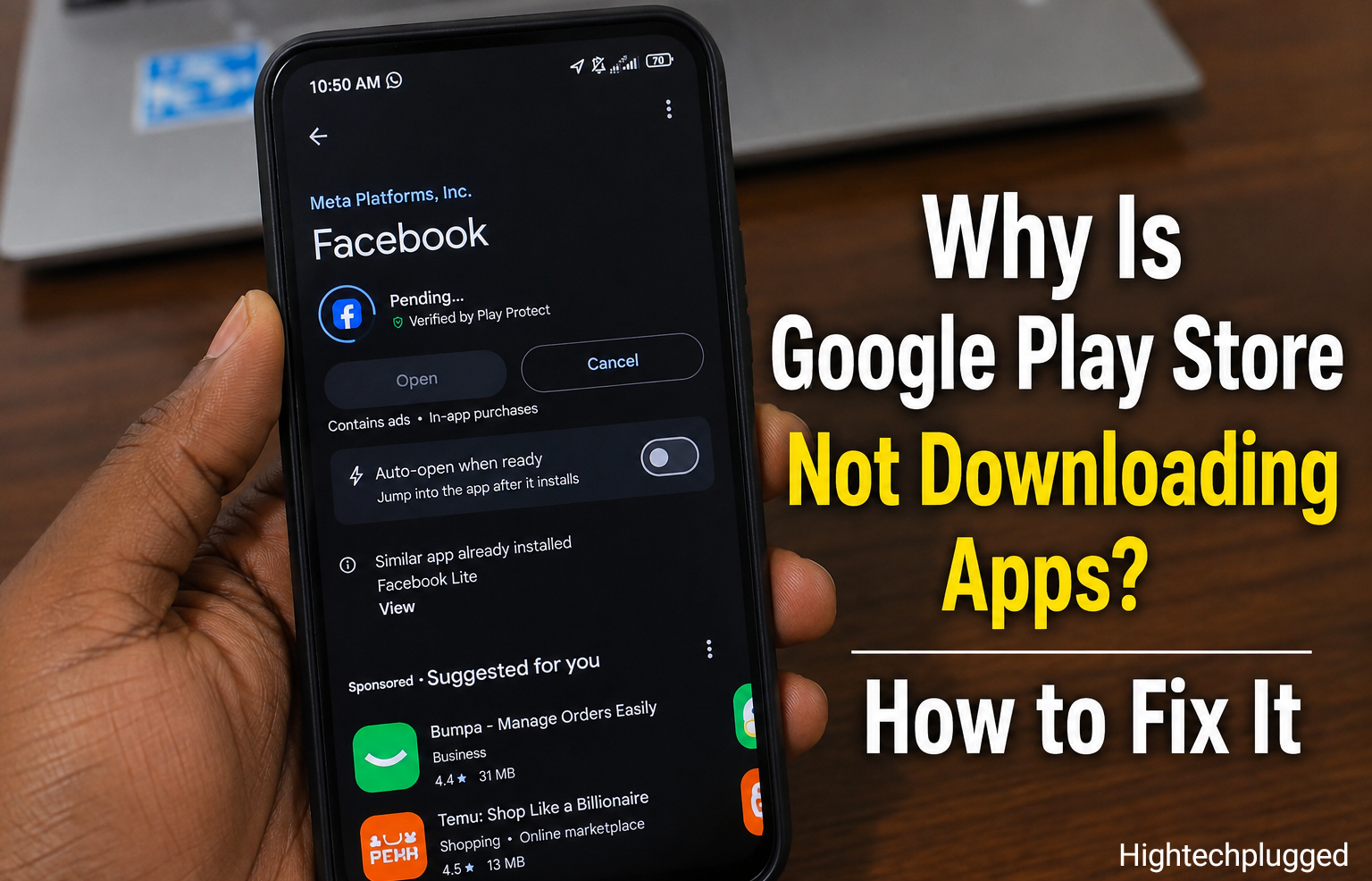
Google Play Store is the official app store for Android devices, but it can be frustrating when it suddenly stops downloading or installing apps. I have personally experienced this problem before. My downloads were stuck on “Pending,” and sometimes they wouldn’t start at all, even though my internet connection seemed fine. After trying different troubleshooting methods, I found several solutions that fixed the issue. Since then, I’ve also seen many Android users run into the same problem for different reasons. In this guide, I’ll explain the most common causes of Google Play Store download problems, share the solutions that worked, and provide additional troubleshooting tips to help you get your apps downloading again as quickly as possible.
When Is It Normal for Google Play Store to Delay App Downloads?
Sometimes, a delayed download does not mean something is wrong. The Play Store may temporarily pause downloads when your internet connection is unstable, another app is updating in the background, your phone is restarting, or Google is performing server maintenance. If the download starts after a few minutes, there is usually nothing to worry about.
Also read: why is my app store not working
Why Is Google Play Store Not Downloading Apps?
There are several reasons why apps may fail to download from Google Play Store. In many cases, the problem is related to your internet connection, device settings, storage, or the Play Store itself.
1. Poor Internet Connection
A weak Wi-Fi or mobile data connection is one of the most common reasons apps fail to download. If your internet keeps disconnecting or is extremely slow, Google Play Store may remain on “Pending” or stop downloading altogether.
2. Insufficient Storage Space
Every app requires enough free storage to download and install successfully. If your phone’s storage is almost full, the Play Store may refuse to install new apps until you free up space by deleting unnecessary files, videos, photos, or unused applications.
3. Google Play Store Cache Problems
Google Play Store stores temporary files to improve performance. Over time, these cached files can become corrupted and prevent downloads from starting or completing properly. Clearing the Play Store cache often fixes this issue.
4. Download Manager Is Disabled
Android relies on the Download Manager system app to download applications. If it has been disabled accidentally, Play Store downloads may fail completely.
5. Outdated Google Play Store
Using an outdated version of Google Play Store may cause compatibility issues with newer Android versions or Google’s servers. Updating the Play Store can resolve many download problems.
6. Software Bugs
Occasionally, Android system bugs or incomplete software updates interfere with Play Store downloads. Installing the latest system update often fixes these problems.
7. Google Account Sync Problems
Your Google account is required to download apps. If your account is not syncing correctly or there is an authentication problem, Play Store downloads may stop unexpectedly.
8. Play Store Server Issues
Although uncommon, Google’s servers sometimes experience temporary outages. During these periods, downloads may fail for many users until the service is restored.
9. Battery Saver or Data Saver Restrictions
Some phones limit background internet activity when Battery Saver or Data Saver is enabled. These features can pause or block Play Store downloads until the restrictions are removed.
Also read: How to Stop ChatGPT From Draining Battery in the Background
How to Fix Google Play Store Not Downloading Apps
Most download problems can be solved with a few simple troubleshooting methods. Try each solution below until your apps begin downloading normally.
1. Restart Your Phone
Restarting your phone refreshes Android’s system processes, clears temporary glitches, and restarts Google Play services. After your phone turns back on, open Google Play Store and try downloading the app again.
2. Check Your Internet Connection
A stable internet connection is essential for downloading apps. If you’re using Wi-Fi, restart your router or move closer to it. If you’re using mobile data, ensure you have a strong signal and sufficient data balance. Switching between Wi-Fi and mobile data can also help identify whether the connection is causing the problem.
3. Free Up Storage Space
Low storage is a common reason downloads fail. Delete apps you no longer use, remove duplicate photos and videos, clear unnecessary downloads, and empty your recycle bin if your phone has one. Keeping several gigabytes of free storage helps Android run more smoothly and allows new apps to install successfully.
4. Clear Google Play Store Cache and Data
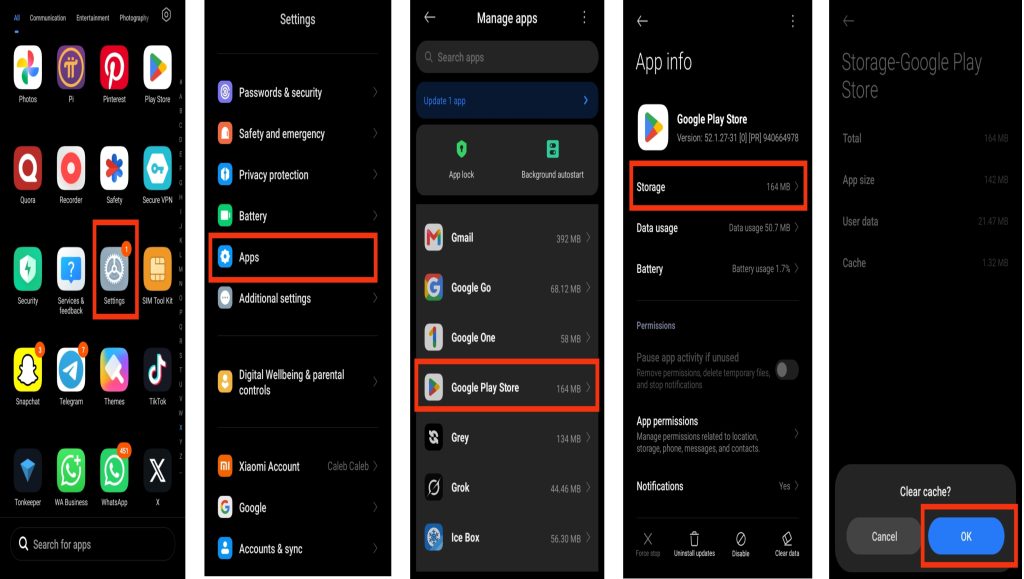
Open Settings > Apps > Google Play Store > Storage, then tap Clear Cache. If the problem continues, tap Clear Data as well. This resets the Play Store without deleting the apps already installed on your phone.
5. Make Sure Download Manager Is Enabled
Go to Settings > Apps > Download Manager (or search for it in your app settings). Ensure it is enabled. If it has been disabled, turn it back on and try downloading the app again.
6. Update Google Play Store and Google Play Services
Google regularly releases updates that improve performance, fix bugs, and resolve compatibility issues. If either Google Play Store or Google Play Services is outdated, app downloads may fail or become stuck.
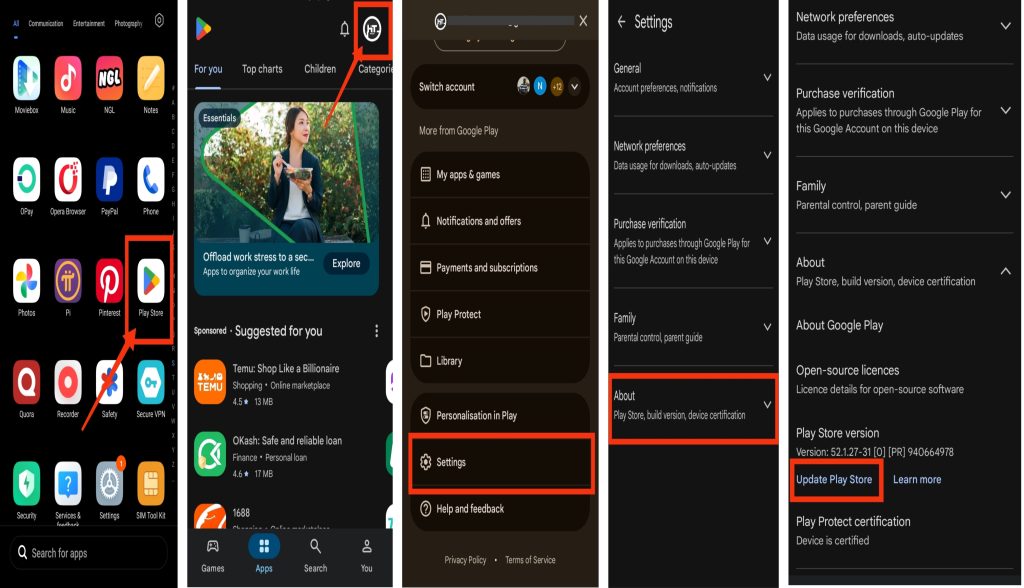
To check for updates, open Google Play Store, tap your profile picture, then go to Settings > About and tap Update Play Store if an update is available. You should also update Google Play Services through your phone’s settings or by opening its Play Store page if available.
8. Turn Off Battery Saver and Data Saver
Battery Saver and Data Saver can restrict background internet activity, preventing Google Play Store from downloading apps.
Open Settings > Battery and temporarily disable Battery Saver. Then go to Settings > Network & Internet > Data Saver and turn it off if it’s enabled. Once disabled, reopen Google Play Store and check whether the download starts.
9. Install the Latest Android Software Update
Phone manufacturers regularly release software updates that fix bugs affecting Google Play Store and other system apps.
Open Settings > Software Update and install any available updates. Keeping Android up to date improves security, performance, and compatibility with Google services.
10. Check Whether Google Play Store Is Down
Although uncommon, Google Play Store servers occasionally experience temporary outages. If many users are reporting download problems at the same time, the issue may not be with your phone.
Wait for a while and try downloading the app again later. If Google’s servers are experiencing an outage, downloads usually resume once the problem has been resolved.
11. Restart Your Wi-Fi Router
If you’re connected to Wi-Fi but downloads are still not working, the issue may be your internet connection.
Turn off your router, unplug it from the power source for about 30 seconds, then plug it back in and wait for the internet connection to return. Restarting the router refreshes your network and often fixes temporary connection issues.
Also read: how to add app to home screen
When Should You Be Concerned?
Occasional Play Store download problems are normal, but you should investigate further if you notice any of the following:
- Google Play Store cannot download any app, even after trying all the troubleshooting steps.
- The Play Store crashes every time you open it.
- Every Google app, including Gmail, YouTube, and Google Maps, stops working.
- Your phone repeatedly shows authentication or server errors.
- The problem started immediately after a software update and continues for several days.
- Your phone frequently freezes or restarts while downloading apps.
These signs may indicate a deeper software issue or, in rare cases, a hardware problem that requires professional support.
Tips to Prevent Google Play Store Download Problems
Keeping your phone properly maintained can reduce the chances of download failures in the future.
- Keep Google Play Store and Android updated.
- Maintain enough free storage on your device.
- Use a stable Wi-Fi or mobile data connection.
- Restart your phone occasionally.
- Avoid installing apps from untrusted sources.
- Keep Google Play Services enabled.
- Clear Play Store cache occasionally if you notice performance issues.
- Keep your Google account synced properly.
- Avoid using aggressive battery-saving apps that restrict background downloads.
Also read: Why WhatsApp Is Draining Battery on Android (7 Easy Fixes That Work)
Conclusion
If Google Play Store is not downloading apps, the problem is usually caused by issues such as a poor internet connection, insufficient storage, corrupted cache, outdated software, or incorrect settings. In most cases, simple troubleshooting steps like restarting your phone, clearing the Play Store cache, checking your connection, or updating Android can resolve the issue. If the problem continues after trying these fixes, it may be related to your Google account, your internet service, or your device itself. Following the solutions in this guide should help you restore normal app downloads and keep Google Play Store running smoothly.
Frequently Asked Questions (FAQs)
1. Why does Google Play Store say “Pending” but never starts downloading?
If Google Play Store is stuck on “Pending,” it is often caused by a slow internet connection, multiple apps waiting to update, low storage space, or problems with Google Play Services. Restarting your phone, checking your connection, and clearing the Play Store cache can usually fix the issue.
2. Can a VPN prevent Google Play Store from downloading apps?
Yes. Some VPN services can interfere with your connection to Google Play Store, especially if the selected server is unstable or blocked. Try disconnecting the VPN temporarily and then attempt the download again.
3. Why can I update apps but not install new ones from Google Play Store?
This can happen if your phone does not have enough available storage, if your Google account has a temporary syncing issue, or if Download Manager is not working properly. Freeing up storage and checking your account settings often resolves the problem.
4. Does clearing Google Play Store data delete my installed apps?
No. Clearing Google Play Store data only resets the Play Store’s settings and removes temporary information. Your installed apps, personal files, and app data will remain on your device.
5. Can low storage stop apps from downloading?
Yes. If your phone doesn’t have enough free storage, Google Play Store may fail to download or install new apps.
6. Why does Google Play Store stop downloading apps at a certain percentage?
Downloads may stop at a certain percentage because of an unstable internet connection, insufficient storage, corrupted cache files, or temporary server issues. Restarting the download after checking these problems usually allows it to complete successfully.