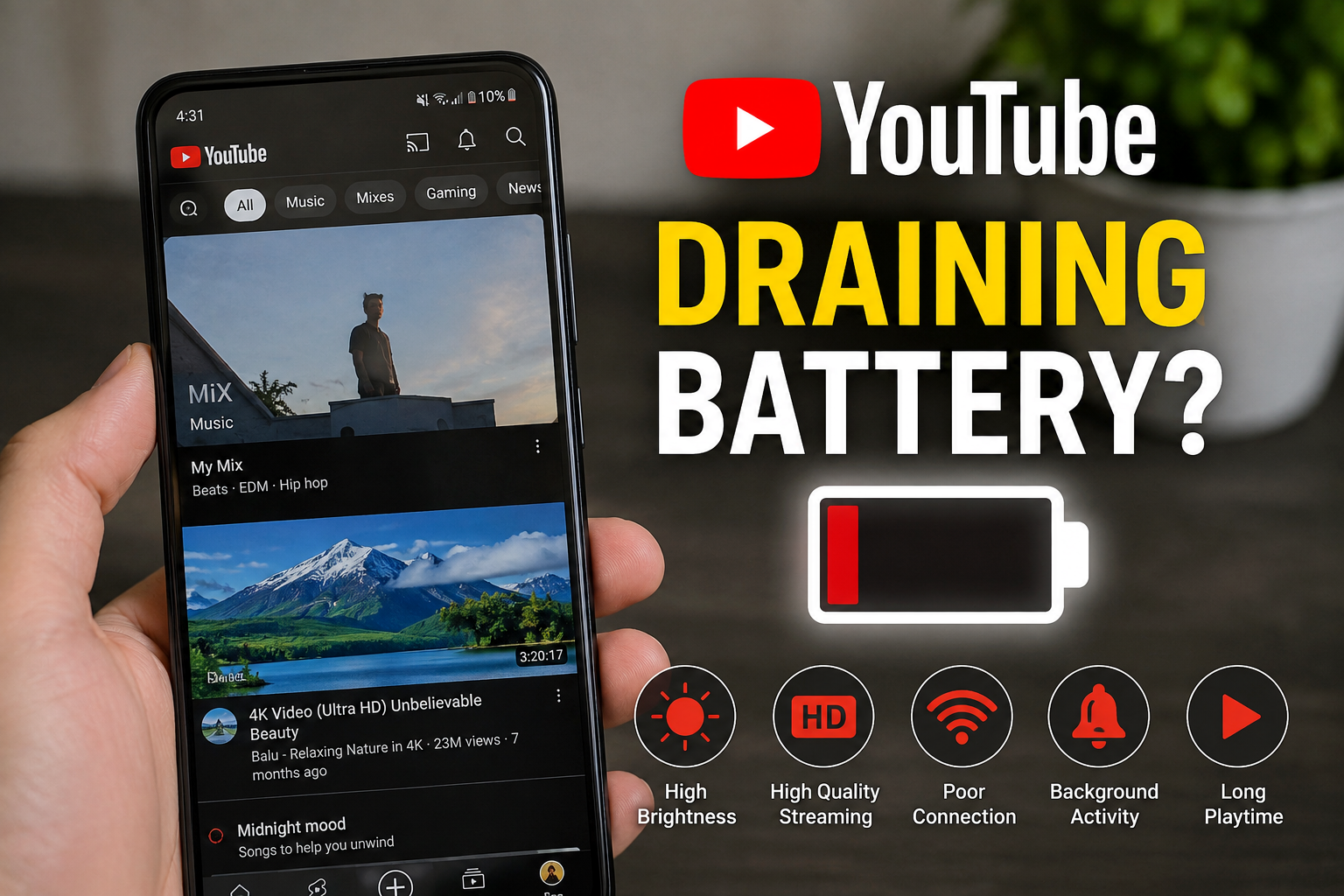
If your phone battery drops quickly whenever you watch YouTube, you’re not alone. Many Android and iPhone users notice that YouTube consumes more battery than most other apps. This is because the app continuously plays videos, keeps your display active, uses your internet connection, processes high-quality audio and video, and may continue running certain tasks in the background. While some battery usage is normal, excessive battery drain usually has an underlying cause that can be fixed. In this guide, you’ll learn why YouTube drains your battery so fast, the most common causes, and the best ways to stop it without affecting your viewing experience.
Also read: why does snapchat use so much battery
Why Is YouTube Draining My Battery So Fast?
YouTube is one of the most demanding apps on a smartphone because it relies on several hardware components at the same time. It uses your screen, processor, graphics chip, speakers, internet connection, and battery continuously while videos are playing. If your phone settings are not optimized, battery consumption can increase even further.
Below are the most common reasons YouTube drains your battery quickly:
1. High Screen Brightness
Your phone’s display is one of the biggest sources of battery consumption. Watching YouTube with your screen brightness set very high, especially outdoors in sunlight, can drain your battery much faster than normal. Higher brightness requires more power, particularly on large displays and phones with high refresh rates.
2. High Video Resolution
Streaming videos in Full HD (1080p), 1440p, or 4K requires more processing power than watching videos in 480p or 720p. Your phone’s processor and graphics chip work harder to decode high-quality videos, leading to increased battery usage.
3. Long Hours of Video Streaming
The longer you watch YouTube without breaks, the more battery your phone uses. Continuous video playback keeps your screen, speakers, processor, and internet connection active, making YouTube naturally consume more power than many other apps.
4. Background Playback
If YouTube continues playing after you leave the app or while your screen is locked, it continues using your phone’s processor, internet connection, and speakers. Background playback is convenient, but it also increases battery consumption.
5. Auto-Play Is Enabled
Auto-play automatically starts another video when the current one ends. This keeps YouTube running continuously, even when you’re not actively selecting new videos, resulting in longer screen time and additional battery drain.
6. Weak Internet Connection
A poor Wi-Fi or mobile data signal forces your phone to work harder to maintain a stable connection. Frequent buffering, reconnecting, and loading videos can increase battery usage significantly.
7. Background App Activity
Even after closing YouTube, the app may continue refreshing recommendations, syncing downloads, checking notifications, or performing background tasks. These activities can slowly reduce your battery throughout the day.
8. Frequent Notifications
Notifications for new uploads, live streams, comments, and recommendations wake your phone regularly. Every notification activates background processes, uses a small amount of power, and can gradually reduce battery life.
9. Outdated YouTube App
Older versions of YouTube may contain software bugs that affect battery efficiency. Keeping the app updated helps improve performance and reduces unnecessary battery consumption.
10. Outdated Phone Software
An outdated version of Android or iOS may not manage apps efficiently. Installing the latest software updates often includes battery optimizations and fixes that improve YouTube’s performance.
Also read: Why Is Google Play Store Not Downloading Apps? How to Fix It
How to Stop YouTube From Draining Battery
If YouTube is consuming more battery than expected, there are several practical steps you can take to reduce power usage without giving up your favorite videos. The methods below work for most Android phones and iPhones:
1. Lower Your Screen Brightness
Your phone’s display uses more battery than almost any other component while you’re watching videos. Reducing your screen brightness can make a noticeable difference, especially if you spend a lot of time on YouTube.
Steps:
- Swipe down from the top of your screen.
- Adjust the Brightness slider to a comfortable level.
- Enable Auto Brightness or Adaptive Brightness if your phone supports it.
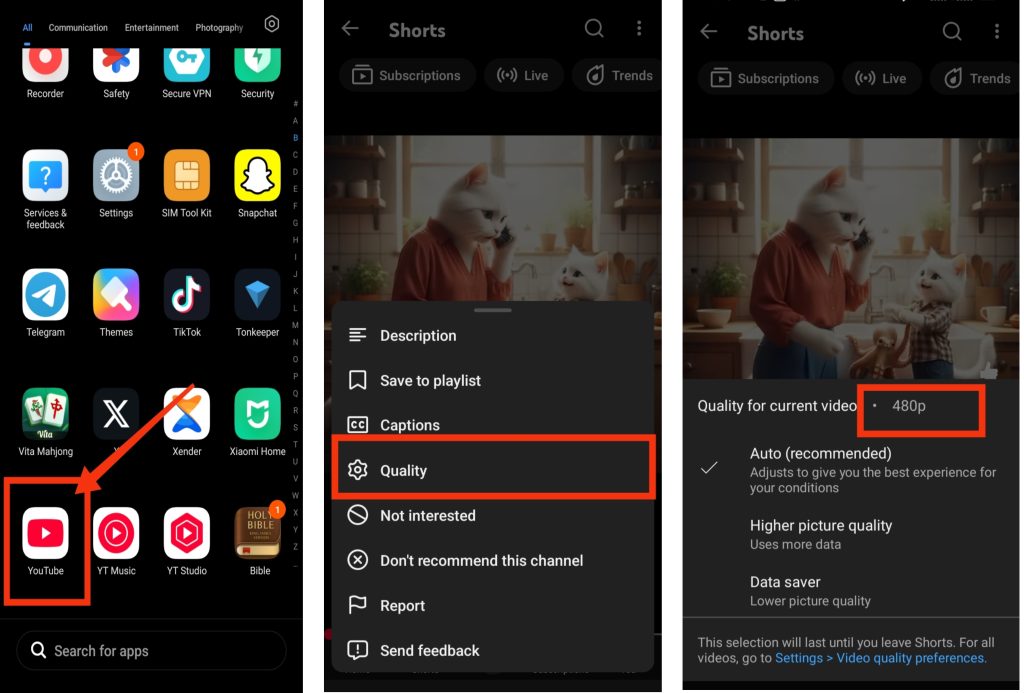
2. Watch Videos in Lower Quality
Playing videos in 1080p, 1440p, or 4K requires more processing power and battery than watching in 720p or 480p. Unless you need the highest resolution, lowering the video quality can significantly improve battery life.
Steps:
- Open YouTube.
- Play any video.
- Tap the Settings (⚙️) icon.
- Tap Quality.
- Select 720p, 480p, or Auto.
3. Turn Off Auto-Play
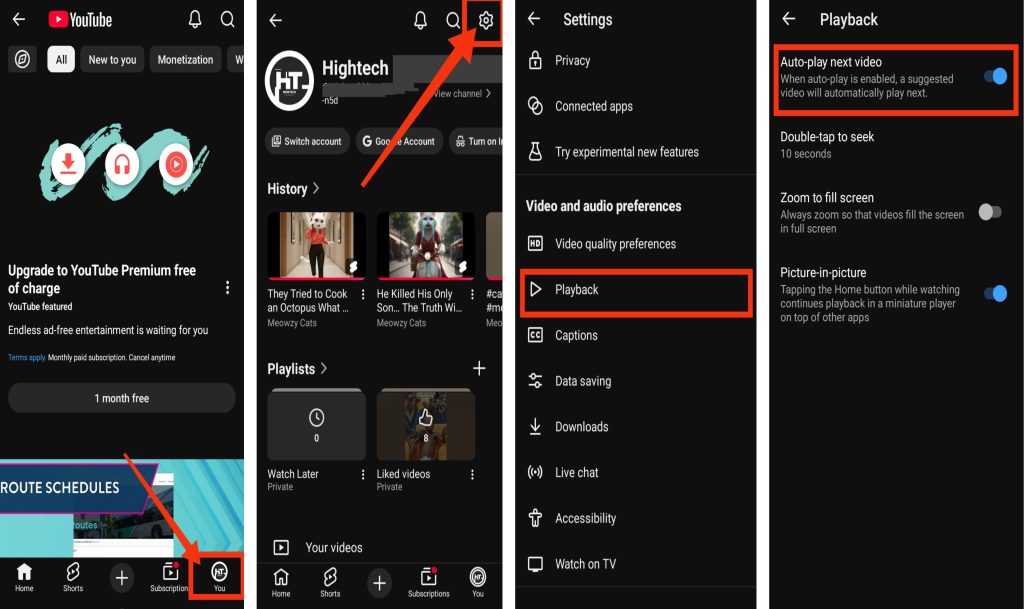
Auto-play automatically starts another video after the current one finishes. This keeps your screen on longer and increases battery consumption. Turning it off gives you more control over your viewing time.
Steps:
- Open the YouTube app.
- Tap your Profile.
- Go to Settings.
- Tap playback.
- Turn Autoplay off.
4. Restrict Background Activity
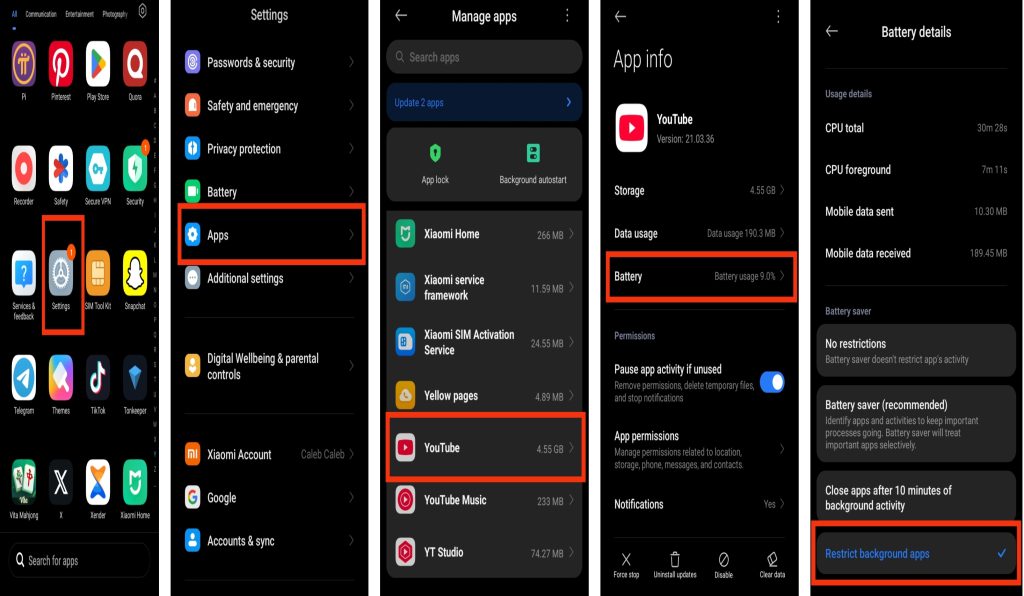
YouTube may continue running in the background to refresh recommendations, sync downloads, or process notifications. Restricting background activity helps prevent unnecessary battery drain when you’re not actively using the app.
Android:
- Open Settings.
- Tap Apps.
- Select YouTube.
- Tap Battery.
- Choose Optimized or Restricted.
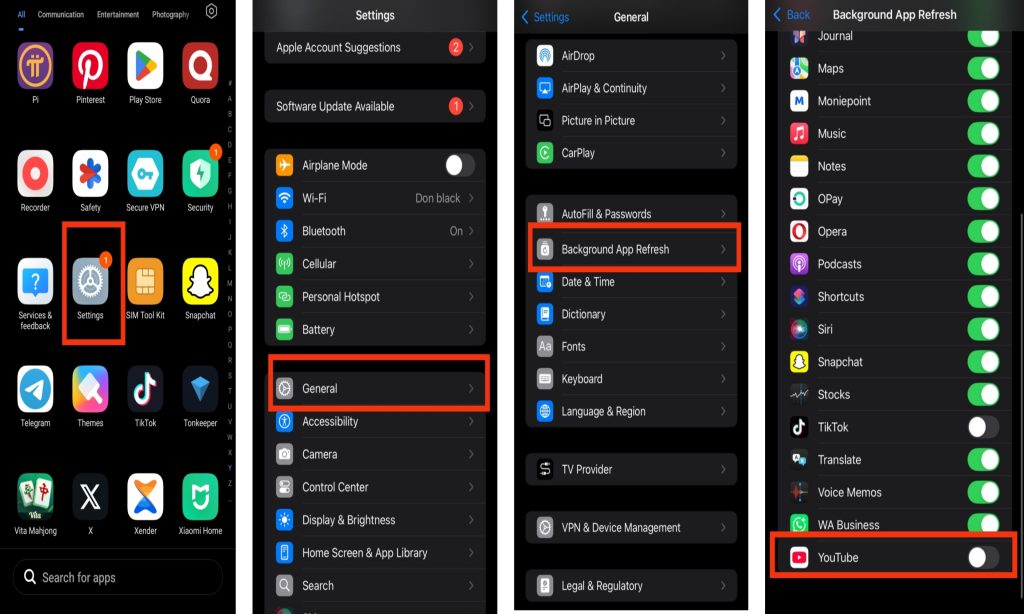
iPhone:
- Open Settings.
- Tap General.
- Select Background App Refresh.
- Find YouTube.
- Turn it Off.
5. Use Wi-Fi Whenever Possible
Streaming videos over a weak mobile network forces your phone to search for a stronger signal, which uses more battery. A stable Wi-Fi connection usually provides smoother streaming while consuming less power.
If you’re using mobile data in an area with poor signal strength, switching to Wi-Fi can help reduce both battery usage and buffering.
6. Keep YouTube and Your Phone Updated
Software updates often include bug fixes, security improvements, and battery optimizations. Running the latest version of YouTube and your phone’s operating system helps improve performance and may resolve battery-drain issues.
Update YouTube:
- Open the Google Play Store or Apple App Store.
- Search for YouTube.
- Tap Update if available.
Update Your Phone:
- Open Settings.
- Tap Software Update or System Update.
- Download and install any available updates.
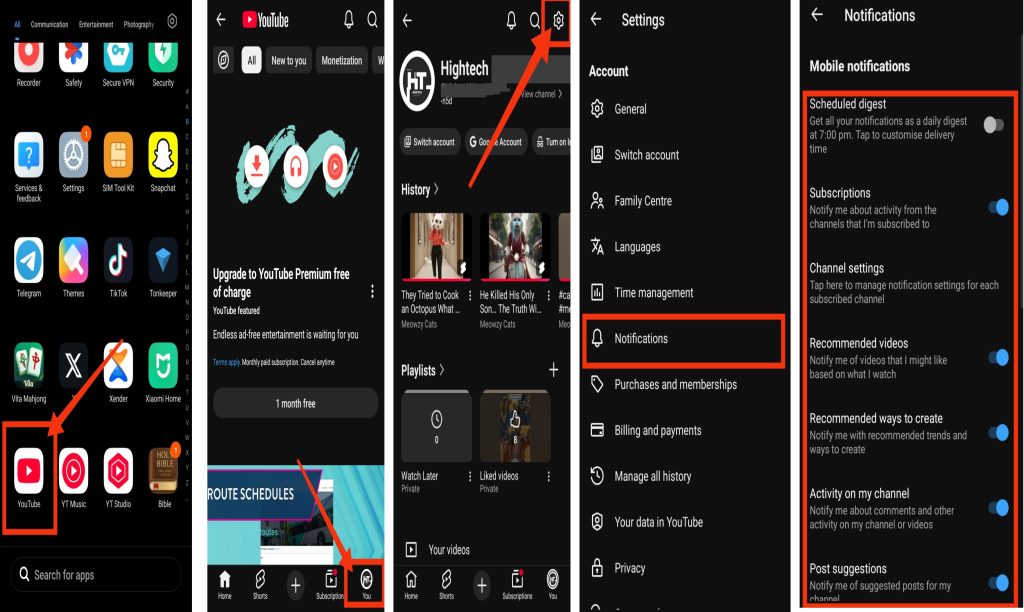
7. Turn Off Unnecessary YouTube Notifications
Every notification YouTube sends wakes your phone and activates background processes. Notifications for recommended videos, live streams, comments, and new uploads can slowly reduce battery life throughout the day. Turning off alerts you don’t need helps reduce unnecessary battery usage while still allowing important notifications.
Steps:
- Open the YouTube app.
- Tap your Profile.
- Go to Settings.
- Tap Notifications.
- Turn off notifications you don’t need, such as recommendations and trending videos.
8. Disable Picture-in-Picture (PiP) If You Don’t Use It
Picture-in-Picture (PiP) allows YouTube videos to keep playing in a small floating window while you use other apps. Although convenient, it keeps YouTube active in the background, which can increase battery consumption. If you rarely use this feature, turning it off can reduce background activity and help your battery last longer.
9. Clear YouTube Cache
Over time, YouTube stores temporary files that can become outdated or corrupted. Clearing the cache removes unnecessary files, improves app performance, and may reduce excessive battery usage. This won’t delete your account, subscriptions, or watch history.
Steps:
- Open Settings.
- Tap Apps.
- Select YouTube.
- Tap Storage.
- Tap Clear Cache.

8. Disable Picture-in-Picture (PiP) If You Don’t Use It
Picture-in-Picture (PiP) allows YouTube videos to keep playing in a small floating window while you use other apps. Although convenient, it keeps YouTube active in the background, which can increase battery consumption. If you rarely use this feature, turning it off can reduce background activity and help your battery last longer.
10. Enable Battery Saver or Low Power Mode
Using Battery Saver on Android or Low Power Mode on iPhone is one of the easiest ways to reduce battery drain while using YouTube. These features limit background processes, reduce unnecessary power usage, and optimize your device for longer battery life. If your battery is running low or you plan to watch videos for an extended period, enabling one of these modes can help your phone stay powered for longer.
11. Close YouTube Completely After Watching
Instead of leaving YouTube running in the background, close it when you’re finished watching videos. This helps stop unnecessary background activity that may continue using your battery.
Steps:
- Open the Recent Apps screen.
- Swipe YouTube away to close it completely.
12. Restart Your Phone Regularly
Restarting your phone every few days refreshes the operating system, clears temporary processes, and stops apps that may be consuming battery in the background. It’s a simple habit that can improve both performance and battery life.
Steps:
- Press and hold the Power button (or Power + Volume button on some devices).
- Tap Restart.
- Wait for your phone to turn back on.
13. Reinstall YouTube or Seek Professional Help
If YouTube still drains your battery after trying all the fixes above, the app may be corrupted or your phone could have a software or battery-related issue. Reinstalling YouTube can resolve persistent bugs. If the problem continues, have your device checked by a qualified phone repair technician, especially if multiple apps are draining your battery unusually fast.
Also read: how do i stop tiktok from draining my battery in the background
Additional Tips to Reduce YouTube Battery Drain
Even after changing YouTube’s settings, a few simple habits can help your battery last longer and improve your phone’s overall performance.
1. Download Videos Before Traveling
If you’ll be watching videos where your internet connection is weak, download them in advance using YouTube’s offline feature (where available). Streaming over a poor network forces your phone to work harder, which increases battery consumption.
2. Avoid Using YouTube While Charging a Hot Phone
Watching YouTube while your phone is charging, especially in a warm environment, can generate extra heat. Excessive heat reduces battery efficiency and may affect your battery’s long-term health. If your phone becomes unusually hot, allow it to cool before continuing.
3. Remove Unnecessary Widgets
Some widgets constantly refresh information in the background, causing your phone to use more power. Removing widgets you don’t use can slightly improve battery life while using apps like YouTube.
4. Turn Off Bluetooth If You Don’t Need It
If you’re not using wireless earbuds, headphones, or other Bluetooth devices, turning Bluetooth off can reduce background power consumption.
5. Keep Enough Free Storage
A phone with very little available storage may become slower, causing apps to work less efficiently. Keeping enough free storage helps YouTube and other apps run more smoothly.
Does YouTube Premium Drain More Battery?
No. A YouTube Premium subscription itself does not consume more battery than the standard version of YouTube. However, some Premium features can increase battery usage depending on how you use them.
For example:
- Background playback keeps audio or videos running after leaving the app.
- Picture-in-Picture continues playing videos while using other apps.
- Downloading videos for offline viewing temporarily increases battery usage.
- Long listening sessions, even with the screen off, still use some battery power.
If you don’t use these features regularly, disabling them can help improve battery life.
Also read: why is my app store not working
Conclusion
YouTube is one of the most power-intensive apps because it keeps your screen on, streams high-quality videos, uses your internet connection, and relies heavily on your phone’s processor. While some battery drain is expected, it shouldn’t be excessive. By lowering screen brightness, reducing video quality, turning off Auto-play, restricting background activity, managing notifications, using a stable Wi-Fi connection, and keeping both YouTube and your phone updated, you can significantly improve battery life. If the problem continues after trying these solutions, reinstall YouTube or have your device inspected by a qualified technician to rule out software or battery issues.
Frequently Asked Questions (FAQs)
1. Does YouTube Drain Battery in the Background?
Yes. YouTube can continue using battery after you leave the app if Background App Refresh, downloads, notifications, Picture-in-Picture, or background playback are enabled. Restricting background activity and closing the app after use can help reduce unnecessary battery drain.
2. Is it normal for YouTube to drain battery quickly?
Yes. Since YouTube continuously streams videos while using your display, processor, speakers, and internet connection, it naturally consumes more battery than many other apps. However, excessive battery drain may indicate settings that need adjustment.
3. Does lowering video quality improve battery life?
Yes. Watching videos in 480p or 720p requires less processing power than streaming in 1080p or 4K, helping your battery last longer.
4. Why does YouTube make my phone hot?
Your phone may become warm because YouTube uses your processor, graphics chip, display, and internet connection at the same time. High brightness, high-resolution videos, and long viewing sessions can increase heat.
5. Should I clear YouTube’s cache?
Yes. Clearing YouTube’s cache on Android removes temporary files that may affect performance. It can help the app run more efficiently without deleting your account or personal data.
6. Can an old phone battery make YouTube drain power faster?
Yes. As batteries age, they lose their ability to hold a full charge. If your battery health has declined, YouTube and other demanding apps may appear to drain the battery much faster than before.