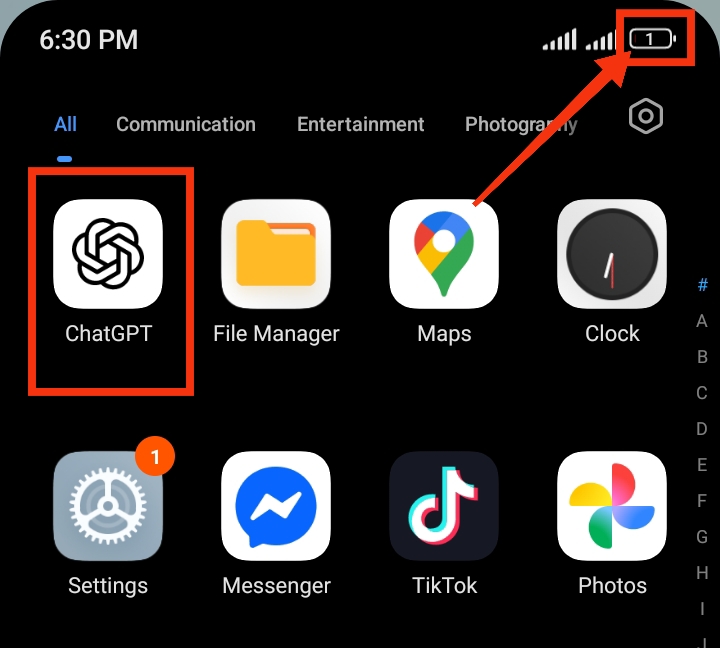
ChatGPT is a powerful AI app, but like many internet-based applications, it can use more battery than expected if it continues running in the background or certain features remain active. If you’ve noticed your phone’s battery draining faster after using ChatGPT, there are several ways to reduce its power consumption without affecting your overall experience. In this guide, you’ll learn the signs that ChatGPT is draining your battery, why ChatGPT consumes so much battery, how to save battery when using ChatGPT, common mistakes that cause ChatGPT to drain your battery, and extra tips to help your phone’s battery last longer.
Signs That ChatGPT Is Draining Your Battery
If you’re unsure whether ChatGPT is affecting your phone’s battery life, look for these common signs:
1. Battery drops quickly while using ChatGPT: If your battery percentage decreases much faster than normal during chats or voice conversations, the app may be using more power than expected.
2. Your phone becomes unusually warm: A phone that gets warm during light ChatGPT use or shortly after closing the app may be performing background tasks.
3. ChatGPT shows high battery usage: Check your phone’s battery settings. If ChatGPT appears among the apps using the most battery despite limited use, it could be contributing to the drain.
4. Battery continues to drain after closing the app: If your battery keeps dropping even after you stop using ChatGPT, background activity may still be running.
5.Your battery no longer lasts as long as before: If you notice a consistent reduction in battery life after installing or frequently using ChatGPT, it’s worth reviewing the app’s battery and background settings.
Also read: How do I stop WhatsApp from draining my battery in the background?
Why Does ChatGPT Consume So Much Battery?
Here are some of the main reasons ChatGPT may consume more battery than expected:
1. Background Activity: ChatGPT may continue running background processes even when you are not actively using the app. This allows it to load faster and keep certain features ready, but it can also increase battery consumption over time.
2. Frequent Notifications: If notifications are enabled, your phone may wake up regularly to display alerts, recommendations, or updates. Frequent notifications can contribute to battery drain throughout the day.
3. Voice Conversations: Voice mode uses your microphone, speakers, internet connection, and processing power simultaneously. Extended voice sessions can consume more battery than standard text chats.
4. Constant Internet Connectivity: ChatGPT relies on an active internet connection to function. If the app frequently checks for updates or reconnects in the background, battery usage may increase.
5. Background App Refresh: On some devices, the app may refresh content automatically in the background so information is ready when you open it. While convenient, this feature can consume additional power.
6. Outdated App Version: Older versions of the app may contain bugs or performance issues that cause excessive battery drain. Keeping the app updated often improves efficiency.
Also read: how do i stop tiktok from draining my battery in the background
How to Save Battery When Using ChatGPT
Below are practical ways to reduce battery usage while continuing to use ChatGPT normally:
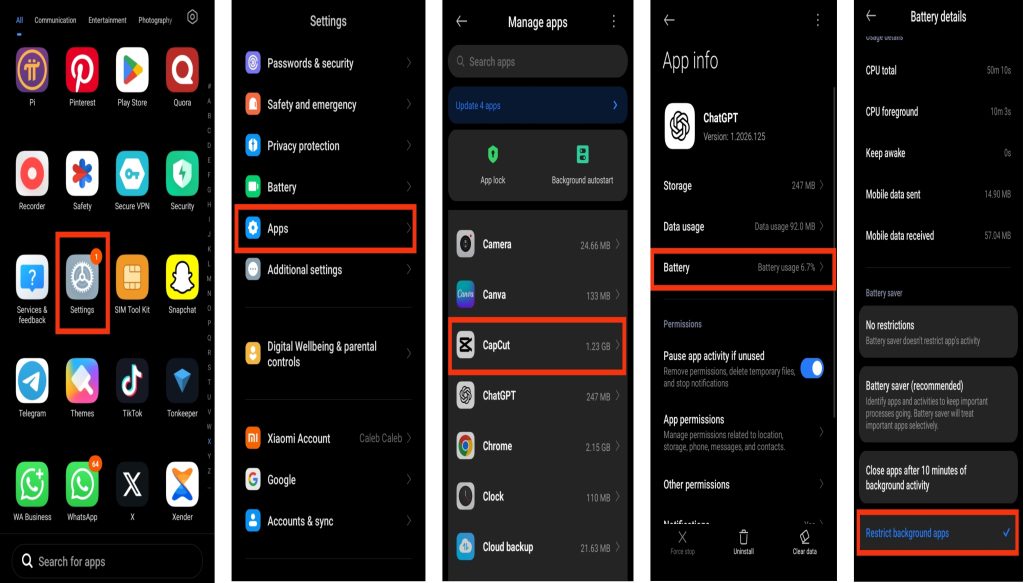
1. Restrict Background Battery Usage
One of the most effective ways to reduce battery drain is to limit how much activity ChatGPT can perform when it is not open. Most smartphones provide battery management settings that help control background usage. Here are the steps to restrict background battery usage:
- Open Settings on your phone.
- Tap Apps or Applications.
- Select ChatGPT from the app list.
- Tap Battery.
- Choose Optimized or Restricted depending on your device.
- Save the changes.
2. Reduce Unnecessary Notifications
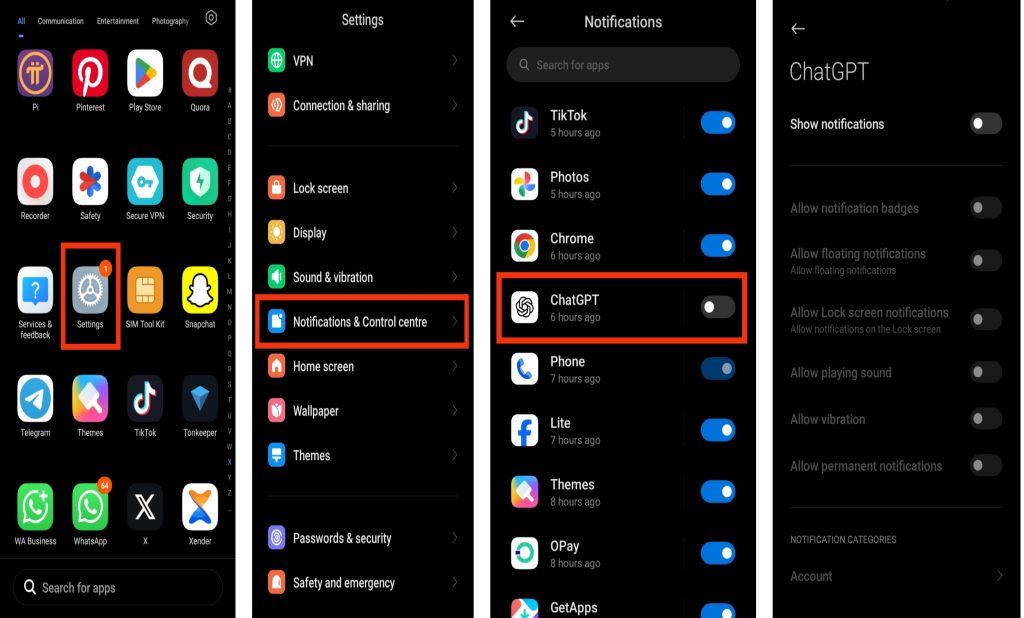
Notifications may seem harmless, but each alert can wake your screen, activate vibrations, and use battery power. Limiting notifications can help reduce unnecessary battery consumption. Here are the steps to manage ChatGPT notifications:
- Open Settings on your phone.
- Tap Notifications.
- Find ChatGPT.
- Disable notifications you do not need.
- Keep only important alerts enabled.
3. Turn Off Background App Refresh
Background App Refresh allows apps to update content even when you are not actively using them. Disabling this feature for ChatGPT can improve battery life. Here are the steps to turn off background app refresh:
- Open Settings on your device.
- Tap General.
- Select Background App Refresh.
- Locate ChatGPT.
- Turn the feature off.
4. Limit Voice Mode Usage
Voice conversations are convenient, but they require more system resources than text chats. If battery life is a concern, reducing voice mode usage can help. Here are the steps to manage voice sessions:
- Open ChatGPT.
- End voice conversations when finished.
- Close the app after long voice sessions.
- Use text chats whenever possible.
- Avoid leaving voice mode active in the background.
5. Keep ChatGPT Updated
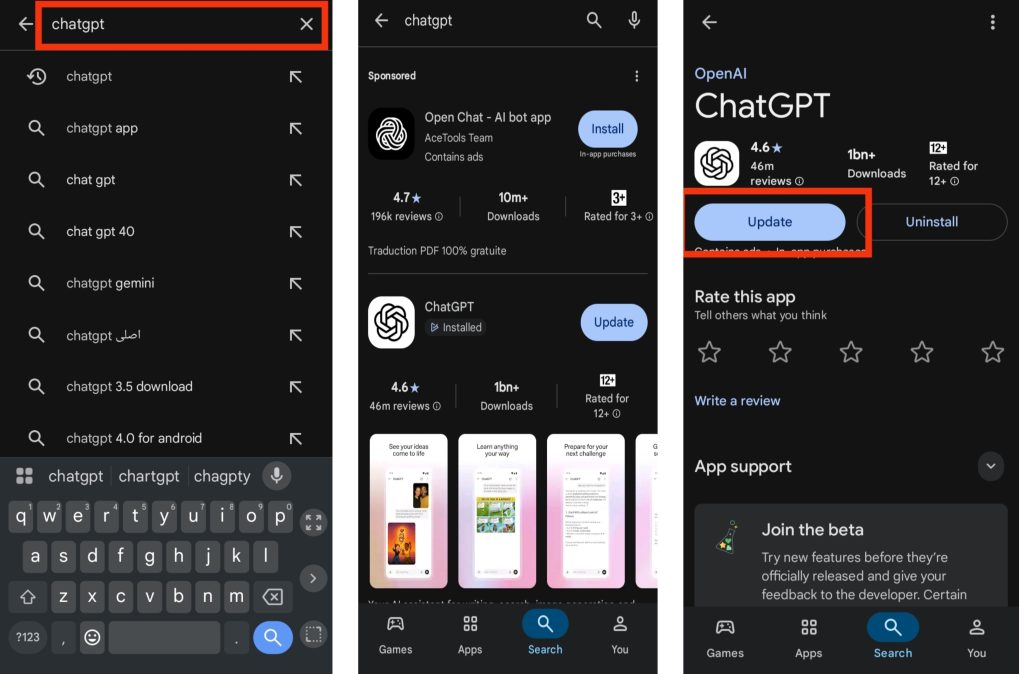
App updates often include battery optimizations, bug fixes, and performance improvements that help reduce power consumption. Here are the steps to update ChatGPT:
- Open Google Play Store or Apple App Store.
- Search for ChatGPT.
- Open the app page.
- Tap Update if available.
- Wait for the installation to complete.
6. Enable Battery Saver Mode
Battery Saver Mode reduces background processes and helps extend battery life across your entire device, including ChatGPT. Here are the steps to enable battery saver mode:
- Open Settings.
- Tap Battery.
- Select Battery Saver or Low Power Mode.
- Turn the feature on.
- Leave it enabled when battery life is important.
Common Mistakes That Cause ChatGPT to Drain Your Battery
Below are Common Mistakes That Cause ChatGPT to Drain Your Battery:
1. Leaving Voice Mode active: Voice conversations use your microphone, speakers, and internet connection continuously, which can increase battery usage if left running.
2. Using maximum screen brightness: A bright display consumes a significant amount of power, especially during long ChatGPT sessions.
3. Using ChatGPT with a weak network signal: Poor Wi-Fi or mobile data forces your phone to work harder to maintain a connection, leading to faster battery drain.
4. Running multiple apps at the same time: Using several resource-intensive apps alongside ChatGPT can increase processor usage and reduce battery life.
5. Not updating the app: An outdated version of ChatGPT may contain bugs or performance issues that cause higher battery consumption. Keeping the app updated can improve efficiency.
Also read: why does twitter drain your battery and how to fix it quickly
Extra Tips to Save Battery While Using ChatGPT
There are also a few simple habits that can help reduce battery consumption even further:
- Close ChatGPT completely when you are finished using it for long periods.
- Reduce your screen brightness, as display usage is one of the largest sources of battery drain.
- Disable Wi-Fi, Bluetooth, or mobile data when they are not needed.
- Restart your phone occasionally to clear background processes and improve performance.
- Avoid running multiple resource-intensive apps alongside ChatGPT at the same time.
Also read: why is my app store not working
Conclusion
ChatGPT can increase battery usage when features such as background activity, voice mode, notifications, or continuous internet connections remain active. Fortunately, you can reduce unnecessary battery drain by adjusting a few settings and following simple battery-saving habits. If the problem continues, check your phone’s battery usage to confirm whether ChatGPT is the cause before making further changes. By applying the tips in this guide, you can enjoy using ChatGPT while helping your phone’s battery last longer throughout the day.
Frequently Asked Questions (FAQs)
1. Does ChatGPT use battery when I am not actively using the app?
Yes, ChatGPT may use some battery in the background if it is refreshing content, maintaining connections, or processing notifications. Restricting background activity can help reduce this usage.
2. Can voice mode drain battery faster than normal chatting?
Yes, voice mode generally consumes more battery because it uses the microphone, speakers, internet connection, and additional processing resources during conversations.
3. Will disabling notifications stop ChatGPT from working properly?
No, disabling notifications only prevents alerts from appearing. The app will continue to function normally whenever you open and use it.
4. Is it safe to restrict ChatGPT’s background activity?
Yes, most users can safely restrict background activity. The only possible effect is that some updates or notifications may arrive slightly later when the app is not open.
5. Why is ChatGPT using more battery after an update?
Sometimes new features or temporary software issues can increase battery usage immediately after an update. In most cases, installing future updates or restarting your device resolves the problem.