If your phone keeps disconnecting from Wi-Fi, you’re not alone. This problem can interrupt video streaming, online meetings, gaming, downloads, and everyday browsing. In some cases, the issue is caused by your phone’s settings, while in others it may be related to your Wi-Fi router, network signal, or software. In this guide, you’ll learn why your phone keeps disconnecting from Wi-Fi, the most common causes, how to fix the problem step by step, when you should be concerned, and simple tips to keep your Wi-Fi connection stable.
Also read: why is my mobile data not working troubleshooting tips to get it fixed fast
When Is It Normal for a Phone to Disconnect from Wi-Fi?
A Wi-Fi connection may occasionally disconnect without indicating a serious problem. For example, your phone may briefly disconnect when you move too far away from the router, restart your device, restart the router, or switch between Wi-Fi and mobile data. Temporary internet service interruptions or router firmware updates can also cause short disconnections. If the connection returns quickly and doesn’t happen often, there is usually no reason to worry.
Common Causes Why Your Phone Keeps Disconnecting from Wi-Fi
There are several reasons why your phone may keep disconnecting from Wi-Fi. In many cases, the problem is caused by your phone’s settings, your router, or your network connection. Below are the most common causes and what they mean:
1. Weak Wi-Fi Signal
A weak Wi-Fi signal is one of the most common reasons your phone keeps disconnecting from the internet. If you move too far away from your router, the signal becomes weaker and less stable. Thick walls, floors, furniture, mirrors, and electronic devices such as microwaves or cordless phones can also reduce Wi-Fi signal strength. When the signal becomes too weak, your phone may disconnect automatically or struggle to stay connected until you move closer to the router.
2. Router Problems
Sometimes the issue is not with your phone but with the Wi-Fi router itself. A router that has been running for a long time without restarting, has outdated firmware, or is experiencing software glitches may fail to provide a stable connection. If several devices connected to the same Wi-Fi also lose connection, the router is likely the source of the problem. Restarting or updating the router often resolves these issues.
3. Wi-Fi Power Saving Features
Many Android phones include battery-saving features that reduce power consumption by limiting Wi-Fi activity when the phone is idle or the screen is turned off. While these features help extend battery life, they can also cause your phone to disconnect from Wi-Fi more often than expected. Checking your battery optimization settings may help prevent unnecessary disconnections.
4. Software Bugs or Outdated System
An outdated Android version or software bug can affect how your phone connects to Wi-Fi networks. Sometimes a recent update may introduce temporary connection issues, while older software may lack important bug fixes. Installing the latest system updates can improve Wi-Fi performance, fix known connectivity problems, and increase overall device stability.
5. Incorrect Network Settings
Your phone stores network settings every time you connect to a Wi-Fi network. If these settings become corrupted or are configured incorrectly, your phone may repeatedly disconnect or fail to reconnect automatically. Problems with DNS settings, saved network profiles, or other network configurations can all contribute to unstable Wi-Fi connections. Resetting your network settings often helps resolve these issues.
6. Too Many Connected Devices
Every Wi-Fi router has a limit to the number of devices it can handle efficiently. When many phones, computers, smart TVs, gaming consoles, or other smart devices are connected at the same time, your network may become congested. This can lead to slower internet speeds and cause your phone to disconnect more frequently, especially if you are using an older router or a slower internet plan.
7. Router Frequency Compatibility
Many modern routers broadcast both 2.4 GHz and 5 GHz Wi-Fi networks. Some Android phones automatically switch between these frequencies to maintain the best connection. However, if one band has poor signal strength or compatibility issues, your phone may disconnect while trying to switch between them. Using the Wi-Fi band with the strongest and most stable signal can help reduce connection problems.
8. Third-Party Apps
Certain third-party applications can interfere with your phone’s Wi-Fi connection. VPN apps, antivirus software, battery-saving applications, network management tools, and firewall apps may change your network settings or disconnect Wi-Fi in the background. If the problem started after installing a new app, temporarily disabling or uninstalling it can help determine whether it is causing the issue.
9. Hardware Problems
Although less common, hardware problems can also cause repeated Wi-Fi disconnections. A damaged Wi-Fi antenna, internal hardware fault, or physical damage to your phone may affect its ability to maintain a stable wireless connection. Likewise, an old or faulty router may also fail to provide reliable Wi-Fi. If none of the software troubleshooting steps solve the problem, the device or router may require professional inspection or replacement.
How to Fix a Phone That Keeps Disconnecting from Wi-Fi
If your phone keeps losing its Wi-Fi connection, try the following solutions. In many cases, these simple troubleshooting steps can restore a stable internet connection without needing professional repair:
1. Restart Your Phone
Restarting your phone is one of the easiest ways to fix temporary software glitches that may be interrupting your Wi-Fi connection. A restart closes background processes, refreshes network services, and clears temporary system errors. Once your phone turns back on, reconnect to your Wi-Fi network and check whether the problem has been resolved.
2. Restart Your Wi-Fi Router
Turn off your Wi-Fi router and unplug it from the power source. Wait for about 30 seconds before plugging it back in and turning it on again. Allow the router a few minutes to reconnect to your internet service. Restarting the router refreshes your network connection, clears temporary errors, and often fixes random Wi-Fi disconnections.
3. Move Closer to the Router
If you are located far from your router, move closer and check whether the connection becomes more stable. Thick walls, doors, large furniture, and electrical appliances can weaken wireless signals. Using your phone within a stronger signal area helps maintain a reliable Wi-Fi connection.
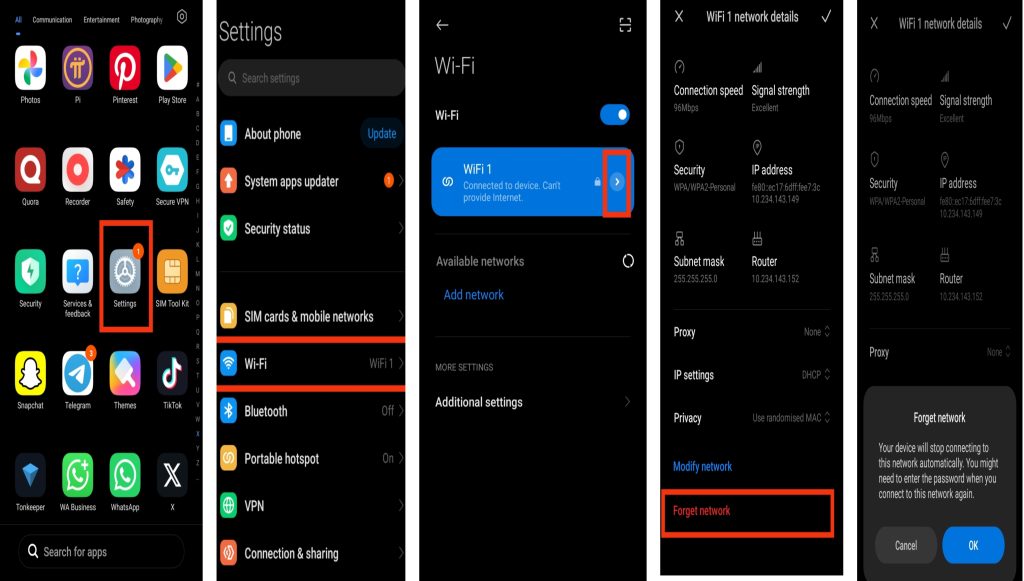
4. Forget and Reconnect to the Wi-Fi Network
Open Settings > Wi-Fi, tap your connected network, and choose Forget Network. Then reconnect by selecting the network again and entering the correct Wi-Fi password. This removes old or corrupted network settings and creates a fresh connection between your phone and the router.
5. Turn Off Battery Saver
Battery Saver or Power Saving Mode may limit Wi-Fi activity to reduce battery usage. Open Settings > Battery and temporarily disable Battery Saver to see if your connection becomes more stable. If this solves the problem, review your battery optimization settings for Wi-Fi-related restrictions.
6. Update Your Phone
Go to Settings > Software Update and install any available updates. Phone manufacturers regularly release updates that improve performance, fix software bugs, strengthen security, and resolve known Wi-Fi connectivity issues. Keeping your phone updated can help prevent future connection problems.
7. Reset Network Settings
If your Wi-Fi connection continues to disconnect, resetting your network settings may help. Open Settings > System > Reset Options > Reset Wi-Fi, Mobile & Bluetooth (the menu may vary depending on your phone). This removes saved Wi-Fi networks, Bluetooth pairings, and mobile network settings, allowing you to set up a fresh network connection.
8. Check for Router Firmware Updates
Log in to your router’s management page using a web browser or the manufacturer’s mobile app and check whether a firmware update is available. Router firmware updates often improve performance, increase security, fix connection bugs, and enhance compatibility with newer smartphones.
9. Remove Problematic Apps
If the problem started after installing a VPN, antivirus, battery-saving, or network management app, temporarily disable or uninstall it. Some apps can interfere with your phone’s network connection and cause repeated Wi-Fi disconnections. After removing the app, monitor your connection to see whether the issue has been resolved.
10. Contact Your Internet Service Provider
If every phone, computer, or smart device connected to your Wi-Fi keeps disconnecting, the problem is likely related to your router or internet service rather than your phone. Contact your Internet Service Provider (ISP) to check for network outages, line faults, or router issues. They may also recommend updating or replacing your router if necessary.
Also read: how to fix sim not provisioned error on airtel mtn or other networks 2026 guide
When Should You Be Concerned About Frequent Wi-Fi Disconnections?
Occasional Wi-Fi disconnections are usually not a serious problem, but if the issue happens regularly, it may indicate a problem with your phone or network. You should investigate further if you notice any of the following:
1. Your phone disconnects from every Wi-Fi network: If your phone loses connection on different Wi-Fi networks, the problem may be caused by your phone’s software or hardware rather than your home router.
2. The connection drops every few minutes: A Wi-Fi connection that disconnects repeatedly throughout the day may be caused by unstable network settings, router issues, or signal interference.
3. Other devices stay connected while your phone disconnects: If laptops, tablets, and other phones remain connected but your device keeps disconnecting, the issue is likely with your phone.
4. You cannot reconnect to Wi-Fi: If your phone fails to reconnect after disconnecting or keeps showing authentication errors, there may be a network configuration or software problem.
5. The problem started after an update: If your phone began disconnecting from Wi-Fi after installing a software update, a system bug may be responsible. Installing the latest update or resetting your network settings may help.
Tips to Keep Your Phone Connected to Wi-Fi
The following tips can help reduce random Wi-Fi disconnections and keep your connection stable:
1. Keep your phone’s software updated: Install Android and security updates regularly, as they often include fixes for Wi-Fi connection problems.
2. Place your router in a good location: Keep your router in a central, open area away from thick walls, metal objects, and electronic devices that may interfere with the signal.
3. Restart your router occasionally: Restarting your router every few weeks can refresh the connection and improve overall network performance.
4. Avoid connecting too many devices: If many devices are using the same Wi-Fi network, disconnect those you are not using to reduce network congestion.
5. Use a secure Wi-Fi password: Protect your network with a strong password to prevent unauthorized users from slowing down your connection.
6. Keep battery-saving settings under control: Some battery optimization features can disconnect Wi-Fi when your phone is idle. Review these settings if the problem occurs frequently.
Conclusion
If your phone keeps disconnecting from Wi-Fi, the problem is often caused by a weak signal, router issues, incorrect network settings, battery-saving features, or software bugs. In most cases, simple solutions such as restarting your phone and router, reconnecting to the network, updating your software, or resetting your network settings can restore a stable connection. If the issue continues after trying these fixes, the problem may be related to your router, internet service, or your phone’s hardware and should be checked further.
Frequently Asked Questions (FAQ)
1. Why does my phone disconnect from Wi-Fi when the screen is off?
Some Android phones use battery-saving features that limit Wi-Fi activity while the device is idle. Check your battery optimization and Wi-Fi settings to make sure Wi-Fi stays connected during sleep.
2. Can a faulty router cause Wi-Fi disconnections?
Yes. An outdated router, faulty hardware, overheating, or old firmware can cause devices to disconnect frequently. Restarting or updating the router may solve the problem.
3. Does restarting my phone fix Wi-Fi problems?
Yes. Restarting your phone clears temporary software glitches that may be affecting your Wi-Fi connection. It is one of the first troubleshooting steps you should try.
4. Why does my phone disconnect from Wi-Fi but other devices stay connected?
This usually indicates a problem with your phone rather than the router. Updating your phone, resetting network settings, or checking battery-saving features may help.
5. Can too many connected devices affect my Wi-Fi connection?
Yes. If many devices are connected to the same network, your router may become overloaded, leading to slower speeds and occasional disconnections, especially on older routers.