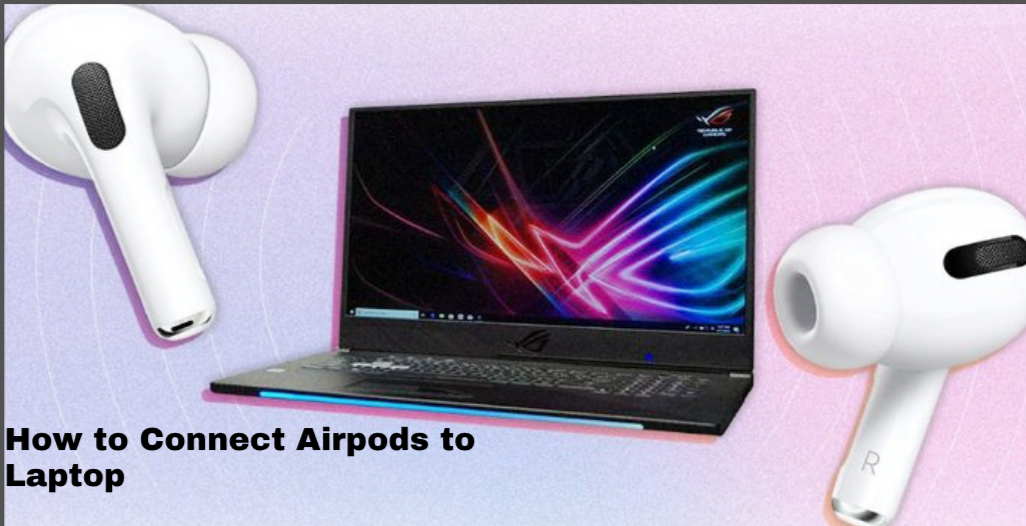
AirPods are among the most popular wireless earbuds in the world, known for their smooth connectivity, clear sound quality, and ease of use across Apple devices. What many people don’t realize is that AirPods can also work perfectly with laptops, including both Windows PCs and MacBooks.
In this guide, you will learn a simple step-by-step method on how to connect your AirPods to a laptop without stress, even if you are doing it for the first time.
Why Connect AirPods to a Laptop?
Using AirPods on your laptop gives you a better audio experience, especially for:
- Online meetings and Zoom calls
- Watching movies or YouTube videos
- Listening to music without wires
- Gaming with wireless audio convenience
Once connected, AirPods work just like regular Bluetooth headphones, making them very easy to use.
Also read: how to turn on a computer
Step-by-Step Guide on How to Connect AirPods to Laptop
By following these simple steps, you will be able to connect your AirPods to any laptop effortlessly. Just follow the guide below to get started:
1. Ensure Bluetooth is Enabled: Before connecting your AirPods, make sure Bluetooth is turned on your laptop. You can usually find this option in the Settings menu under “Devices” or “Bluetooth & other devices.”
2. Open the AirPods Case: Take your AirPods out of the charging case and leave the lid open. This helps activate pairing mode.
3. Put AirPods in Pairing Mode: On the back of the AirPods case, there is a small button. Press and hold it until the LED light starts flashing white. This shows that your AirPods are ready to pair.
4. Open Bluetooth Settings on Your Laptop: Go back to your laptop’s Bluetooth settings and click on “Add Bluetooth or other device.” Then select “Bluetooth” from the available options.
5. Select Your AirPods: Your laptop will scan for nearby devices. When your AirPods appear in the list (usually as “AirPods”), click on them to start pairing.
6. Confirm the Connection: Once connected, you will see a confirmation message on your screen. You may also hear a small sound from your AirPods indicating successful connection.
7. Adjust Audio Settings (If Needed): If the sound does not automatically switch, go to your sound settings and select your AirPods as the output device.
How to Connect AirPods to MacBook
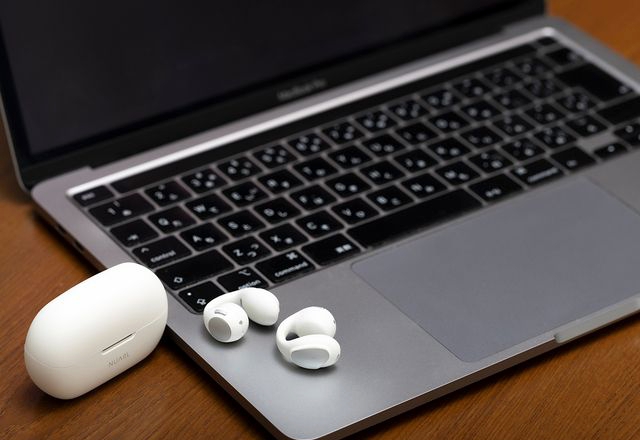
Connecting AirPods to a MacBook is even easier, especially if you are using the same Apple ID.
1. Turn On Bluetooth: Click on the Apple menu and go to System Settings.
Select Bluetooth and turn it ON.
2. Open AirPods Case: Open the lid of your AirPods case near your MacBook and wait for a connection popup to appear on the screen.
3. Click Connect: Tap Connect on the popup that appears. Your AirPods will pair automatically with your MacBook.
If it does not connect automatically, you can also manually select your AirPods from the Bluetooth device list and connect them.
Fixing Common Connection Problems
Sometimes AirPods may not connect properly to your laptop or MacBook. If this happens, don’t worry. Try these simple fixes:
1. Reset Bluetooth: Turn Bluetooth off on your laptop, wait a few seconds, then turn it back on again.
2. Reset Your AirPods: Press and hold the button on the back of the AirPods case for about 15 seconds until the light flashes amber, then white.
3. Remove Old Connection: Go to your Bluetooth settings, find your AirPods in the list of paired devices, and remove them. Then try connecting again.
4. Check Device Distance: Make sure your AirPods are close to your laptop during the connection process, as distance can affect Bluetooth pairing.
5. Restart Your Laptop: If the problem continues, restart your laptop and try connecting your AirPods again. This often fixes hidden system issues.
Conclusion
Connecting AirPods to a laptop is a simple process once you follow the correct steps. Whether you are using a Windows laptop or a MacBook, AirPods can provide a smooth and wireless audio experience for music, videos, online meetings, and more. If you experience any connection issues, the troubleshooting tips above can help you fix them quickly and continue enjoying your AirPods without interruption.
Frequently Asked Questions (FAQs)
1. Why are my AirPods connected to my laptop but there is no sound?
Sometimes your AirPods may connect successfully, but the audio still plays through the laptop speakers. This usually happens when the laptop does not automatically switch the audio output device. To fix this, open your laptop’s sound settings and manually select your AirPods as the main audio output device. You should also make sure the volume is turned up and your AirPods are properly charged.
2. Can AirPods microphone work during video calls on a laptop?
Yes, AirPods can be used as both headphones and a microphone during video calls on laptops. They work well with applications like Zoom, Google Meet, Microsoft Teams, and Skype. Once connected through Bluetooth, your laptop can use the AirPods microphone for voice input and the earbuds for audio output during meetings or online classes.
3. Why do my AirPods keep disconnecting from my laptop?
Frequent disconnection can happen because of low battery, outdated Bluetooth drivers, or interference from nearby wireless devices. In some cases, having too many Bluetooth devices connected at the same time can also affect stability. Keeping your AirPods charged and updating your laptop software can help improve the connection.
4. Can I connect AirPods to more than one laptop or device?
Yes, AirPods can be paired with multiple devices, including laptops, smartphones, and tablets. However, they usually connect to one device at a time. If you want to switch between devices, you may need to disconnect them from the current device before pairing with another one.
5. Do AirPods work better on MacBook than on Windows laptops?
AirPods generally offer a smoother experience on MacBooks because they are designed to work within Apple’s ecosystem. Features like instant pairing and automatic device switching work more seamlessly on Apple devices. However, AirPods still work very well on Windows laptops for listening to music, watching videos, and making calls through Bluetooth connectivity.