
YouTube is one of the most popular apps on smartphones today. Many people use it every day to watch videos, listen to music, follow tutorials, or stream live content. However, I noticed that my phone battery was draining much faster than normal, even when I wasn’t actively using the app. After checking my battery usage settings, YouTube was consistently at the top of the list. In this guide, I’ll explain the simple and practical steps I used to reduce YouTube’s background activity and improve my phone’s battery life without stopping me from enjoying the app when I actually need it.
Also read: How do I stop WhatsApp from draining my battery in the background?
Why YouTube Drains Your Battery
Even when YouTube isn’t actively on your screen, it can quietly use a lot of battery. Below are the main reasons why this happens:
1. Notifications and Updates
YouTube is always running in the background to check for new videos, updates from your subscriptions, and personalized recommendations. Every time the app checks for these updates or sends a notification, it uses a small amount of power. Over time, especially if you’re subscribed to many active channels, this constant background activity can add up and noticeably drain your phone’s battery.
2. High-Resolution Videos
Playing videos in high resolutions like 1080p or 4K demands more from your phone’s processor and GPU. At the same time, the screen often stays brighter to display the sharp visuals clearly. This combination of heavy processing and increased display usage consumes a lot of energy, causing your battery to drain faster even during relatively short video sessions.
3. Background Playback
Even when your phone screen is off, YouTube can keep running in the background, particularly if you’re using YouTube Premium. During this time, the app continues to stream data and process audio, which keeps your phone’s processor active. This ongoing activity consumes additional battery power over time, contributing to faster battery drain even when you’re not actively watching videos.
4. Autoplay Feature
YouTube’s autoplay feature automatically plays the next video once the current one ends. While this may be convenient, it also means the app stays active for longer periods without you realizing it. The continuous streaming keeps your processor, network, and screen engaged, which steadily consumes battery and can lead to faster overall drain than expected.
5. Ads and Media Processing
YouTube ads play automatically before or during videos, and each one requires extra processing power and network activity. On top of that, buffering videos, preloading content, and streaming live videos keep your phone’s processor and data connection active. All of these background tasks steadily use battery, even if you’re not actively interacting with the app.
How Do I Stop TikTok From Draining My Battery in the Background?
How to Save Battery When Using YouTube
If you’ve noticed that YouTube is draining your phone’s battery, don’t worry. Below are some practical steps that can help reduce battery usage and make a noticeable difference while still enjoying the app:
1. Restrict Background Activity
YouTube can continue running in the background even after you close the app, which quietly uses battery over time. By restricting its background activity in your phone’s settings, you can prevent this unnecessary battery drain without affecting your normal use of the app.
How to Do It:
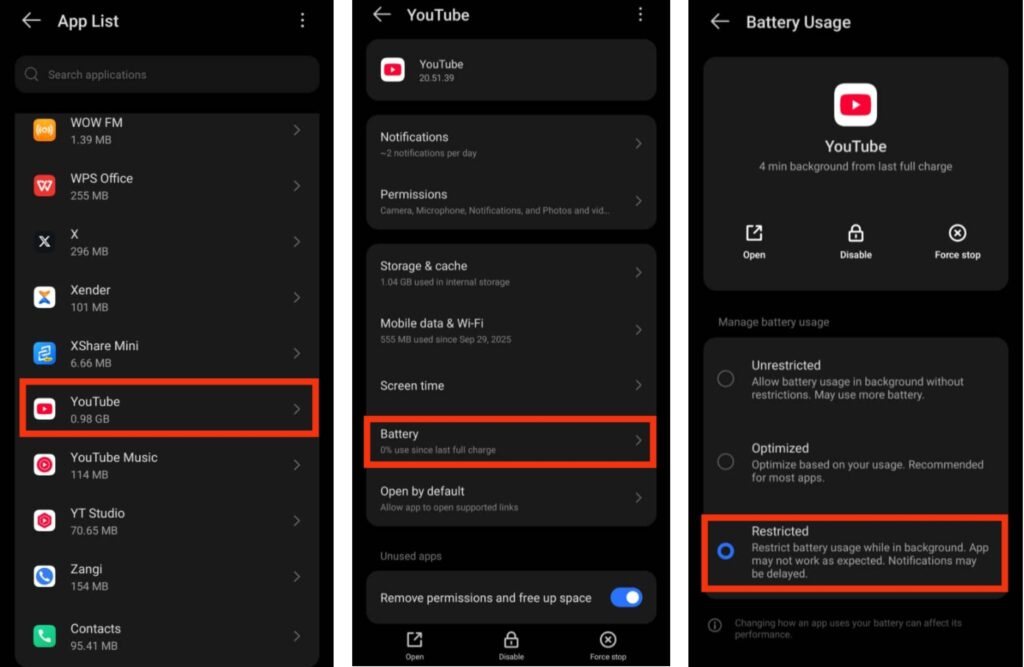
On Android: Open your Settings, go to Apps, select YouTube, then tap Battery. Choose Background restriction and set it to Restrict. This stops YouTube from running unnecessarily in the background, helping save battery.
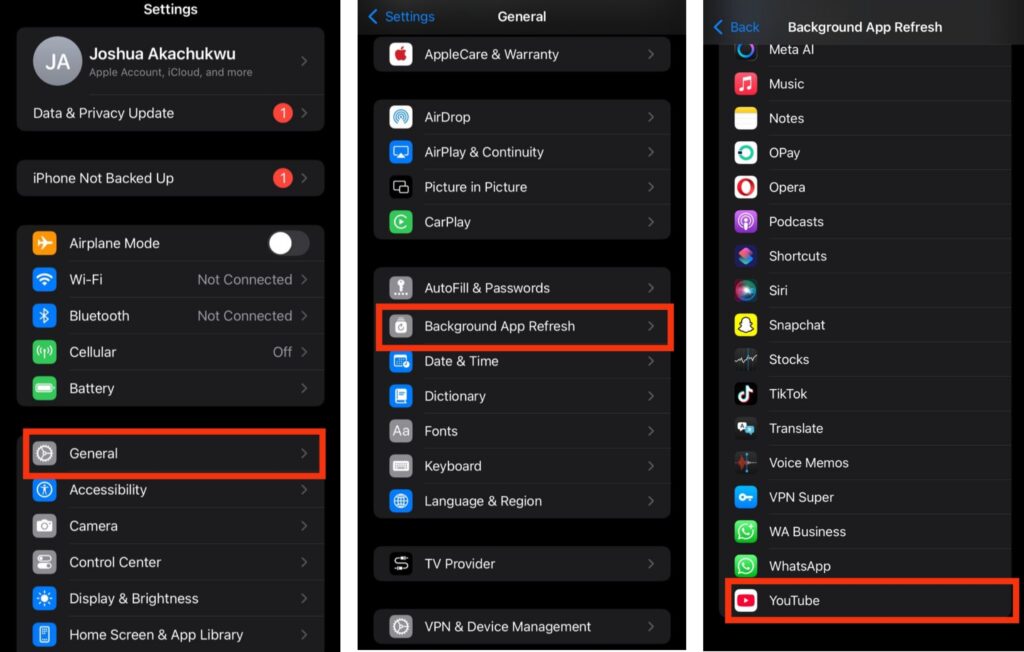
On iPhone: Open Settings, go to General > Background App Refresh, find YouTube, and toggle it off. This prevents the app from running in the background, which helps reduce battery drain.
2. Lower Video Quality While Watching
Watching videos in high resolutions like 1080p or 4K consumes more battery because it requires extra processing power and higher screen brightness. Lowering the video quality can save power without stopping you from enjoying content.
How to Do It:
- Open the YouTube app and start playing a video.
- Tap the three dots in the top-right corner of the video (or the settings gear on iPhone).
- Select Quality.
- Choose a lower resolution, such as 480p or 360p.
3. Close YouTube Completely After Use
Even with background restrictions in place, YouTube may occasionally continue running quietly. Fully closing the app after each use ensures it stops all background activity, helping to preserve your phone’s battery life.
How to Do It:
On Android: Swipe up from the bottom of the screen (or open the Recent Apps menu) and swipe YouTube away to close it completely. This stops the app from running in the background and helps save battery.
On iPhone: Double-click the Home button (or swipe up from the bottom on newer models) to open the App Switcher, then swipe YouTube away to close it completely. This ensures the app stops running in the background, helping to save battery.
4. Turn Off Notifications
YouTube notifications constantly wake your phone and trigger background activity, which quietly uses battery. Disabling unnecessary notifications prevents these frequent wake-ups and helps extend your phone’s battery life.
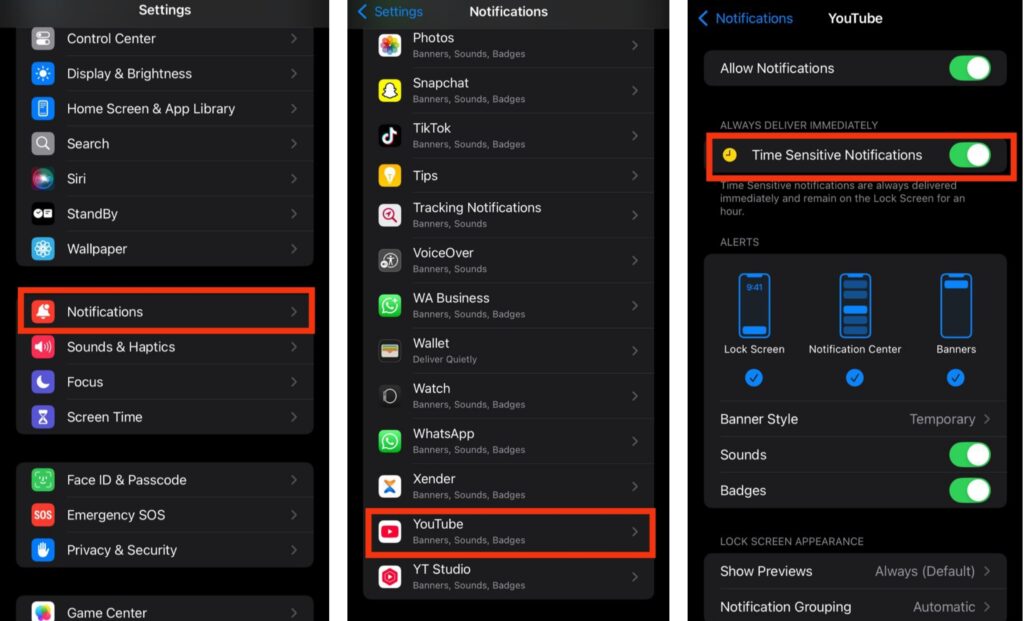
On Android: Open Settings, go to Apps, and select YouTube. Tap Notifications and toggle off the alerts you don’t need, such as Recommended videos or Live events. This reduces background activity and helps save battery while still keeping important alerts.
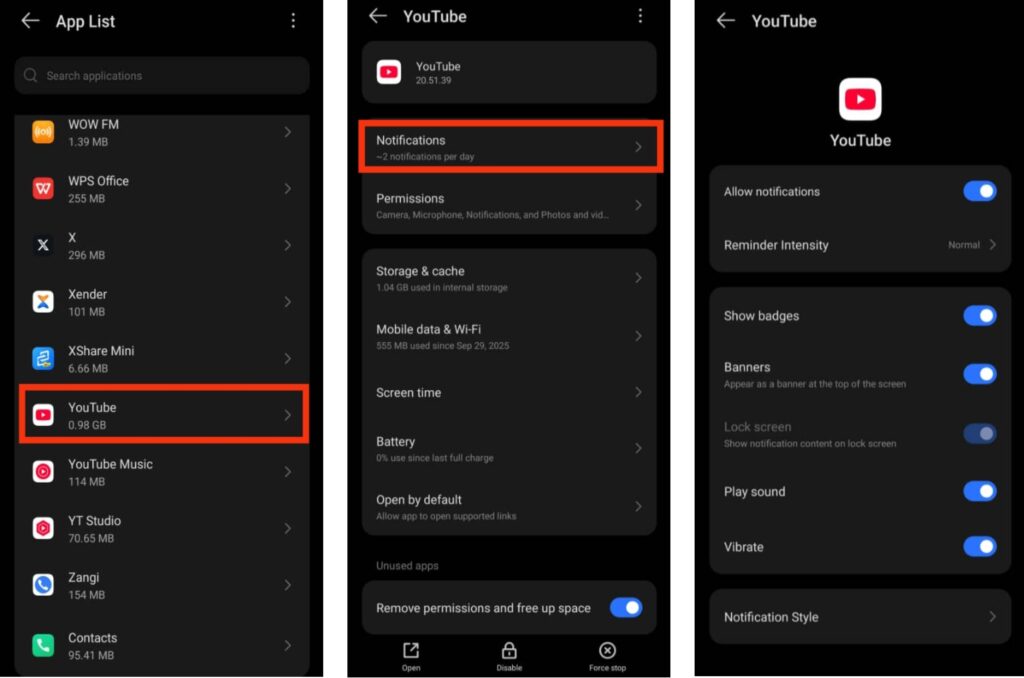
On iPhone: Open Settings, go to Notifications, and select YouTube. You can toggle Allow Notifications off entirely, or customize it to only receive the alerts that really matter. This prevents unnecessary background activity and helps save battery.
5. Turn Off Autoplay
YouTube’s autoplay feature automatically plays the next video when the current one ends. While convenient, it keeps the app active longer, which can drain your battery even when you’re not actively watching. Turning off autoplay ensures the app stops after each video, helping save battery.
How to Do It:
- Open the YouTube app.
- Start playing any video.
- Look just above the video player for the Autoplay toggle.
- Tap the toggle to turn it Off.
6. Keep Your App Updated
Regular updates for YouTube often include performance improvements and bug fixes that help the app run more efficiently. Using the latest version can reduce unnecessary background activity and prevent extra battery drain, keeping your phone running smoother.
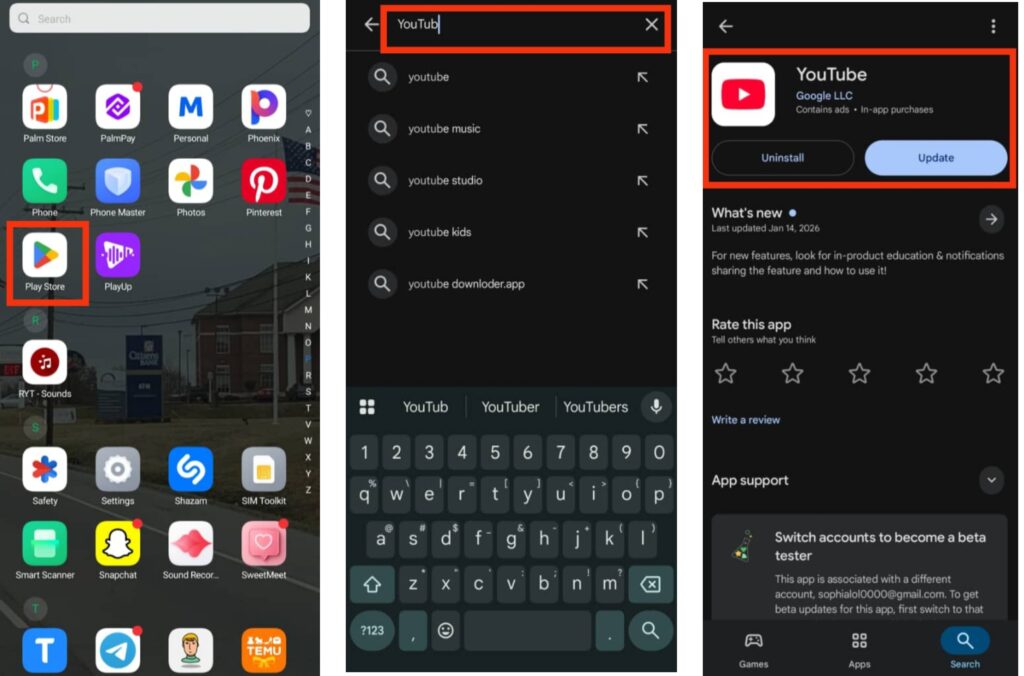
On Android: Open the Google Play Store, search for YouTube, and tap Update if a new version is available. Keeping the app updated ensures it runs efficiently and helps reduce battery drain.
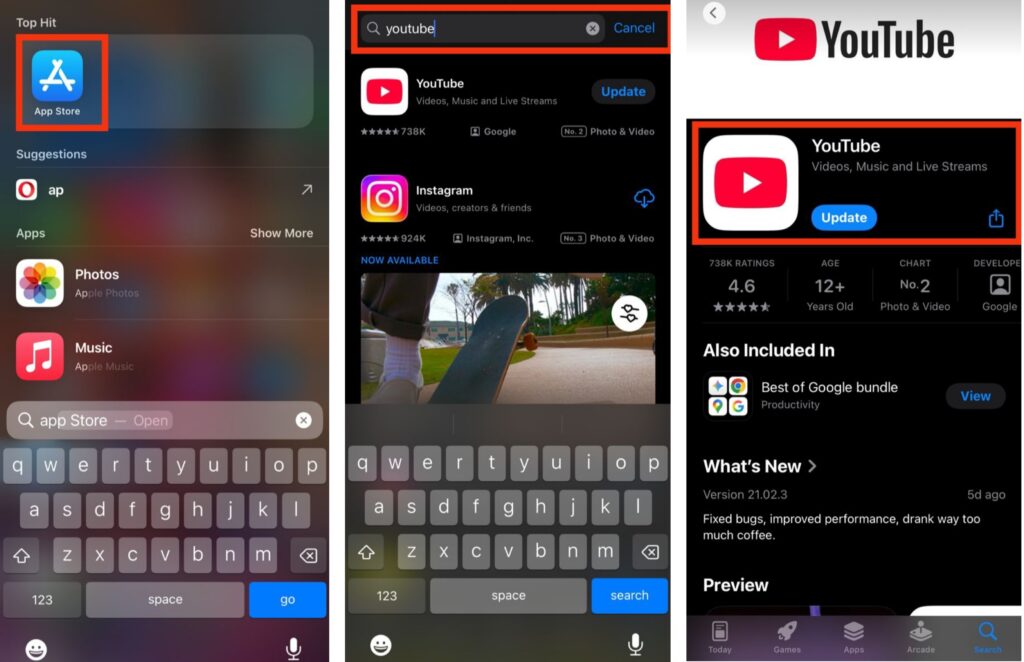
On iPhone: Open the App Store, search for YouTube, and tap Update if a new version is available. Updating the app ensures better performance and helps minimize battery drain while using YouTube.
How to Stop Facebook and Instagram from Draining Your Battery in the Background
Conclusion
YouTube is a great app, but it can quietly drain your phone’s battery if left unchecked. By following simple steps like restricting background activity, lowering video quality, turning off autoplay and notifications, closing the app completely, and keeping it updated, you can enjoy YouTube without worrying about rapid battery drain. These small adjustments make a noticeable difference and help your phone last longer while still letting you enjoy all your favorite videos.
Frequently Asked Questions (FAQs)
1. Does YouTube drain phone battery even when I am not actively watching videos?
Yes, YouTube can still drain your phone’s battery even when you are not actively watching videos. The app may continue running background processes such as checking for new content, syncing subscriptions, handling notifications, or keeping background playback active. These activities keep parts of your phone working silently, which gradually reduces battery life.
2. Why does YouTube consume more battery than many other mobile apps?
YouTube relies heavily on your phone’s hardware and internet connection. Video streaming requires constant data transfer, video decoding, and screen activity. On top of that, ads, buffering, and content preloading increase processor and network usage. When these processes run together, they consume more power than lighter apps like messaging or browsing.
3. Can YouTube drain battery even if I only watch videos for a short time?
Yes, it can. Even short viewing sessions can use a noticeable amount of battery, especially if videos are played in high resolution or if autoplay and ads are enabled. In some cases, the app may continue running briefly in the background after you stop watching, which adds to battery usage.
4. Does video quality really affect how much battery YouTube uses?
Absolutely. Higher video resolutions such as 1080p or 4K require more processing power from your phone and often keep the screen brighter for better clarity. This increased workload causes faster battery drain compared to watching videos in lower resolutions like 360p or 480p.
5. an YouTube drain battery while my phone screen is off?
Yes. This usually happens when background playback, notifications, or background app refresh is enabled. In such situations, YouTube may continue streaming audio, checking for updates, or syncing data even when your phone is locked, leading to battery loss without obvious signs.
6. Is YouTube Premium more likely to drain battery?
YouTube Premium itself does not automatically drain more battery, but some of its features can increase battery usage. For example, background playback allows audio or video to continue playing when the screen is off, which keeps the processor and network connection active for longer periods.
7. Do ads on YouTube contribute to battery drain?
Yes, they do. Ads require extra data usage and processing power to load and play. When multiple ads appear during a single session, they increase the workload on your phone, which can slowly but consistently reduce battery life over time.
8. Can YouTube notifications reduce battery performance?
Yes. Each notification wakes your phone, activates background processes, and uses system resources. If YouTube sends frequent alerts for recommendations, live streams, or new uploads, these repeated wake-ups can noticeably affect battery performance throughout the day.
9. Is it normal for YouTube to appear at the top of battery usage statistics?
It can be normal if you use YouTube often. However, if YouTube appears at the top of your battery usage list even when you haven’t watched many videos, it may indicate excessive background activity, autoplay running unnoticed, or frequent notifications.
10. Does using YouTube on mobile data drain battery faster than Wi-Fi?
In many cases, yes. Mobile data connections usually require more power to maintain than Wi-Fi. When YouTube streams videos over mobile data, your phone may use extra energy to keep a stable connection, which can lead to faster battery drain.