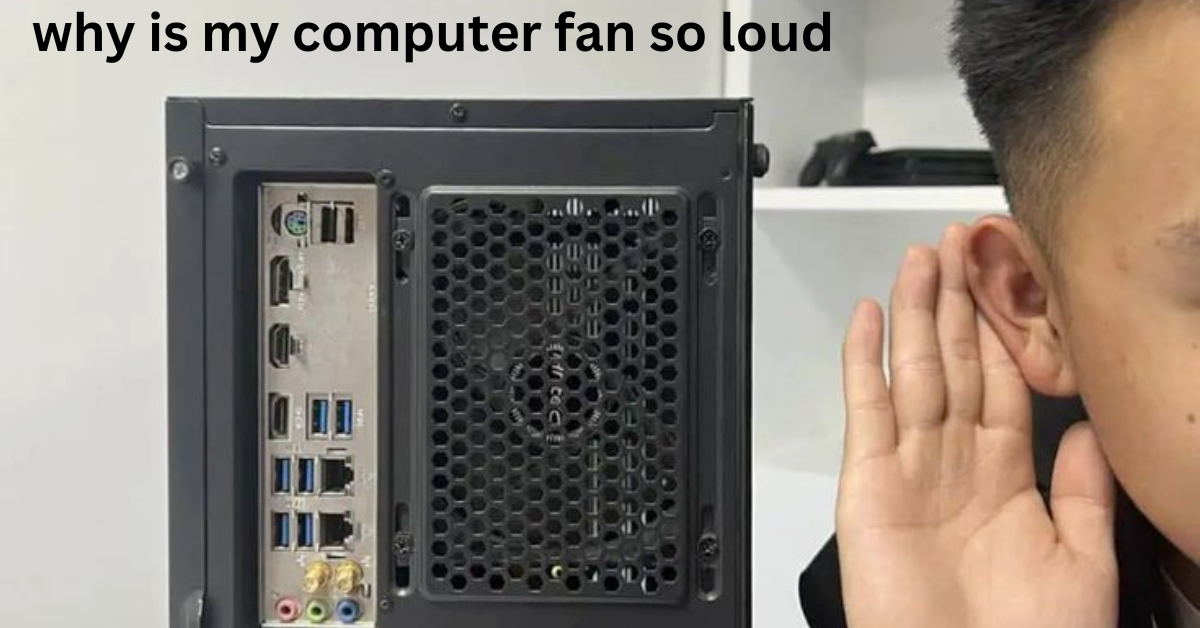
A loud computer fan can be annoying, but it is often your computer’s way of preventing overheating and protecting its internal components. While increased fan noise is normal during demanding tasks, it can also indicate problems such as dust buildup, poor airflow, high processor usage, or cooling system issues. In this guide, you’ll learn when a loud computer fan is normal, when you should be concerned, the most common causes of loud fan noise, how to fix the problem, and practical tips to keep your computer fan running quietly over the long term.
When Should You Be Worried About a Loud Computer Fan
A loud fan is not always a sign of a serious problem, but some situations require immediate attention. You should consider having your computer inspected or repaired if you notice any of the following:
1. The fan makes unusual noises: Grinding, rattling, or clicking sounds may indicate a worn-out or damaged fan that needs to be replaced.
2. Your computer shuts down unexpectedly: If your computer turns off on its own, overheating may be triggering a safety shutdown to protect the internal components.
3. The fan runs at full speed all the time: If the fan remains extremely loud even when no demanding programs are open, there may be a cooling or hardware issue.
4. You receive overheating warnings: Messages about high temperatures should not be ignored, as they can indicate that your cooling system is not working properly.
5. The fan stops spinning: A fan that does not spin can cause your computer to overheat quickly and should be repaired or replaced as soon as possible.
When Is a Loud Computer Fan Normal
A loud computer fan is not always a sign of a problem. In many cases, it simply means your computer is working harder and needs extra cooling. Here are some situations where increased fan noise is completely normal:
1. Playing games: Modern games place a heavy load on your processor and graphics card, causing the fan to spin faster to remove excess heat.
2. Editing videos or photos: Video editing, photo editing, and other creative tasks require significant processing power, which can make the fan louder.
3. Installing Windows updates: During updates, your computer performs many background tasks that increase system activity and generate additional heat.
4. Running antivirus scans: A full system scan uses your processor to check thousands of files, which may temporarily increase fan speed.
5. Copying or transferring large files: Moving large amounts of data between drives or external storage devices can increase system workload, causing the fan to run faster until the task is complete.
Also read: how to turn on a computer
Common Causes Why Your Computer Fan Is So Loud
There are several reasons why your computer fan may become loud, and in most cases, it is your system trying to protect itself from overheating. Below are the most common causes explained in detail:
1. High CPU or System Usage
One of the main reasons your computer fan becomes loud is high CPU usage. When too many apps or processes are running at the same time, your processor works harder and produces more heat. The fan then speeds up to cool the system. This often happens when you have many browser tabs open, heavy software running, or background apps consuming resources.
2. Dust Buildup Inside the Computer
Dust is another major cause of loud computer fans. Over time, dust can collect inside the cooling system, blocking airflow and making it harder for the fan to cool the device. When airflow is reduced, the fan has to spin faster and louder to reduce heat inside the system.
3. Poor Ventilation or Blocked Airflow
If your computer does not have enough airflow, it will heat up quickly. Using a laptop on soft surfaces like a bed or pillow can block air vents. When this happens, the fan works harder than normal, producing more noise to reduce internal temperature.
4. Background Apps or Malware Activity
Sometimes background applications or hidden malware can use your system resources without your knowledge. This increases CPU usage and forces the fan to run at high speed continuously, even when you are not actively using heavy programs.
5. Outdated Software or Drivers
Old system software or drivers can cause your computer to work inefficiently. When the system struggles to perform basic tasks, it generates more heat, causing the fan to become louder than usual.
6. Hot Environment Temperature
If you are using your computer in a hot room or under direct sunlight, the system will naturally heat up faster. The fan then increases speed to try and control the temperature, which leads to more noise.
7. Hardware or Cooling System Problems
In some cases, the issue may come from hardware problems such as a faulty fan, dried thermal paste, or internal cooling failure. When this happens, the fan may become unusually loud or even make grinding noises.
Also read: How to Connect Airpods to Laptop
How to Fix Loud Computer Fan Issues
Below are practical and effective solutions you can use to reduce fan noise and improve your computer’s cooling performance:
1. Close Unnecessary Programs and Tabs
Start by closing apps and browser tabs you are not using. Many programs run in the background and consume CPU power without you noticing. Reducing active tasks helps your processor work less, which immediately lowers fan speed and noise.
2. Restart Your Computer
A simple restart can solve many hidden system issues. When your computer runs for a long time, background processes build up and increase CPU usage. Restarting clears these processes and allows your system to cool down and run more efficiently.
3. Clean Dust From Vents and Fans
Dust is one of the biggest causes of overheating. Use compressed air to gently clean your computer vents and cooling areas. If the dust buildup is heavy, it is better to let a technician open and clean the system properly for safe maintenance.
4. Improve Airflow and Cooling
Make sure your computer has proper ventilation. Avoid placing laptops on beds, pillows, or soft surfaces that block airflow. Always use your device on a flat, hard surface. You can also use a cooling pad to help reduce heat buildup during long usage.
5. Scan for Viruses or Malware
Run a full antivirus scan to check for hidden malware or suspicious programs. Some malicious software can secretly use your CPU, causing constant high fan activity even when your system is idle.
6. Update Your System and Drivers
Keeping your operating system and drivers updated helps fix bugs and improves performance. Updates often include improvements that reduce overheating and optimize how your computer manages power and cooling.
7. Reduce Background Startup Programs
Some apps automatically start when your computer turns on. These programs run in the background and increase CPU load. Disable unnecessary startup apps from Task Manager (Windows) or system settings to reduce pressure on your computer.
8. Reduce Heat in Your Environment
If your room is too hot, your computer will naturally heat up faster. Try using your device in a cooler environment, away from direct sunlight, and ensure proper room ventilation to help reduce fan strain.
9. Reapply Thermal Paste (Advanced Users)
Thermal paste helps transfer heat from your computer’s processor to the cooling system. Over time, it can dry out and become less effective, causing the processor to run hotter and forcing the fan to spin faster. If your computer is several years old and continues to overheat after cleaning, replacing the thermal paste may improve cooling. If you are not familiar with computer hardware, consider having this done by a qualified technician.
10. Adjust Fan Speed Settings
Some computers allow you to adjust fan settings through the BIOS or the manufacturer’s software. Setting the fan to an appropriate performance mode can help reduce unnecessary noise while still keeping your computer at a safe temperature. Avoid setting the fan speed too low, as this may lead to overheating.
11. Contact a Computer Repair Technician (Important)
If your fan is still loud after trying all the steps above, the issue may be hardware-related. This could include a damaged fan, dried thermal paste, or internal cooling failure. In this case, it is best to contact a professional repair technician.
Also read: Are Hp Laptops Good
Tips to Keep Your Computer Fan Quiet in the Long Run
Below are practical steps you can take to help prevent your computer fan from becoming loud again:
1. Clean your computer regularly: Remove dust from the air vents and cooling system every few months to maintain proper airflow and prevent overheating.
2. Keep your software up to date: Install the latest operating system and driver updates to improve performance and help your computer manage heat more efficiently.
3. Make sure air vents are not blocked: Always use your computer on a flat, hard surface and leave enough space around the vents for proper airflow.
4. Avoid using your computer in hot environments: High room temperatures make it harder for the cooling system to keep your computer at a safe temperature.
5. Restart your computer from time to time: Restarting helps clear unnecessary background processes that can increase processor usage and fan activity.
Conclusion
A loud computer fan is often a warning that your computer is working harder than usual to stay cool. While increased fan noise is normal during demanding tasks, persistent or unusual noise may point to overheating, poor airflow, dust buildup, or a hardware problem that needs attention. By identifying the cause early, applying the appropriate fixes, and following good maintenance practices, you can improve your computer’s cooling, reduce unnecessary fan noise, and help extend the lifespan of your system.
Frequently Asked Questions (FAQ)
1. Can a loud computer fan affect my computer’s performance?
Yes, a constantly loud fan can be a sign that your computer is overheating. When temperatures become too high, the system may automatically reduce performance to protect internal components, which can result in slower speeds, lag, and reduced efficiency.
2. Why does my computer fan become louder when I open certain programs?
Some applications require more processing power than others. Tasks such as video editing, gaming, graphic design, or running multiple browser tabs can increase CPU and GPU usage, causing the fan to spin faster to remove excess heat.
3. How often should I clean my computer fan to prevent noise problems?
For most users, cleaning the fan and air vents every three to six months is enough. However, if you use your computer in a dusty environment or have pets, more frequent cleaning may be necessary to maintain proper airflow.
4. Is it normal for a laptop fan to become louder while charging?
Yes, this can be normal in some situations. Charging generates additional heat, and if you are using the laptop at the same time, the cooling system may increase fan speed to keep temperatures under control.
5. Can replacing thermal paste help reduce computer fan noise?
In some cases, yes. Thermal paste helps transfer heat from the processor to the cooling system. If the paste has dried out or become ineffective over time, the processor may run hotter than normal, causing the fan to work harder and become louder.