
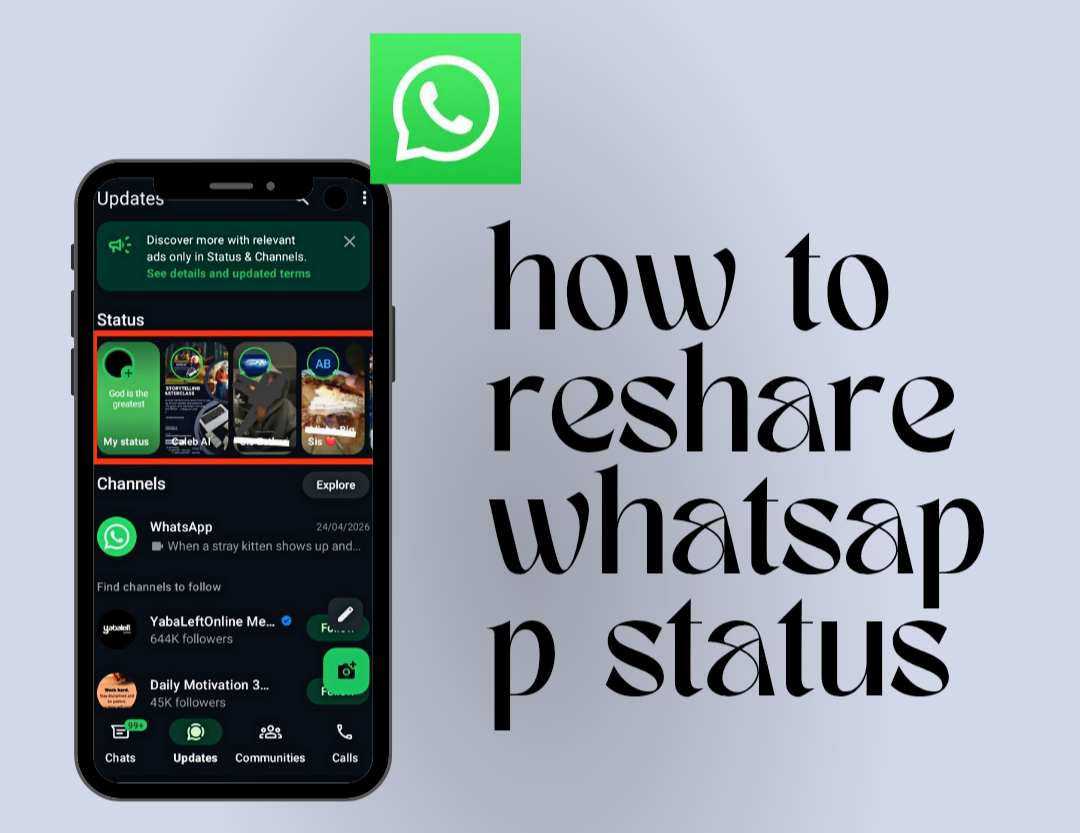
Sharing moments through status updates has become a major feature on where users post photos, videos, and updates that disappear after 24 hours, making it a quick way to stay connected. However, many people still ask how to reshare a WhatsApp status because there is no always visible share button like on or , although a share option may appear if the user enables it. The good news is that there are simple and effective ways to do it whether sharing is enabled or not, and below are the best methods explained clearly.
Also read: How to Stop WhatsApp From Draining Battery in the Background (2026 Guide)
How to Reshare WhatsApp Status: Easy Step-by-Step Guide
Below are simple and effective ways to reshare WhatsApp status step by step:
1. Reshare WhatsApp Status If You Are Tagged
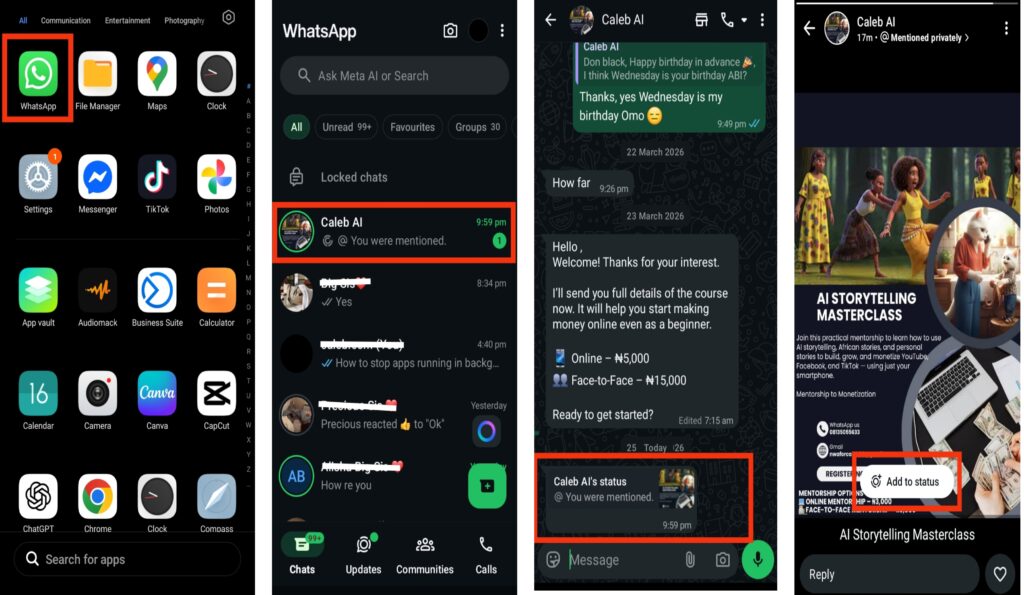
This is the easiest and official method provided by when someone mentions or tags you in their status. Once you are tagged, WhatsApp gives you a direct option to repost it without needing screenshots or extra tools, making it the most convenient way to reshare content.
How to do it:
- Open WhatsApp
- Go to the Status tab
- Look for “You were mentioned” notification
- Tap on it
- Select Add to My Status
2. Reshare Using Screenshot
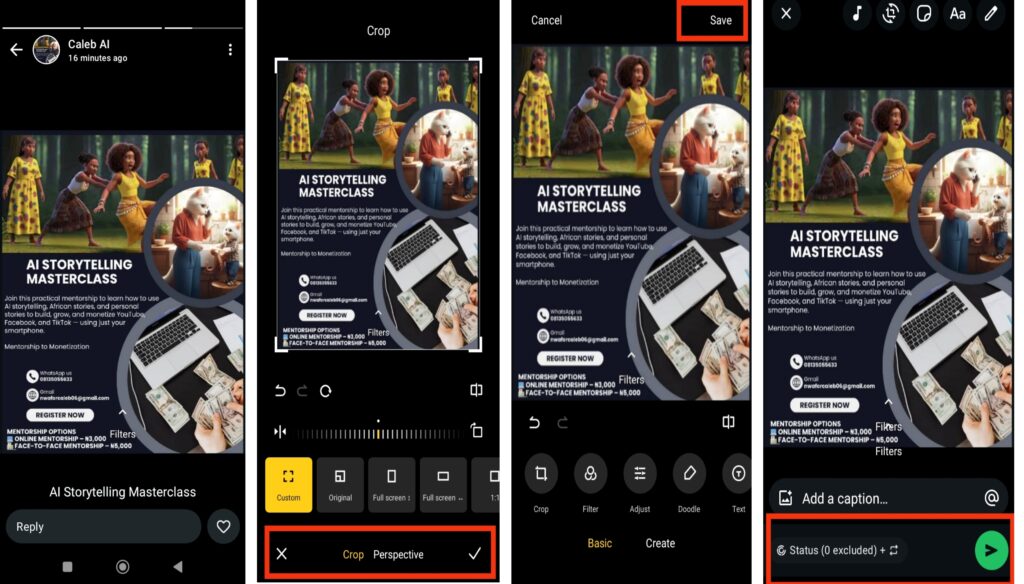
This method is useful when you are not tagged in the status, especially for photo updates. It allows you to manually capture the content and repost it as your own status. It is simple and works on almost all smartphones, although you may need to crop the image for a cleaner look.
How to do it:
- Open the status you want to share
- Take a screenshot
- Crop out unwanted parts
- Save it to your gallery
- Upload it as your status
3. Reshare Using Screen Recording
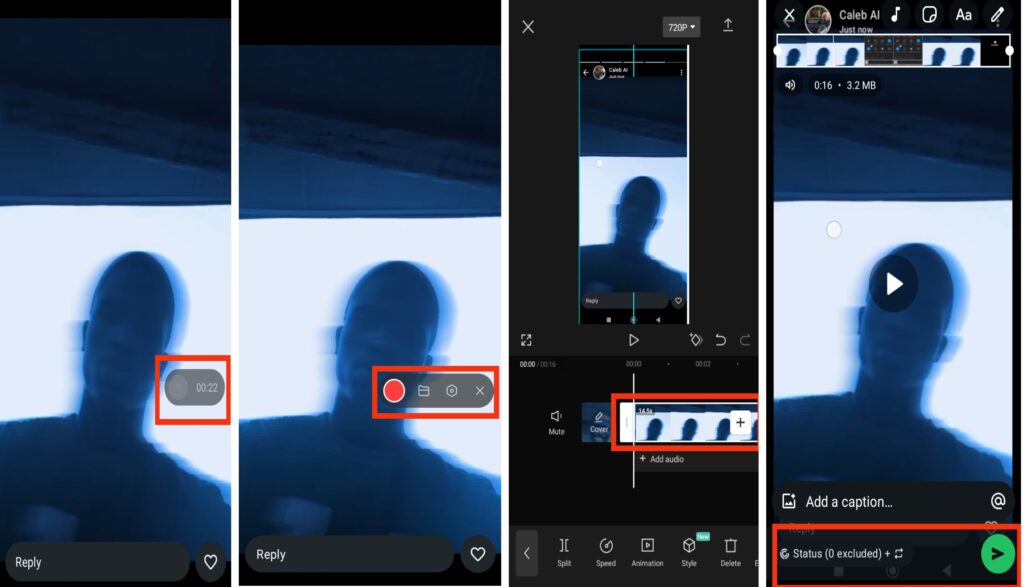
This method is best for video statuses when there is no direct share option. It lets you capture the entire video while it plays on your screen, then repost it after trimming. It is very useful when you want to keep the full video content.
How to do it:
- Open the video status
- Start screen recording on your phone
- Play the full status video
- Stop recording when it ends
- Trim the video on capcut, video editor and even Whatsapp if needed
- Upload it as your status
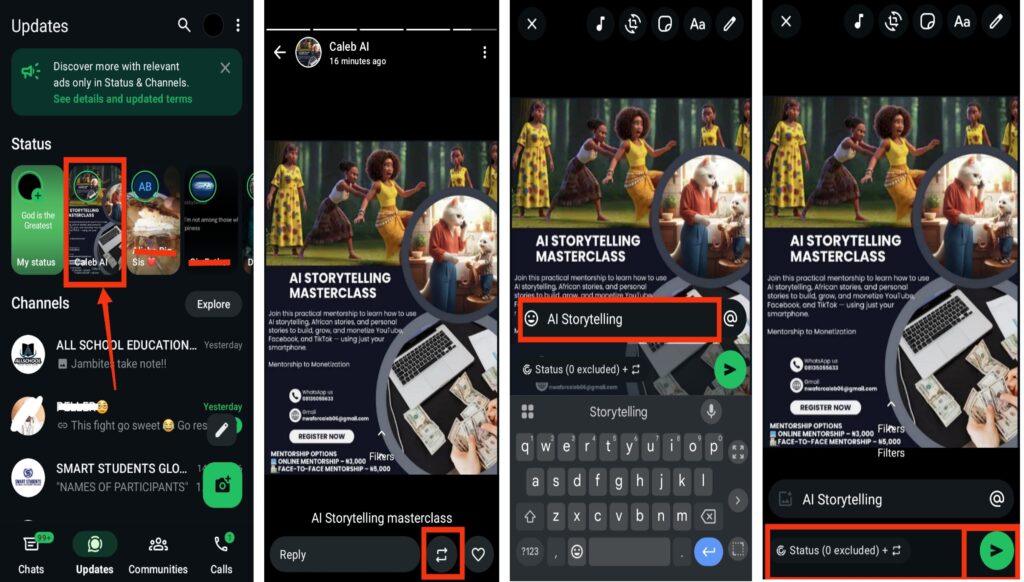
4. Use Built-in Share Option (If Available)
In some cases, allows a direct reshare option if the original user has enabled it. This feature is not always available, but when active, it makes sharing very fast and smooth without needing extra steps.
How to do it:
- Open the status
- Tap the Reshare icon (two-arrow loop)
- Edit the status if you want
- Tap Send (paper plane icon)
Also read: Why Am I Not Getting WhatsApp Notifications?
Conclusion
Resharing a status on is not always direct, but it is easy once you understand the available options. Whether you use the tagged feature, take a screenshot, record your screen, or use the share option when it appears, each method works depending on the situation. The most important thing is to maintain good quality and respect the original content. By applying these simple methods, you can reshare statuses smoothly and keep your updates engaging.
Frequently Asked Questions (FAQs)
1. What should I do if I cannot find the reshare option on a WhatsApp status?
If you cannot see the reshare option on a status in , it usually means the original user has not enabled sharing for that status. In this case, you can still use alternatives like screenshot for images or screen recording for videos to repost the content manually.
2. Can I edit a WhatsApp status before resharing it?
Yes, you can make changes before posting it again. After capturing the content through screenshot or screen recording, you can edit it using your phone editor or apps like CapCut, then upload it with text, emojis, or trimming to make it look better before posting.
3. Why does WhatsApp sometimes show a reshare icon and other times not?
The reshare icon appears only when the original status owner has allowed it in their privacy or sharing settings. If it is disabled, the icon will not appear, and you will need to use manual methods like screenshot or screen recording instead.
4. Does resharing a status affect the original quality of the content?
Yes, depending on the method used. The built-in reshare option keeps the original quality, while screenshot may slightly reduce image clarity, and screen recording can reduce video sharpness depending on your phone settings and recording quality.
5. Can I reshare a WhatsApp status to another social media platform directly?
No, does not allow direct sharing of status updates to other social media platforms like Instagram or Facebook. If you want to post it elsewhere, you will need to save it first using screenshot or screen recording, then upload it manually to the platform of your choice.
6. Can deleted WhatsApp statuses still be reshared?
No, once a status is deleted or expires after 24 hours on , it can no longer be reshared directly. You can only repost it if you already saved it earlier using a screenshot, screen recording, or file manager method.
7. Does resharing a WhatsApp status use internet data again?
Yes, when you repost a status, it may use a small amount of data again because the content is being uploaded again to your status. However, if the file is already saved on your device, the data usage is usually minimal compared to streaming or downloading fresh content.