

WhatsApp is one of the most essential messaging apps today, connecting billions worldwide. But sometimes notifications stop coming through, leaving you unaware of new messages or calls, which can be frustrating if you rely on WhatsApp for work, school, or staying in touch with family and friends. Several factors can cause this, and understanding why it happens is the first step to fixing it. In this post, we’ll explore the reasons WhatsApp notifications may not appear and how to resolve the issue.
Also read: How to Stop ChatGPT From Draining Battery in the Background
8 Reasons Why WhatsApp Notifications Are Not Working and How to Fix Them
Below are the most common reasons why WhatsApp notifications may stop working, along with practical solutions to help you Fix it:
1. Notification Settings Are Misconfigured
Sometimes, WhatsApp notifications don’t appear because the app’s own settings are incorrect. Message or group notifications may be turned off, or specific chats could be muted, preventing alerts from reaching you even though the app is working normally.
How to Fix It: To ensure you receive all WhatsApp notifications, open the app and go to Settings → Notifications. Make sure both Message Notifications and Group Notifications are enabled. Also, check that Show Notifications is turned on so alerts appear on your screen as expected.
2. Phone Notifications Are Disabled
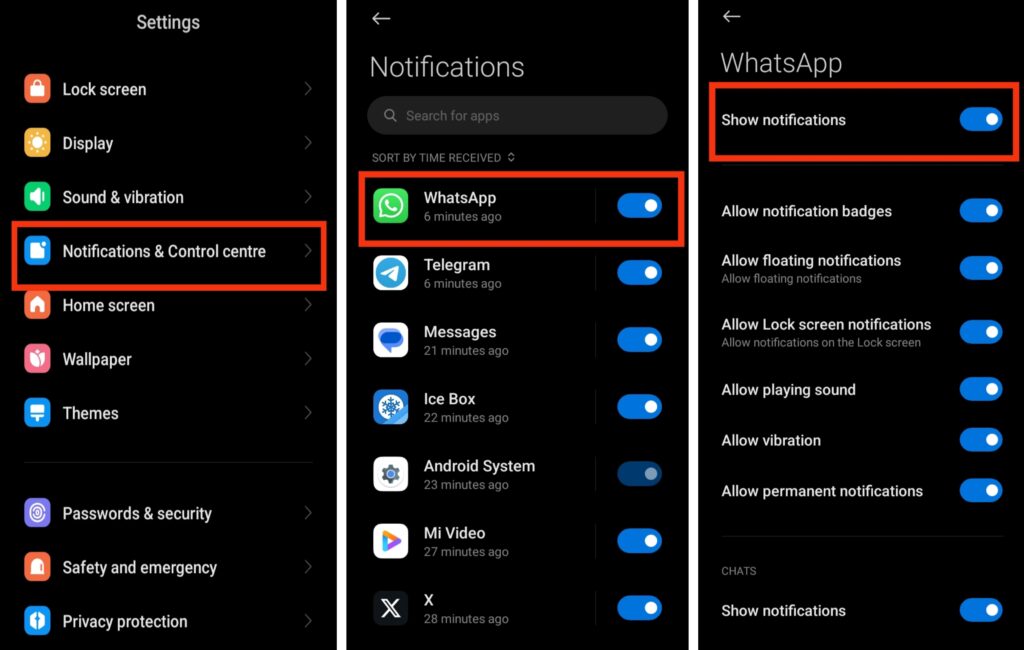
Even if WhatsApp notifications are turned on inside the app, your phone’s system settings can still block them. This often happens after a software update resets certain permissions, or when features like Do Not Disturb mode are activated. In such cases, messages may arrive, but you won’t see or hear any alert because your device is preventing WhatsApp from displaying notifications.
How to Fix It: Open your phone’s Settings, locate Apps or Notifications, and select WhatsApp from the list. Make sure notifications are fully enabled and allowed to appear on the lock screen, notification panel, and as banners. Also, confirm that Do Not Disturb mode is turned off, as this feature can silently block alerts even when everything else is set correctly.
3. Battery Optimization Blocks Notifications
Modern smartphones often limit background activity to save battery life. When this happens, WhatsApp may not run properly in the background, which can delay or completely block notifications from appearing, even if the app is open or your phone is active.
How to Fix It: To prevent battery settings from blocking WhatsApp, go to your phone’s Settings → Battery → Battery Optimization. Locate WhatsApp and select Don’t Optimize or Allow Background Activity. This ensures the app can run in the background and deliver notifications even when your phone is idle.
4. Internet Connection Issues
WhatsApp notifications require a stable internet connection to arrive promptly. If your connection is weak, intermittent, or keeps switching between Wi-Fi and mobile data, messages may be delayed or fail to appear entirely, even when everything else is set up correctly.
How to Fix It: Check your internet hconnection by switching between Wi-Fi and mobile data. If notifications are still delayed, try restarting your router or phone. Also, make sure background data usage for WhatsApp is enabled so the app can receive messages even when running in the background.
5. Outdated WhatsApp Version
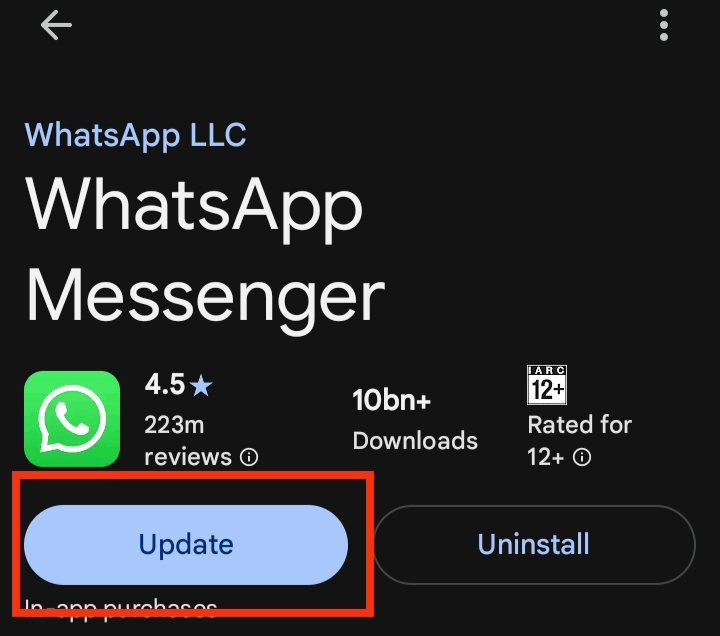
Using an older version of WhatsApp can cause notification issues. Bugs in outdated releases or compatibility problems with your phone’s latest software may prevent messages from alerting you, even if all settings are correct.
How to Fix It: To ensure WhatsApp works properly, open your app store or play store, search for WhatsApp, and install any available updates. Keeping the app up to date fixes bugs and improves compatibility with your phone, helping notifications work reliably.
6. Cached Data or App Glitches
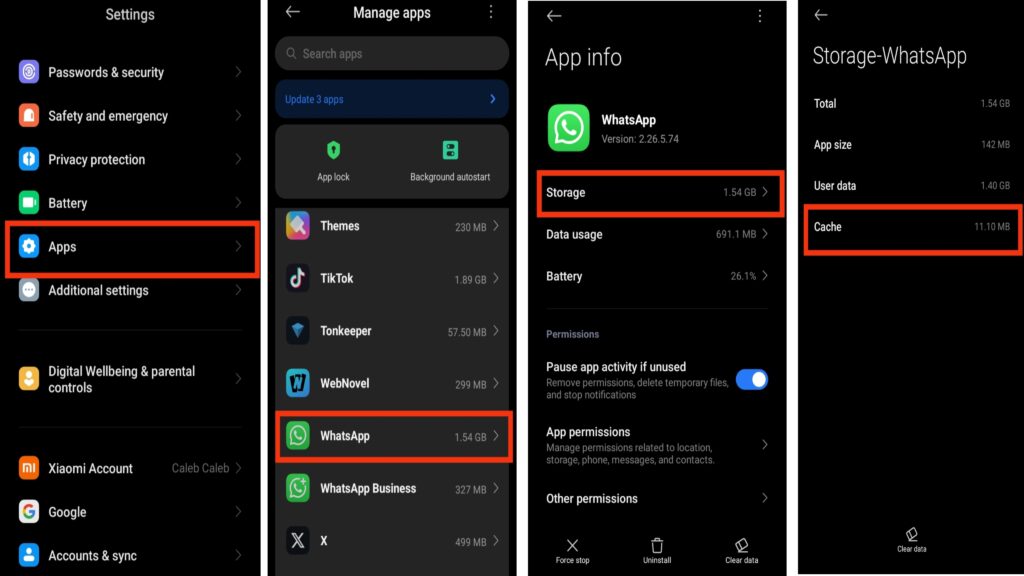
Over time, WhatsApp can accumulate corrupted cache or temporary files, which may prevent notifications from appearing. Even when settings and internet connections are correct, these glitches can interfere with the app’s normal operation.
How to Fix It: Open your phone’s Settings, locate Apps, select WhatsApp, then go to Storage and choose Clear Cache. After clearing the cache, restart your phone to refresh the system and help restore normal notification performance.
7. Third-Party Apps Interference
Certain antivirus, phone cleaner, or security applications can restrict background activity to protect your device or save battery. In some cases, these apps may unintentionally block WhatsApp from running properly, which can stop notifications from appearing on time.
How to Fix It: Temporarily disable any antivirus, cleaner, or security apps on your phone to check whether notifications start working again. If they do, open the app’s settings and add WhatsApp to the whitelist or allow it to run freely in the background so it isn’t restricted in the future.
8. Reinstall WhatsApp as a Last Resortr
If notifications still don’t work after trying all the previous solutions, the issue may be due to deeper app corruption or damaged installation files. In rare cases, reinstalling WhatsApp becomes necessary to completely reset the app and restore proper notification functionality.
How to Fix It: Before reinstalling, open WhatsApp → Settings → Chats → Chat Backup to save your conversations. Once the backup is complete, uninstall the app from your phone and download it again from your device’s app store. After reinstalling, verify your number and restore your backup to recover your chats. This process refreshes the app completely and often resolves persistent notification problems.
Also read: How to Stop WhatsApp From Draining Battery in the Background (2026 Guide)
Conclusion
Not receiving WhatsApp notifications can be frustrating, but in most cases, the issue is caused by simple settings, background restrictions, connectivity problems, or minor app glitches. By carefully checking each possible cause and applying the appropriate fix, you can restore your notifications and ensure you never miss important messages again. Taking a few minutes to review your phone and app settings can make a lasting difference in keeping your communication smooth and reliable.
Frequently Asked Questions (FAQs)
1. Why do WhatsApp notifications only appear when I open the app?
If notifications only show when you open WhatsApp, it usually means the app is restricted from running in the background. This can happen due to battery-saving settings, background data restrictions, or system permissions that prevent the app from syncing messages in real time.
2. Can low phone storage affect WhatsApp notifications?
Yes, low storage space can impact app performance. When your phone is almost full, apps may struggle to function properly, which can delay notifications or cause them not to appear at all. Freeing up storage can help improve overall performance.
3. Why are WhatsApp notifications delayed instead of arriving instantly?
Delayed notifications are often caused by unstable internet connections, aggressive battery optimization, or temporary system glitches. Ensuring a stable connection and allowing WhatsApp to run freely in the background usually resolves the delay.
4. Does switching phones affect WhatsApp notifications?
Yes, if you recently switched devices and did not properly configure notification permissions, alerts may not work as expected. After setting up WhatsApp on a new phone, it’s important to review both app and system notification settings.
5. Can system software updates interfere with WhatsApp notifications?
Occasionally, after a phone software update, certain permissions may reset automatically. This can disable notifications without your knowledge. Reviewing your notification and background activity settings after an update can help restore normal functionality.