
If you’ve ever noticed your phone’s battery dropping faster than usual, there’s a good chance Facebook and Instagram are the reason. These social media apps constantly run in the background, syncing data, sending notifications, and refreshing feeds even when you’re not using them. This background activity can cause your device to heat up, drain your battery quickly, and shorten your phone’s overall lifespan. The good news is that you don’t have to uninstall them to fix this problem. With a few simple settings adjustments and smart usage habits, you can easily stop Facebook and Instagram from consuming too much power in the background and make your battery last much longer throughout the day.
Why Do Facebook and Instagram Consume So Much Battery?
If you notice your battery dropping faster after using Facebook or Instagram, it’s not by accident. These apps stay active in the background, refreshing feeds, checking notifications, and loading content even when you’re not using them. This constant activity quietly uses up power. Below are the main reasons Facebook and Instagram drain your phone’s battery.
1. High-Quality Photos and Auto-Playing Videos
Facebook and Instagram are filled with high-resolution photos, stories, and videos that load automatically as you scroll. These visuals make the platforms more engaging but also consume a lot of power. When your phone constantly processes HD content, refreshes feeds, and plays videos without stopping, it uses more data and battery resources. The more you scroll and interact with these media files, the faster your phone’s battery drains, especially if your screen brightness is high or you’re using mobile data instead of Wi-Fi.
2. Background Activity
One of the main reasons Facebook and Instagram drain so much battery is because they keep running even when you’re not using them. These apps constantly check for new notifications, messages, story updates, and friend activity in the background. Facebook also syncs data between your account and Messenger, while Instagram refreshes your feed and loads new posts automatically. All of this background processing requires power and internet usage, causing your phone to lose battery faster, even when your screen is off or you think the apps are closed.
3. Constant App Refresh and Notifications
Facebook and Instagram are designed to keep you connected at all times, which means they constantly refresh content and send notifications. Every time a new post, like, comment, or message appears, the apps wake up your phone to update the feed or alert you. This frequent background refreshing and push notification activity can slowly wear down your battery. To reduce this drain, you can disable unnecessary notifications or limit how often these apps refresh in the background through your phone’s settings.
4. Location Services and Check-ins
Facebook and Instagram frequently use your phone’s GPS to tag locations, suggest nearby places, or allow you to check in when posting. These location-based features run in the background even when you’re not actively sharing your location, constantly pinging your GPS for updates. This continuous tracking can drain your battery quickly, especially if both apps are allowed to access your location all the time. To save power, it’s best to limit these apps’ location access to “While using the app” or turn it off completely when it’s not needed.
Also read: How do I stop WhatsApp from draining my battery in the background?
How to Save Battery When Using Facebook and Instagram
If Facebook or Instagram drains your battery faster than normal, a few simple settings can help. These apps run in the background and quietly use power, but you can control it. Below are practical ways to reduce battery drain while still using both apps.
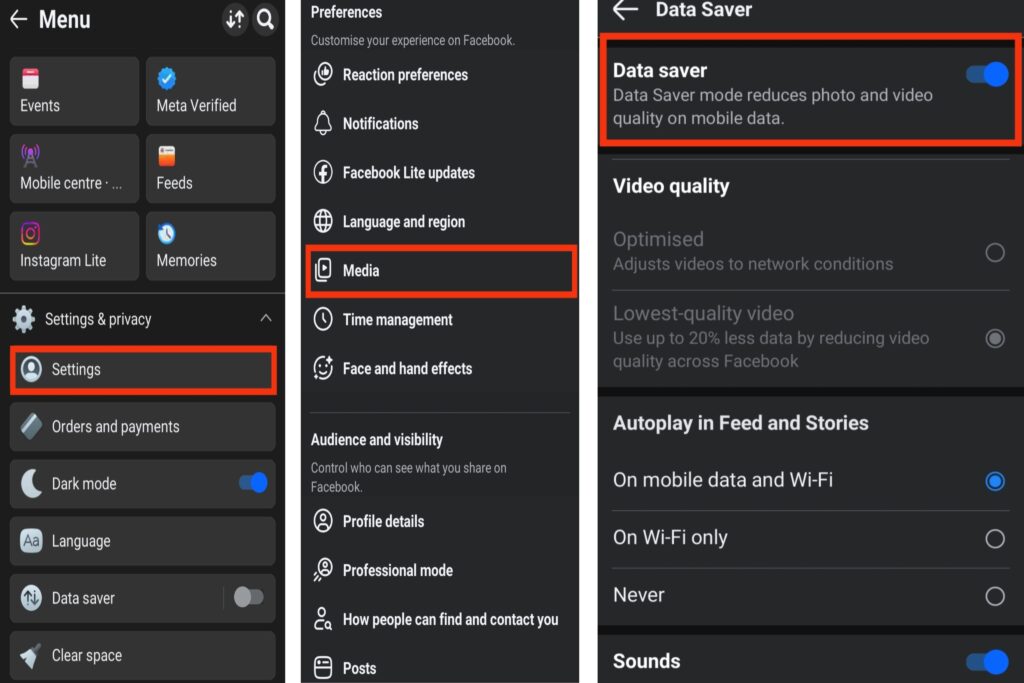
1. Turn On Data Saver on Facebook
One of the main reasons Facebook drains your battery is because it constantly loads high-quality videos, stories, and photos in the background. These media files make your feed look better, but they also use more power and data. Enabling the Data Saver feature helps reduce video quality and slows down auto-downloads, saving both battery life and internet data.
For Facebook:
- Open the Facebook app on your phone.
- Tap the Menu (☰) icon and go to Settings & Privacy → Settings.
- Scroll down to Media or Video Quality.
- Under Data Saver, toggle it On to lower media quality and reduce background activity.
- You can also turn off Upload HD Photos and Upload HD Videos to save even more power.
For Instagram:
- Open the Instagram app.
- Tap your Profile icon → Menu (☰) in the top-right corner.
- Select Mobile Data Saving.
- Turn on the option “Use less data.”
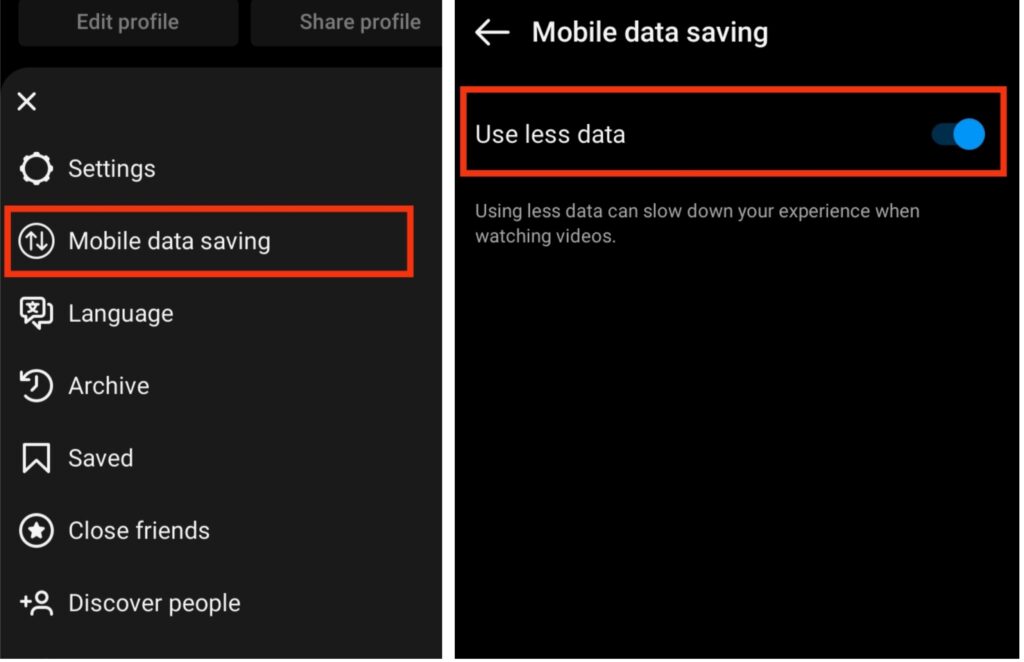
Turning on Data Saver for Facebook and Instagram reduces background loading of videos and images, helping your battery last longer and keeping your phone cooler.
2. Enable Dark Mode on Facebook and Instagram
Dark Mode is one of the easiest ways to extend your phone’s battery life while making your screen easier on the eyes especially at night. Both Facebook and Instagram include this feature, which reduces the amount of light your display needs by switching to darker tones. Phones with AMOLED or OLED screens save the most power this way since black pixels use almost no energy. Here are the simple steps to enable Dark Mode on both apps:
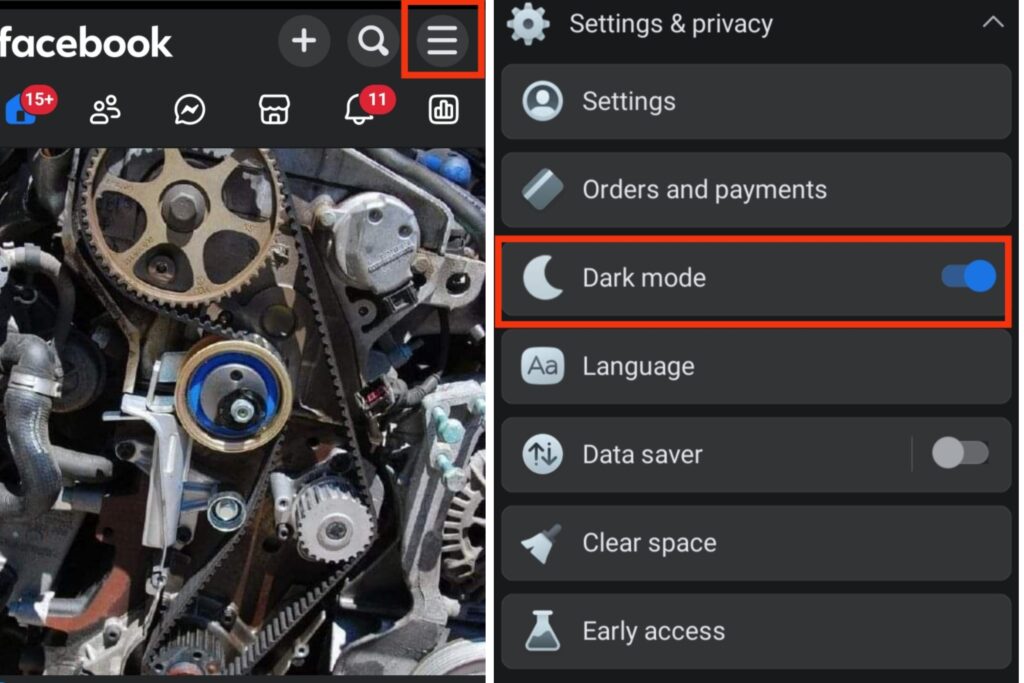
For Facebook:
- Open the Facebook app on your device.
- Tap the Menu (☰) icon in the top right corner.
- scroll down→ Dark Mode.
- Choose On to activate Dark Mode immediately, or select System if you want it to match your phone’s theme automatically.
For Instagram:
- Launch the Instagram app.
- Tap your Profile icon → Menu (☰) at the top right.
- Select Settings → Theme (or Appearance, depending on your device).
- Tap Dark to enable Dark Mode.
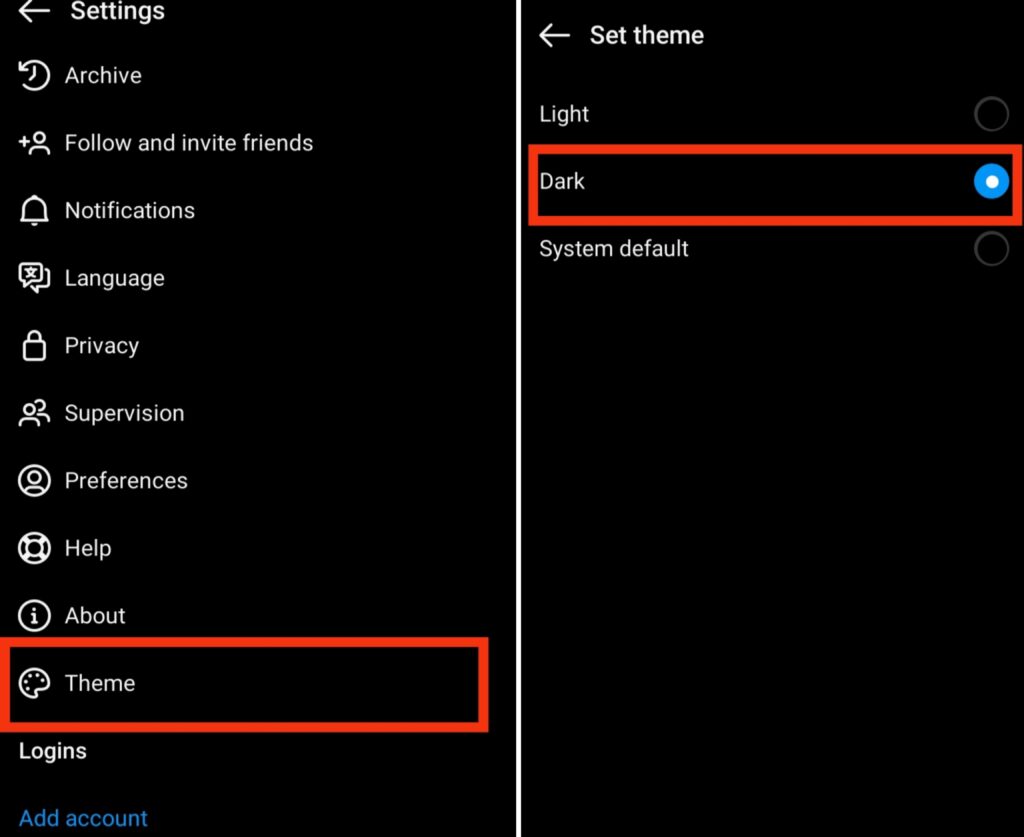
Turning on Dark Mode on Facebook and Instagram gives a smoother viewing experience, reduces glare, and helps save battery, especially during long sessions.
3. Manage Notifications on Facebook and Instagram
Notifications are a major reason why your Facebook and Instagram apps can quickly drain your phone’s battery. Every new like, comment, tag, or message can wake up the app in the background, light up your screen, and even trigger vibrations all of which consume power. If you receive dozens of alerts daily, the impact on battery life can be significant. The good news is that you can easily save power by managing your notification settings and only keeping the alerts that truly matter. Here’s how to adjust notifications on both apps:
For Facebook:
- Open the Facebook app on your phone.
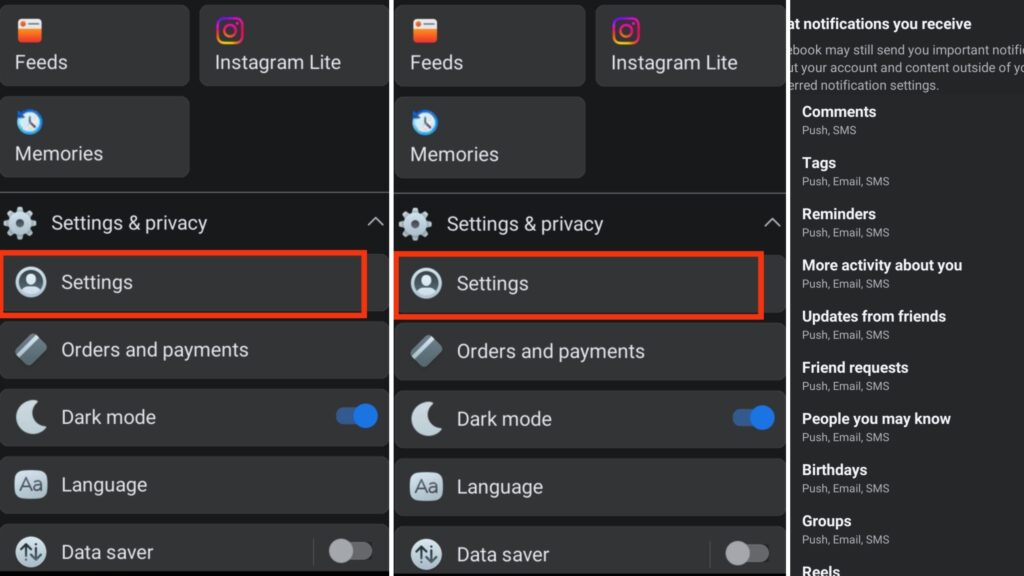
- Tap the Menu (☰) icon and select Settings & Privacy → Settings.
- Scroll down to Notifications and choose which types of alerts you want to mute, such as comments, friend requests, or live videos.
For Instagram:
- Launch the Instagram app.
- Tap your Profile → Menu (☰) → Settings → Notifications.
- Toggle off any notifications you don’t need, like likes, new followers, or suggested posts.
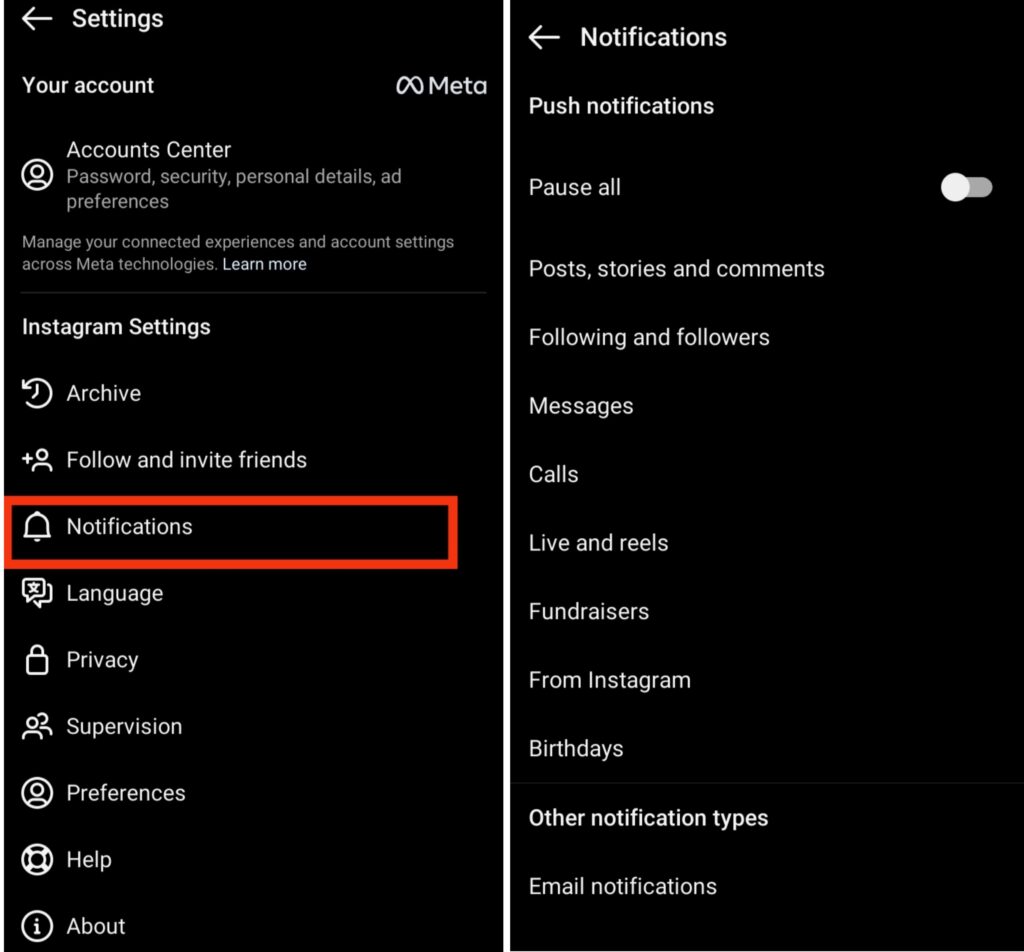
Adjusting notifications on Facebook and Instagram reduces background activity, prevents unnecessary screen wake-ups, and helps your battery last longer, even on busy social media days.
4. Turn Off Background Refresh on Facebook and Instagram
Facebook and Instagram often run in the background to refresh your feeds, update notifications, and sync new content. While this keeps everything ready the moment you open the apps, it can also drain your phone’s battery faster and even make your device warmer. Disabling background refresh can help save power and improve your phone’s performance. Here’s how to turn it off on both apps:
For Facebook:
- Open your phone’s Settings app.
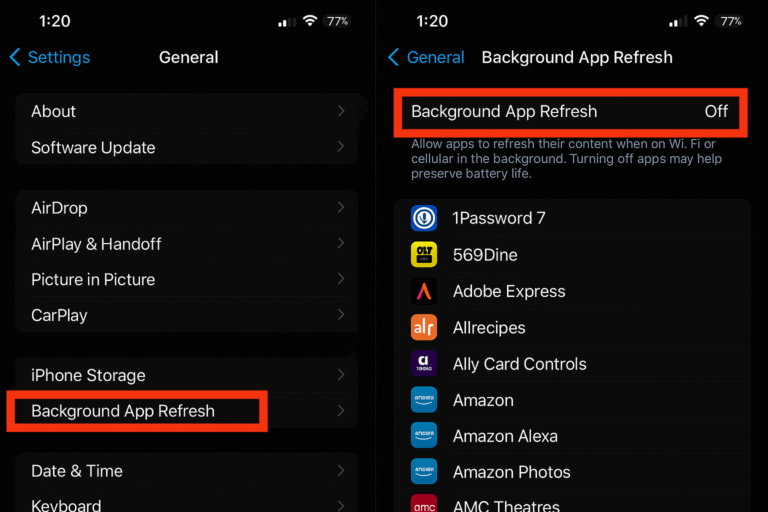
- Scroll down and tap General → Background App Refresh.
- Find Facebook in the list.
- Toggle it Off to stop it from running in the background.
For Instagram:
- Open your phone’s Settings app.
- Go to General → Background App Refresh.
- Find Instagram in the list.
- Toggle it Off to prevent background activity.
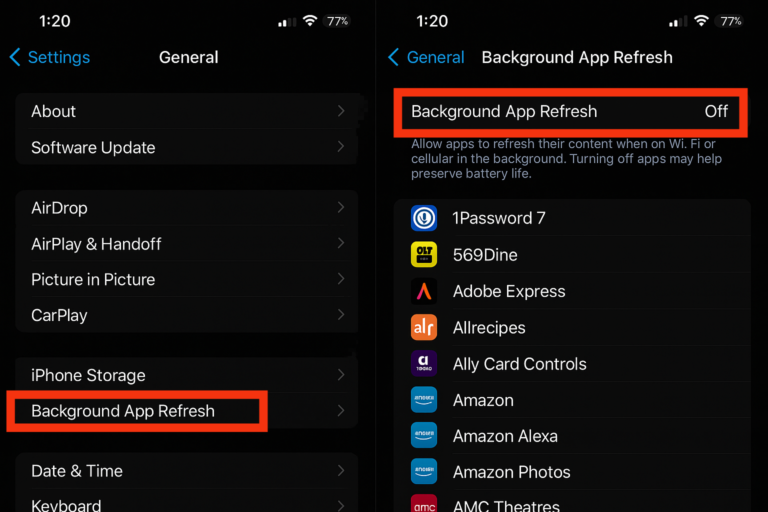
Turning off background refresh for Facebook and Instagram makes the apps update only when opened. This simple change can extend battery life, reduce background activity, and keep your phone cooler.
Also read: How can I make my Android phone battery last longer without power bank?
Conclusion
Facebook and Instagram are great for staying connected, but their constant background activity can drain your battery and slow your phone. You don’t need to stop using them to save power. Simple adjustments like enabling Dark Mode, turning on Data Saver, managing notifications, disabling background refresh, and being mindful of desktop use can significantly reduce battery drain, keep your phone cooler, and extend its life between charges. Start with easy changes like Dark Mode and Data Saver, then fine-tune notifications and background settings for the best results. By taking control of these apps, you can stay active on social media without worrying about battery life, making your mobile experience smoother and more enjoyable.
Frequently Asked Questions (FAQ)
1. Why do Facebook and Instagram drain my phone battery so quickly?
Facebook and Instagram are among the most active apps on your phone because they constantly run background tasks. Even when you’re not scrolling, they refresh feeds, sync data, update notifications, and track activity to keep everything up to date. High-resolution images, stories, and auto-playing videos also require extra processing power, which puts more pressure on your battery. To reduce the drain, try disabling background app refresh, limiting notifications, and turning off autoplay videos. These small steps can help extend your phone’s battery life throughout the day.
2. Does turning on Dark Mode really help save battery on Facebook and Instagram?
Yes, enabling Dark Mode on Facebook and Instagram can make a noticeable difference in your phone’s battery life, especially if your device uses an AMOLED or OLED screen. These screens turn off pixels completely when showing black, which means less energy use. Besides saving power, Dark Mode also reduces eye strain and makes browsing more comfortable at night or in low light. To activate it, go to each app’s settings and switch to Dark Mode it’s simple but effective for saving power and improving comfort.
3. Will turning off notifications really help my battery last longer?
Absolutely. Every time Facebook or Instagram sends a notification, your phone wakes up, turns on the screen, vibrates, or plays a sound — all of which consume power. If you receive many alerts daily, this can add up quickly. By turning off unnecessary notifications, such as likes, new followers, or live videos, your phone will rest more and save battery power. You’ll still get important updates like messages or comments, but your phone won’t waste energy on constant background alerts.
4. Should I log out of Facebook and Instagram when I’m not using them?
Logging out helps slightly, but the better option is to close or restrict the apps in the background. Even when you’re not using them, Facebook and Instagram can still stay active syncing data, checking updates, and refreshing content. Go to your phone settings and stop them from running in the background. This reduces hidden power usage and helps your device stay cool and last longer without affecting your online activity.
5. Can using Facebook Lite and Instagram Lite help save my phone’s battery?
Yes, the Lite versions of Facebook and Instagram are great options if you want to save battery and data. These apps are smaller, use fewer resources, and are designed for low-power consumption. They skip heavy animations, lower photo quality slightly, and use simpler layouts that run faster on any phone. By switching to Lite apps, you can enjoy smooth browsing, faster load times, and longer battery life all while staying connected with friends and family.