
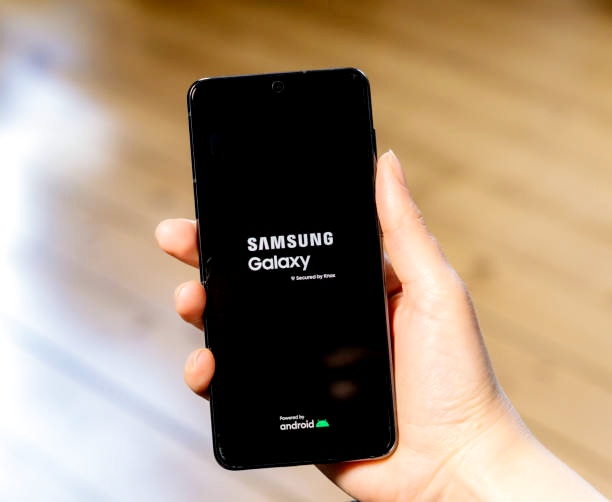
Samsung smartphones are some of the most popular devices in the world, and knowing how to properly turn them off is essential for maintaining their performance and saving battery life. Whether you have a new Galaxy model or an older Samsung phone, this guide will show you the easiest ways to power it down safely.
Why You Might Need to Turn Off Your Samsung Phonee
Turning off your Samsung phone is more than just a simple task. There are several reasons why you might want to do it:
- Save Battery Life – If you won’t be using your phone for a while, powering it off helps preserve battery.
- Improve Performance – Restarting or turning off your phone clears temporary files and can make your device run smoother.
- Troubleshoot Problems – If your phone is freezing, running slowly, or apps aren’t working, a restart or shutdown often solves the issue.
- Security and Privacy – Turning off your phone when not in use can prevent unauthorized access.
4 Easy Methods for Turning Off a Samsung Phone (Step-by-Step Guide)
Samsung phones offer several ways to turn off your device. Below are four simple methods you can use to safely power off any Galaxy phone, whether your buttons work, you prefer voice commands, or your phone is unresponsive:
Method 1: Using the Power Button
Most Samsung phones make it simple to turn off the device using the physical power button:
1. Press and Hold the Power Button: Depending on your model, this may be on the right side or top of the phone.
2. Wait for the Power Menu to Appear: You’ll see options like Power Off, Restart, and sometimes Emergency Mode.
3. Select “Power Off”: Tap it, then confirm by tapping Power Off again.
4. Wait for the Device to Shut Down: Your phone screen will go completely black, indicating it’s fully powered off.
Method 2: Using Bixby Voice
If your Samsung phone supports Bixby, you can turn off your device easily using voice commands. This option is useful when you want a hands-free way to power down your phone.
1. Activate Bixby: Press and hold the Bixby button, or say “Hi Bixby” if voice activation is enabled. Wait for Bixby to respond on the screen.
2. Give the Shutdown Command: Say “Turn off my phone” or “Power off my device.” Bixby will show a confirmation message to avoid accidental shutdown.
3. Confirm the Command: Tap Confirm on the screen, or say “Yes” to allow Bixby to safely turn off your phone.
Pro Tip: Make sure Bixby is properly set up and voice recognition is enabled by going to Settings → Bixby Voice → Voice Wake-Up. This helps ensure your phone recognizes your voice commands correctly every time.
Method 3: Turning Off a Samsung Phone Without the Power Button
In case your power button is not working, there’s still a way to turn off your Samsung phone. Here’s how to do it using the Accessibility settings:
1. Open Settings: Unlock your phone and look for the Settings icon on the home screen or in the app drawer. Tap on it to open the full Settings menu.
2. Navigate to Accessibility: In the Settings menu, scroll down until you find Accessibility and tap on it. Next, choose Interaction and Dexterity from the available options to continue.
3. Activate the ‘Assistive Touch’: Inside the Accessibility settings, look for the option called Assistant Menu. Switch it on to enable the floating Assistive Touch button on your screen.
4. Turn Off the Phone: Once the Assistant Menu is enabled, a small floating icon will appear on your screen. Tap the icon, then select “Power Off” from the menu to shut down your device.
Method 4: Turning Off a Samsung Phone Without Using Buttons
If your physical buttons are not working or your phone is unresponsive, you can still turn it off safely through the phone’s settings menu:
1. Open the Settings app, scroll down to General Management, then tap Reset to access the power options.
2. Tap “Shut Down”: Depending on your Samsung model and software version, this option may be labeled “Power Off.”
3. Confirm Your Selection: Tap Confirm to safely shut down your Samsung phone without using any physical buttons.
Conclusion
Turning off a Samsung phone is a simple but important task that helps keep your device running smoothly. Whether you prefer using the power button, voice commands with Bixby, or software options when your buttons are not working, Samsung provides flexible methods to suit different situations. Knowing these options can save time, improve performance, and help you troubleshoot common issues without stress. By using the method that best fits your device and condition, you can safely power down your Samsung phone whenever needed and maintain its overall health and usability.
Frequently Asked Questions (FAQs)
1. Does turning off my Samsung phone regularly improve its performance?
Yes, turning off your Samsung phone from time to time can help improve performance. Powering down the device clears temporary system files and background processes that may slow it down over time. This simple habit can make your phone feel smoother, especially if you notice lag or apps misbehaving.
2. Is it safe to turn off my Samsung phone using software options instead of buttons?
Absolutely. Using built-in software options like the Assistant Menu or settings-based shutdown is completely safe. These methods are designed by Samsung for situations where physical buttons are damaged or unresponsive, and they shut down the device properly without harming the system.
3. What should I do if my Samsung phone won’t turn off at all?
If your phone refuses to turn off, try restarting it first or using accessibility features like the Assistant Menu. If the screen is frozen, a force restart may help. Persistent issues may indicate a software glitch, so checking for updates or seeking professional support is recommended.
4. Will turning off my Samsung phone save battery life?
Yes, turning off your phone when you’re not using it for an extended period helps preserve battery life. Unlike sleep mode, shutting down stops all background activity, which prevents unnecessary battery drain.
5. Can I turn off my Samsung phone without setting up Bixby?
Yes, Bixby is optional. If you haven’t set it up or prefer not to use voice commands, you can still turn off your phone using the power button, accessibility settings, or system menus. Samsung provides multiple alternatives so users are not dependent on one method.
6. How often should I completely shut down my Samsung phone?
There’s no fixed rule, but shutting down your phone once every few days or at least once a week is a good practice. This helps refresh the system, resolve minor issues, and keep your device running efficiently over time.