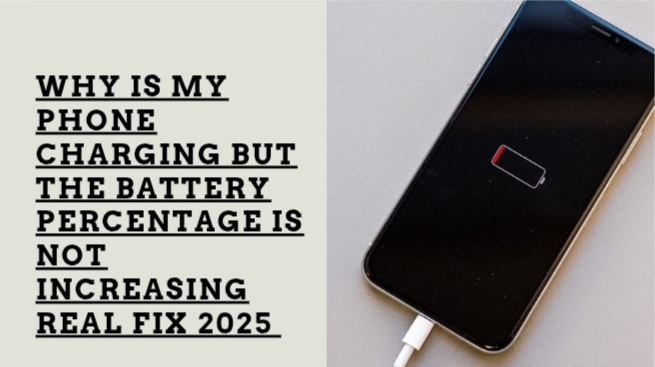
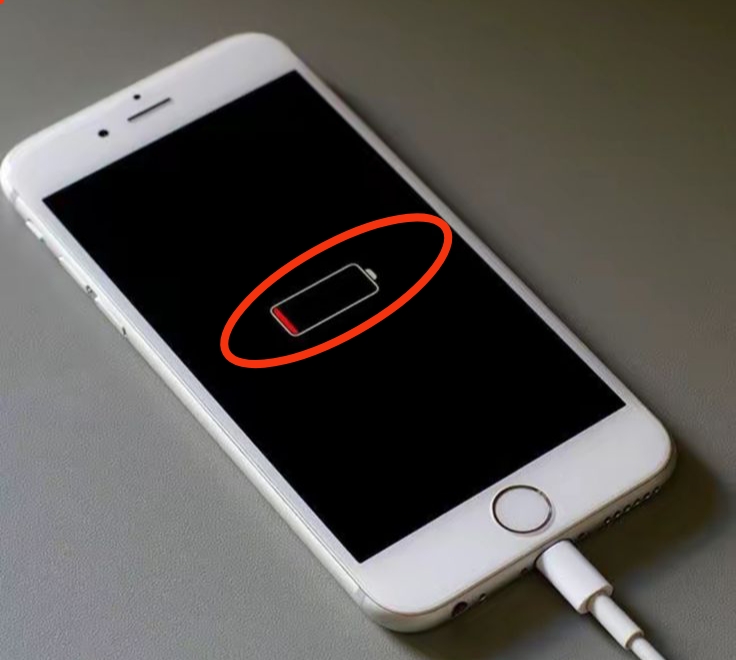
It can be confusing when your phone shows the charging icon, but the battery percentage refuses to increase. In some cases, the percentage may remain the same for several minutes or even continue to drop while plugged in. This problem can affect both Android phones and iPhones and is usually caused by charging accessories, battery issues, software problems, overheating, or excessive power usage. In this guide, you’ll learn the most common reasons why this happens and the practical fixes that can help restore normal charging.
Also read: why your android phone keeps restarting how to fix it works for tecno infinix samsung
Common Causes Why Your Phone Is Charging but the Battery Percentage Is Not Increasing
There are several possible reasons why your phone appears to be charging but the battery level never goes up. Identifying the actual cause makes it much easier to solve the problem.
1. Faulty Charging Cable or Adapter
A damaged charging cable or low-quality power adapter may provide enough power for your phone to detect a charger but not enough to properly charge the battery. Internal wire damage can also interrupt the charging process even if the cable looks fine on the outside.
2. Dirty or Damaged Charging Port
Dust, pocket lint, and other debris inside the charging port can prevent the charger from making proper contact with the charging pins. A loose or damaged charging port can also cause inconsistent charging.
3. Apps Are Using More Power Than the Charger Supplies
Running demanding applications such as mobile games, video streaming, GPS navigation, or video recording while charging can cause your phone to consume electricity faster than it receives it. As a result, the battery percentage may stay the same or even decrease.
4. Battery Health Has Deteriorated
Phone batteries naturally wear out after hundreds of charging cycles. An aging battery may charge very slowly, become unstable, or fail to hold enough power, making it seem like the battery percentage isn’t increasing.
5. Phone Is Overheating
Smartphones automatically reduce or pause charging when the battery temperature becomes too high. This safety feature protects internal components but can make charging appear to stop.
6. Software Bugs or System Glitches
Occasionally, software errors can affect battery readings or charging performance. This may happen after a system update, app conflict, or temporary operating system issue.
7. Weak Power Source
Charging your phone from a low-power USB port, damaged extension socket, or incompatible charger may not provide enough electricity for normal charging, especially on devices that support fast charging.
How to Fix a Phone That Is Charging but the Battery Percentage Is Not Increasing
If your battery percentage stays the same while charging, try these troubleshooting steps before assuming the battery is damaged.
1. Use a Different Charger and Cable
Start by testing another charging cable and wall adapter, preferably the original accessories supplied with your phone or a certified replacement. Many charging problems are caused by faulty or worn-out accessories.
2. Clean the Charging Port Carefully
Turn off your phone and inspect the charging port. If you notice lint or dirt, gently remove it using a soft brush or wooden toothpick. Avoid inserting metal objects that could damage the charging pins.
3. Restart Your Phone
Restarting your device clears temporary software glitches that may interfere with battery charging or battery percentage reporting. After restarting, reconnect the charger and check whether charging resumes normally.
4. Stop Using the Phone While Charging
Close games, streaming apps, and other heavy applications. Lock the screen and allow the phone to charge without interruption. If possible, enable Airplane Mode to reduce background power consumption and speed up charging.
5. Allow the Phone to Cool Down
If your device feels unusually warm, unplug the charger and let the phone cool naturally. Remove thick protective cases if necessary and avoid charging in direct sunlight or hot environments.
6. Update Your Phone Software
Manufacturers regularly release software updates that improve battery management and fix charging-related bugs. Install any available updates and restart your phone afterward.
7. Charge Using a Wall Outlet
Wall chargers usually provide more stable power than laptops, power banks with low output, or public USB charging ports. Connecting directly to a wall outlet often improves charging performance.
8. Check Battery Health
If your phone is several years old and the battery drains quickly throughout the day, the battery may simply be worn out. A battery health check can help determine whether replacement is necessary.
9. Reset Network and Device Settings (If Necessary)
If software problems continue after trying the previous solutions, resetting certain phone settings may resolve hidden system issues affecting charging. Be sure to back up important information before performing any reset.
Also read: Why Is My Phone Charging Slowly Even With a Fast Charger?
How to Check If Your Battery Is Healthy
If your phone continues to have charging problems, checking the battery’s condition can help determine whether it needs to be replaced. Look out for these common warning signs:
- Battery drains much faster than normal.
- Phone stops charging before reaching 100%.
- Device shuts down even when battery remains.
- Phone gets excessively warm while charging.
- Battery appears swollen or lifts the screen.
If you notice several of these symptoms regularly, it’s a good idea to have your battery tested by a qualified repair technician or an authorized service center.
Tips to Prevent Charging Problems
Taking good care of your phone and charging accessories can help prevent many common charging issues. Following these simple habits can improve charging performance and extend your battery’s lifespan:
- Use a high-quality or original charger and charging cable.
- Clean the charging port regularly to remove dust and lint.
- Avoid charging your phone in extremely hot environments.
- Close unnecessary apps while charging to reduce battery usage.
- Keep your phone’s software updated to fix charging-related bugs.
- Handle your charging cable carefully and avoid bending or pulling it excessively.
- Replace damaged chargers or cables as soon as you notice signs of wear.
Practicing these habits can help your phone charge more efficiently and reduce the chances of future charging problems.
Conclusion
When your phone shows it’s charging but the battery percentage isn’t increasing, the problem is often caused by something simple, such as a faulty charger, a dirty charging port, overheating, or software issues. By checking the possible causes and applying the fixes covered in this guide, you can often restore normal charging without replacing your device. However, if the issue continues after trying multiple solutions, it’s worth having your phone’s battery and charging components inspected by a qualified technician to prevent further damage.
Frequently Asked Questions (FAQ)
1. Can a damaged charging cable cause my phone to charge without increasing the battery percentage?
Yes. A damaged or low-quality charging cable may supply inconsistent power. Your phone may detect that it’s plugged in, but the battery may receive little or no charge, causing the percentage to remain unchanged.
2. Why does my battery percentage go down even while my phone is charging?
This usually happens when your phone is using more power than the charger can supply. Running games, video calls, GPS navigation, or other demanding apps while charging can cause battery drain despite being connected to a charger.
3. Can overheating stop my phone from charging properly?
Yes. Most smartphones automatically slow down or temporarily pause charging when they become too hot. This protects the battery from damage until the device cools to a safe temperature.
4. How do I know if my phone battery needs replacing?
Common signs include very slow charging, rapid battery drain, unexpected shutdowns, overheating during charging, or a battery percentage that jumps up and down unexpectedly. If these problems continue after trying different chargers, the battery may need replacement.
5. Can software updates fix charging problems?
Yes. Software updates often include bug fixes that improve battery management and charging performance. If the problem started after a system error or software bug, installing the latest update may resolve it.