
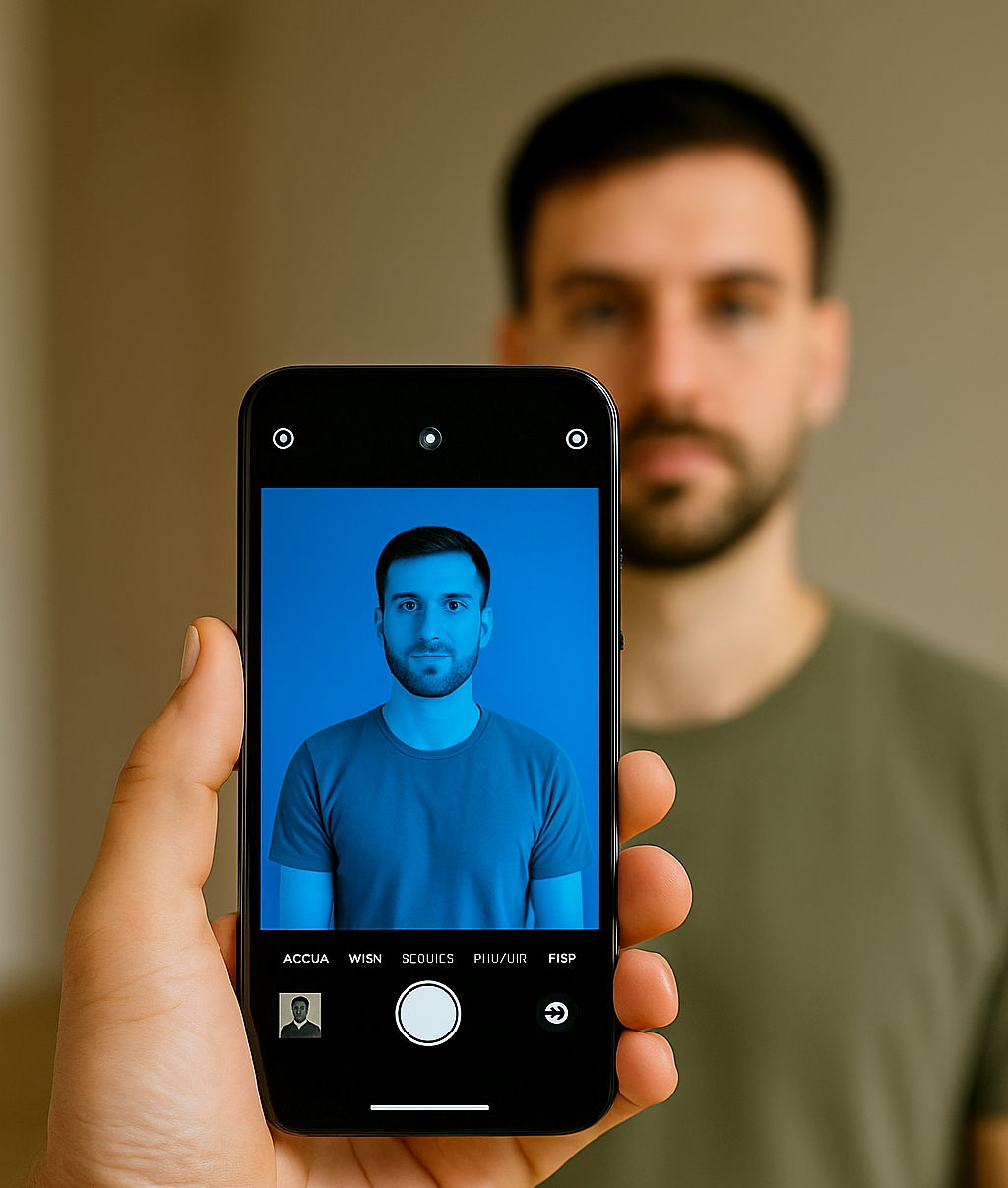
A blurry camera can spoil the perfect shot whether you’re snapping a playful moment with your pet, capturing a delicious meal for social media, or scanning an important document. Fortunately, the cause is often simple and easy to fix. It might be a smudge on the lens, an accidental change in camera settings, or even a minor glitch from a recent software update. In this guide, we’ll explore the most common reasons your phone camera might suddenly produce blurry photos and provide step-by-step solutions. Whether you use an iPhone, Samsung Galaxy, Pixel, or another Android device, you’ll find practical tips to get your camera back to sharp, clear performance.
What Is A Blurry Camera?
A blurry camera refers to a camera that produces images or videos that appear soft, unclear, or not sharply defined. When using a blurry camera, the subject might look out of focus, with edges that seem smudged or details that are hard to make out. This kind of result can make photos feel less usable, especially when clarity and precision are important. The term doesn’t describe the camera itself as broken, but rather how it behaves or performs during use particularly when trying to capture a clean, sharp image.
Reasons for a Blurry Camera on Smartphones
Below are some of the most common reasons why your smartphone camera may start producing blurry photos:
1. Camera Settings Were Reset Automatically
After a system update, some camera settings may return to their default state without any clear notice. Features such as autofocus, image stabilization, HDR, or image resolution can be affected, which may cause the camera to focus less accurately. When this happens, photos can appear soft or blurry, especially in low-light conditions or during close-up shots. Because the change happens quietly in the background, many users don’t realize their settings were altered until image quality starts to drop.
2. Autofocus Is Not Working Properly
A software update can sometimes interfere with how the camera’s autofocus system behaves. Bugs or compatibility issues between the update and the camera app may cause autofocus to respond slowly or fail to lock onto subjects. When this happens, photos can turn out soft or unclear, even if the camera preview appears normal. This issue is especially noticeable when photographing moving subjects or shooting in low-light conditions.
3. Camera App Bugs or System Glitches
Software updates can occasionally introduce temporary bugs that affect the camera app. These issues may lead to slow image processing, focus inconsistencies, or unstable camera behavior. In most cases, the camera itself isn’t faulty—the problem lies within the software. Such glitches often improve after the system stabilizes or when the manufacturer releases a follow-up update to fix the issue.
4. Background Processes Affect Camera Performance
After a system update, your phone may run background tasks like app optimization, file indexing, or system syncing. These processes can temporarily slow overall performance and limit the resources available to the camera. As a result, image processing may suffer, leading to photos that look softer or less sharp than usual. This effect is often temporary and improves once background activities are completed.
5. Cached Camera Data Became Corrupted
The camera app uses cached files to improve loading speed and performance. After a system update, this data can become outdated or corrupted, causing the app to behave unexpectedly. When this happens, the camera may produce blurry or inconsistent images. This is a common software-related issue and usually doesn’t indicate any physical damage to the camera hardware.
How to Fix a Blurry Camera on Your Phone
A blurry camera can be frustrating, especially when you want to capture key moments. Most of the time, unclear or out-of-focus photos are caused by software or settings issues that can be resolved quickly. Below are several practical steps to help restore your camera’s sharpness and image quality:
1. Clean the Camera Lens
Even a tiny smudge, fingerprint, or speck of dust can affect your phone camera and make photos appear blurry or soft. To fix this, gently wipe the lens with a clean, soft microfiber cloth. Avoid using rough materials that could scratch the glass. For stubborn residue, slightly dampen the cloth with lens cleaner or isopropyl alcohol—but never apply liquid directly to the lens. Regularly cleaning your camera lens is one of the easiest and most effective ways to keep your photos sharp and clear
2. Check Your Camera Settings
System updates or accidental taps can reset important camera settings without you noticing. Take a moment to review your options and confirm that:
- Autofocus is enabled
- Image stabilization is turned on
- High-resolution mode is selected (if available)
Correcting these settings can quickly improve focus and overall photo clarity, often making an immediate difference in image quality.
3. Restart Your Phone
After a system update, temporary software glitches or background processes can interfere with how the camera functions. Restarting your phone helps clear these processes, refreshes the system, and allows apps to run properly again. This simple step often resolves blurry photos caused by software lag or minor system errors, making it a quick fix worth trying before moving on to more advanced solutions.
4. Clear Camera App Cache
The camera app stores temporary files to help it load faster, but over time this data can become outdated or corrupted and affect performance. Clearing the cache helps remove these files and allows the app to run smoothly again.
To clear the camera cache:
- Go to Settings > Apps > Camera
- Select Storage
- Tap Clear Cache
This process does not delete your photos and often fixes blurry images caused by software-related issues.
5. Update or Reinstall the Camera App
Most smartphones come with a pre-installed camera app, but even built-in apps can encounter bugs or compatibility issues after a system update. Check the App Store or Google Play Store for any available updates, as these often fix glitches and improve performance with the latest system software. On some Android devices, you can uninstall recent updates to return the app to its original version, which can help resolve persistent issues. Refreshing the app in this way often restores clear, sharp photos without affecting your other settings.
6. Remove Obstructive Phone Cases
Thick or poorly designed phone cases can sometimes block part of the camera lens or interfere with autofocus, causing blurry photos. If your images continue to appear soft or unclear, try removing the case and testing the camera again. This simple step can often restore clarity, especially if the case was pressing against the lens or partially covering it.
7. Reset System Settings (Last Resort)
If none of the previous steps fixes your blurry camera, resetting your phone’s system settings can help resolve deeper software conflicts. Before doing this, make sure to back up important data. To reset:
- Go to Settings > System > Reset options > Reset all settings
This process restores your phone’s system preferences to their defaults without deleting personal files. It can often fix stubborn software-related camera issues that appear after a phone update.
What Happens or changes During a Software Update?
Every phone update isn’t just about adding new emojis or fixing battery life. A few things that can directly affect your camera include:
1. Updated Camera App Version: During a software update, your phone’s built-in camera app may be modified or replaced with a newer version. While these changes often introduce improvements or new features, they can also alter how the camera behaves. You may notice differences in focus speed, image processing, or default settings, which can temporarily affect photo sharpness.
2. Firmware Adjustments: Software updates sometimes include firmware changes that control how the camera hardware works. These adjustments can affect autofocus accuracy, image stabilization, and how the camera processes light and detail. Even small firmware changes can cause photos to appear slightly blurry until the system fully adapts to the update.
3. System-Level Change: Major updates can change how your phone manages background processes, app permissions, and performance optimization. When these system-level changes occur, the camera may not receive enough resources to operate smoothly, leading to slower focusing or reduced image clarity.
4. Reset or Modified Camera Settings: Some updates automatically reset camera settings without notifying the user. Important options like HDR, autofocus, image stabilization, or resolution may be changed or turned off. If these settings are not reviewed after the update, photo quality can drop, especially in low-light or close-up shots.
5. Temporary Software Glitches: After installing an update, minor bugs or system glitches are common, especially in the first few days. These issues can cause the camera app to behave unpredictably, resulting in soft or blurry images. In most cases, these problems are temporary and improve once the system stabilizes or receives a follow-up update.
Conclusion
A blurry phone camera after a software update can be annoying, but in most cases, it’s not a permanent problem or a sign of hardware damage. As you’ve seen, updates can reset camera settings, introduce temporary bugs, or run background processes that affect image quality. The good news is that simple steps like checking your camera settings, clearing cache, restarting your phone, or removing an obstructive case often restore sharpness quickly. By understanding what changes during updates and knowing how to respond, you can keep your phone camera performing at its best and continue capturing clear, high-quality photos without stress.
Common Questions or FAQs
1. Can third-party lenses or screen protectors affect camera clarity?
Yes. Attaching external lenses or using thick screen protectors can sometimes interfere with your phone’s camera performance. Even small misalignments can cause blur, distort colors, or produce unusual glare. If you notice changes after installing accessories, remove them and test the camera. Choosing manufacturer-approved attachments ensures compatibility and maintains photo quality.
2. Can I fix a blurry camera on my phone without visiting a repair center?
Yes, in many cases, blurry camera issues can be solved at home without professional help. Simple steps like cleaning the lens with a microfiber cloth, adjusting focus settings, checking for trapped moisture, or updating your phone’s software often resolve the problem. If those don’t help, resetting your camera settings or even performing a full factory reset may clear up software-related glitches. It’s only when those steps don’t work especially if there are signs of physical damage that a repair center becomes necessary.
3. Do software updates always affect camera quality on all smartphones?
Not always. While software updates are designed to improve things like security, features, and performance, they don’t necessarily cause camera problems for every device. In fact, many updates actually enhance photo quality by improving autofocus, adding new modes, or refining image processing. That said, especially with older phones or brand-new updates, there can be occasional hiccups where the camera app behaves differently or temporarily underperforms. If you rely on your camera for important work, it’s smart to wait a little before installing major updates, just to see how others are finding them.
4. How long should I wait before installing a new phone update to avoid camera problems?
For major system updates (like moving to a new version of Android or iOS), it’s generally a good idea to wait about 1–2 weeks after release. This gives enough time for early adopters to report any widespread issues—whether with cameras, battery life, or other features—and for manufacturers to release quick fixes if needed. Smaller updates focused on security patches or bug fixes are usually safer to install right away, as they’re less likely to interfere with camera performance. If in doubt, check user reviews or community forums related to your specific phone model.
5. Can extreme temperatures impact my phone camera?
Yes, both very hot and very cold conditions can temporarily affect camera performance. Cold temperatures can cause fogging or slow autofocus, while heat can impact sensor stability. Letting your phone adjust to normal room temperature helps maintain clear images and prevents potential damage to camera components.