
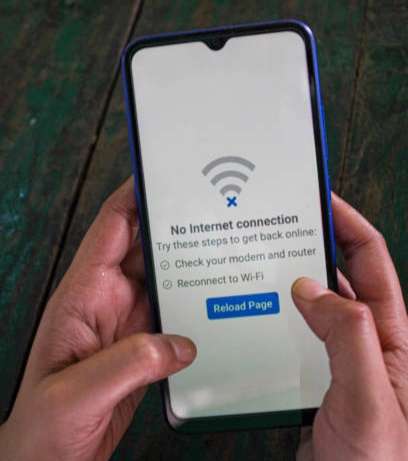
Is your mobile data not working even though you have an active plan and a good signal? You’re not alone this is a common issue faced by many Android and iPhone users. Sometimes the reason is simple, like Airplane Mode being turned on or background apps silently using up your data. Other times, it could be incorrect APN settings, SIM card problems, or even restrictions from your mobile carrier. In a world where staying connected is so important, losing internet access can be frustrating and disruptive. This guide explains the most common causes behind mobile data not working and shows you easy ways to fix it yourself. Whether it’s a software glitch, network congestion, or a misconfigured setting, you’ll find practical solutions here. Keep reading to learn how to troubleshoot your data connection and get back online without needing a technician.
Also read: why does my phone say sos
Why Your Mobile Data Stops Working: Common Causes Explained
If your mobile data suddenly stops working or becomes unusually slow, there are several factors that might be responsible. To help you understand the issue better, below are some of the most common causes that can affect your data connection and what they mean for your device.
- Heavy Network Usage
- Weak or No Signal Coverage
- You’ve Reached Your Data Limit
- Phone Software or Hardware Glitches
- Background Apps Using Data Silently
- Incorrect APN Settings
- SIM Card Issues
- Airplane Mode Is Turned On
1. Heavy Network Usage (Network Congestion)
When too many people are using mobile data in the same area, the network can become overloaded, causing your connection to suddenly stop working. This often happens in crowded places like events, busy streets, or neighborhoods with many active users. Since all devices are sharing the same mobile tower, the available bandwidth gets stretched, making it harder for your phone to stay online. Network congestion is one of the common reasons mobile data may suddenly stop working.
2. Weak Signal or No Coverage
One of the most common reasons your mobile data may stop working is a weak or unavailable signal. This can happen when you are in a basement, inside a building with thick walls, or traveling through rural or mountainous areas. Without a strong signal, your device may struggle to maintain a stable internet connection, causing mobile data to stop working or load very slowly. Even if your data plan is active, poor coverage from your network provider can interrupt your connection, making online activities like browsing, streaming, or messaging unreliable. Understanding how signal strength affects your mobile data can help explain why connectivity issues occur in certain locations.
3. You’ve Reached Your Data Limit
Another common reason your mobile data may stop working is reaching your plan’s data limit. Many carriers set monthly caps, and once you exceed your allowance, your internet speed can be slowed significantly or temporarily suspended. Even on “unlimited” plans, fair usage policies may reduce speed after a certain threshold. Some providers send alerts, but not all, so it’s easy to run out of usable data without realizing it. When this happens, your mobile data can stop working properly, affecting browsing, streaming, and other online activities. Being aware of your data usage helps explain unexpected connectivity interruptions.
4. Device or Software Issues
Sometimes, mobile data stops working not because of your carrier or network, but due to issues within your device itself. Problems like outdated system software, glitches in apps, corrupted firmware, or a malfunctioning SIM card can prevent your phone from connecting properly to the internet. Even if your network coverage is strong and your data plan is active, these device- or software-related issues can cause intermittent connections, slow browsing, or sudden loss of access. Essentially, your phone’s internal system needs to communicate correctly with the mobile network, and any software or hardware hiccup can disrupt that process.
5. Hidden Data Usage from Background Apps
Another reason your mobile data may suddenly stop working is the unnoticed activity of apps running in the background. Many applications, such as messaging apps, social media platforms, cloud storage services, or email sync processes, can continue using mobile data even when you’re not actively using them. Over time, this hidden consumption can accumulate, slowing down your connection or quickly using up your data allowance without any clear warning. Because this activity happens quietly, many users are unaware that background apps are affecting their mobile data performance, making it a frequent cause of sudden connectivity issues.
6. Incorrect APN Settings
Your phone uses APN (Access Point Name) settings to connect to your carrier’s mobile network. If these settings are wrong, missing, or misconfigured, your device may not access the internet at all, even if your data plan is active. This issue can happen after changing SIM cards, performing a system update, or resetting your device. Without the correct APN configuration, your phone cannot communicate properly with your carrier’s network, leading to sudden interruptions in mobile data, slow browsing, or complete disconnection.
7. Airplane Mode Is Turned On
One common reason your mobile data suddenly stops working is that Airplane Mode may be activated on your device. When this mode is on, it disables all wireless connections, including mobile networks, Wi-Fi, and Bluetooth, cutting off internet access completely. Even accidental activation, such as tapping the airplane icon in the quick settings panel, can prevent your phone from connecting to mobile data. This often goes unnoticed, especially after restarting your device or changing settings, making it a frequent cause of sudden mobile data interruptions.
8. Carrier-Specific Issues
Sometimes, your mobile data may stop working due to issues from your mobile network provider. These could include temporary outages, technical faults, or restrictions on your account. In some cases, the carrier might require specific settings for your phone to access the internet. If you’ve tried all basic troubleshooting and still can’t connect, the issue may not be from your phone at all. It’s best to reach out to your carrier’s customer support. They can check if the problem is on their end and guide you with a proper solution.
Also read: Why ls My Mobile Data So Slow
How to Fix Mobile Data Issues on Android and iPhone
If your mobile data stops working on Android or iPhone, it can be frustrating but most issues can be fixed with a few simple steps. Below, we’ve compiled practical solutions to help you restore your mobile internet quickly. Each method addresses common problems, from software glitches to network settings, so you can follow along and get back online without needing technical assistance.
1. Check If You’ve Exceeded Your Data Limit
If your mobile data stops working, the first step is to verify whether your plan’s monthly data limit has been reached. Exceeding this limit can result in your connection being slowed or temporarily suspended. Monitoring your usage regularly ensures that you stay within your allowance and helps maintain uninterrupted access to the internet. Staying aware of data usage is essential for managing your connection efficiently and avoiding unexpected disruptions.
How to check:
- On Android: Go to Settings > Network & Internet > Data Usage. Here you can view your current usage and compare it to your plan’s limit.
- On iPhone: Open Settings > Cellular > Cellular Data Usage. Review the usage for the current period to confirm whether you’ve jjk or exceeded your data allowance.
2. Is Airplane Mode Enabled?
Airplane Mode temporarily disables all wireless connections on your device, including mobile data, Wi-Fi, and Bluetooth. If mobile data stops working unexpectedly, it’s important to verify whether this mode has been accidentally activated. Checking and disabling Airplane Mode ensures your device can reconnect to the mobile network and restore uninterrupted internet access.
You can turn the airplane mode off by:
- On Android: Swipe down from the top of the screen to open the Quick Settings panel. Look for the airplane icon—if it’s highlighted, tap it once to turn it off. You can also access it via Settings > Network & Internet > Airplane Mode.
- On iPhone: Swipe down from the top-right corner (iPhone X or later) or up from the bottom (older models) to open the Control Center. If the airplane icon is active, tap it to turn it off. Alternatively, go to Settings > Airplane Mode and make sure the toggle is switched off.
3. Inspect or Reinsert Your SIM Card
If your mobile data is not working, a misaligned, dirty, or faulty SIM card could be the cause. Your phone needs to detect the SIM properly to connect to your carrier’s network, so it’s important to check that it’s seated correctly. Power off your device, remove the SIM card carefully, clean it gently with a dry cloth, and then reinsert it. After turning your phone back on, your mobile data should reconnect if the SIM was the issue.
4. Reset APN Settings
Access Point Names (APNs) are critical for connecting your device to your mobile carrier’s internet network. If these settings are incorrect, misconfigured, or missing—something that can happen after switching SIM cards, updating your phone, or performing a system reset—your mobile data may stop working completely. Resetting the APN ensures your device communicates properly with the network, restoring stable and reliable mobile internet access.
How to reset your APN settings:
- On Android: Open Settings > Mobile Network > Access Point Names, then select Reset to Default. This restores the APN settings recommended by your carrier, ensuring proper connectivity without manual adjustments.
- On iPhone: Go to Settings > Cellular > Cellular Data Network, then choose Reset Settings. This action restores the default APN configuration provided by your carrier, resolving any connectivity issues caused by previous changes.
5. Install the Latest Software Update
Outdated software can cause mobile data not to work properly, resulting in connectivity issues, slow browsing, or app crashes. Installing the latest system updates ensures your device has the most recent bug fixes, performance improvements, and security patches, which can directly improve mobile data functionality.
How to install the latest update:
- On Android: Open Settings > System > Software Update. If an update is available, download and install it, then restart your device to apply the changes.
- On iPhone: Go to Settings > General > Software Update. Tap Download and Install if a new version is available, and follow the prompts to update your device.
Keeping your phone updated ensures smoother internet connectivity and helps prevent software-related mobile data interruptions.
6. Is Mobile Data Actually Turned On?
If your mobile data is not working, one of the simplest solutions is to make sure it’s actually turned on. Sometimes mobile data can be accidentally disabled after a software update, device reset, or change in settings. By turning mobile data on, your phone can reconnect to your carrier’s network and restore internet access. Simply enabling mobile data often resolves the issue immediately, allowing you to browse, stream, and use apps without interruption.
7. Reset Network Settings
If your mobile data is still not working after trying other fixes, resetting your network settings can often resolve hidden configuration issues. This step clears all network-related settings on your device, including Wi-Fi passwords, paired Bluetooth devices, VPN configurations, and any customized APN details, giving your mobile connection a fresh start.
How to reset network settings:
- On Android: Open Settings > System > Reset Options > Reset Network Settings, confirm the action, and allow your device to restart.
- On iPhone: Go to Settings > General > Transfer or Reset iPhone > Reset > Reset Network Settings, enter your passcode if prompted, and confirm the reset.
8. Restart Your Phone
If your mobile data suddenly stops working, a simple restart can often refresh the entire system and clear temporary glitches that interfere with your network connection. Rebooting your phone gives it a fresh start by closing background apps, resetting minor software errors, and re-establishing a stable link to your mobile network. Just turn your device off for a few seconds and power it back on. Once it restarts, try using your mobile data again this quick action fixes many issues that seem much bigger than they actually are.
9. Reach Out to Your Mobile Network Provider
If you’ve tried all the fixes and your mobile data still refuses to come back on, the problem might not be from your phone at all. Sometimes your network may be having a temporary issue, maintenance, or a fault that affects data connectivity in certain areas. Reaching out to your network provider helps you confirm whether there’s an ongoing outage or a technical issue tied to your SIM or account. They can quickly tell you if something is wrong on their end and guide you on what to do next so you’re not troubleshooting blindly.
Alsso read: Why is My Hotspot Not Working
Conclusion
Mobile data problems can interrupt your day, but understanding the root of the issue makes fixing it much easier. Most times, the solution is already in your hands whether it’s checking your data limit, resetting your APN, updating your phone, or simply restarting the device. These small steps help refresh your connection and prevent the same issue from happening again. By taking a moment to go through the right checks, you improve your phone’s performance and keep your mobile internet stable anytime you need it. And if the issue continues after trying everything, your network provider can give you the final clarity. With the tips in this guide, staying connected becomes simpler, smoother, and far less stressful.
Common Questions (FAQ)
1. How can mobile data performance be affected by device settings?
Device settings like battery saver modes, data saver options, or restricted background data can limit mobile data usage without you realizing it. These features are designed to conserve battery or reduce data consumption but may unintentionally block certain apps from connecting to the internet. Reviewing your device settings and adjusting data restrictions can help restore normal connectivity and ensure apps function smoothly over mobile networks.
2. Can network mode selection impact mobile data speed and stability?
Yes, the network mode set on your phone—such as 2G, 3G, 4G, or 5G—directly affects mobile data speed and reliability. If your device is locked to a slower network, browsing and streaming may be sluggish or fail entirely. Switching to the fastest available network mode or leaving it on automatic selection allows your phone to maintain a more stable connection and improve overall data performance.
3. Can mobile data stop working due to VPN or proxy settings?
Yes, VPNs or proxy configurations can interfere with mobile data connectivity, sometimes blocking apps or slowing internet speed. If you notice your data isn’t functioning as expected, temporarily disabling the VPN or proxy can help identify whether these settings are causing the problem. Using a reliable VPN or removing misconfigured proxies ensures uninterrupted internet access.
4. How does device storage or cache affect mobile data usage?
Insufficient storage or overloaded caches can indirectly disrupt mobile data usage. Cached app data may conflict with new network requests, slowing down or blocking connectivity. Clearing app caches and freeing up storage space can enhance performance, restore smooth data access, and prevent interruptions while browsing, streaming, or using apps.
5. Can a faulty SIM card or SIM slot prevent mobile data from working?
Yes, a damaged or misaligned SIM card, or issues with the SIM slot, can prevent your device from recognizing the SIM properly, which stops mobile data from functioning. Ensuring the SIM is clean, correctly inserted, and undamaged is crucial. If problems persist, testing the SIM in another phone or requesting a replacement can resolve connectivity issues.
6. How do app-specific data restrictions affect connectivity?
Some apps may not work on mobile data if permissions or background data access are restricted. Messaging apps, email clients, and cloud services often need continuous access to mobile networks. Ensuring these apps have permission to use mobile data and enabling background activity restores proper functionality and prevents interruptions while using your device on the go.
5. Can background apps really affect my mobile data speed and usage?
Absolutely. Apps such as social media platforms, messaging services, cloud backups, and email sync often run in the background without your knowledge, quietly consuming mobile data. Over time, this can slow down your connection or even exhaust your data allowance. To avoid this, restrict background data for non-essential apps, disable automatic updates over mobile networks, and allow updates only via Wi-Fi. Regularly managing these settings ensures a faster, more reliable mobile internet experience while preserving your data.