
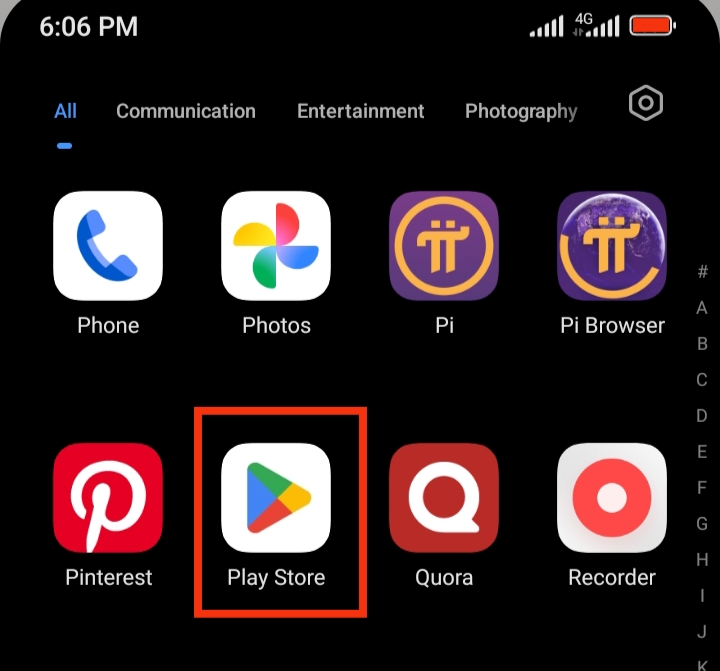
If you’ve noticed your Android phone’s battery dropping faster than usual, even when you’re not actively using it, the culprit might be lurking in the background: Google Play Store. While the Play Store is essential for app updates and downloading new apps, it can sometimes consume excessive battery due to constant background activity. In this guide, we’ll show you practical ways to prevent the Play Store from draining your battery without affecting your phone’s performance.
Also read: Why Is Facebook and Instagram Draining My Battery Even When I’m Not Using Them? (2026 Fix)
Why Google Play Store Drains Battery
Below Here are the main reasons Google Play Store Drains Battery:
1. Automatic App Updates
By default, the Play Store automatically updates apps whenever a new version is available. While convenient, this can use both mobile data or Wi-Fi and drain your battery, especially if updates are large or frequent. Apps updating silently in the background often go unnoticed, but their combined effect can be substantial over time.
2. Background Data Sync
The Play Store constantly syncs app preferences, user settings, and app statistics to ensure a seamless experience across devices. Although syncing is important for functionality, it keeps the app active even when your phone is idle, which leads to additional battery consumption.
3. Cache Overload
Every app stores cache to improve performance, and the Play Store is no exception. Over time, cached data can accumulate and become bloated or corrupted, forcing the app to work harder. This extra effort increases CPU usage, which in turn drains battery faster. Regularly clearing the Play Store cache can prevent this issue.
4. Unnecessary Notifications
Notifications may seem harmless, but frequent alerts from the Play Store—such as update reminders or promotional messages—can wake your phone repeatedly. Each wake cycle consumes power, gradually impacting overall battery life. Managing or limiting these notifications can reduce unnecessary battery drain.
Ways to Stop Play Store from Draining Battery
Here are proven methods to reduce or stop the Play Store from draining your battery in the background:
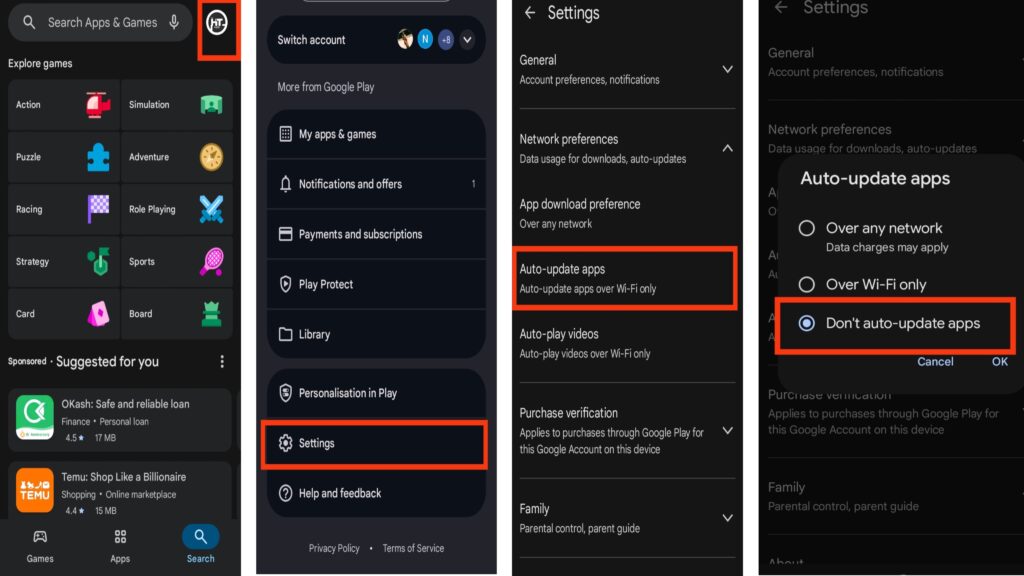
1. Disable Auto-Updates for Apps
By default, Google Play automatically updates apps in the background, which can consume battery—especially if updates are large or frequent. To turn off auto-updates: Open Google Play Store, tap your profile icon → Settings → Network Preferences, select Auto-update apps → Don’t auto-update apps. This prevents unnecessary background activity while still allowing you to update apps manually when convenient.
2. Restrict Background Data
Limiting background data ensures the Play Store doesn’t use battery when you’re not actively using it. To restrict background data: Go to Settings → Apps → Google Play Store, tap Mobile data & Wi-Fi, then toggle off Background data. This stops the app from syncing or downloading updates silently, saving battery life.
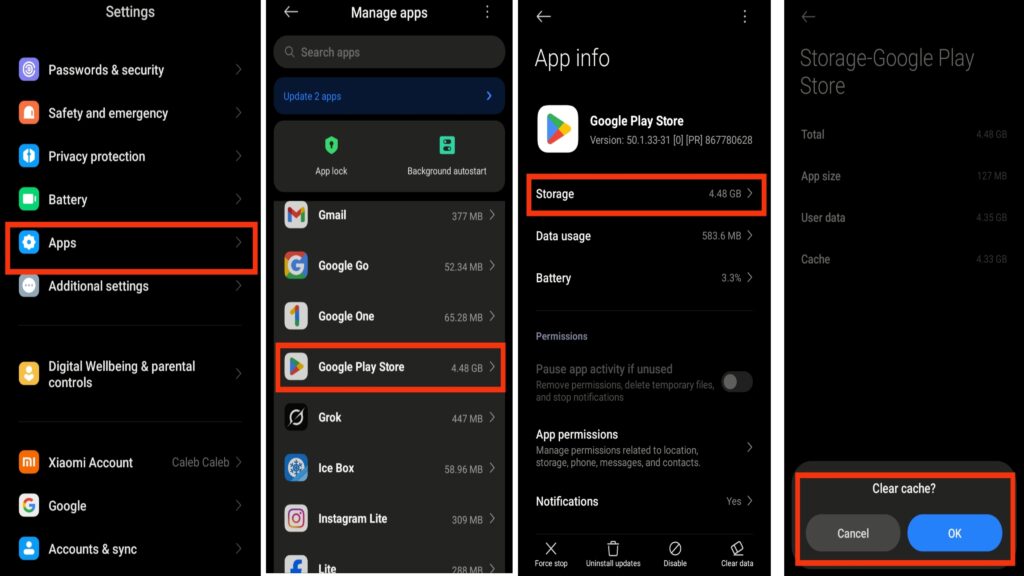
3. Clear Cache and Storage
Cached data can become bloated or corrupted, forcing apps to work harder and consume more battery. To clear cache and storage: Go to Settings → Apps → Google Play Store, tap Storage & cache → Clear cache. If needed, select Clear storage (note: this may reset app preferences). Regular cache cleaning reduces unnecessary background activity and improves performance.
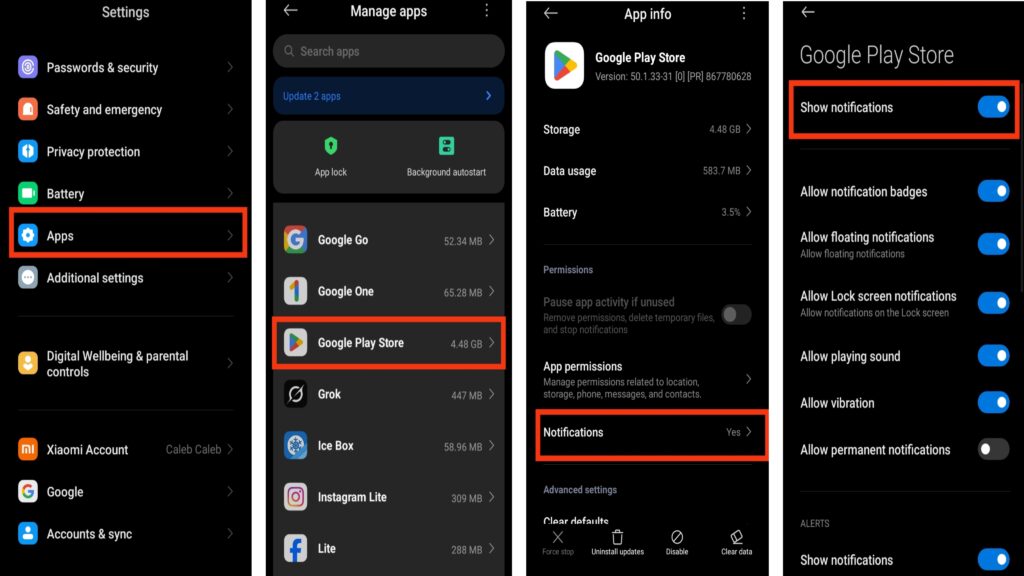
4. Turn Off Notifications
Play Store notifications about app updates, new features, or recommendations can wake your device repeatedly, consuming battery. To manage notifications: Open Settings → Apps → Google Play Store → Notifications and turn off notifications you don’t need. Fewer notifications mean fewer wake cycles and better battery performance.
5. Use Battery Optimization
Android’s battery optimization feature can limit how much power apps use in the background. To optimize Play Store: Go to Settings → Battery → Battery optimization, find Google Play Store and select Optimize. This ensures the Play Store only runs background tasks when necessary.

6. Keep Your Device Updated
Sometimes, excessive battery drain is caused by bugs in the system or the Play Store app itself. Keeping your phone and apps updated ensures better performance and battery efficiency.
Also read: How Do I Stop TikTok From Draining My Battery in the Background?
Conclusion
The plays an important role in keeping your apps updated and your device secure, but its background activity can quietly reduce your battery life if left unmanaged. By disabling automatic updates, restricting background data, clearing cache regularly, limiting notifications, enabling battery optimization, and keeping your device updated, you can significantly reduce unnecessary power consumption without affecting performance. With these simple adjustments, your Android phone will run more efficiently and your battery will last longer throughout the day.
Frequently Asked Questions
1. Does force stopping the Play Store save battery?
Yes, force stopping the Play Store can temporarily reduce battery usage because it immediately stops all background processes. However, this is only a short-term solution because the app will restart automatically when needed. For long-term battery savings, it’s better to restrict background activity and enable battery optimization instead of force stopping it frequently.
2. Can Play Store battery drain indicate a problem with my phone?
Yes, excessive battery drain from the Play Store may indicate system bugs, outdated software, or app conflicts. It can also happen if your phone is constantly checking for updates. Updating your system software, clearing cache, and reviewing installed apps can help resolve the issue and restore normal battery performance.
3. Is it safe to restrict Play Store background activity?
Yes, it is completely safe to restrict background activity. Doing this will not damage your phone or uninstall your apps. It only prevents automatic updates and background syncing. You can still open the Play Store and update apps manually whenever you choose.
4. Why does battery drain increase after installing new apps from the Play Store?
Newly installed apps often perform initial setup tasks such as syncing data, downloading additional files, and enabling background services. These processes can temporarily increase battery usage. Once setup is complete, battery consumption usually returns to normal.
5. Does battery drain from Play Store affect overall phone performance?
Yes, excessive background activity from the Play Store can slow down your device, reduce battery lifespan, and increase CPU usage. Managing Play Store settings properly helps improve overall phone performance, battery efficiency, and device stability.