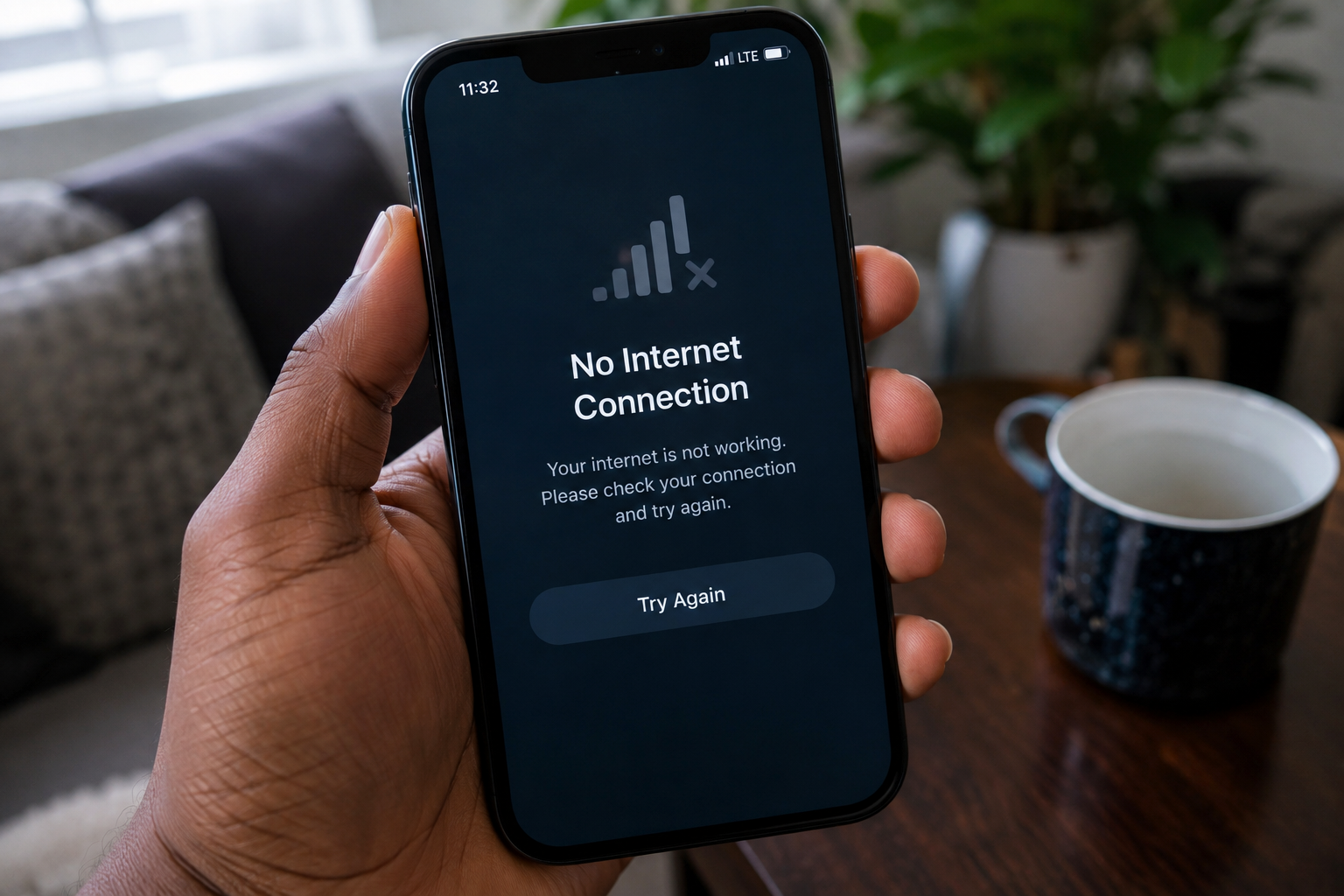
Is your phone showing a Wi-Fi or mobile data connection, but websites and apps are still not loading? Internet problems on a phone can be frustrating, especially when you need to browse, send messages, watch videos, or use important apps. The problem may come from your Wi-Fi connection, mobile network, SIM card, phone settings, weak signal, VPN, data plan, or a temporary software issue. In this guide, you will learn the common reasons your internet is not working on your phone and the steps you can take to get connected again.
Also read: Why Is My Phone Charging but the Battery Percentage Is Not Increasing? Real Fix (2025)
Why Is My Internet Not Working on My Phone?
There are several reasons your phone may not be able to access the internet. Sometimes the problem is as simple as mobile data being turned off, while other times it may be caused by poor network coverage, a Wi-Fi problem, exhausted data, incorrect network settings, or an issue with your mobile carrier, Below are some reasons or Why Is My Internet Not Working on My Phone:
1. Your Mobile Data Is Turned Off
One of the simplest reasons your internet is not working is that mobile data has been turned off. When mobile data is disabled, your phone cannot use your mobile network to access the internet unless you are connected to Wi-Fi. This can happen accidentally when changing phone settings or trying to save battery or mobile data. In some cases, a phone may also remain connected to a Wi-Fi network that has no internet, making it appear that the phone is connected even though apps cannot access the internet. Check whether the mobile data icon is active in your phone settings or quick settings panel. If you are not connected to Wi-Fi, mobile data must be turned on for your phone to access the internet.
2. Airplane Mode Is Turned On
Airplane Mode disables most wireless connections on your phone, including mobile network access. If you accidentally turn it on, your phone may lose mobile data and network service. Sometimes Airplane Mode may also be used intentionally to refresh a weak connection. Turning it on briefly disconnects your phone from the network, while turning it off allows the device to search for a fresh connection again. If your internet suddenly stops working, check the top of your screen or your quick settings panel to make sure Airplane Mode is not enabled.
3. You Have No Mobile Data Balance or Active Data Plan
Your mobile internet may stop working when you have used up your available data or your data plan has expired. This is especially common when you stream videos, download large files, use social media frequently, or allow apps to use mobile data in the background. Some mobile networks may reduce your speed after you reach a certain usage limit. When the speed becomes very slow, websites and apps may take so long to load that it can feel like your internet is completely unavailable. Check your remaining data balance and confirm that your data plan is still active. If your plan has expired or your data has finished, you may need to renew or purchase another data bundle.
4. Your Wi-Fi Is Connected but Has No Internet
Your phone can connect successfully to a Wi-Fi router while the router itself has no working internet connection. This is why you may see the Wi-Fi symbol on your phone but still be unable to load websites, use social media, or send messages. The problem may be caused by an internet service outage, a router problem, a disconnected cable, an unpaid internet subscription, or a temporary fault with the internet provider. One useful way to identify this problem is to test another device on the same Wi-Fi network. If other devices also cannot access the internet, the problem is likely with the Wi-Fi connection or internet provider rather than your phone.
5. The Wi-Fi Signal Is Too Weak
A weak Wi-Fi signal can prevent your phone from maintaining a stable internet connection. You may notice that your Wi-Fi works in one room but becomes slow or disconnects when you move farther away from the router. Walls, floors, large furniture, and electronic devices can weaken wireless signals. The farther your phone is from the router, the more likely you are to experience slow loading, buffering, or connection drops. A weak signal may also make your phone repeatedly switch between a working and non-working connection.
6. Your Router Is Having a Problem
Routers can sometimes freeze, overheat, or develop temporary connection problems. When this happens, all the devices connected to the network may experience slow internet or no internet at all. If your router has been running for a long time without interruption, temporary system errors can affect its performance. Dust, poor ventilation, damaged cables, and outdated hardware may also contribute to connection problems. Look at the indicator lights on your router. Unusual red lights or missing internet lights may indicate a problem, although the meaning of the lights can vary depending on the router model.
7. Your Mobile Network Signal Is Weak
Mobile data requires a stable connection to your network provider. If your signal is weak, your internet may become slow, disconnect frequently, or stop working completely. Poor signal can happen when you are in a remote area, inside a building with thick walls, underground, or in a location with limited network coverage. Network congestion can also affect your connection. When many people are using the same mobile network in one location, internet speeds may become slower during busy periods.
8. Your Mobile Carrier Is Experiencing a Network Problem
Sometimes the problem is not with your phone. Your mobile network provider may be experiencing an outage, technical problem, maintenance work, or a temporary issue with nearby network equipment. If your phone has signal but mobile data is not working, try checking whether someone using the same network is experiencing the same problem. If multiple users are affected, the issue may be coming from the carrier. You may need to wait until the network provider resolves the problem or contact customer support for more information.
9. Your Phone Has a Temporary Software Problem
Phones can develop temporary software glitches that affect Wi-Fi, mobile data, or network connections. These problems may happen after an app crashes, after switching between Wi-Fi and mobile data, or after a system update. Your phone may continue showing that it is connected even though the connection is no longer working properly. A temporary bug can also prevent your device from communicating correctly with the router or mobile network. These issues are often temporary and may disappear after refreshing the connection or restarting the phone.
10. Your Network Settings Are Incorrect
Your phone uses network settings to communicate with Wi-Fi networks and mobile carriers. If these settings become corrupted or incorrectly configured, your phone may have trouble accessing the internet. This can happen after installing certain apps, changing network settings, using VPN services, switching SIM cards, or installing a system update. In some cases, the internet problem affects only one phone while other devices on the same Wi-Fi network continue working normally. This can be a sign that the issue is related to the affected phone’s settings.
11. A VPN Is Causing the Problem
A VPN can sometimes interfere with your internet connection. If the VPN server is unavailable, overloaded, or incorrectly configured, your phone may struggle to load websites and apps. Some apps may also have trouble working properly when a VPN is active. If your internet stops working shortly after connecting to a VPN, the VPN connection may be responsible. Turning the VPN off temporarily can help you determine whether it is affecting your internet connection.
12. Your SIM Card Has a Problem
A damaged, dirty, or improperly inserted SIM card can cause mobile network problems. If your phone cannot communicate properly with your network provider, mobile data may stop working. SIM cards can also become old or damaged over time. In some cases, the phone may show inconsistent signal, frequent network drops, or problems connecting to mobile data. If you suspect your SIM card is the problem, testing another SIM card in your phone can help you identify whether the issue is with the phone or the SIM.
13. Your Phone Software Is Outdated
Outdated software can sometimes cause network compatibility or connection problems. Phone updates may include bug fixes and improvements that help Wi-Fi, mobile data, and other network features work more reliably. If your internet problem started after ignoring several system updates, it may be worth checking whether an update is available. However, an update is not always the cause of the problem. Before updating, check your internet connection on another device if possible and confirm whether the issue affects only your phone.
14. An App Is Using Too Much Data or Bandwidth
Some apps continue using the internet in the background. Cloud backups, video streaming, large downloads, automatic updates, and file uploads can consume a significant amount of your available bandwidth. If your connection is already slow, heavy background activity can make it difficult for other apps and websites to load. You may notice that your internet becomes faster after pausing a large download, closing a streaming app, or disconnecting other devices from your Wi-Fi network.
15. The Problem Is With a Specific Website or App
If only one app or website is not working, your entire internet connection may not actually be the problem. The website or app itself may be experiencing a server outage or technical issue. Try opening several different websites and apps. If other services work normally, the problem is likely limited to the specific service that is not loading. You can also check whether the app needs an update or whether the service is experiencing a wider outage.
Also read: Why Is My Phone Charging Slowly Even With a Fast Charger?
How to Fix Internet Not Working on Your Phone
Once you understand what may be causing the problem, work through the following steps. Start with the simple solutions before resetting your phone’s network settings:
1. Turn Mobile Data Off and On Again
Refreshing your mobile data connection can help your phone reconnect to the mobile network. Open your phone’s quick settings or Settings app and turn Mobile Data off. Wait for around 10 seconds, then turn it back on. After turning mobile data back on, wait a few moments and try opening a website or app.
2. Turn Airplane Mode On and Off
Turning Airplane Mode on briefly can refresh your phone’s wireless connections. Swipe down to open the quick settings panel and turn on Airplane Mode. Wait for about 20 to 30 seconds, then turn it off again. Your phone will begin searching for your mobile network again. Once the signal returns, test your internet connection.
3. Restart Your Phone
Restarting your phone can clear temporary software problems that may be affecting your internet connection. Press and hold the power button, select Restart if available, and allow your phone to restart completely. After your phone turns back on, reconnect to Wi-Fi or turn on mobile data and test your connection again.
4. Check Your Data Balance and Data Plan
If you are using mobile data, confirm that you still have an active data plan and enough available data. You can check your balance using your mobile network’s official app, USSD code, website, or customer service. If your data plan has expired or your balance has been exhausted, purchase or renew a data bundle and test your internet connection again.
5. Turn Wi-Fi Off and Back On
If your phone is connected to Wi-Fi but the internet is not working, turn Wi-Fi off and wait for a few seconds. Turn Wi-Fi back on and reconnect to your network. If the connection works after reconnecting, the problem may have been caused by a temporary Wi-Fi connection error.
6. Forget the Wi-Fi Network and Reconnect
If your phone continues showing a Wi-Fi connection without internet access, forgetting the network can help remove stored connection information. On most phones, open Settings, select Wi-Fi, tap your connected network, and choose Forget. Afterward, select the Wi-Fi network again and enter the password to reconnect. Make sure you know your Wi-Fi password before forgetting the network.
7. Move Closer to the Wi-Fi Router
If your Wi-Fi signal is weak, move closer to the router and check whether the internet improves. If the connection becomes faster near the router, distance or physical obstacles may be weakening the signal. You can also move the router to a more open and central location to improve coverage throughout your home.
8. Restart Your Wi-Fi Router
Restarting the router can solve temporary connection problems. Turn off the router and unplug it from the power source. Wait for around 30 seconds before plugging it back in. Allow the router a few minutes to reconnect to the internet, then reconnect your phone and test the connection. If your internet provider supplied a separate modem, restart it according to the provider’s instructions.
9. Check Whether Other Devices Have Internet
Try connecting another phone, laptop, or tablet to the same Wi-Fi network. If other devices also cannot access the internet, the problem is probably with the router or internet provider. If other devices are working normally, the problem is more likely related to your phone’s settings or software.
10. Check for a Mobile Network Outage
If your mobile data is not working, ask someone nearby who uses the same network whether their internet is also affected. You can also check your mobile network provider’s official support channels for outage information. If there is a network problem in your area, there may be nothing you can fix on your phone until the provider restores the service.
11. Disable Your VPN Temporarily
If you use a VPN, disconnect from it and test your internet connection again. If your internet begins working after turning off the VPN, the VPN server or configuration may be causing the problem. You can try connecting to a different server or updating the VPN app.
12. Check Your SIM Card
If mobile data and network service continue failing, turn off your phone and carefully remove the SIM card. Inspect it for visible dirt or damage. Reinsert it properly and restart your phone. If the problem continues, try the SIM card in another compatible phone if possible. You can also test another working SIM card in your phone.
13. Reset Your Network Settings
Resetting network settings can help when Wi-Fi and mobile data problems continue after trying other solutions. This process usually removes saved Wi-Fi networks, passwords, Bluetooth connections, and some network configurations. On many Android phones, you can find this option by opening Settings and searching for “Reset network settings.” On an iPhone, go to Settings > General > Transfer or Reset iPhone > Reset > Reset Network Settings. After the reset, reconnect to your Wi-Fi network or mobile data connection.
14. Update Your Phone Software
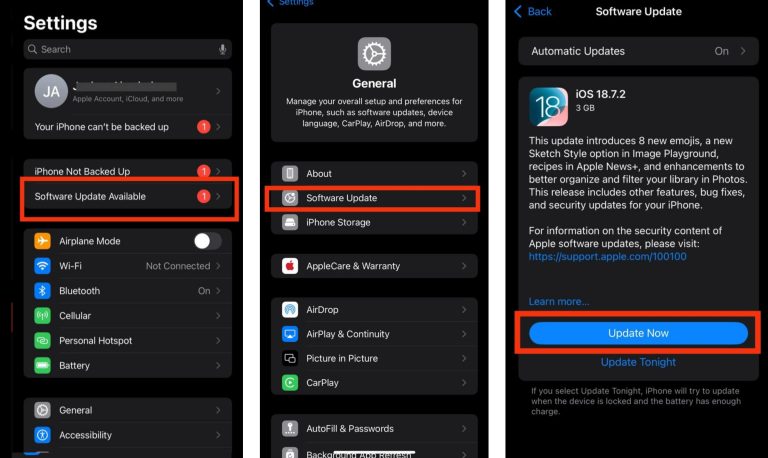
Check whether a software update is available for your phone. On Android, the location of the update option can vary depending on the manufacturer, but it is commonly found under Settings > System or Software Update. On iPhone, go to Settings > General > Software Update. Install available updates when appropriate, then restart your phone and check your internet connection.
15. Check Your APN Settings
If your mobile signal is working but mobile data refuses to connect, incorrect APN settings may be responsible. APN stands for Access Point Name. These settings allow your phone to connect to your mobile carrier’s data network. Incorrect APN information can prevent mobile internet from working properly. Contact your mobile network provider or check its official support information to confirm the correct APN settings for your network.
16. Contact Your Mobile Network Provider
If your mobile data still does not work after checking your phone, SIM card, data plan, and settings, contact your mobile network provider. The provider may be able to check whether there is an issue with your account, SIM card, mobile data service, or network coverage in your area.
Also read: why is my phone camera blurry after update
Wi-Fi Connected but No Internet on Your Phone?
If your phone says it is connected to Wi-Fi but websites and apps are not loading, your phone may be connected to the router without the router having access to the internet. Try these steps:
- Turn Wi-Fi off and back on.
- Restart your phone.
- Forget the Wi-Fi network and reconnect.
- Restart the router.
- Check whether another device has internet.
- Check the router’s indicator lights.
- Contact your internet provider if all devices have no internet. If every device connected to the same Wi-Fi network has no internet, your phone is probably not the main problem.
Mobile Data Is On but the Internet Is Not Working
If your mobile data is turned on but you cannot browse the internet, check the following:
- Confirm that you have an active data plan.
- Check whether your data balance has finished.
- Turn Airplane Mode on and off.
- Restart your phone.
- Check your mobile signal strength.
- Disable your VPN.
- Confirm your APN settings.
- Check whether your network provider is experiencing an outage.
- Test your SIM card.
- Reset network settings if the problem continues.
How to Know Whether the Problem Is Your Phone or the Internet Connections
Testing different connections and devices can help you identify the source of the problem:
1. Try Another Device: Connect another phone or computer to the same Wi-Fi network. If the other device works, your phone may have a settings or software problem. If neither device works, the router or internet provider may be responsible.
2. Try Mobile Data Instead of Wi-Fi: Turn off Wi-Fi and test your mobile data. If mobile data works but Wi-Fi does not, the problem is likely with your router or Wi-Fi connection.
3. Try Wi-Fi Instead of Mobile Data: If possible, connect your phone to a working Wi-Fi network. If Wi-Fi works but mobile data does not, the problem may be related to your SIM card, data plan, network provider, or mobile settings.
4.Test Different Apps and Websites: Open several websites and apps. If only one website or app is not working, your internet connection may be fine and the problem may be with that particular service.
How to Prevent Internet Problems on Your Phone
You may not be able to prevent every internet outage, but a few simple habits can reduce connection problems:
1. Keep Your Phone Updated: Install important system updates to receive security improvements, bug fixes, and performance updates.
2. Restart Your Phone Occasionally: Restarting your phone occasionally can help clear temporary system processes and refresh wireless connections.
3. Keep Your Wi-Fi Router in a Good Location: Place your router in an open location where the signal can reach different parts of your home. Avoid hiding it behind large objects or placing it in an enclosed space.
4. Check Your Data Usage: Monitor your mobile data usage, especially if you have a limited plan. Video streaming, app updates, cloud backups, and social media can use a large amount of data.
5. Keep Your Network Settings Simple: Avoid changing advanced network settings unless necessary. Incorrect VPN, proxy, DNS, or APN settings can sometimes interfere with your connection.
When Should You Contact Your Network Provider?
Contact your internet or mobile network provider if:
- Your internet has stopped working for several hours.
- Multiple devices cannot access the internet.
- Your router shows an unusual error light.
- Your mobile data is active but still does not work.
- You have an active data plan but cannot connect.
- Your SIM card frequently loses service.
- You have tried basic troubleshooting without success. Your provider can check for outages, account restrictions, SIM problems, or technical issues that cannot be fixed directly from your phone.
Conclusion
If your internet is not working on your phone, start with the simple checks first. Make sure Wi-Fi or mobile data is turned on, confirm that Airplane Mode is off, check your data balance, and restart your phone. If you are using Wi-Fi, test other devices and restart the router to determine whether the problem is coming from your phone or the internet connection itself. If the problem continues, check your VPN, SIM card, APN settings, and network settings. Resetting network settings can also help with persistent connection problems. When none of these solutions work, contacting your internet service provider or mobile network carrier is usually the best next step.
Frequently Asked Questions
1. Why is my phone connected to Wi-Fi but there is no internet?
Your phone may be connected to the Wi-Fi router, but the router may not have a working internet connection. Restarting the router, reconnecting to Wi-Fi, checking other devices, and contacting your internet provider can help identify the problem.
2. Why is my mobile data not working even though it is turned on?
Your data may not work because your data plan has expired, your data balance has finished, your signal is weak, your APN settings are incorrect, or your mobile network provider is experiencing a problem.
3. Why does my internet keep disconnecting on my phone?
Your internet may keep disconnecting because of weak Wi-Fi, poor mobile network coverage, a router problem, software glitches, network congestion, or an issue with your mobile carrier.
4. Will restarting my phone fix internet problems?
Restarting your phone can fix temporary software and connection problems, but it may not solve issues caused by an internet outage, expired data plan, damaged SIM card, or network provider problem.
5. Does resetting network settings delete everything on my phone?
No. Resetting network settings does not normally delete your photos, apps, or personal files. However, it usually removes saved Wi-Fi networks and passwords, Bluetooth connections, and other network-related settings.
6. Why is the internet not working on only my phone?
If other devices have internet on the same network, the problem may be related to your phone’s Wi-Fi settings, mobile settings, VPN, software, or network configuration.
SEO Meta Description:
Why is my internet not working on my phone? Discover the common causes of Wi-Fi and mobile data problems and learn how to fix your phone’s internet connection.