
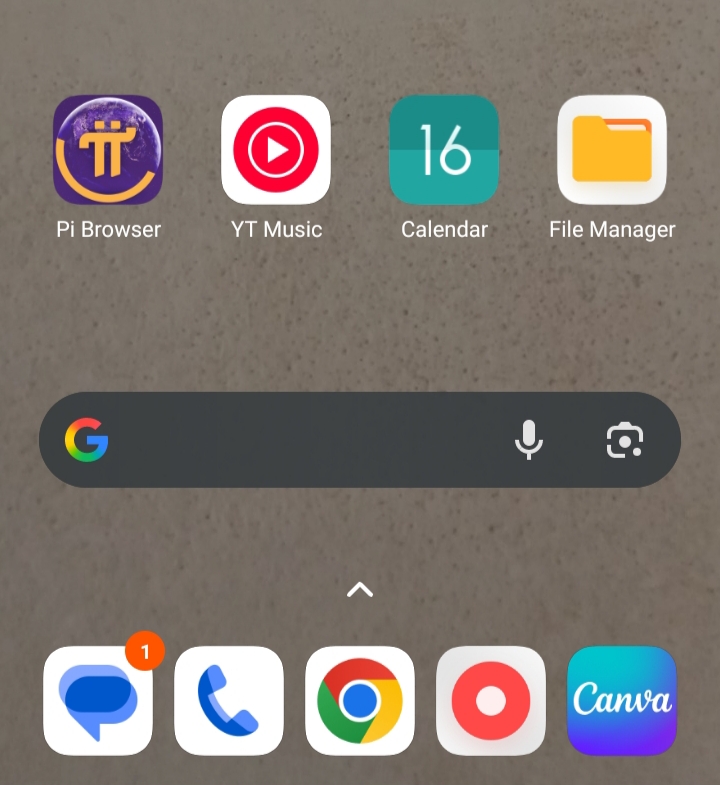
In today’s digital world, having your most-used apps easily accessible isn’t just convenient—it’s essential. I use both an iPhone and an Android device, and from experience, having apps placed properly on the home screen makes everyday phone use faster and more organized. In this guide, I’ll show you simple, practical steps to add apps and shortcuts to your home screen on both devices, helping you save time, stay organized, and get the best out of your phone.
Why Add Apps to Your Home Screen? Boost Your Mobile Experience
One of the easiest ways to increase your mobile productivity is by organizing your apps efficiently. By adding apps to your home screen, you can:
1. Organize Your Phone: Arranging your apps on the home screen helps create a clean, well-structured layout that’s tailored to your preferences. By organizing your apps logically grouping similar ones together or placing frequently used tools where they’re easy to reach you can make your phone feel more personal, efficient, and easy to navigate every day.
2. Access Apps Instantly: Placing apps directly on your home screen allows you to reach them immediately without endlessly swiping through multiple screens or folders. This quick access saves time, reduces frustration, and ensures that your most-used apps are always just a tap away, making your daily mobile experience smoother and more efficient.
3. Save Time: Adding apps directly to your home screen creates instant access, removing the need to scroll through multiple app drawers or search for the app each time. This not only speeds up your daily interactions with your device but also helps you stay organized, focused, and productive. Over time, these small shortcuts can save you significant minutes each day, making your phone experience smoother and more enjoyable.
How to Add Apps to Your Home Screen on iPhone and Android
Below are simple steps to place your favorite apps on the home screen of both iPhone and Android devices, making your phone easier to use and more organized:
For Iphone:
1. Adding Apps to Home Screen on iPhone
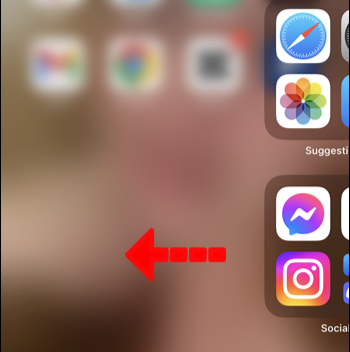
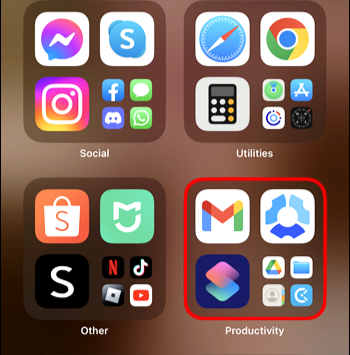
1. Find the App: Before adding an app to your iPhone home screen, you first need to locate it. You can do this by swiping left to open the App Library, where iOS automatically groups all installed apps into categories, making it easy to find the app you want without scrolling through multiple home screens.
2. Use the Search Feature: Swipe down on any iPhone home screen to open the search bar, then type the name of the app you’re looking for. The app will appear immediately, which is helpful if you have many apps installed. This method saves time, reduces unnecessary scrolling, and also shows recently used apps for quicker access.
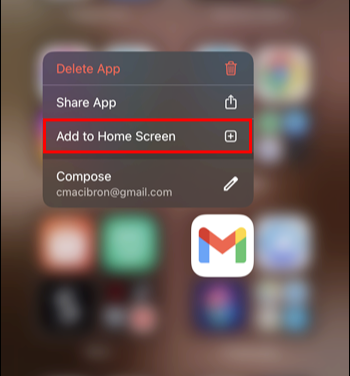
3. Add to Home Screen: After locating the app, tap and hold its icon until a menu appears, then select “Add to Home Screen.” If the app is already on your home screen but placed inside a folder, you can drag it out to a visible spot. This makes sure your most-used apps are easy to access without extra steps.
4. App Appears on the Home Screen: Once you complete these steps, the app will show up on your home screen, allowing you to open it with a single tap and making your phone quicker and easier to use.
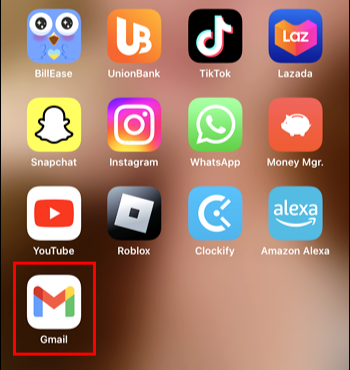
2. Adding Apps to Home Screen Immediately After Download on iPhone
If you want new apps to appear on your Home Screen right after download without searching the App Library, iOS lets you set this up easily:
1. Open the Settings App: Go to your iPhone’s Settings from the Home Screen. This is where you can manage all your device options, from display preferences to app settings.

2. Navigate to Home Screen Settings: Scroll down and tap Home Screen. This section lets you manage how apps appear after download and helps keep your Home Screen organized.

3. Choose Your Preferred Option: In the “New Apps” section, you can select one of two choices:
- Add to Home Screen: Every new app you download will appear immediately on your Home Screen, giving you quick access without searching or opening folders.
- App Library Only: New apps will go only to the App Library, keeping your Home Screen clean while still allowing access whenever you need them.
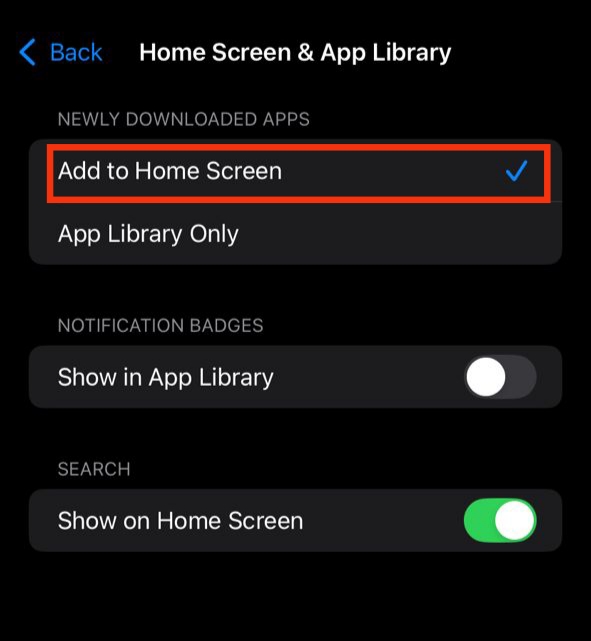
4. Enable Add to Home Screen: Turning on Add to Home Screen ensures new apps appear immediately, so you can start using them right away. This small setting improves productivity, keeps your iPhone organized, and makes navigating your device faster and easier.
For Android
1. Adding Apps to Home Screen on Android
Adding apps to your Android home screen makes it easier to access your most-used apps and speeds up daily navigation. Follow these simple steps to keep your apps organized and within reach:
1. Open the App Drawer: On Android, installed apps are stored in the App Drawer to keep the home screen tidy. Swipe up from the bottom or tap the app drawer icon to see a full list of all your apps.
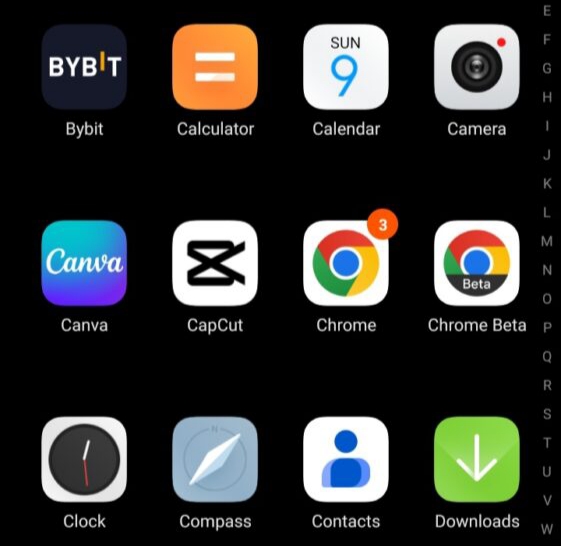
2. Find the App: Scroll through the App Drawer or use the search bar at the top to locate the app you want. This is especially helpful if you have many apps and want to save time.
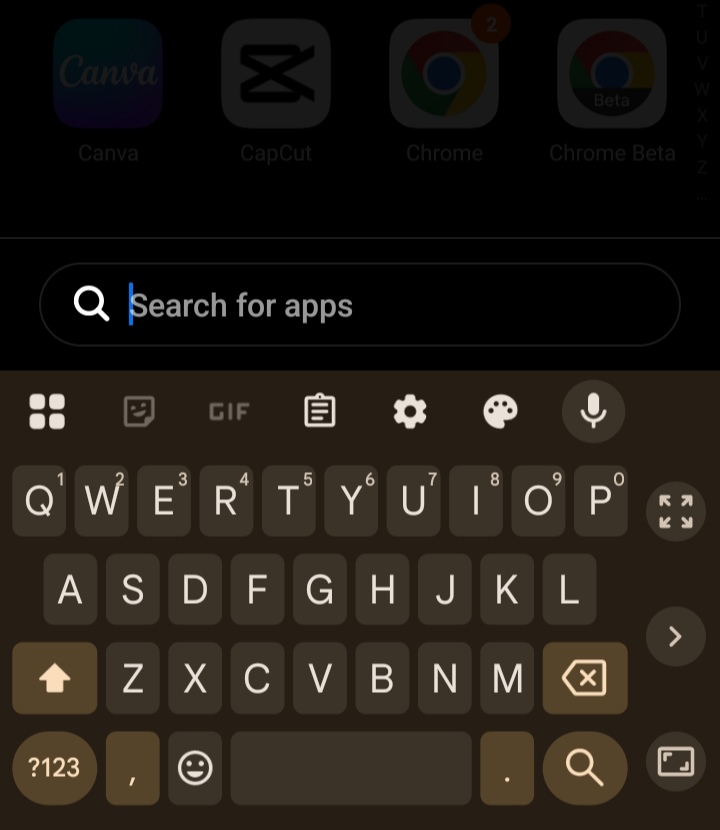
3. Long Press on the App Icon: Once you find the app, tap and hold its icon. This action allows you to “grab” the app and prepare it for placement on your home screen.
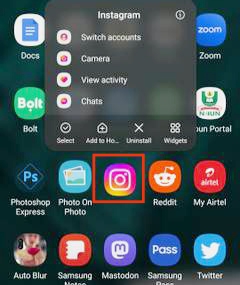
4. Drag to Home Screen: Once you hold the app icon, the home screen will appear. Drag the app to the spot you want and release it. You can place it anywhere or move it between screens.
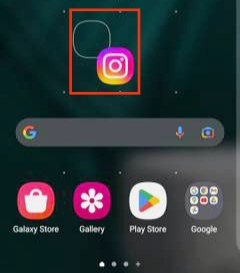
Pro Tip: On some Android devices, a menu appears when you long-press an app icon. Select “Add to Home” to place the app without dragging it manually. Using these steps keeps your home screen organized, makes your most-used apps easy to access, and helps your phone run more efficiently.
2. Adding Apps to Home Screen Immediately After Download on Android
Android lets you automatically add new apps to your home screen, saving time and making them easy to access without searching the App Drawer:
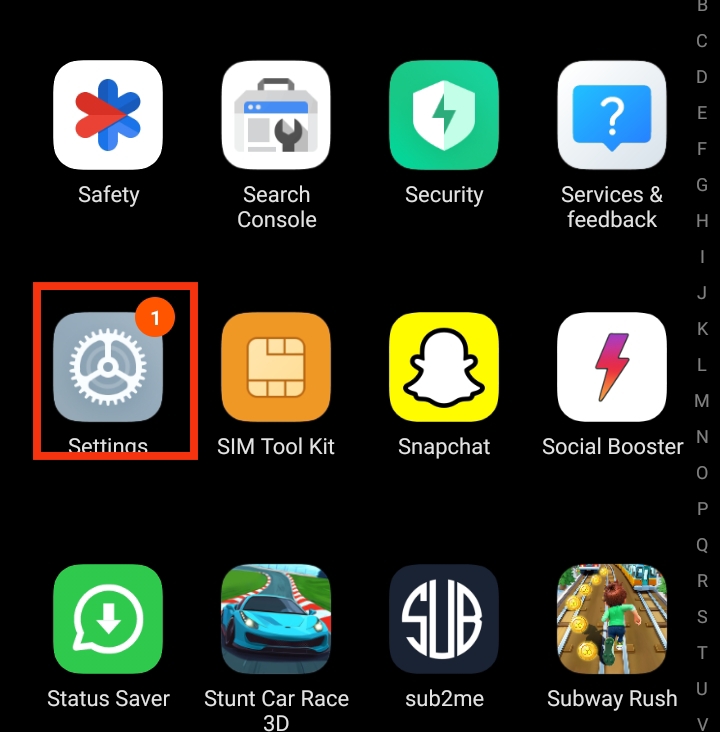
1. Open the Settings App: Find and open the Settings app on your Android device. This is where you can manage system-wide options and customize how your home screen looks and behaves, giving you more control over your apps and layout.
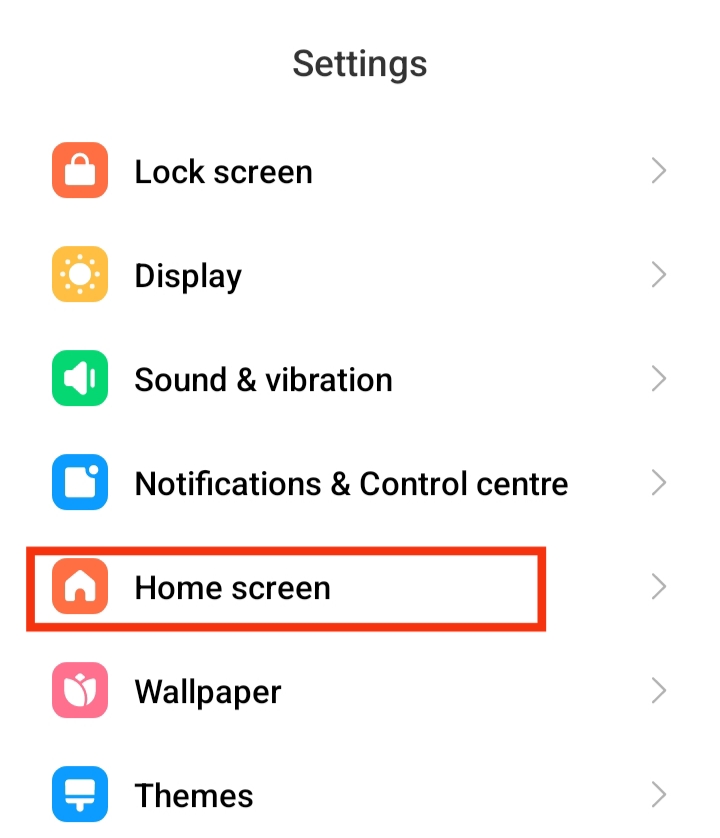
2. Access Home Screen Settings: Scroll through the Settings menu and tap Home Screen (sometimes called Display & Home Screen or Home Settings). Here, you can control how apps, widgets, and shortcuts are displayed, helping you organize your home screen exactly how you like.
3. Enable Auto-Add Feature: Find the option labeled “Add newly downloaded apps to Home screen” (or similar) and turn it ON. With this enabled, any app you download will automatically appear on your home screen, saving you time and the extra steps of manually placing each app.
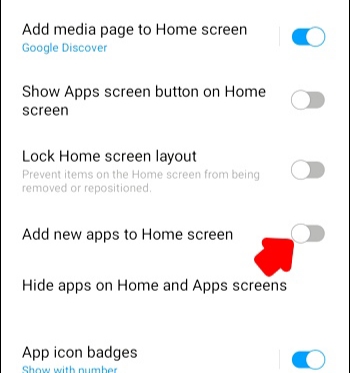
Pro Tip: On some devices, this option may be under App Settings or Launcher Settings. If you don’t see it, use the Settings search bar and type “home screen” or “add new apps.” Enabling this feature keeps your home screen updated with new apps, helping you stay organized and access your favorite apps quickly.
How to Remove Apps from Your Home Screen
Keeping your home screen organized makes your device easier to use. Removing apps you rarely use or want out of sight can declutter your phone while keeping them accessible when needed. Here’s how to do it on iOS:
For iPhone (iOS):
1. Go to your Home Screen: Begin by finding the app you want to remove. Make sure you are on the correct home screen where the app icon appears to avoid accidentally removing the wrong one, keeping your device organized and easy to navigate.
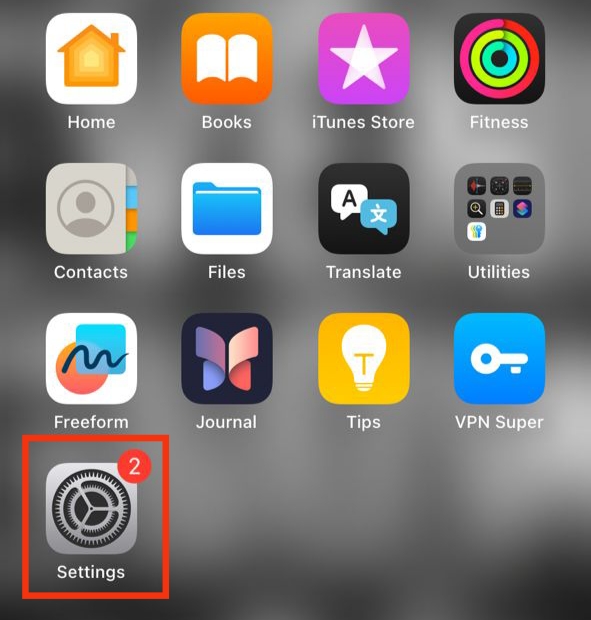
2. Press and Hold the App Icon: Tap and hold the app icon until a menu appears. On newer iOS versions, the icons may start to jiggle, showing that your home screen is in edit mode and ready for rearranging or removing apps as needed.
3. Tap “Remove App”: From the menu, select “Remove App.” If you just want to declutter your home screen but keep the app available, choose “Remove from Home Screen.” This moves the app to the App Library, so you can open it anytime without taking up space on your home screen.

4. App Library and Deletion: If you want to completely uninstall an app, select “Delete App” and confirm when prompted. This removes the app and all its data from your iPhone. Following these steps keeps your home screen organized, lets you control which apps are visible, and makes using your phone smoother, faster, and more enjoyable.
For Android
Keeping your Android home screen organized makes it easier to access your most-used apps. To remove apps without uninstalling them, follow the steps below:
1. Go to your Home Screen: Locate the specific app icon you want to remove. Make sure you’re on the correct home screen to avoid accidentally moving or removing the wrong app.
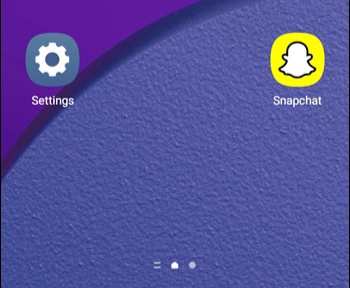
2. Press and Hold the App Icon: Tap and hold the app icon until a menu appears or the icon becomes movable. This usually shows options like Edit, Remove, or App Info, giving you control over the app’s placement and helping keep your home screen organized.
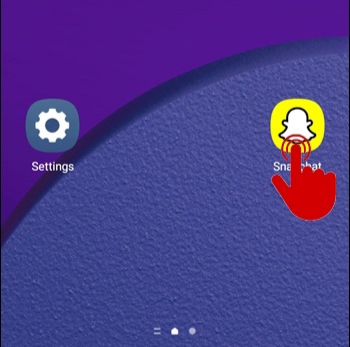
3. Select “Remove” or “Remove from Home”: From the menu, choose “Remove” or “Remove from Home”, depending on your device. Important: This only removes the icon from your home screen—it doesn’t uninstall the app. The app stays in your app drawer, so you can access it anytime.
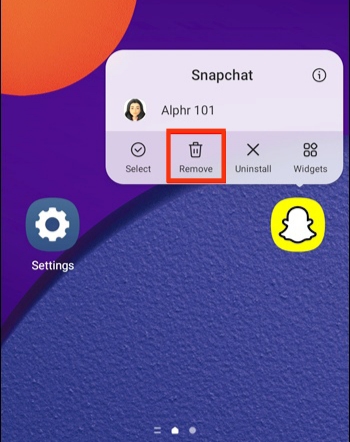
4. Confirm if Needed: Some devices may ask you to confirm the removal. Approve the prompt, and the app icon will be removed from your home screen while staying available in the app drawer.
Also read: How to Clear App Cache on iphone
Conclusion
Adding and organizing apps on your home screen is a simple but powerful way to make your phone more efficient, organized, and easy to use. Whether you use an iPhone or an Android device, following these steps ensures your most-used apps are always within reach, while keeping your home screen clean and clutter-free. By setting up apps immediately after download and knowing how to remove or rearrange them, you can save time, boost productivity, and enjoy a smoother mobile experience every day. Take control of your home screen, and make your phone work smarter for you.
Frequently Asked Questions (FAQ)
1. Can I organize my home screen without deleting apps?
Yes. Both iPhone and Android allow you to move apps into folders, rearrange icons, or remove them from the home screen without uninstalling. This keeps your device tidy while preserving access to all apps.
2. Will adding apps to the home screen affect my phone’s performance?
No. Simply placing apps on your home screen doesn’t slow your device. However, having too many widgets or live wallpapers may slightly impact performance.
3. Is it possible to automatically add only certain new apps to the home screen?
Yes. On both iPhone and Android, you can adjust settings to automatically add new apps to the home screen, and you can control which apps appear immediately after download.
4. Can I move apps between multiple home screen pages?
Absolutely. You can drag apps to different pages on your home screen, helping you organize apps by category, frequency of use, or personal preference.
5. How can I restore an app removed from the home screen?
If an app is removed but not uninstalled, you can find it in the App Library on iPhone or the App Drawer on Android and drag it back to your home screen at any time.
6. Are there shortcuts to add apps faster on Android and iPhone?
Yes. iPhone allows quick access via the App Library search, while some Android devices offer an “Add to Home” option when you long-press an app, letting you place apps with fewer steps.