
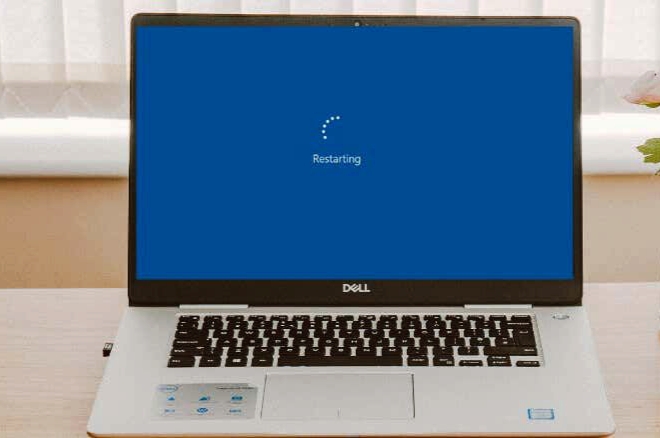
If your computer takes several minutes to restart, you’re not alone. Slow restarts are a common issue for many Windows users, particularly on older or heavily used systems. While waiting for your PC to restart can be frustrating, the good news is that this problem is usually linked to software settings or background processes that can be fixed without replacing your computer. In this guide, you’ll learn why your computer restarts slowly, what happens behind the scenes during a restart, and practical steps you can take to fix the issue and improve overall performance.
What Actually Happens When a Computer Restarts?
When you click Restart, your computer doesn’t simply shut down and power back on. Instead, Windows goes through several important steps to safely reset the system:
- Closes all open programs and apps
- Stops background services and system processes
- Completes or installs pending Windows updates
- Reloads system files, drivers, and startup applications
If any of these steps take longer than expected, your computer’s restart time increases. Understanding this process helps explain why delays happen.
Also read: What Happens If You Never Shut Down Your Computer for Months
Common Reasons Your Computer Takes So Long to Restart
Below are the most common reasons your computer may take longer than usual to restart:
1. Too Many Startup Programs
One major reason your computer takes so long to restart is having too many programs set to launch automatically when Windows starts. During a restart, Windows must reload all these background apps, which increases the time it takes for the system to fully come back on. Cloud storage services, background browser processes, software update tools, and rarely used third-party applications all add to this delay. The more startup programs running, the longer your computer will take to restart.
2. Windows Updates Running in the Background
Another common reason your computer restarts slowly is when Windows updates are running during shutdown or restart. Even without visible notifications, the system may be installing updates, which can delay the process. Large updates or previously failed updates make restarts take even longer, often showing messages like “Working on updates” or “Getting Windows ready.”
3. Low RAM or Limited System Resources
A slow restart can also happen if your computer has limited memory or system resources. When a PC has 4GB of RAM or less, Windows struggles to close running programs and reload all necessary system processes efficiently. Low memory makes it harder for the system to quickly end background tasks, restart essential services, and handle updates or temporary files. If multiple applications are open during a restart, this lack of resources can significantly increase the time it takes for your computer to reboot, making restarts feel noticeably sluggish.
4. Old Hard Drive (HDD Instead of SSD)
Using an older hard disk drive (HDD) can make your computer take much longer to restart. HDDs rely on mechanical parts to read and write data, which slows down the process of loading system files and startup programs. In contrast, solid-state drives (SSDs) access data almost instantly, allowing Windows to boot and restart much faster. If your computer still uses an HDD, slow restarts are normal and expected due to this slower data access.
5. Apps That Don’t Close Properly
Your computer can take longer to restart when certain programs fail to close properly. Windows must wait for these apps to respond before continuing, which slows down the entire process. Common culprits include frozen applications, File Explorer errors, antivirus scans, and background services stuck in memory. When these programs hang during shutdown, they directly increase the time it takes for your system to restart.
6. Antivirus or Security Software Activity
Antivirus and security programs can slow down your computer’s restart because they often scan system files during shutdown and startup to ensure your PC is safe. While this helps protect your system, it can delay essential services from loading and increase boot time, especially on older or lower-end computers. As a result, these security checks can make restarts noticeably longer.
7. System File Errors or Disk Problems
Slow restarts can also be caused by corrupted system files or disk issues. When Windows detects problems, it may run background checks during restart, such as verifying system files, repairing disk errors, or fixing inconsistencies. While these processes help maintain system stability, they take extra time and can significantly extend how long your computer takes to restart.
8. Fast Startup Causing Conflicts
Windows Fast Startup is meant to make your computer boot faster, but it can sometimes have the opposite effect on restarts. After updates or system changes, Fast Startup may cause conflicts within the shutdown process, forcing Windows to take extra time to close and reload system files. These conflicts can delay the normal flow of restarting, making your computer take longer than expected to complete the process.
Also read: How to Turn On a Computer
How to Fix a Slow Restart on Your Computer
Below are practical and effective ways to address slow restarts, helping your computer reboot faster and improve overall performance:
1. Disable Unnecessary Startup Programs
One effective way to speed up a slow restart is to disable programs that automatically start with Windows. These apps load in the background during every restart, which can delay the system from shutting down and starting up efficiently. By turning off unnecessary startup programs, Windows can close faster and reload only the essential services, making your computer restart noticeably quicker.
2. Keep Windows Properly Updated
Ensuring that Windows updates are fully installed can help prevent slow restarts. When updates are incomplete or interrupted, the system may take extra time during restart to finish installing them. By letting updates complete properly, Windows can manage updates more efficiently, reducing delays and helping your computer restart faster.
3. Check for System Errors
Running built-in Windows tools to scan for disk problems and corrupted system files can help speed up restarts. System errors or damaged files force Windows to perform checks during each restart, which slows down the process. By identifying and fixing these errors, your computer can close and reload system processes more smoothly, making restarts faster and more reliable.
4. Upgrade to an SSD
Replacing a traditional hard drive (HDD) with a solid-state drive (SSD) can greatly improve restart times. SSDs access data almost instantly, allowing Windows to load system files and startup programs much faster. This upgrade reduces the delay caused by slow mechanical drives, making your computer restart noticeably quicker and more responsive.
5. Adjust Power and Startup Settings
Modifying power and startup settings can help speed up slow restarts. Certain settings, like Fast Startup, may create conflicts or delay shutdown processes. By adjusting these options, Windows can close background tasks and reload essential services more efficiently, reducing the overall time it takes for your computer to restart.
When a Slow Restart Is Norma
Sometimes, a slow restart is completely normal, especially in cases like:
- Your computer is very old or has outdated hardware
- The system has limited RAM, making it harder to close and reload apps quickly
- A major Windows update is being installed, which can take extra time
If your PC runs smoothly after restarting, occasional delays are usually nothing to worry about and are part of normal system behavior.
Also read: Why Is My Computer Fan So Loud
Conclusion
A computer that takes a long time to restart is usually facing issues like too many startup programs, background updates, or hardware limitations, rather than a serious system failure. By understanding the cause and applying the right solutions, you can noticeably reduce restart times and improve overall system performance. If slow restarts persist even after trying these fixes, it may be worth considering a hardware upgrade or consulting a professional to check your system.
FAQ Questions
1. Can running too many browser tabs affect how fast my computer restarts?
Yes, having multiple browser tabs or web apps open in the background can use up system resources, which makes Windows take longer to close programs and reload processes during a restart. Managing open tabs or closing heavy browser windows before restarting can help speed up the process.
2. How do background programs impact my PC’s restart speed?
Background programs, even if minimized or hidden, consume memory and CPU power. During a restart, Windows has to shut down these programs properly, which can delay the system from rebooting. Reducing unnecessary background tasks improves restart efficiency.
3. Does my computer’s age really affect restart times?
Yes, older computers often have slower processors, less RAM, and traditional hard drives, all of which increase the time it takes to close and reload system files. Even minor software tasks can take longer, making restarts noticeably slower compared to newer machines.
4. Can minor software glitches make my PC restart slowly?
Absolutely. Corrupted files, temporary system errors, or minor software conflicts can force Windows to spend extra time checking and fixing issues during restart. Regular system maintenance and error scans can reduce these delays.
5. Are slow restarts a sign that my computer is failing?
Not usually. Slow restarts are more often caused by software settings, updates, or hardware limitations rather than a failing PC. However, consistent delays along with other performance issues might indicate a need for a hardware upgrade or professional check.