
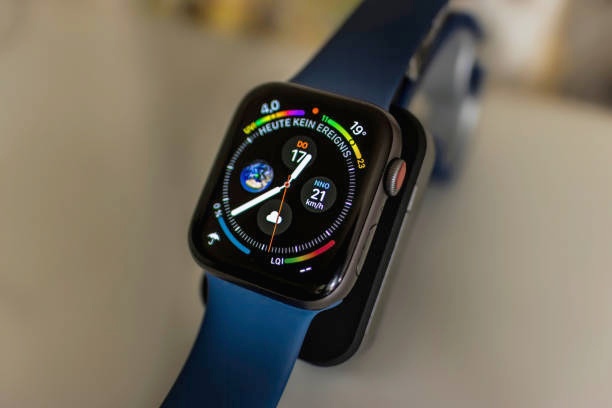
Have you ever felt frustrated when your Apple Watch battery runs out much faster than you expect? Many users notice their watch struggling to last through the day, even during normal use, which can make the device less reliable when it’s needed most. Understanding why this happens is important for getting the best experience from your Apple Watch. This article is written to help you clearly understand the issue and guide you through useful information that can help you get more consistent battery life from your device.
Why Your Apple Watch Battery Drains Quickly Causes and Effective Fixes
If your Apple Watch battery seems to run out faster than expected, there are a few common reasons behind it. In the sections below, we’ll walk you through these causes and show practical ways to help your watch last longer throughout the day:
1. Background Apps and Notifications Are Draining Battery
Apps running in the background are a major reason your Apple Watch battery drains quickly. Even when you’re not actively using them, these apps refresh data and send notifications constantly, which consumes power over time. This continuous activity can noticeably reduce battery life if not managed properly.
How to Fix It:
- Close unused apps: Double-press the side button and swipe up on apps you’re not using to stop unnecessary background activity.
- Limit Background App Refresh: In the Watch app on your iPhone, go to General > Background App Refresh and disable it for non-essential apps.

2. High Display Brightness
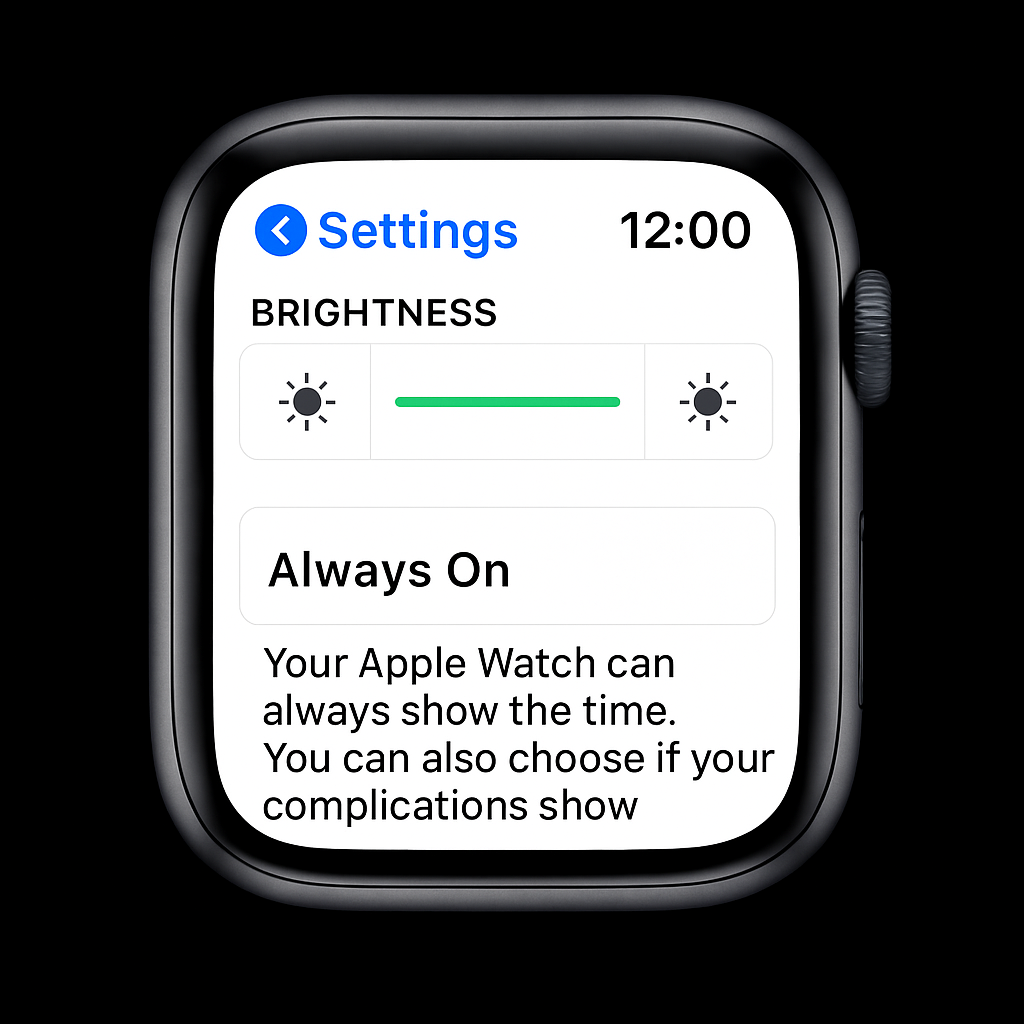
The Apple Watch screen is a major battery consumer. Keeping the brightness too high forces the watch to use more power, even when you’re not actively using it. Features like animations, rich colors, and the Always-On display can make this effect worse, causing the battery to drain faster throughout the day.
How to Fix It:
- Adjust screen brightness: Open the Control Center on your Apple Watch and lower the brightness to a comfortable level. A slightly dimmer screen uses less battery while still remaining easy to see.
- Enable Auto-Brightness: This setting automatically adjusts the display based on surrounding light, helping your watch save power without affecting visibility.
3. Constant GPS and Heart Rate Monitoring
Using GPS and continuous heart rate monitoring is one of the biggest reasons an Apple Watch battery drains quickly. Features like workout tracking, navigation, and route mapping require constant sensor activity, which consumes a lot of power. When these functions run frequently or in the background, they place extra demand on the battery and cause it to drain much faster than normal.
How to Fix It:
- Limit GPS usage: Check which apps use location services and restrict GPS access to only those that truly need it. Setting location access to “While Using the App” helps reduce background activity and saves battery power.
- Manage heart rate monitoring: Continuous heart rate tracking uses extra energy. Adjust your health settings to reduce how often monitoring runs when it’s not necessary, while still keeping essential health data available.
4. Outdated WatchOS Software
Using an outdated version of WatchOS can cause battery drain and performance problems. Older software may contain bugs or inefficient processes that use more power than necessary. Without the latest optimizations, your Apple Watch may struggle to manage battery usage properly, leading to faster power loss during normal use.
How to Fix It:
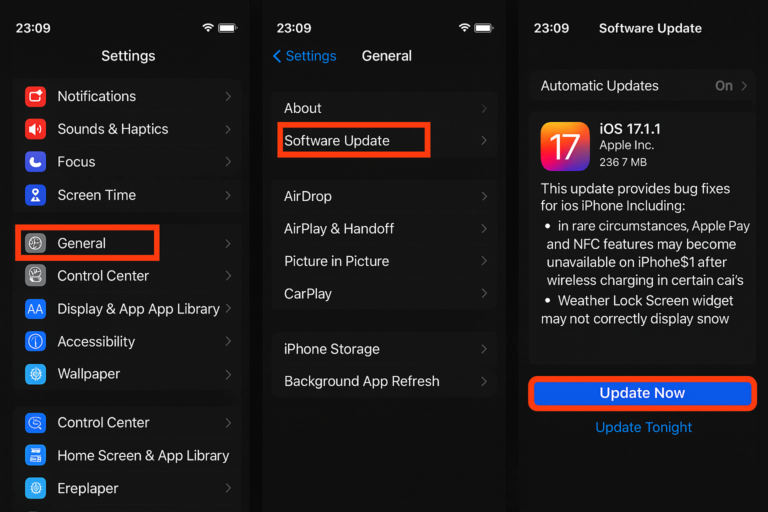
- Update your Apple Watch regularly: Open the Watch app on your iPhone, go to General > Software Update, and install any available WatchOS updates. Keeping your watch updated helps fix bugs, improve system efficiency, and optimize battery usage, allowing your Apple Watch to run more smoothly and last longer on a single charge.
5. Always-On Display Mode
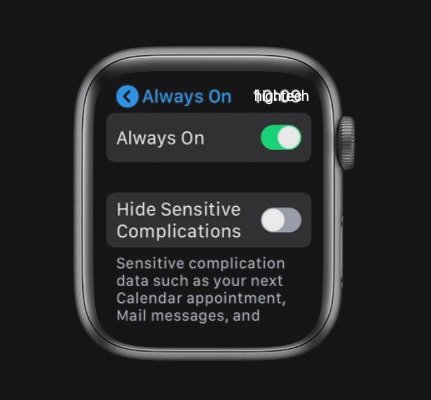
The Always-On Display keeps your watch face visible at all times, even when your wrist is down. While convenient, this continuous screen activity uses extra power throughout the day, which can noticeably reduce battery life on your Apple Watch.
How to Fix It:
- Disable Always-On Display: Open Settings > Display & Brightness on your Apple Watch and turn off Always On. Switching this feature off when it’s not needed helps conserve battery power while keeping essential functions active.
6. Bluetooth and Wi-Fi Connections
Keeping Bluetooth and Wi-Fi active all the time can drain your Apple Watch battery. The watch constantly uses these connections to sync data and stay connected with your iPhone or other devices, which consumes power even when it’s not necessary.
How to Fix It:
- Turn off Bluetooth and Wi-Fi when not needed: Open the Control Center on your Apple Watch and toggle off Bluetooth and Wi-Fi. This reduces unnecessary battery drain while keeping your watch connected when it’s required.
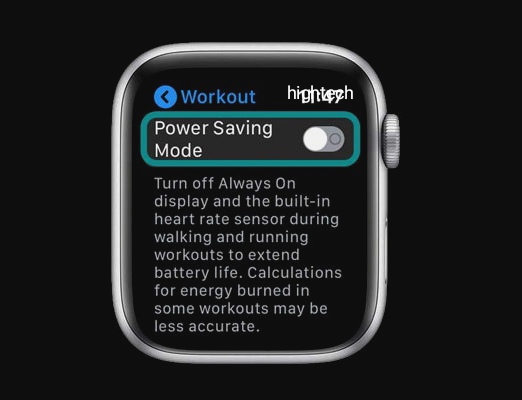
7. Power Saving Mode Not Enabled
If Power Saving Mode isn’t turned on, your Apple Watch may drain battery faster than expected. Without this mode, non-essential features and background processes continue running, which increases power usage and reduces overall battery life, especially during long days or heavy app use.
How to Fix It:
- Enable Power Saving Mode: Open Settings > Battery on your Apple Watch and turn on Power Saving Mode. This reduces background activity, limits animations, and pauses non-essential features while keeping important functions like notifications and the time active. Using this mode regularly during long days or heavy usage can significantly extend battery life without affecting core performance.
8. Battery Health Deterioration
Over time, the battery in your Apple Watch naturally loses capacity and becomes less efficient. As a result, even normal daily use can drain power faster than when the watch was new. Older devices or watches with many charge cycles are especially affected, which can lead to more frequent recharging and reduced overall performance.
How to Fix It:
- Check and manage battery health: Go to Settings > Battery > Battery Health on your Apple Watch to see its condition. If the Maximum Capacity is low, it may be time to replace the battery. Having it replaced at an Apple Store or an authorized service provider ensures your watch continues to perform efficiently and safely.
9. Overactive Siri
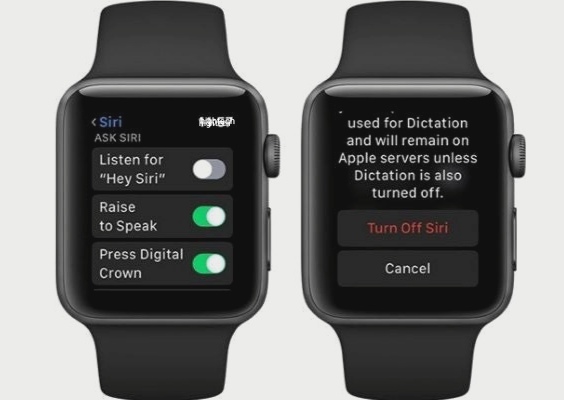
When Siri is always active, especially with the “Hey Siri” feature enabled, your Apple Watch continues listening for voice commands in the background. This constant monitoring keeps certain system processes running, which increases power usage and can gradually drain the battery faster than normal.
How to Fix It:
- Disable “Hey Siri”: Open Settings > Siri & Search on your Apple Watch and turn off Listen for “Hey Siri.” This stops the watch from constantly listening in the background, helping reduce power usage and extend battery life.
10. Wake Screen on Wrist Raise
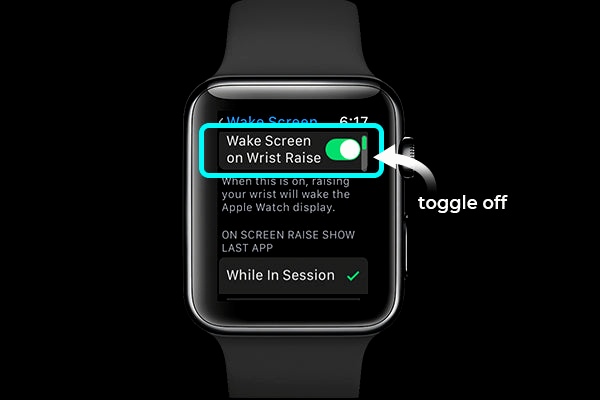
The Wake Screen on Wrist Raise feature turns on your Apple Watch display every time you move your wrist. While convenient, frequent screen activation increases power usage, especially if you move your wrist often throughout the day, which can lead to faster battery drain.
How to Fix:
- Disable Wake Screen on Wrist Raise: Open Settings on your Apple Watch, tap Display & Brightness, then toggle Wake Screen on Wrist Raise off. This reduces unnecessary screen activations and helps conserve battery power.
Conclusion
If your Apple Watch battery is draining quickly, it’s usually due to factors like background apps, high display brightness, constant GPS and heart rate monitoring, outdated software, or features like Always-On Display and Wake Screen on Wrist Raise. By managing these settings, using Power Saving Mode, monitoring battery health, and keeping your watch updated, you can significantly extend battery life and improve performance. Regularly reviewing these tips ensures your Apple Watch stays reliable throughout the day, helping you get the most out of your device without frequent recharging.
Frequently Asked Questions (FAQs)
1. Can certain apps drain my Apple Watch battery faster than others?
Yes, some apps can have a much bigger impact on your Apple Watch battery than others. Apps that rely on GPS, continuous heart rate monitoring, or constant data updates—like workout trackers, navigation tools, or social media apps—can keep your watch working in the background even when you’re not actively using it. Over time, this continuous activity can significantly reduce battery life. Checking which apps are running frequently and closing those that aren’t necessary can help your watch conserve power throughout the day.
2. Does the type of watch face affect battery performance?
Absolutely. Animated watch faces, complications that constantly update (such as weather, calendar, or fitness rings), and bright colors can all increase battery usage. On the other hand, simpler watch faces with fewer complications or static designs use less power. By choosing a minimalistic watch face, you can reduce how often the screen refreshes and the workload on your battery, which can help your Apple Watch last longer between charges.
3. How do environmental factors impact Apple Watch battery life?
Environmental conditions, particularly extreme temperatures, can affect battery performance. Using your watch in very hot or cold weather may cause the battery to drain faster or reduce its efficiency temporarily. Heat, for example, can make the battery work harder, while extreme cold may limit its ability to hold a charge. Keeping your Apple Watch within the recommended temperature range helps maintain optimal battery performance and prevents unnecessary power loss.
4. Is charging behavior affecting my Apple Watch battery health?
Yes, the way you charge your Apple Watch can influence battery longevity. Frequently letting the battery drop to 0% or keeping it fully charged at 100% for extended periods may reduce its long-term capacity. A better approach is to charge moderately, topping up when it reaches around 20% to 30%, and unplugging before it stays at full charge for too long. This helps preserve the battery’s health and ensures it continues performing well over time.
5. Can frequent software glitches affect battery usage?
Yes. Occasionally, apps or WatchOS features may experience glitches that cause them to run unnecessarily in the background. This can make your watch use more battery than expected, even when you’re not actively using it. Regularly restarting your Apple Watch and keeping WatchOS up to date helps fix these glitches, ensures smoother performance, and improves battery efficiency over time.
6. Does using cellular data impact Apple Watch battery life?
Yes. Using cellular connectivity, especially on models that support it, can drain your battery faster than relying solely on your paired iPhone. Cellular connections require more energy to send and receive data, which can quickly reduce battery life if used frequently. Limiting cellular usage to essential functions and relying on Wi-Fi whenever possible helps conserve power and allows your watch to last longer during the day.
7. How can I track which features are consuming the most battery?
Your Apple Watch has a built-in battery usage tracker under Settings > Battery that shows which apps or features are using the most power. By checking this regularly, you can identify apps that consume a lot of energy and make adjustments, such as limiting background refresh or notifications. Understanding battery usage patterns helps you take control of your watch’s power consumption, ensuring it lasts longer without frequent recharging.
Buy apple watch here: apple watch