
ChatGPT has quickly become one of the most popular AI apps in the world. Whether you’re using it for writing, research, coding, or quick answers, it’s incredibly useful. But because the app stays connected to the internet and processes requests in real time, it can sometimes use more battery than expected.
I noticed this when my phone’s battery started dropping faster than usual, even on days when I only asked a few questions. After checking my battery usage stats, ChatGPT was higher than I expected. In this post, I’ll share the practical changes I personally used to reduce ChatGPT’s background activity and improve battery life without affecting normal usage.
Why Does ChatGPT Consume So Much Battery
The ChatGPT app relies heavily on internet connectivity, background syncing, and active processing. Here are the main reasons it may drain your battery:
1. Background Activity
Like most modern apps, ChatGPT doesn’t fully close when you exit it. It can stay active in the background to keep your session ready, sync small updates, and manage notifications. This means your phone’s processor and internet connection may still be working quietly even when you’re not using the app. Individually, the power usage is small, but when it continues throughout the day, it can slowly drain your battery — particularly on older smartphones or devices with limited battery capacity.
2. Constant Internet Connection
ChatGPT relies entirely on cloud servers to generate responses. Every question you ask sends data to remote servers and receives processed results in return. If your mobile signal is weak or unstable, your phone works harder to maintain that connection, which increases energy consumption. Using mobile data for long sessions can drain more battery compared to a stable Wi-Fi connection.
3. Long Usage Sessions
Extended conversations, generating detailed answers, or uploading files like images and documents require continuous screen time and steady internet usage. Your display is one of the biggest battery consumers on any smartphone. When combined with active data transfer and processing, longer sessions can significantly accelerate battery drain.
4. Push Notifications
When notifications are enabled, ChatGPT can send alerts or updates that briefly wake your device. Each notification may light up the screen, trigger vibration, or play a sound. Although a single alert uses minimal power, frequent notifications throughout the day — especially if your screen turns on each time — can quietly reduce overall battery performance.
5. Background App Refresh (iPhone)
On iPhones, Background App Refresh allows apps to update content even when you are not actively using them. If this feature is enabled for ChatGPT, the app may continue refreshing in the background to stay up to date. While convenient, this ongoing refresh process can contribute to gradual battery drain over time.
Also read: Why Is My Apple Watch Battery Draining So Fast
How to Save Battery When Using ChatGPT
If you’ve noticed ChatGPT draining your battery on iPhone or Android, don’t worry. A few small adjustments can make a big difference. Below are the most effective methods that actually work.
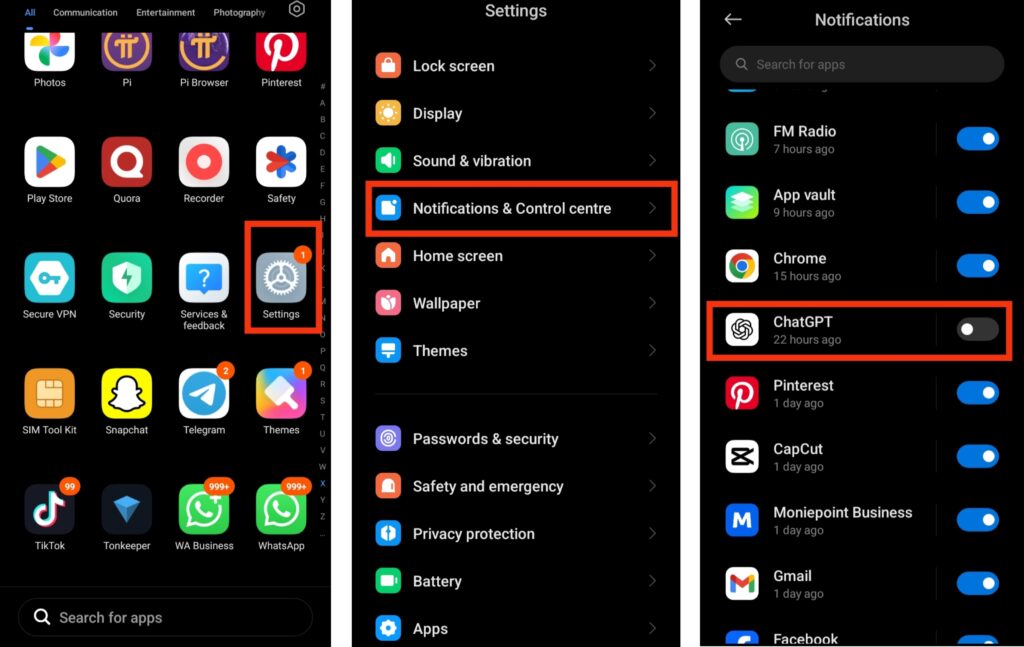
1. Manage Notifications
Notifications may look harmless, but every alert briefly activates your screen, sound, or vibration. Over time, frequent alerts can quietly add up. If you don’t need constant updates, limiting notifications helps reduce unnecessary power usage while keeping essential alerts active. The changes take effect immediately.
How to do it:
- Open your phone’s Settings
- Tap Notifications
- Find ChatGPT
- Disable unnecessary alerts
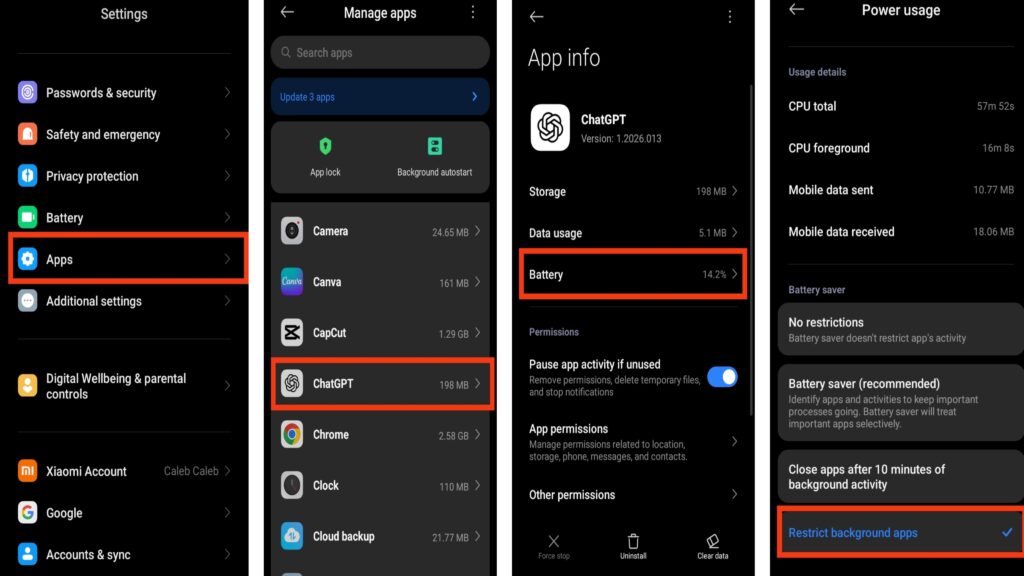
2. Restrict Background Activity (Android)
Android allows you to control how apps behave when you’re not using them. Restricting ChatGPT in the background prevents it from consuming power silently. This setting does not affect performance while the app is open; it simply stops it from running unnecessarily behind the scenes.
How to do it:
- Open Settings
- Tap Apps
- Select ChatGPT
- Tap Battery
- Choose Restrict background usage
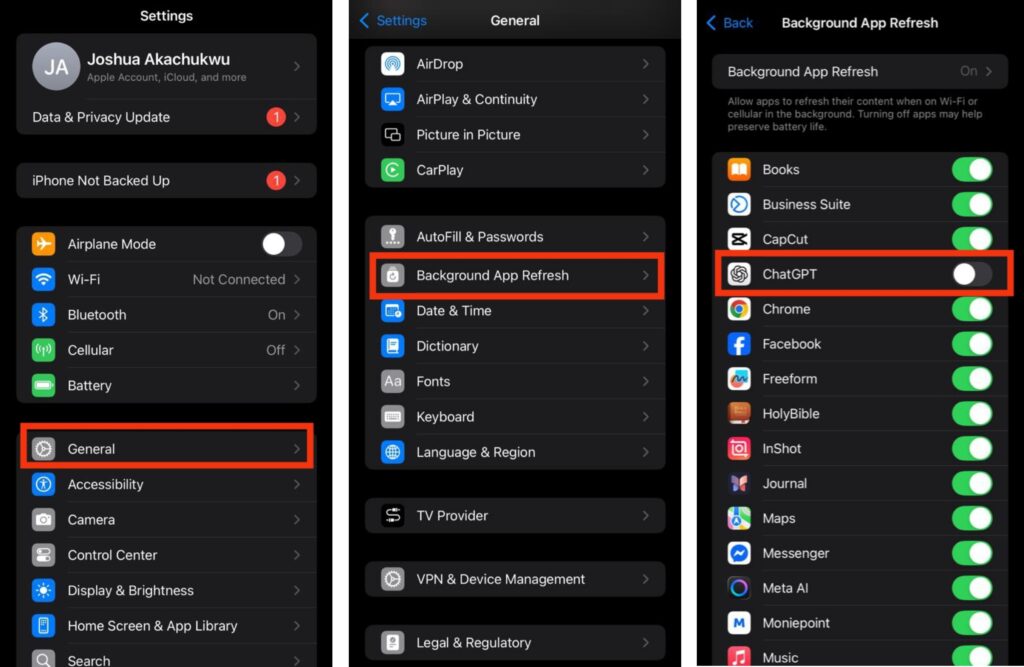
3. Turn Off Background App Refresh (iPhone)
On iPhones, Background App Refresh lets apps update content even when closed. Disabling this for ChatGPT can noticeably reduce battery drain. You’ll still receive notifications, but the app won’t continuously refresh in the background.
How to do it:
- Open the Settings app
- Tap General
- Select Background App Refresh
- Find ChatGPT
- Switch it Off
4. Enable Dark Mode
Dark mode can help conserve battery, especially on phones with OLED or AMOLED screens where darker pixels use less power. It also makes the screen more comfortable to use in low light.
How to do it:
- Open the ChatGPT app
- Go to Settings
- Select Appearance
- Choose Dark

5. Close the App Completely After Use
Minimizing an app does not always stop it from running. If you’ve had a long session, fully closing ChatGPT prevents unnecessary background activity. This is especially useful if you won’t be using the app again soon.
- Open recent apps
- Swipe away ChatGPT
Making these small adjustments can help you maintain better battery performance while still enjoying everything ChatGPT offers.
Conclusion
ChatGPT is an incredibly powerful tool, but like many internet-based apps, it can quietly drain your battery through background syncing, notifications, screen usage, and constant connectivity.
The good news is that small changes can make a noticeable difference. Managing notifications, restricting background activity, enabling dark mode, turning off background refresh, and closing the app after use are simple but effective ways to extend your battery life.
By applying these steps, you can continue enjoying ChatGPT without constantly worrying about your phone’s battery percentage.
Frequently Asked Questions (FAQs)
1. Does battery saver mode affect how ChatGPT works?
Yes. Enabling battery saver can limit background activity and reduce performance slightly. Notifications may be delayed, but the app will still function normally when opened.
2. Does updating the ChatGPT app improve battery life?
Yes. Updates often include performance improvements and bug fixes that reduce unnecessary background processes. Keeping the app updated ensures better efficiency.
3. Is it better to use ChatGPT on Wi-Fi instead of mobile data?
Generally, yes. Wi-Fi typically consumes less battery than mobile data, especially in areas with weak cellular signals.
4. Can using ChatGPT in a browser drain more battery than the app?
It depends. If you leave multiple tabs open or use heavy browser extensions, battery consumption may increase. Closing unused tabs helps conserve energy.
5. Does generating long responses use more battery?
Yes. Longer responses require more data transfer and processing time, which keeps your screen active and increases power usage.
6. Is it normal for ChatGPT to appear in battery usage statistics?
Yes. Since the app relies on internet connectivity and active processing, it will appear in battery usage reports if used frequently. However, unusually high usage may indicate background activity that needs adjustment.