

If you’re wondering why mobile data isn’t working on your Samsung phone, you’re not alone. This is a common issue that can disrupt browsing, streaming, and everyday app usage. Mobile data problems are often caused by incorrect settings, outdated APN details, SIM card faults, weak network signals, or temporary issues from your mobile carrier. The good news is that most of these problems are easy to fix. This guide explains the main causes of mobile data failure on Samsung phones and provides clear, practical steps to restore a stable internet connection quickly.
Top Reasons Why Your Mobile Data Might Not Be Working
Below are the most common reasons why your mobile data might not be working on your Samsung phone:
1. Incorrect APN (Access Point Name) Settings
APN settings act as the communication bridge between your Samsung phone and your carrier’s mobile network. If these settings are missing, outdated, or misconfigured, your phone may fail to connect to the internet, even when the mobile data icon is active. This problem often occurs after inserting a new SIM, updating the device software, or resetting network preferences. Because the APN controls how your phone accesses the carrier’s network, any small error can prevent mobile data from working properly.
2. Network Outages or Service Interruptions
Mobile data may stop working when your carrier’s network experiences outages or temporary service interruptions. These can be caused by high traffic, maintenance work, or severe weather affecting network infrastructure. Even if your Samsung phone is functioning normally, it cannot access the internet if the carrier’s network is disrupted, which can result in slow, unstable, or completely unavailable mobile data.
3. Disabled Data Roaming
Mobile data can stop working when data roaming is turned off, particularly if you are outside your carrier’s primary coverage area. Data roaming allows your Samsung phone to connect to other available networks when your home network is weak or unavailable. Without roaming enabled, your device cannot access the internet in these areas, making mobile data unavailable even though the phone itself is functioning properly.
4. Weak Network Signal
Mobile data may fail when your Samsung phone is in an area with a weak or unstable signal. Locations such as basements, rural areas, or buildings with thick walls can prevent your device from maintaining a reliable connection. Even if the signal bars appear full, the strength may be insufficient for consistent internet access, causing mobile data to stop working or become unreliable.
5. Data Usage Limit Reached
Mobile data can stop working when you exceed the data limit set by your carrier. Many providers apply monthly caps, and once your allowance is used up, they may slow down or restrict your connection. In this case, your Samsung phone may show mobile data as active, but internet access becomes extremely slow or unresponsive, since the network controls data speed based on your plan.
6. Mobile Data Is Turned Off
Mobile data may stop working simply because the feature is turned off on your Samsung phone. This can happen accidentally through Quick Settings, battery-saving modes, or when certain apps or system processes temporarily disable it. When mobile data is off, your device cannot access the internet, load web pages, or use online apps even if the signal appears strong and other settings seem normal. Since this switch directly controls your phone’s connection to the network, turning it off completely prevents any mobile data activity.
7. Software or System Updates Needed
Mobile data may stop working when your Samsung phone is running outdated software or apps. Older system versions can contain bugs or compatibility issues that interfere with how your device connects to the network. Without the latest updates, mobile data functions may become slow, unstable, or completely unresponsive. Since updates improve performance and ensure compatibility with your carrier’s network, missing them can directly affect your phone’s ability to access the internet reliably.
8. SIM Card Issues
Mobile data can fail when the SIM card in your Samsung phone is damaged, worn, dirty, or not properly seated in the tray. Even a minor misalignment can prevent the device from connecting to the network, resulting in dropped signals or a complete loss of mobile data. Since the SIM card identifies your line and links your phone to your carrier’s network, any issue with it directly affects your ability to access the internet.
9. Background Apps Consuming Data
Mobile data can stop working if certain apps or system processes interfere with your Samsung phone’s connection. Some apps, especially security apps, VPNs, or network-management tools, can block or restrict mobile data access. When these processes prevent the phone from connecting to the network, your device may show mobile data as active, but internet access will not work. These apps or settings can directly disrupt your ability to use mobile data until the interference is removed.
10. Carrier-Specific Problems
Mobile data may stop working when there are issues on your carrier’s side rather than with your Samsung phone. Network congestion, maintenance work, billing issues, or account restrictions can prevent your device from accessing the internet. Even if your phone shows full signal strength, these carrier-related problems can block or limit mobile data. Since your phone relies entirely on the carrier’s network and account status, any disruption on their end directly affects your ability to use mobile data.
How to Fix No Mobile Data on a Samsung
Below are the proven steps to fix mobile data issues on your Samsung phone. Follow these solutions to quickly restore a stable internet connection and get your device working properly again:
1. Update Your APN (Access Point Name) Settings
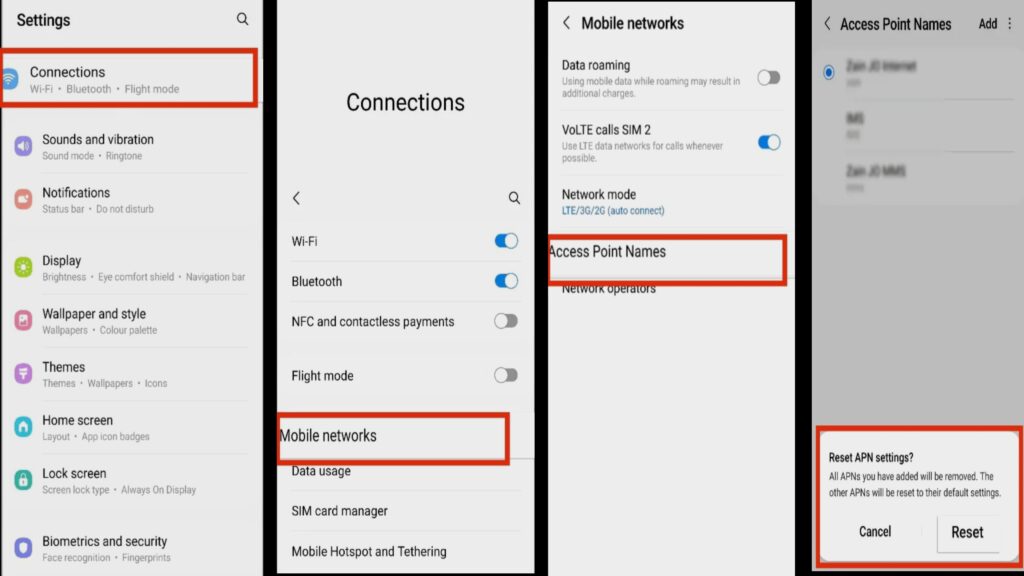
Updating your APN settings ensures your Samsung phone can properly connect to your carrier’s mobile network. If these settings are incorrect or outdated, mobile data will not work even when it appears active. To update them, open Settings, tap Connections, then select Mobile Networks and go to Access Point Names (APN). Compare the details shown with the official APN information provided by your carrier and correct any mismatched fields. Once updated, your phone should reconnect to mobile data normally.
2. Reset Network Settings on Your Samsung Phone
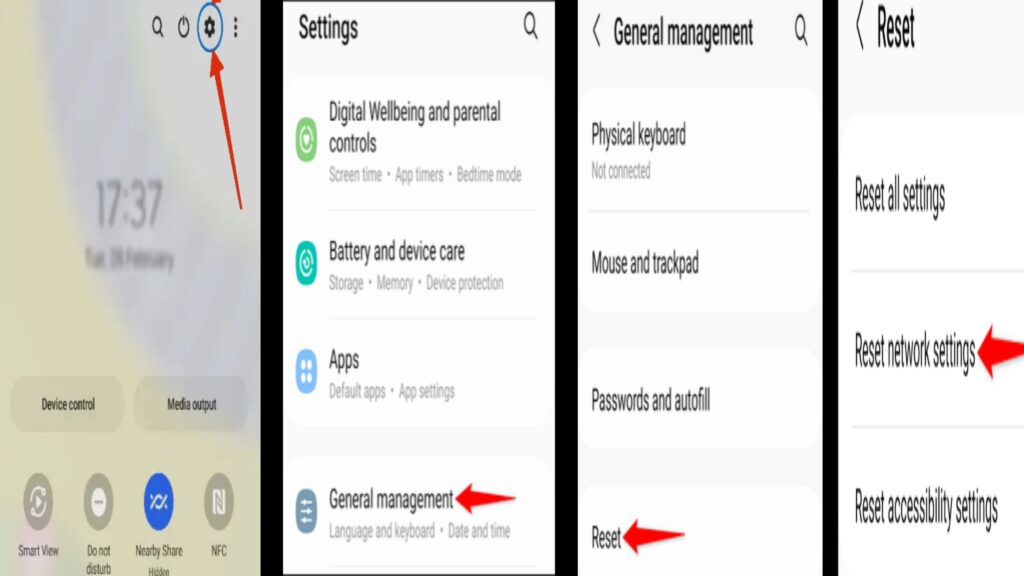
Resetting network settings helps fix mobile data issues by clearing corrupted or misconfigured connection settings. This process restores Wi-Fi, mobile data, and Bluetooth settings to their default state, allowing your Samsung phone to reconnect properly to the network. To do this, open Settings, tap General Management, select Reset, then choose Reset Network Settings. After the reset, your phone will refresh its network connections and mobile data should start working normally.
3. Check Your Mobile Data Settings
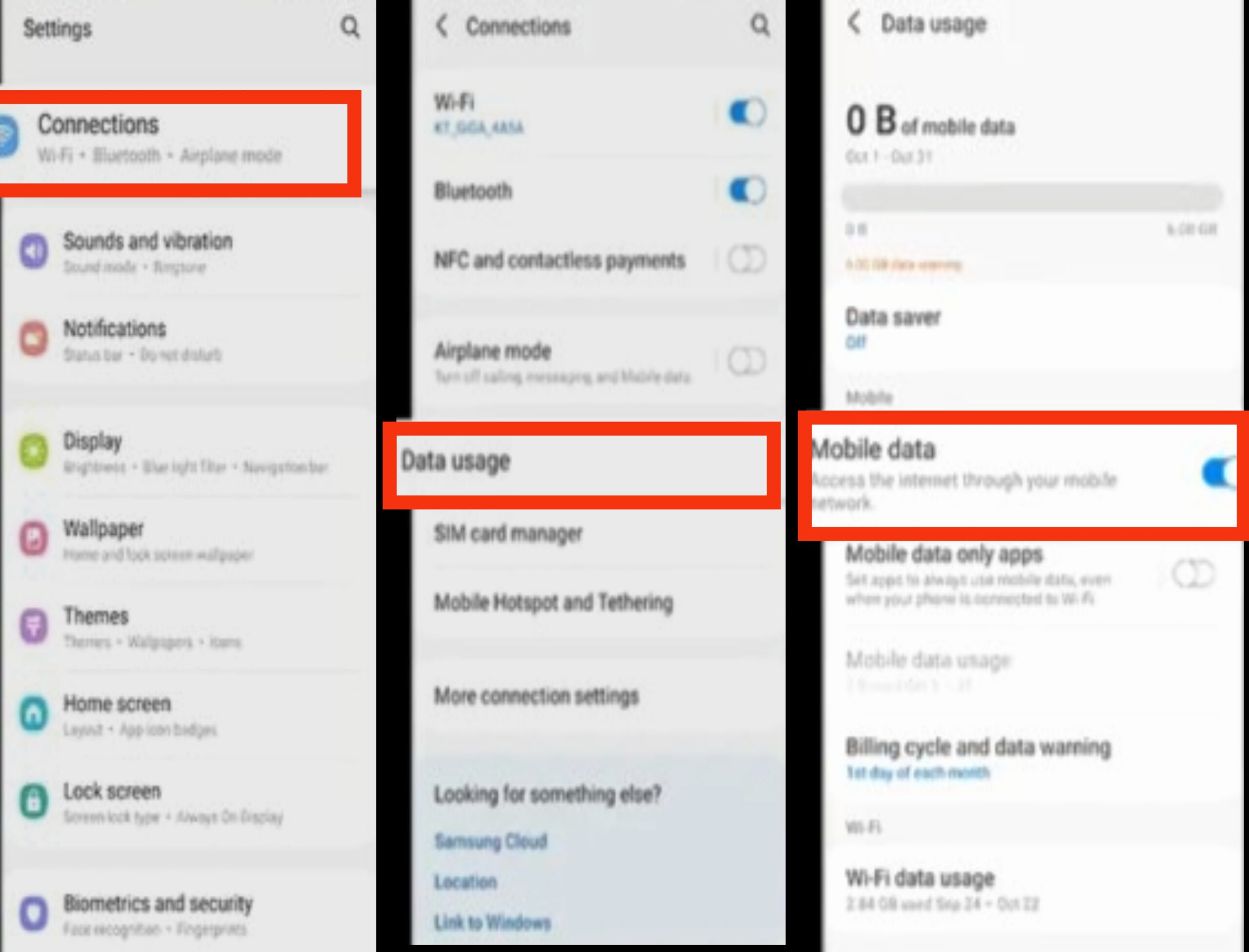
Ensuring that mobile data settings are correctly configured can quickly restore internet access on your Samsung phone. Open Settings, tap Connections, then select Mobile Networks. Confirm that Mobile Data is turned on, as disabling it prevents your phone from connecting to the internet through your carrier. If you are traveling or outside your primary coverage area, make sure Data Roaming is enabled so your device can access available networks and maintain a stable mobile data connection.
4. Restart Your Samsung Device
Restarting your Samsung phone helps fix mobile data issues by clearing temporary software glitches and refreshing network connections. Turning the device off and back on allows it to re-establish communication with your carrier’s network, which can restore mobile data functionality. This simple step often resolves connectivity problems quickly and improves overall system performance without requiring any advanced troubleshooting.
5. Ensure You Have a Data Plan and Sufficient Data Balance
Confirming that your mobile data plan is active and has sufficient balance is an important step in restoring internet access on your Samsung phone. If your plan has expired, your data limit has been reached, or there are unpaid charges, your carrier may restrict mobile data automatically. Check your account status using your carrier’s official app, website, or customer support to ensure your plan is active and data is available, allowing your device to reconnect to mobile data normally.
6. Toggle Mobile Data On and Off
Toggling mobile data off and back on helps refresh your Samsung phone’s connection to the carrier’s network. This simple action can clear temporary network glitches that prevent mobile data from working properly. To do this, swipe down to open Quick Settings, tap the Mobile Data icon to turn it off, wait a few seconds, then tap it again to turn it back on. This quick refresh often restores internet access without requiring further troubleshooting.
7. Update Your Samsung Phone Software
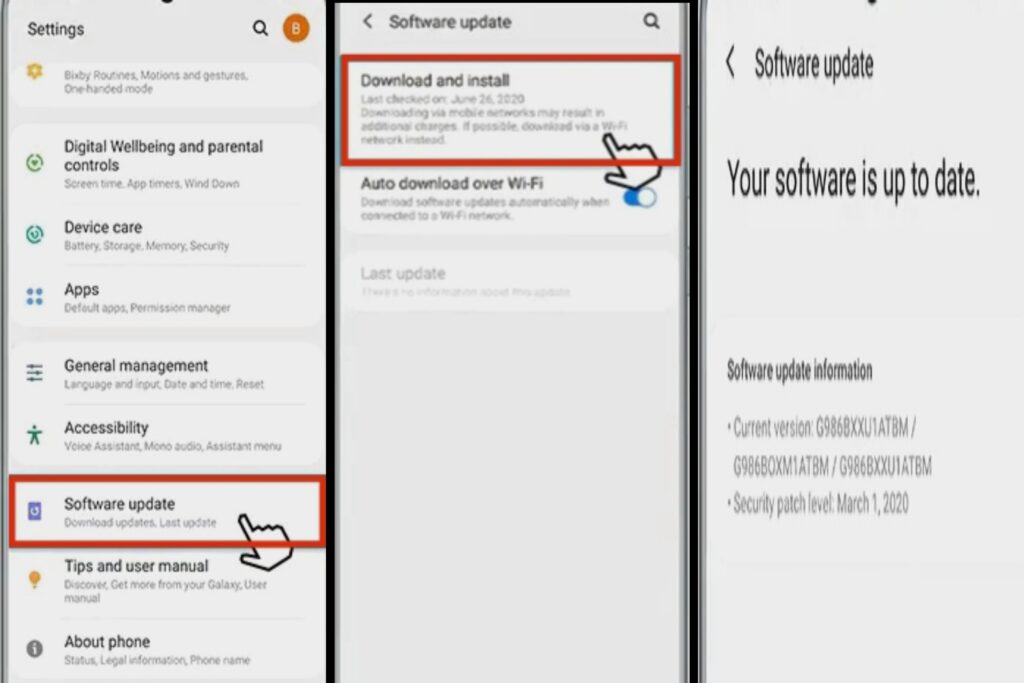
Updating your Samsung phone’s software helps fix mobile data issues by installing the latest bug fixes and network compatibility improvements. Outdated software can interfere with how your device connects to your carrier’s network, causing unstable or non-working mobile data. To update, open Settings, tap Software Update, then select Download and Install and follow the on-screen instructions. Keeping your phone updated ensures a more stable and reliable mobile data connection.
8. Try Using a Different SIM Card
Using a different SIM card helps determine whether the mobile data issue is caused by a faulty or damaged SIM rather than the Samsung device itself. Insert another working SIM card into your phone and check if mobile data functions normally. If the internet works with the new SIM, it indicates that the original SIM is defective or outdated. Replacing it through your carrier can quickly restore mobile data without affecting your device’s performance.
9. Contact Your Carrier for Support
Contacting your mobile carrier helps resolve mobile data issues that cannot be fixed on the device itself. Your carrier can check for network outages, confirm that your data plan is active, and identify any account or service restrictions affecting connectivity. They can also refresh your network settings or provide guidance specific to your Samsung phone and account. Reaching out to your carrier ensures the problem is not caused by external network issues and helps restore mobile data more efficiently.
Conclusion
Mobile data issues on Samsung phones are common but usually easy to fix. Most problems stem from incorrect settings, outdated software, SIM card issues, or carrier-related disruptions. By checking your APN, ensuring mobile data is on, restarting your device, updating software, or contacting your carrier when needed, you can quickly restore a stable internet connection. Following these steps not only resolves current connectivity problems but also helps prevent future disruptions, keeping your Samsung phone reliably connected for browsing, streaming, and app usage.
Frequently Asked Questions (FAQs)
1. Why does my Samsung phone show full signal but still no internet?
Even if your Samsung phone displays full signal bars, mobile data may not work due to issues like network congestion, incorrect APN settings, or apps that restrict internet access. These factors can prevent your phone from communicating with the carrier’s network properly. By checking your APN, refreshing your mobile connection, or temporarily disabling apps that might block internet access, you can usually restore a stable mobile data connection.
2. Can low battery or power-saving mode affect mobile data?
Yes, low battery levels or power-saving mode can limit mobile data usage on Samsung devices. When power-saving features are active, the phone may restrict internet access to conserve energy, which can make mobile data appear slow or unresponsive. Turning off power-saving mode or charging your device can help restore full connectivity and ensure your apps and services use mobile data properly.
3. Why does mobile data work on some apps but not others?
Mobile data may function on certain apps but fail on others if the apps have specific restrictions, outdated versions, or background data limitations. Sometimes, server-side issues in specific apps can also prevent them from connecting to the internet. Updating apps, allowing background data usage, and checking app-specific network permissions can help ensure consistent mobile data performance across all applications.
4. Can mobile data issues happen after switching carriers?
Yes, switching to a new carrier or using a new SIM card can lead to mobile data problems. Your Samsung phone may not automatically update APN or network settings for the new carrier, which can prevent internet access. Ensuring that your APN is correctly configured and confirming your mobile plan is active will typically resolve these issues and restore full mobile data functionality.
5. Why does my Samsung phone lose mobile data after moving from Wi-Fi?
Switching from Wi-Fi to mobile data can sometimes cause temporary connection delays or glitches. The phone may take a few seconds to fully re-establish its mobile network connection, and cached settings or apps can interfere with the transition. Restarting the device or toggling mobile data off and on often resolves this issue and restores reliable internet access.
6. How can I prevent my mobile data problem on my Samsung phone?
After reviewing the common causes and solutions listed above, you can prevent mobile data problems on your Samsung phone by regularly updating your APN settings, keeping your software and apps up to date, monitoring your data usage, checking your network signal, and ensuring your SIM card is correctly placed. Following these practices consistently helps maintain a stable connection, prevents interruptions, and ensures your device stays reliably connected for browsing, streaming, and using apps. We hope these steps help you avoid future mobile data issues and enjoy uninterrupted connectivity.