
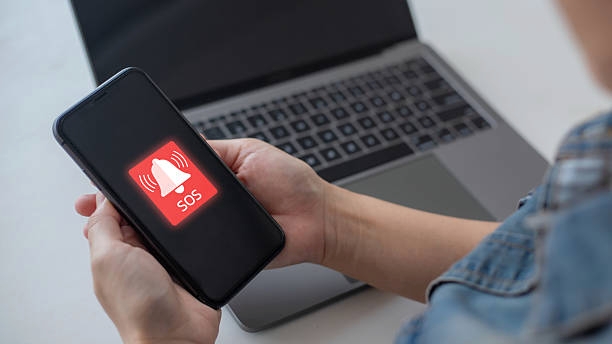
Have you ever glanced at the top of your screen and noticed your phone showing “SOS” or “SOS Only” where your normal network bars should be? This can be confusing and even a little alarming, especially if you’re not sure what it means. In simple terms, this message appears when your phone has lost its regular cellular connection but can still reach emergency services. In this guide, we’ll explain exactly why your device shows this alert, what it means for your network connection, and the steps you can take to restore normal service.
What is SOS Mode?
SOS mode is a built-in safety feature that allows your phone to make calls to emergency services even when it cannot connect to your regular network. When you see “SOS” on the screen, it means your usual carrier connection is unavailable, and your device will try to route emergency calls through any compatible network it can find. On newer iPhone models, this feature can even send emergency messages via satellite if there is no cellular signal. While SOS mode can be lifesaving, it sometimes appears accidentally, which is why it’s helpful to understand what triggers it and how to turn it off when it’s not needed.
Why Your Phone Shows “SOS Only”: 6 Common Reasonso
If your phone suddenly displays “SOS Only,” it usually means something is preventing it from connecting to your regular mobile network. This doesn’t always mean your device is broken it could be due to several different issues. Below are the most common reasons this message appears, along with what they mean.
1. Roaming Issues
If you’re traveling internationally, your phone may display “SOS Only” because it cannot connect to local mobile networks. This typically happens when your plan does not include international roaming, or when your carrier has no roaming agreement with networks in that country. In these situations, your phone can detect available networks but cannot use them for regular calls, messages, or mobile data. The only service that remains active is emergency calling, ensuring you can still reach help if needed.
2. Weak or No Network Coverage
Sometimes your phone shows “SOS Only” simply because you’re outside your carrier’s coverage area. When you’re in a place with weak signal or no network service at all, your device can’t connect to its regular mobile network. In this situation, the phone automatically switches to SOS mode, allowing you to reach emergency services. This happens because emergency calls require very little signal strength, which is why they remain available even in remote or hard-to-reach locations where normal calls and mobile data won’t work.
3. Software Glitch After Update
Sometimes, after a system update, your phone may experience a temporary software glitch that interferes with its ability to connect to the mobile network. These glitches can occur due to minor bugs in the update or conflicts with your phone’s existing settings. When this happens, the device might display “SOS Only” even though the network is available, simply because the software is not communicating properly with the carrier.
4. SIM Card or Network Registration Issues
A common reason your phone may display “SOS Only” is a problem with the SIM card or how your device registers with the mobile network. If the SIM card is loose, damaged, or not inserted correctly, the phone may fail to connect properly to the carrier, leaving only emergency calls available. Sometimes, temporary network registration errors can also occur, such as when the system cannot verify your account or encounters brief communication issues with the network. These issues prevent the phone from fully connecting, which triggers the SOS alert.
Also read: How to Fix SIM Not Provisioned Error on your phone Networks (2025 Guide)
5. Airplane Mode Accidentally Turned On
A common reason your phone may display “SOS Only” is that Airplane Mode has been accidentally enabled or turned on without realizing it. When this mode is active, your device disconnects from all mobile networks, including cellular calls, text messaging, and mobile data. As a result, the phone can no longer access your regular carrier network, leaving only emergency calls available. This can happen easily if the setting was switched on during travel, while adjusting quick settings, or even by accidentally pressing the mode toggle. Even in areas with strong network coverage, the phone will remain in SOS mode until Airplane Mode is turned off.
6. Other Technical Issues
In some cases, your phone may show “SOS Only” due to less common technical problems that interfere with connectivity. These issues could include hardware malfunctions such as a faulty antenna, internal damage from drops or water exposure, or even conflicts with third-party apps that affect network performance. While these problems are not as frequent as network outages or SIM card errors, they can still disrupt your phone’s ability to connect to its carrier. If basic troubleshooting steps like restarting the device, resetting network settings, or updating the software don’t help, the best option is to have the phone inspected by a professional technician or contact your carrier for further support.
How to Fix the “SOS Only” Issue on Your Phone
Seeing “SOS Only” on your phone can be frustrating, but in most cases, it can be resolved quickly. This message usually appears when your device cannot connect to your normal network. Below are five effective steps to restore regular service and get your phone working properly again.
1. Toggle Airplane Mode
One of the quickest ways to address the “SOS Only” message is by turning Airplane Mode on and then off. When enabled, Airplane Mode temporarily disconnects your phone from all cellular and data networks. Switching it off forces your device to reconnect to your carrier, which can resolve minor network interruptions or technical glitches. Often, this simple step restores normal service immediately without additional troubleshooting.
2. Restart Your Phone
If toggling Airplane Mode doesn’t work and there’s no reported network issue, restarting your phone is the next reliable step. Rebooting closes all running processes and reloads your system functions, giving the device a fresh start. This helps the phone reconnect to the mobile network, clears temporary glitches, and reestablishes communication between the SIM card and network towers. In many cases, a restart alone removes the “SOS Only” message and restores full service.
3. Toggle Cellular Data
If restarting the phone doesn’t resolve the issue, try turning your cellular data off and back on. This forces the device to reset its current network session and attempt a fresh connection with your carrier. Temporarily disconnecting and reconnecting can fix small errors that build up over time, especially if the phone recently switched between Wi-Fi and mobile data or moved through areas with weak signal. This quick action often restores a stable connection and removes the “SOS Only” alert without further troubleshooting.
4. Manually Select Your Carrier
When previous steps fail and network coverage is available, manually selecting your carrier can help. Some phones struggle to automatically connect to the correct network, particularly where multiple carriers operate in the same area. By going into your network settings and selecting your carrier, you allow the phone to reconnect directly and bypass automatic searches that might be failing. This often restores service and clears the “SOS Only” message efficiently.
5. Contact Your Carrier
If none of the previous steps work, contact your mobile carrier for support. Their team can check your account for restrictions, identify temporary outages, and guide you through troubleshooting tailored to your device and service plan. Carriers can quickly determine if the issue is related to your SIM card, account status, or network errors. Getting expert help ensures you restore full connectivity without unnecessary trial and error.
Ways to Fix “SOS” & “SOS only” on iPhone
1. Find Better Cell Service
Your iPhone may show “SOS” or “SOS Only” when the network signal is too weak for normal calls and data. This often happens in areas with poor coverage or inside buildings where thick walls block the signal. Moving closer to a window, going outside, or standing in a more open area can help your phone reconnect. You can also check your carrier’s coverage map or confirm if there’s a temporary network outage. Once the signal improves, the SOS message usually disappears on its own.
2. Refresh Your Cellular Data Connection
If your iPhone displays “SOS” or “SOS Only,” a quick way to fix it is by refreshing your cellular data. Go to Settings > Cellular, turn Cellular Data off, wait about 10 seconds, then turn it back on. This forces your phone to reconnect to your carrier’s network and can clear small glitches that interfere with normal service.
When traveling internationally, ensure Data Roaming is enabled (Settings > Cellular > Cellular Data Options > Data Roaming) so your phone can access networks outside your usual coverage area. Keep in mind that roaming may involve additional charges. This simple step often restores connectivity quickly without needing further troubleshooting.

3. Update Your Carrier Settings
Your iPhone may show “SOS” or “SOS Only” if the carrier settings are outdated. To check, go to Settings > General > About. If an update is available, your iPhone will prompt you to install it.
Updating ensures your device has the latest network information, which can improve signal, resolve roaming issues, and maintain reliable connections for calls and mobile data. Regularly keeping carrier settings current helps prevent the SOS alert from appearing due to outdated or mismatched configurations, keeping your phone connected and reliable.
4. Restart Your iPhone
If your iPhone shows “SOS” or “SOS Only,” restarting it can often fix the issue. A reboot refreshes the device’s connection to the network and resolves minor software glitches that may interfere with normal service. The restart process depends on your iPhone model:
- iPhone X or later: Press and hold a volume button and the side button until the slider appears, then turn off and restart.
- iPhone 6, 7, 8, and 2nd generation SE: Hold the side button until the device powers off.
- iPhone 5 and 1st generation SE: Hold the top button to restart.
Restarting ensures your iPhone reconnects to your carrier, often clearing the SOS alert and restoring normal functionality quickly.

5. Take Out and Reinsert Your SIM Card
If your iPhone has a physical SIM card, it may have shifted or need a refresh, causing the “SOS” or “SOS Only” message. Turn off your phone, use a SIM ejector tool to remove the tray, check the SIM for dirt or damage, then reinsert it securely and power the device back on. This simple step often restores connectivity and removes the SOS alert for many users, making it one of the most effective fixes for network issues.

6. Reset Network Settings
Resetting your iPhone’s network settings can fix the “SOS” or “SOS Only” message, especially if other steps haven’t worked. This clears saved Wi-Fi networks, Bluetooth connections, and other network settings, giving your device a fresh start to reconnect to your carrier. Go to Settings > General > Transfer or Reset iPhone > Reset > Reset Network Settings. You’ll need to re-enter Wi-Fi passwords and VPN settings afterward, but this step often resolves persistent SOS alerts caused by misconfigurations or glitches.
Also read: Why Does My iphone get hot
Conclusion
Seeing “SOS” or “SOS Only” on your phone can be alarming, but don’t be scared or frustrated. This alert is simply a safety feature that ensures you can still make emergency calls when your regular network is unavailable. Most cases occur due to weak signal, roaming restrictions, SIM card issues, or minor software glitches. Simple steps like toggling Airplane Mode, restarting your phone, refreshing cellular data, or checking carrier settings usually fix the problem. I’ve even seen a friend experience this exact issue, and after following the steps in this guide, it was resolved successfully. By following these methods carefully, you can also clear the SOS message and restore your phone’s normal service.
Frequently Asked Questions (FAQ)
1. Why does my iPhone show “SOS Only” instead of signal bars?
When your iPhone displays “SOS” or “SOS Only” at the top of the screen, it means the phone has lost its normal carrier signal but can still reach emergency services. This can happen if you are in an area with poor reception, if your plan doesn’t support roaming in a region you’re visiting, or if there’s a temporary issue with your SIM card. In most cases, it’s a network problem and not a sign that your device is faulty. Simply moving to an area with better coverage or refreshing your network connection usually clears the message.
2. How do I get rid of the “SOS Only” message on my phone?
The quickest way to fix the “SOS Only” issue is to refresh your connection. Start by turning Airplane Mode on and off, restarting your device, or taking out and reinserting your SIM card. If that doesn’t work, check your settings for carrier updates or try selecting your network manually. Sometimes, the message appears due to temporary glitches, and a simple restart solves it. However, if the problem continues for hours, the best step is to call your mobile provider and ask if there is an outage or a restriction on your account.
3. Does “SOS Only” mean my phone is locked or broken?
Not at all. Many people worry that seeing “SOS Only” means their phone is damaged, blocked, or no longer usable, but that’s not the case. The message is simply a status indicator showing that your phone cannot connect to your usual network. The device itself is still fine you just can’t make normal calls, send texts, or use mobile data at that moment. Once you’re back in coverage or after a quick reset, your normal signal bars should return, and your phone will work as usual.
4. Can I use mobile data when my phone says “SOS” or “SOS Only”?
No when your phone is in SOS mode, regular services like mobile data, texts, and calls to friends or family won’t work. The only feature that remains available is emergency calling, which ensures you can reach help if needed. To get mobile data working again, you’ll need to reconnect to your carrier. This might mean moving to a place with stronger reception, restarting your phone, or checking that roaming and network settings are correctly set up. Once your phone reconnects, mobile data and calls will work normally again.
5. Why does my phone say “SOS Only” but others on the same network have service?
If your phone shows “SOS Only” while others nearby still have signal, it usually points to an issue with your specific device. This could be a loose or faulty SIM card, outdated carrier settings, or a small glitch that prevents your phone from registering on the network. Try reseating the SIM card, resetting your network settings, or restarting your phone to refresh the connection. If the problem happens often, ask your carrier for a SIM replacement or have your phone checked by a technician to rule out hardware faults like a weak antenna.