
A slow Android phone can be frustrating. Apps take longer to open, scrolling feels laggy, and sometimes the device even freezes unexpectedly. Many people assume their phone is old or damaged when it starts slowing down, but in most cases, the issue isn’t the device itself. Android phones often become slow due to low storage space, too many background apps, outdated software, or system overload. The good news is that you can fix most of these problems without buying a new phone. In this guide, you’ll discover practical and proven ways to speed up your Android phone and improve its performance quickly.
Why Android Phones Become Slow
Below are the most common reasons Android devices experience lag and performance issues:
1. Too Many Installed Apps
Installing too many apps can overload your device. Even when you’re not actively using them, some apps run background processes, use memory (RAM), and consume system resources, which reduces overall speed.
2. Low Storage Space
When your internal storage is almost full, your phone struggles to create temporary files needed for smooth operation. This can lead to slow app loading times, freezing, and delayed responses.
3. Outdated Software
Running an old Android version may cause compatibility issues and performance bugs. Software updates often include optimizations and security patches that help your device function more efficiently.
4. Malware or Suspicious Apps
Downloading apps from untrusted sources can introduce harmful software that runs silently in the background, consuming resources and slowing down your phone.
5. Excessive Background Activity
Some apps constantly sync data, send notifications, or refresh content in the background. Over time, this continuous activity reduces available memory and processing power.
Also read: Why Is My Phone Charging Slowly Even With a Fast Charger?
Proven Ways to Fix a Slow Android Phone
Below are practical and proven methods to speed up your phone, improve responsiveness, and keep it running smoothly:
1. Restart Your Phone
Restarting your Android phone is one of the simplest yet most effective ways to fix slow performance. When your device runs for days without a reboot, temporary glitches and background processes can accumulate, causing lag. To restart, press and hold the power button, select Restart, and wait for the phone to reboot. This quick step often resolves minor issues and should be your first move before trying other solutions.
2. Clear Cached Data
Apps store temporary files called cache to help them run faster, but when this builds up, it can slow down your phone. To clear cache, go to Settings > Apps , select an app,>Storage and tap Clear Cache. Focus on heavy apps like , , , and . Avoid using Clear Data unless absolutely necessary, as it deletes app settings and login information.

3. Uninstall Apps You Don’t Use
Having too many apps installed can take up storage, run in the background, and slow down your phone. Remove apps you haven’t used in months to free up space and improve performance. To uninstall, long-press the app icon and tap Uninstall. Clearing unused apps gives your phone more storage and helps it run faster.
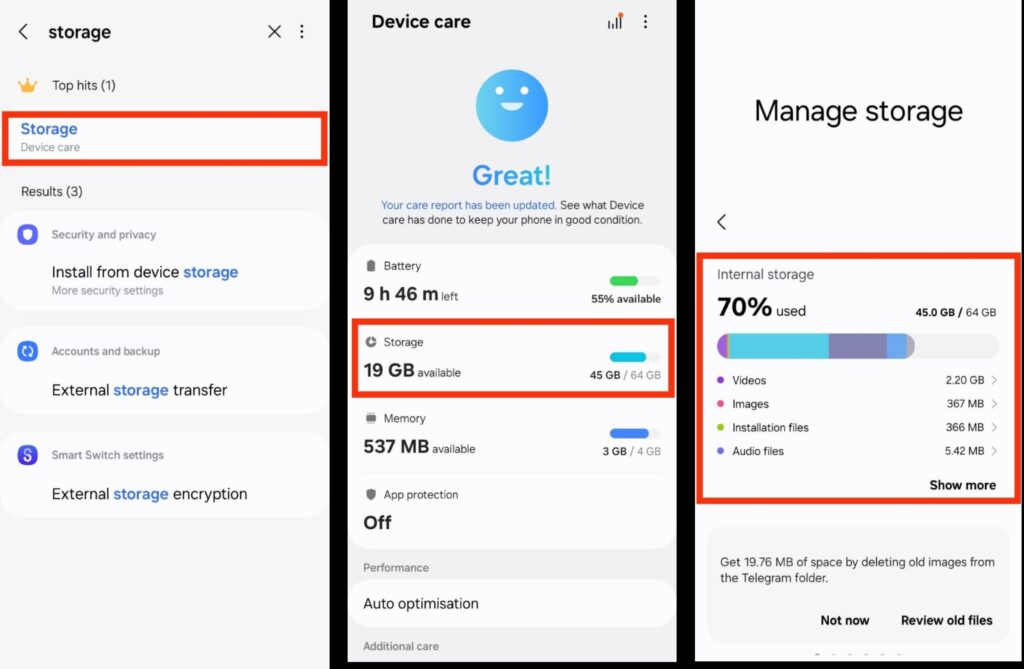
4. Free Up Storage Spaces
When your phone’s storage is nearly full, it can slow down significantly. Check your storage by going to Settings > Storage. If you’re using more than 80%, free up space by deleting old videos, removing duplicate photos, clearing downloads, or moving files to Google Drive. More free storage helps your phone run smoothly and improves overall performance.
5. Turn Off Background Apps
Many apps continue running in the background even when you’re not actively using them, which can slow down your phone and drain battery life. To limit this, go to Settings > Battery > App Battery Usage, then review the apps consuming the most power and restrict those you don’t need running constantly. Reducing background activity can noticeably improve both your phone’s speed and overall battery performance.

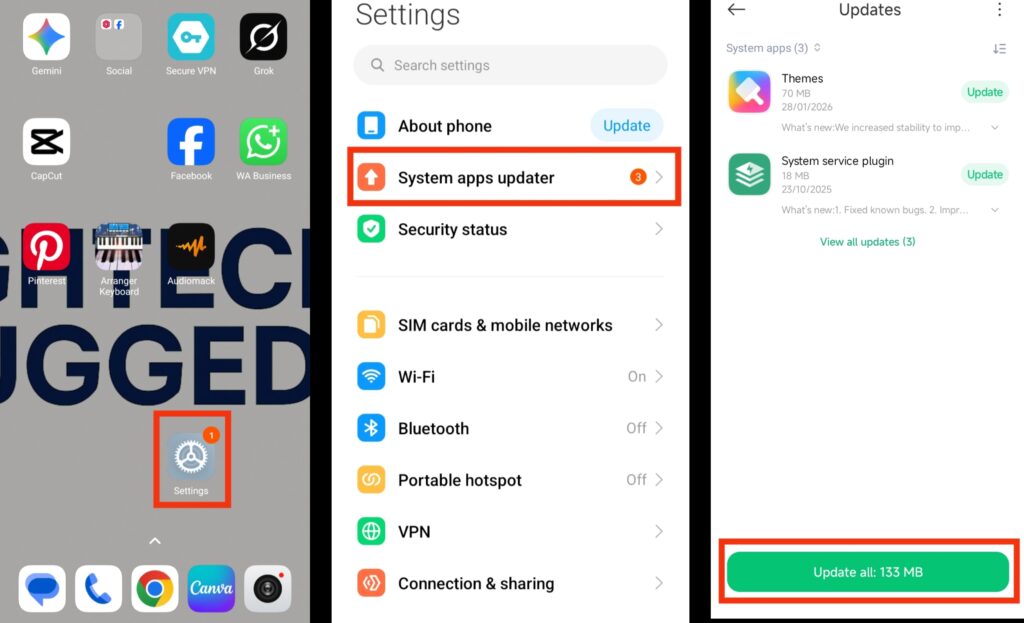
6. Update Your Android System
Your phone may feel slow due to software bugs or performance issues in the current version of Android. Keeping your system updated can fix these problems and improve stability. To check for updates, go to Settings > System > Software Update and install any available updates. New updates often include performance improvements, security patches, and bug fixes that help your device run more smoothly.
Also read: How to Turn off Samsung Phone
Conclusion
A slow Android phone does not automatically mean it is old or damaged. In most cases, the issue is caused by limited storage, too many background apps, outdated software, or temporary system glitches. By identifying the cause and applying the right fixes—such as restarting your device, clearing cache, freeing up storage, and keeping your system updated—you can significantly improve performance without spending money on a new phone. Regular maintenance and mindful app management will help keep your Android device running smoothly for a long time.
Frequently Asked Questions (FAQs)
1. How often should I restart my Android phone?
For smooth performance, restarting your Android phone once every few days is recommended. Regular reboots help clear temporary system processes and refresh memory, which can prevent lag from building up over time.
2. Does using a live wallpaper slow down an Android phone?
Yes, live wallpapers can affect performance, especially on older or budget devices. They use additional processing power and battery. Switching to a static wallpaper can slightly improve speed and responsiveness.
3. Can a slow internet connection make my phone feel slow?e
Absolutely. If your internet connection is weak or unstable, apps may take longer to load content, which can feel like your phone is slow. Checking your Wi-Fi or mobile data connection can help determine if the issue is network-related.
4. Will a memory card improve my phone’s speed?y
A memory card can help free up internal storage if you move photos and videos to it. However, it does not directly increase RAM or processing power. Performance improves mainly when internal storage has enough free space.
5. Why does my Android phone slow down after an y?
Sometimes after a major system update, your phone may temporarily slow down while apps adjust and optimize in the background. This usually improves after a few hours or a day of normal use.
6. Is using a phone cleaner app necessary?
Most modern Android phones already include built-in storage and optimization tools. Installing multiple cleaner apps can sometimes do more harm than good, especially if they run constantly in the background. an